
How to Let Users Subscribe to Authors in WordPress
Have you ever wanted to let your users subscribe to specific authors of your blog? If you have a site where several journalists work, you should think about letting your visitors subscribe to their favorites. In this article we will show you how to do it.
Why Add Author Subscriptions?
WordPress generates RSS feeds for all authors, categories, tags, post types and comments on your site. However, your users will not see these links unless they know where to look. As the site owner, you need to add subscription links and options so that people can subscribe to authors.
Adding the Ability to Subscribe to Authors
Every author on your site has their own RSS feed. Its address looks roughly like this:
Do not forget to replace tom with the name of an existing author. Many site themes have a special block at the end of an article where the author’s biography is displayed. This is a great place to add a link to their RSS feed so that readers can subscribe directly to that author’s updates.
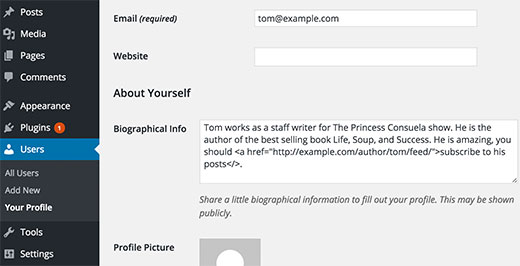
Adding an Automatic Subscription Link
You can generate the link automatically and use a shortcode to insert it into posts manually. To do this, add the code to your theme’s functions.php file or to a custom plugin created specifically for your site.
// Function to generate author's RSS feed link
function wpb_author_feed() {
    $author_id = get_the_author_meta('ID');
    $author_feed = get_author_posts_url($author_id) . 'feed/';
    $author_name = get_the_author_meta('display_name');

    return '<a href="' . esc_url($author_feed) . '" class="author-subscribe-link">'
           . 'Подписаться на посты ' . esc_html($author_name) . '</a>';
}

// Create a shortcode to display the link
add_shortcode('authorfeed', 'wpb_author_feed');

// Enable shortcode execution in WordPress text and block widgets
add_filter('widget_text_content', 'do_shortcode');
add_filter('widget_block_content', 'do_shortcode');
Now you can use the [authorfeed] shortcode in your posts and a link to the RSS feed of the post’s author will be generated automatically. You can change the link text however you like.
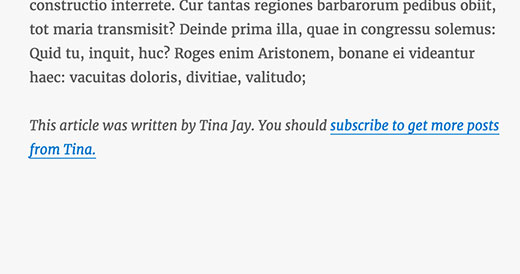
Note that an RSS link does not create a real subscription — it simply opens the author’s XML feed. To subscribe, the user needs to add this link to their feed reader app (for example, Feedly, Inoreader or NewsBlur).
Adding an Author Subscription Link to the Sidebar
Now that the shortcode is ready, you can add the RSS subscription link to your site’s sidebar. Go to Appearance > Widgets and add a Text or Custom HTML widget to the sidebar area where you want to place the link. In the text field paste the [authorfeed] shortcode, then click Save.
Important: this shortcode works correctly only on single post pages, where WordPress has the context of the current author. If you add it to the home page or an archive page, the link will not know which author the post belongs to and therefore will not display correctly.
For everything to work correctly, you need to limit the widget so it is shown only on post pages.
You can do this in the following ways:
-
Through the widget block editor (Gutenberg Widgets):
when adding a “Shortcode” or “HTML” block to the widget area, click it → in the sidebar choose “Display conditions” (if supported by your theme or a plugin such as Widget Options or Block Visibility).
Specify the condition: Show only on Single Posts. -
With the Widget Options plugin:
install Widget Options, open the settings of the widget you need and tick “Show on → Post Types (marked with a pin icon) → Posts”.
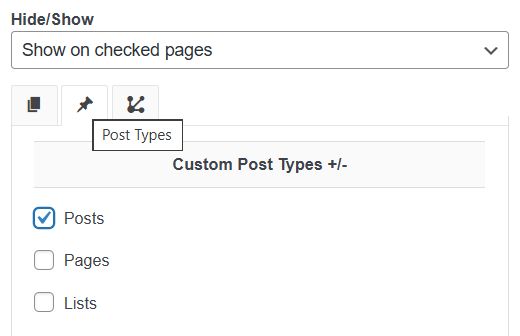
Now when viewing any article, the sidebar will display the correct RSS feed link for exactly the author who wrote the post. You can use a little CSS to create a nice button or add a subscription icon.
Using RSS links remains the simplest and most reliable way to let users subscribe to a specific author: each reader gets updates from exactly the author they are interested in, and no complex settings or extra plugins are required. At the same time, modern methods such as email subscriptions or push notifications are becoming more and more popular and widely used for general subscriptions to a site. We have described in detail how to set up subscriptions via email and push in separate articles.
Our specialization is WordPress website development and maintenance. Contact us for a free consultation — [email protected], +371 29394520
