How to Set Up Email Subscription on a WordPress Site with MailPoet
Email subscription is a great way to hold readers’ attention and bring them back to the site every time new posts appear. There are many solutions for email subscriptions: Jetpack, Newsletter, FluentCRM and others. In this article we use MailPoet. It lets you create subscription forms, manage reader lists and automatically send out updates.
Setting Up MailPoet
After installing and activating the MailPoet plugin, WordPress will offer to go through a short setup — click Begin Setup and complete the three steps of the wizard.
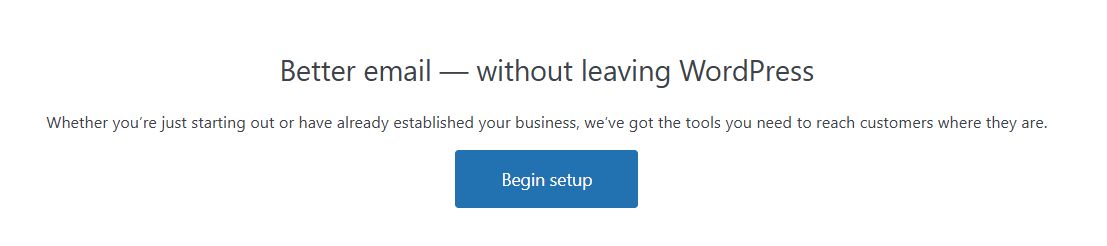
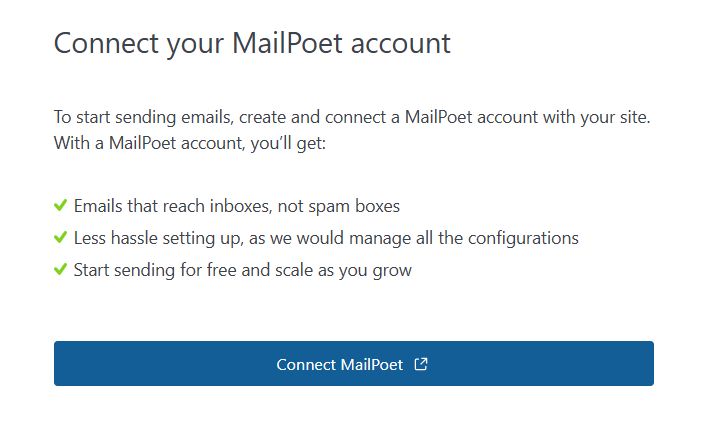
Specify the sender of the emails — the name and email address from which emails will come to subscribers. Confirm the privacy and data settings. Connect your MailPoet account — click Connect MailPoet — this will create or link your site with the MailPoet service, ensuring reliable delivery of emails to the inbox rather than to spam. On the free plan you can send emails to a limited number of subscribers; if necessary, the plan can be expanded later.
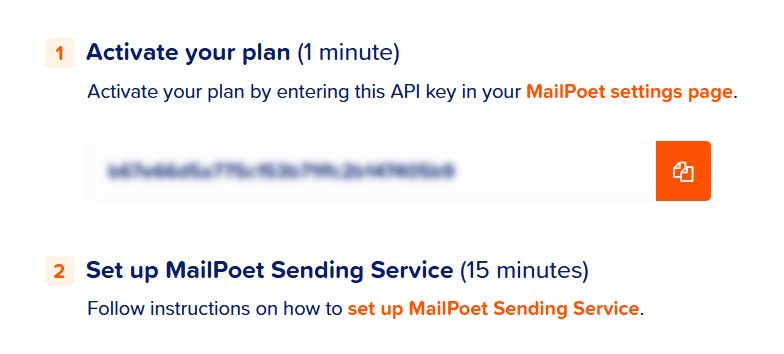
Registration takes only a couple of minutes and includes several steps: entering an email address, the site name and confirming the account. At the last step you need to activate the chosen plan by pasting the provided API key into the setup wizard form in WordPress. After that follow the instructions for setting up the MailPoet sending service so that emails are delivered to the inbox rather than to spam.
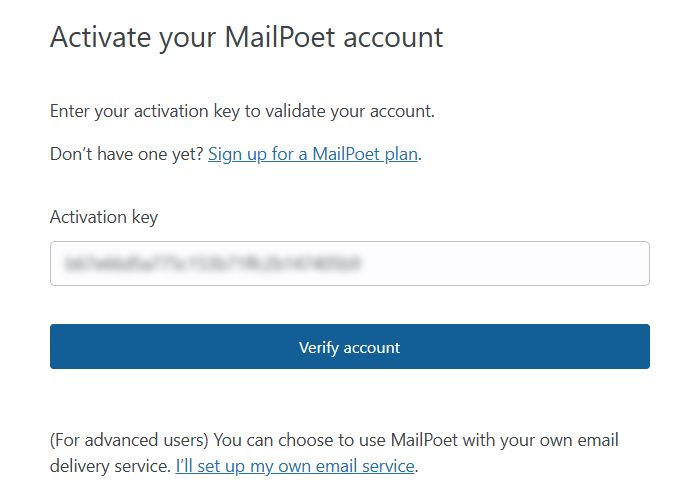
After the account is connected successfully you will see the message MailPoet account connected. Click Start using MailPoet to go straight to the plugin’s dashboard.
Creating a Subscription Form
Create a subscription form via MailPoet → Forms → Add New Form. When creating a form you can choose a ready-made template from the MailPoet library or build the form from scratch. A ready-made template already contains an email field and a “Subscribe” button, and it can be edited with the drag-and-drop editor, changing the text, colors, buttons and other elements. If you create a form from scratch, add blocks manually — an email field, a submit button, text blocks and images — styling the form to match the site’s design.
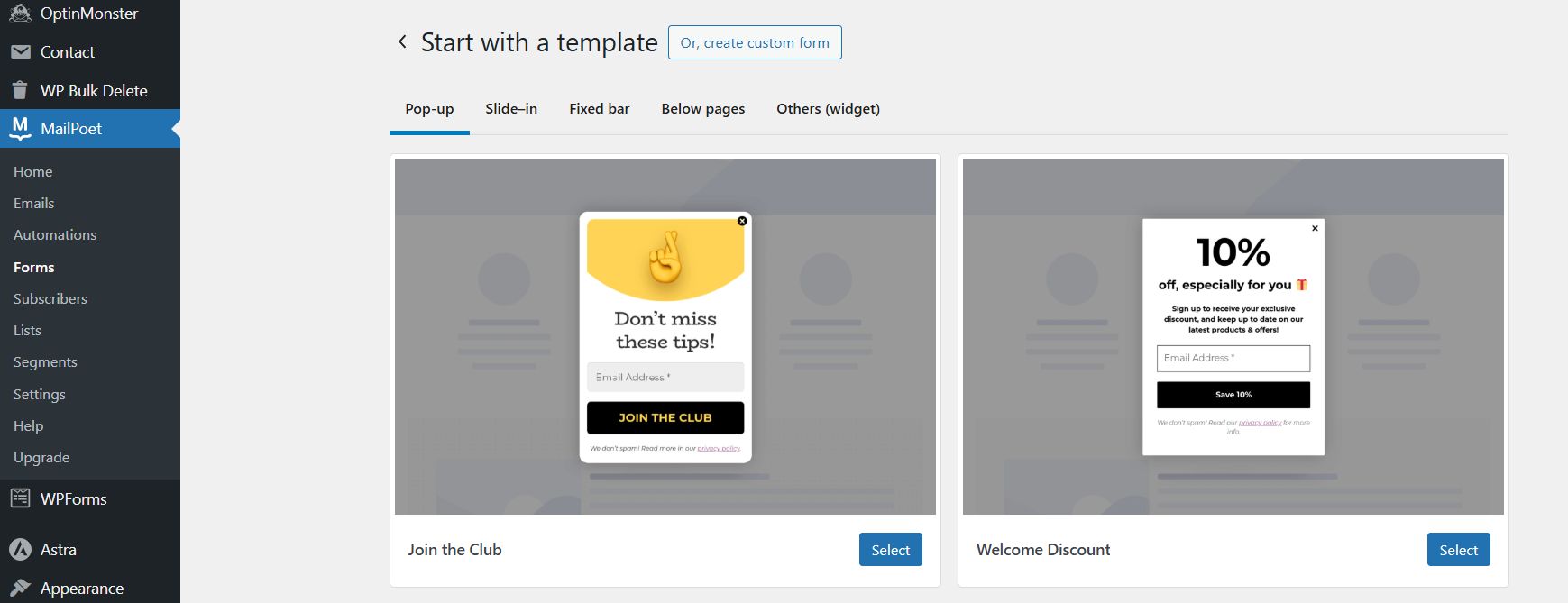
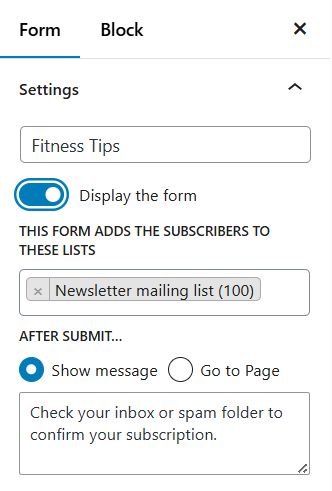
After configuring the form in the MailPoet editor, choose the mailing list and other parameters in the settings sidebar, for example: the form name, the list of recipients, the message after submission, the styles and the placement of the form.
In the Form Placement section you can choose different ways of displaying the form, for example a pop-up, a slide-in or below the page. In this case the form will automatically appear in the chosen position on the site.
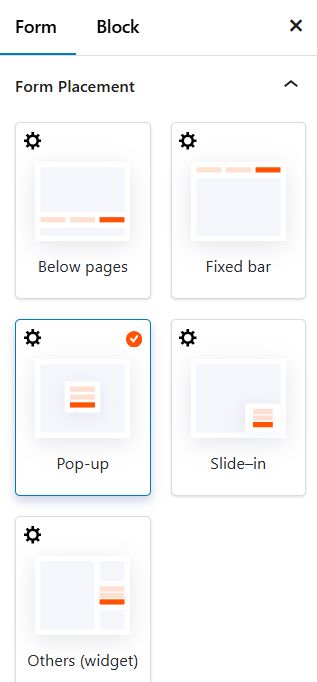
If you want to use the form via a shortcode, for example to insert it in a sidebar widget or a Gutenberg block, you need to choose the Others (widget) option. Only then will a shortcode, for example [mailpoet_form id=”1″], appear when you edit the form, which you can copy and paste into the place you need on the site.
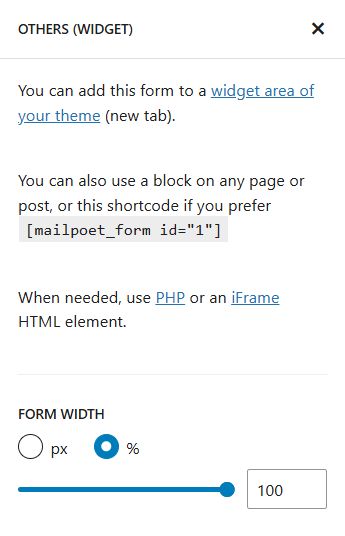
For sidebar widgets use the Shortcode or Custom HTML block, pasting the copied form shortcode. For Gutenberg pages simply add the MailPoet Form block or paste the shortcode directly.
Setting Up Automatic Emails About New Posts
In MailPoet you can create several types of emails: one-off newsletters, automatic notifications about new posts, welcome emails for new subscribers and so on. In this article we will use the automatic email notifying about the latest posts (Latest Post Notifications). To notify subscribers about new articles on the site, choose this email type (MailPoet → Emails → New Email → Latest Post Notifications).
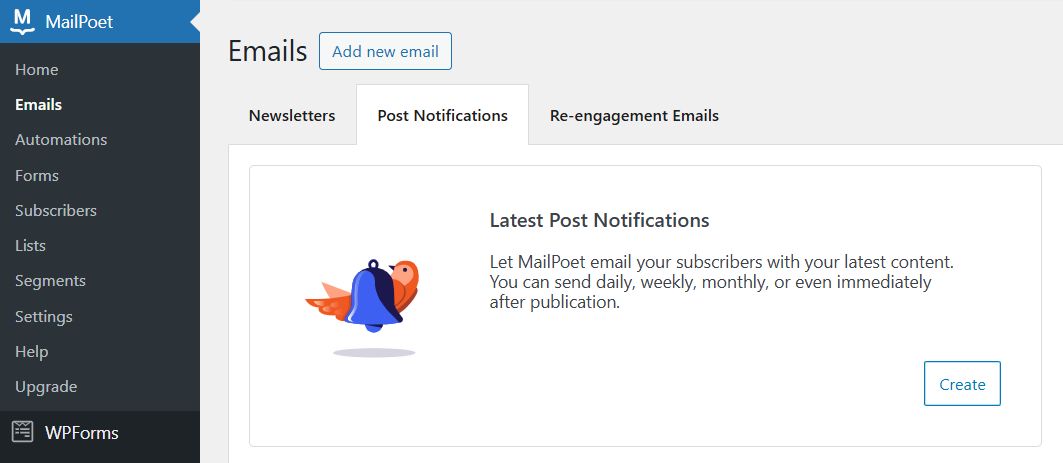
After you choose to create a new automatic email, the first thing that appears is a window asking “When to send this post notification email?” — here you need to specify how often MailPoet will check for new posts and send emails. For example, you can choose Once a day at 12:00 am or Immediately after a new post is published. After choosing the frequency click Next.
Then the template selection screen will open.
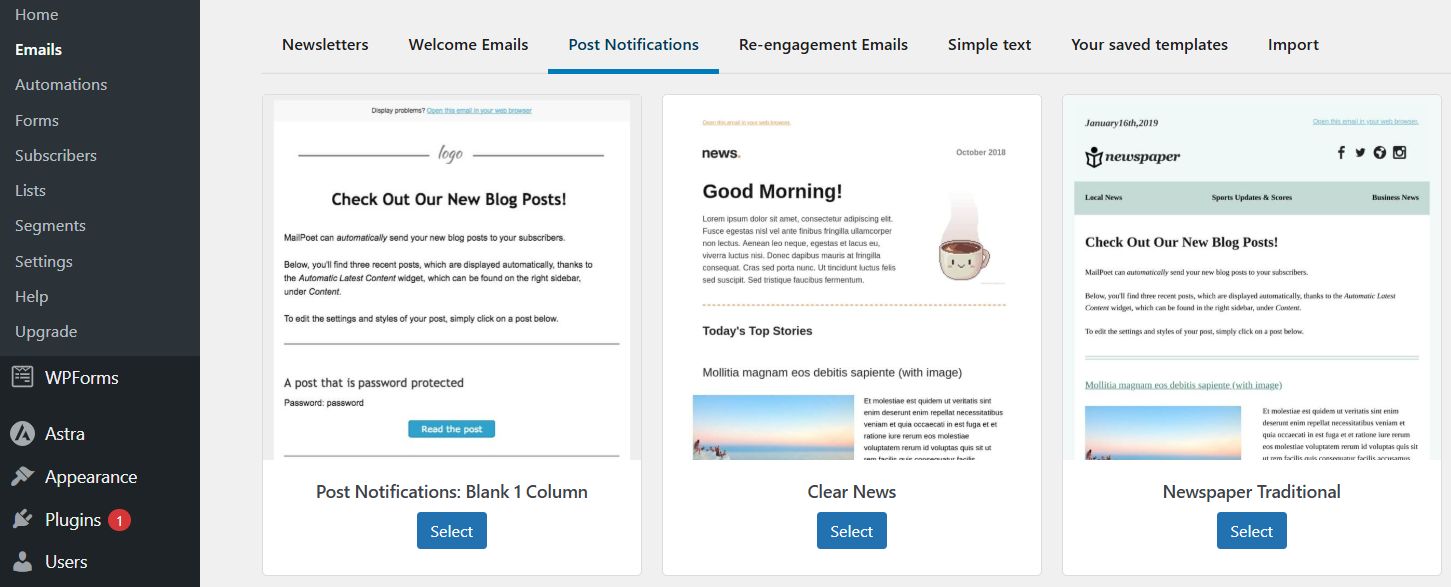
Choose a suitable option and edit it in the convenient drag-and-drop editor: add a logo, images and buttons, and change the colors and text so that the email looks in the style of your site. After you finish editing, click Next.
In the last step, configure the mailing parameters: specify the list of recipients (Send to), the sending frequency (Select a frequency), the sender’s name and address (Sender). If the address is not authorized, click Authorize it now. Here you can also set the analytics parameters (Google Analytics Campaign) and the reply address (Reply-to).
When everything is ready, click Activate to turn on the automatic mailing. MailPoet will monitor new posts on the site and send notifications to subscribers.
Conclusion
Now you have a fully configured subscription system for all new posts on the site. Visitors can subscribe through the form, and MailPoet will automatically send emails about new posts.
Our specialization is WordPress website development and maintenance. Contact us for a free consultation — [email protected], +371 29394520
