How to Set Up Push Notifications on a WordPress Site
You have probably noticed how popular sites — Facebook, YouTube or news portals — send notifications about new publications. These push notifications appear right on the device screen, even if the browser is closed, gently drawing the user’s attention. Many site owners would like to have such a system but do not know where to start. In this article we will explain in detail how to add push notifications to a WordPress site.
Why Do You Need Notifications at All?
Push notifications are small messages that appear right on the user’s desktop or mobile device. They are shown on top of any windows, attracting attention, and a single click is enough for the user to go to your site.

Such notifications are great for blogs, online stores or projects with regular publications and promotions. Studies show that users respond to push much more willingly than to email newsletters, and such a system helps retain your audience, bring readers back and increase engagement.
Now that we understand why notifications are needed, let’s see how to install them on a WordPress site.
Setting Up Notifications with OneSignal
OneSignal is one of the most convenient services for web notifications, with a free basic plan. It supports various devices and browsers, such as Chrome, Safari, Firefox, Edge, Opera and others, so it reaches almost your entire audience. The service lets you show subscription prompts, automatically notify about new publications and track user interactions, providing a full notification system without extra hassle.
Step 1. Create an App in OneSignal
It is best to start by registering with OneSignal. After registration you will be asked to create your first app.
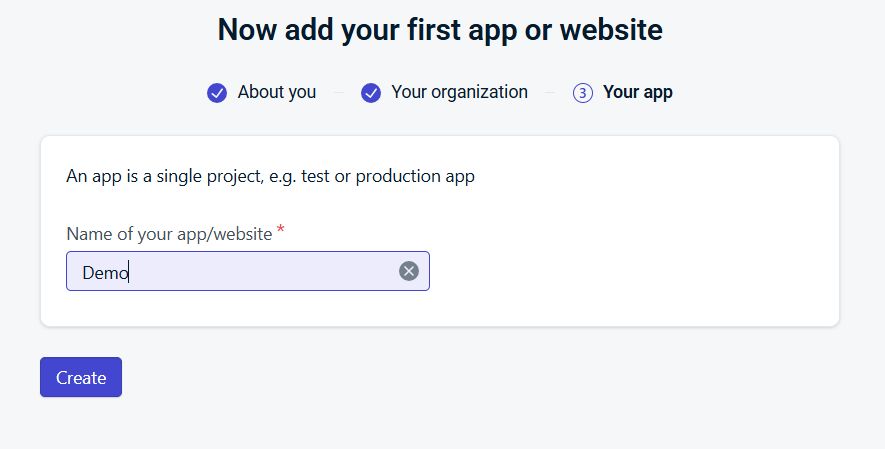
Enter any name — it will be visible only to you. Immediately after that a start screen will open, offering to choose which channels you want to use. Here we are interested in web push notifications, so open Push notifications.
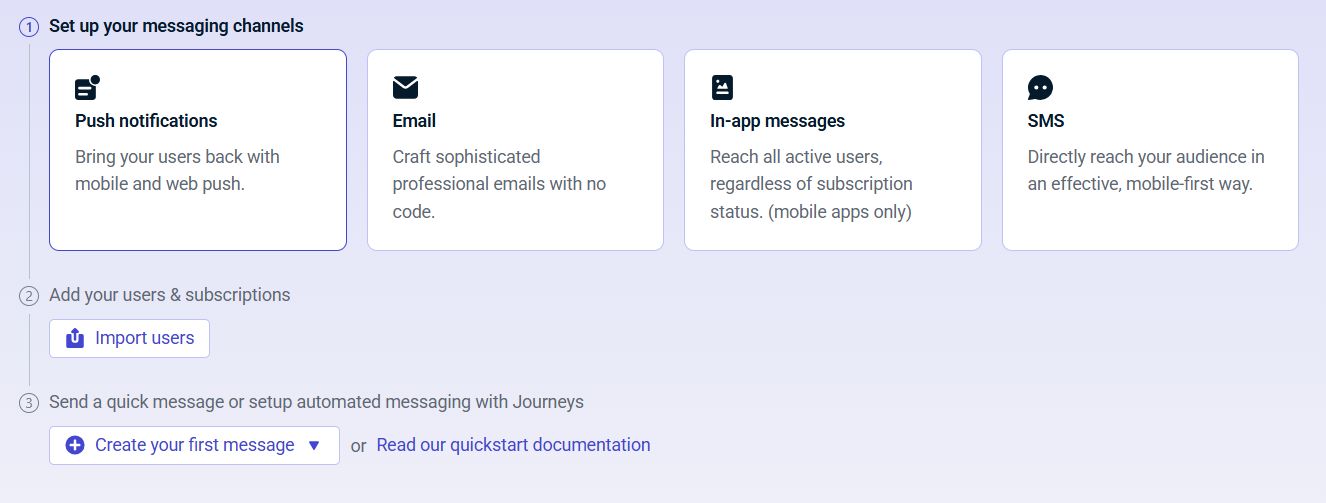
OneSignal will ask which platform you want to set up notifications for. Choose Web.

Then a screen with three connection options will appear. The first is for ordinary sites, the second for WordPress and other CMSs, and the third for manual integration via code. Since we are setting up notifications specifically for WordPress, we choose WordPress Plugin or Website Builder Integration. After that a list of supported platforms will open — find WordPress there and click it.

Now you will see a large site setup form. It contains all the parameters the plugin will use later, so fill everything in carefully. Enter the site name as it should appear in OneSignal, then enter the full site address — it is important to double-check whether the address uses the www prefix, because OneSignal treats it as a separate domain.
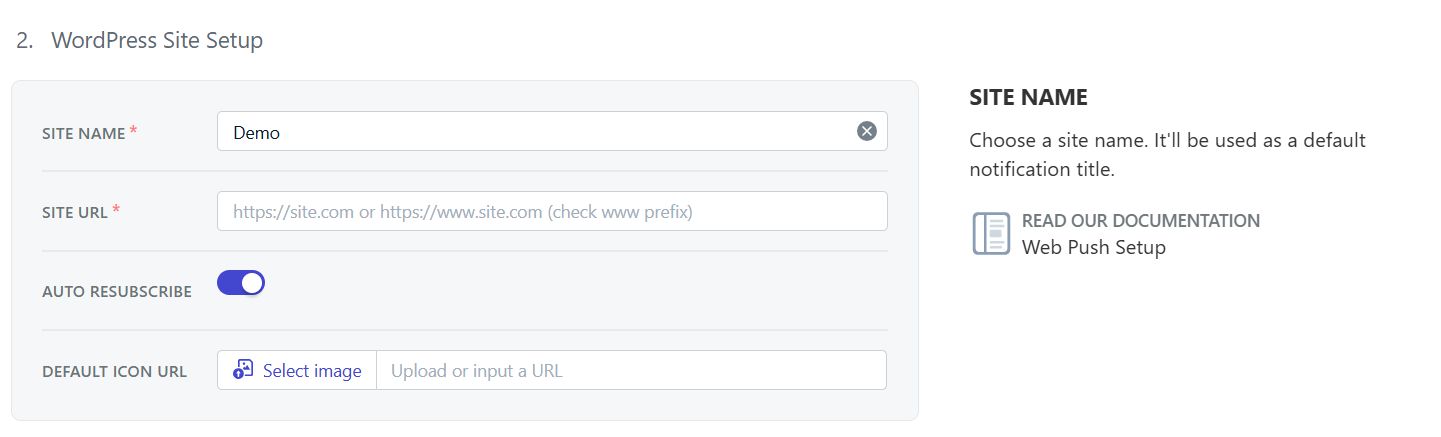
A little lower there is a block with notification icons. Here you can specify the image that will be used in the notifications themselves. It is worth choosing a clear square icon of 256×256 pixels so that it looks correct in all browsers. Click Select image to choose a file or upload a new picture. Next to it there is a separate Upload or input a URL field where you can paste a link to an image if it is already hosted on the internet. If you upload the icon through the OneSignal interface, the service will host the file on its own servers — this reduces the load on your hosting.
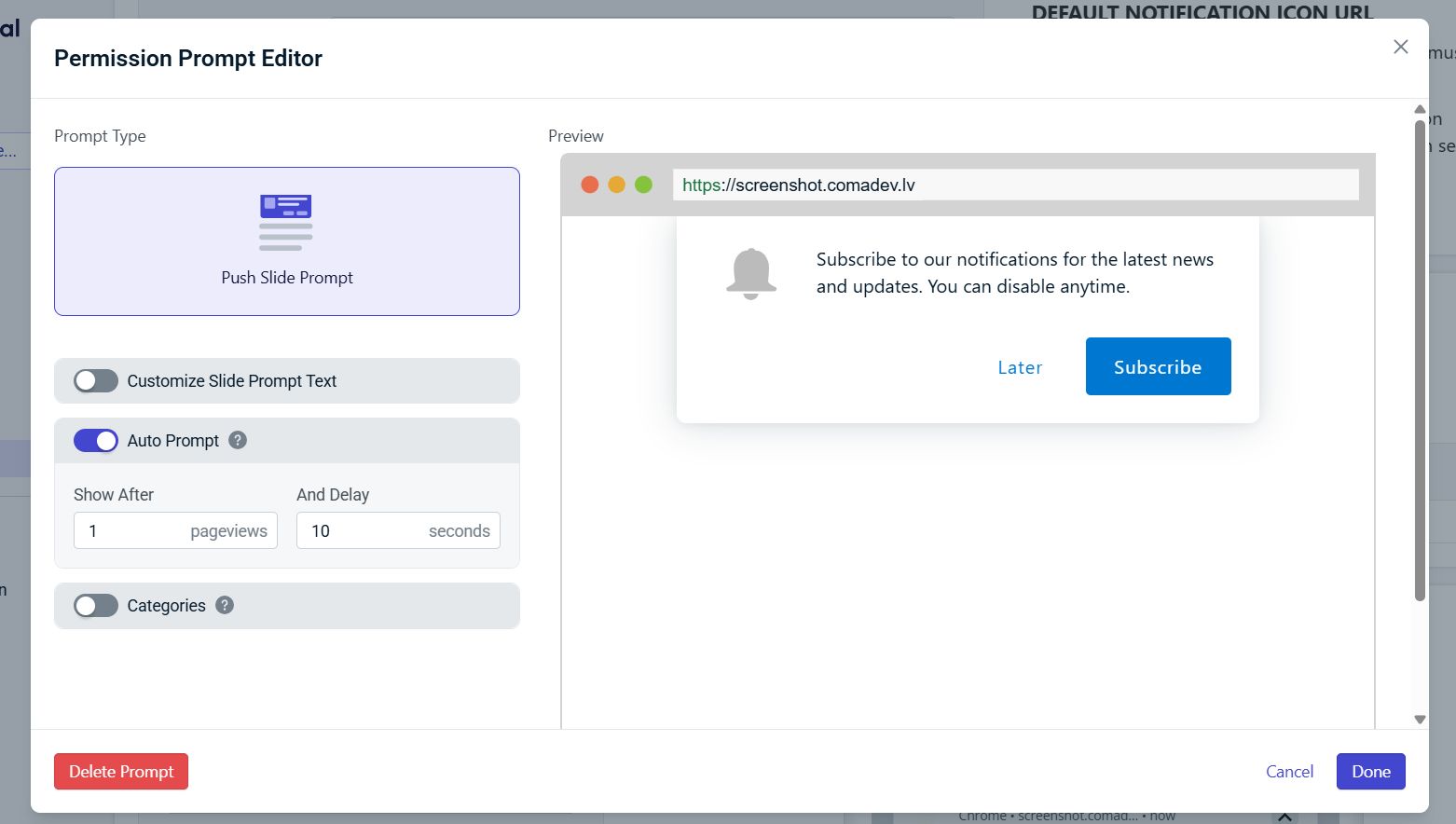
Below is the subscription prompt section. To configure how the browser will ask for permission to send notifications, click the Add Prompt button or choose an existing prompt — a pop-up window with the Prompt Editor will open. In it you can choose the look of the prompt, the time it appears and the number of page views after which it is shown.
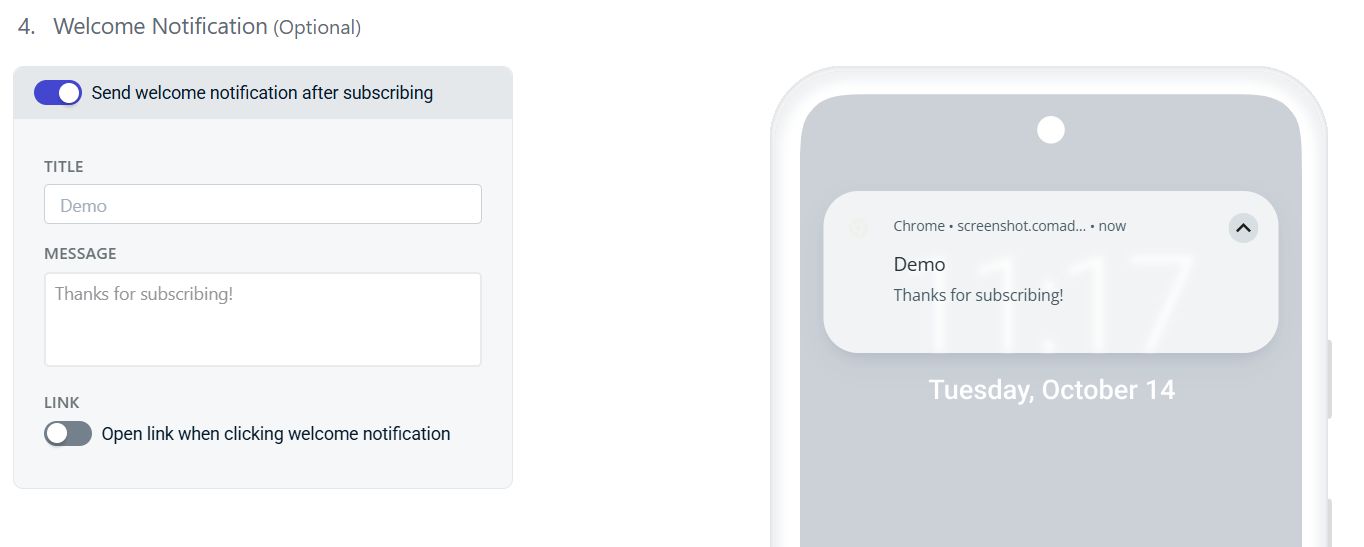
The next block is the welcome notification. It is sent right after subscription and helps the user understand that everything works. Here you can change the message text, add a link the user will go to when clicking the notification, configure the display for different platforms and, if you wish, enable or disable showing this notification.
At the end there are additional settings: notification click behavior, service worker parameters, Safari options and webhooks. You can leave these fields alone — they are intended for finer tuning that is needed only in special cases.
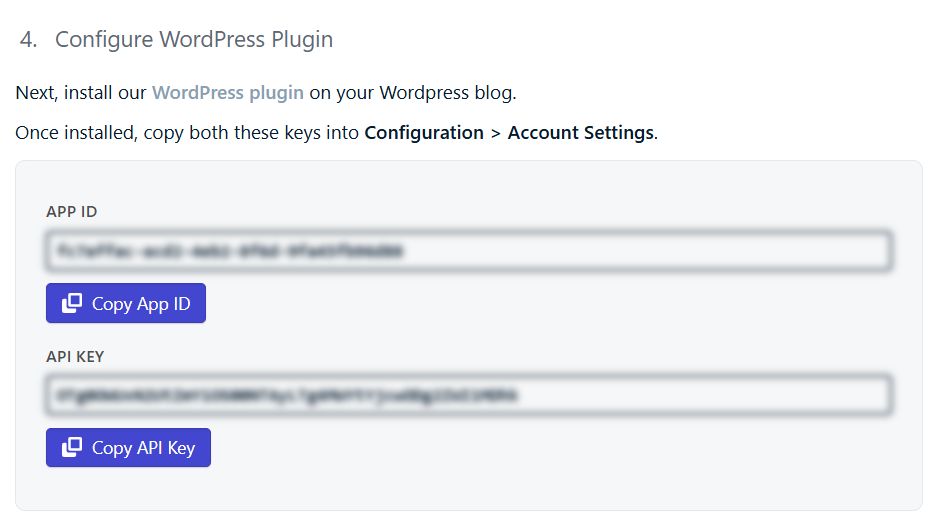
When you are happy with all the parameters, save the changes. After saving, OneSignal will generate an App ID and an API Key, which you will need at the next stage (you can get them later in the OneSignal app settings, but for convenience and to avoid wasting time we recommend copying them right away and saving them in a safe place).
Step 2. Install and Configure the OneSignal Plugin in WordPress
Now you can go to the WordPress admin area. Install OneSignal Web Push Notifications. After activation, a new OneSignal settings page will appear in the menu. Open it and you will see the App ID, API Key fields and the notification display parameters.
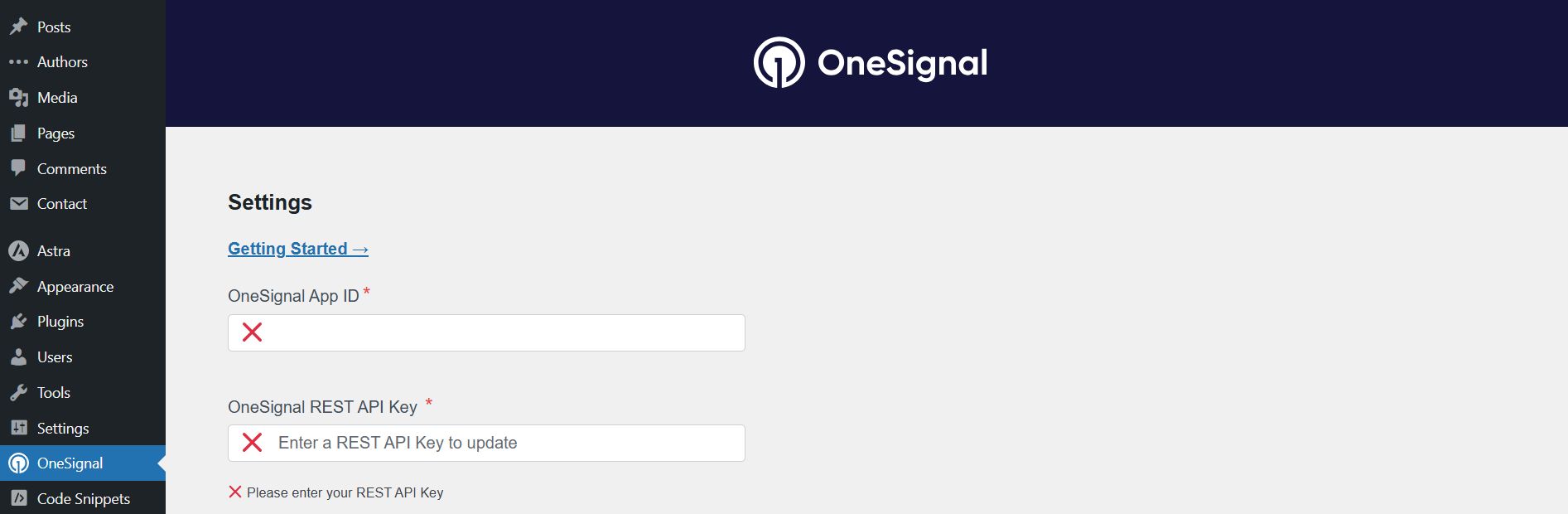
Just copy the values from OneSignal and paste them into the corresponding fields of the plugin. Save the changes — and the site will be linked to your app.
That’s all: the notification system is fully ready.
How to Check That Notifications Work
To see how the subscription works, open your site in another browser where you have not yet given permission for notifications (not in incognito mode — such sessions do not keep subscribers). Almost immediately an invitation to subscribe will appear — the very one you configured in OneSignal.

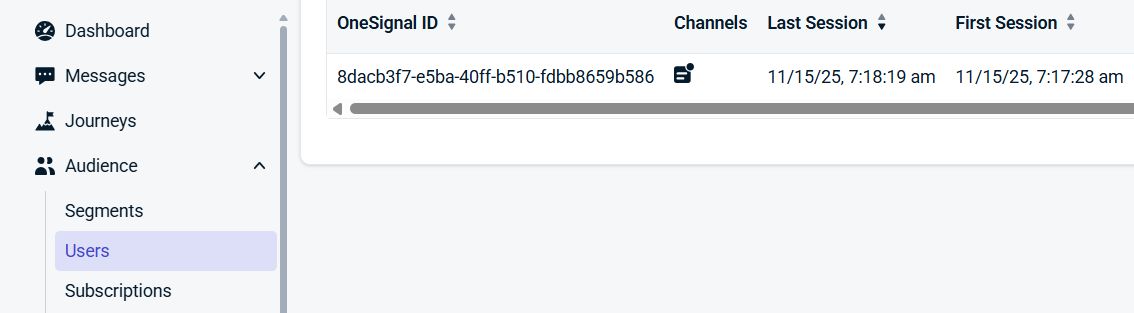
After you click, the prompt disappears. Sometimes it seems as if “nothing happened”, but in fact the browser has already registered the device and sent the data to OneSignal. To make sure everything went well, log in to your OneSignal account and open the Audience → Users section. A new user will appear here — with a unique ID, subscription status and browser data. This is a sign that your site has connected successfully and notifications are ready to work.
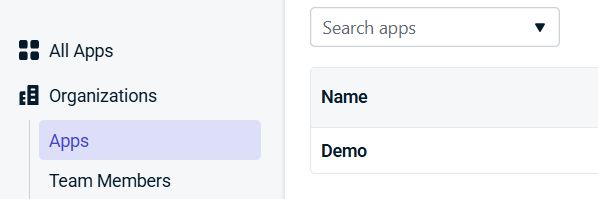
Now you can move on to the most interesting part — tests. Open the list of apps and choose yours.
Then click the button for creating a new message — New Message, and in the drop-down list choose New Push. OneSignal will offer several ways to start: a blank template, AI generation or ready-made designs. Choose a suitable one and you will see the familiar notification editor, where you can set the title, the text and the link the user will go to after clicking. The preview updates in real time, so you will immediately see what the notification will look like.
To send a test message, switch to the Test & Preview tab.

OneSignal will offer to choose the subscribers to send the test to. If you have never added test devices, instead of a list you will see the message “You have 0 test subscriptions for the selected platforms” — in this case click Add Test Subscriptions.

A separate tab will open in your browser — Audience → Test Subscriptions, where there is again an Add Test Subscriptions button.
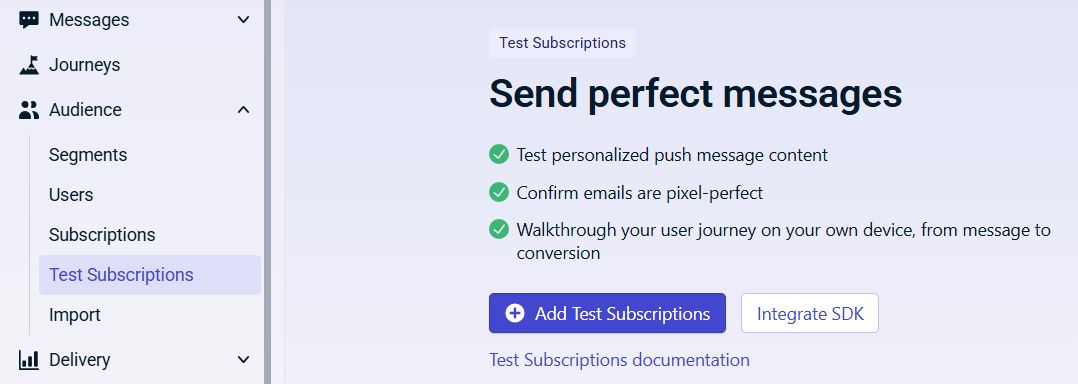
Click it and the Audience → Subscriptions section will open — this is where all the devices that have already subscribed to notifications from your site are shown. To the right of the entry you need, click the three dots and choose Add as Test Subscriptions.

A pop-up window will appear where you need to enter a name for the test subscription.

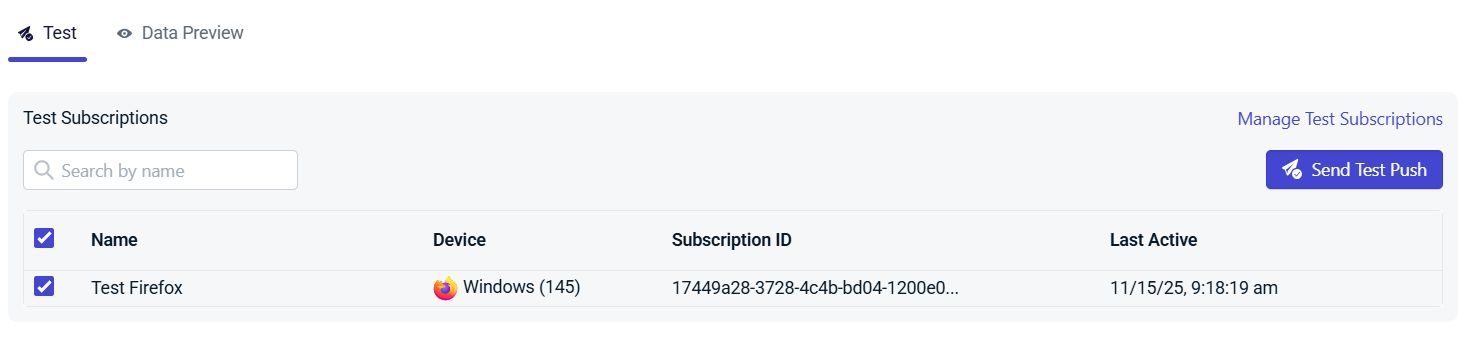
After a few seconds the browser will show the notification. The time it appears depends on how quickly the browser itself processes push messages, but usually the delay is minimal. Click the notification — it should open the link you specified in the settings. OneSignal will record the fact of delivery and interaction, and you can see this data right in the dashboard (Delivery → Sent Messages).
How to Send Notifications in WordPress with OneSignal
After you have connected the site and tested the subscription, you can move on to regular work. The OneSignal plugin in WordPress can automatically send notifications every time you publish a new post. For this feature to work, you need to enable the Automatically send notifications when a post is published option in the plugin settings. Now it is enough to click “Publish”, and the plugin will send the message to all subscribers by itself — no additional actions are required.
But if you need more control, you can send notifications manually right from the OneSignal dashboard. To do this, log in to your account again and choose the app. In the left menu click Create… → Push.
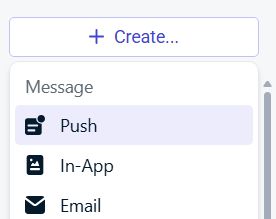
After that the Messages → Push page will open. In the upper right corner there will be a New Push button, which opens the window for creating a new push notification.
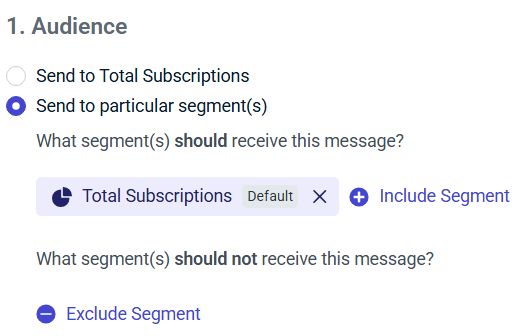

After everything is filled in, click Review and Send. A Review Your Message pop-up window will appear, where you can check all the settings once more.
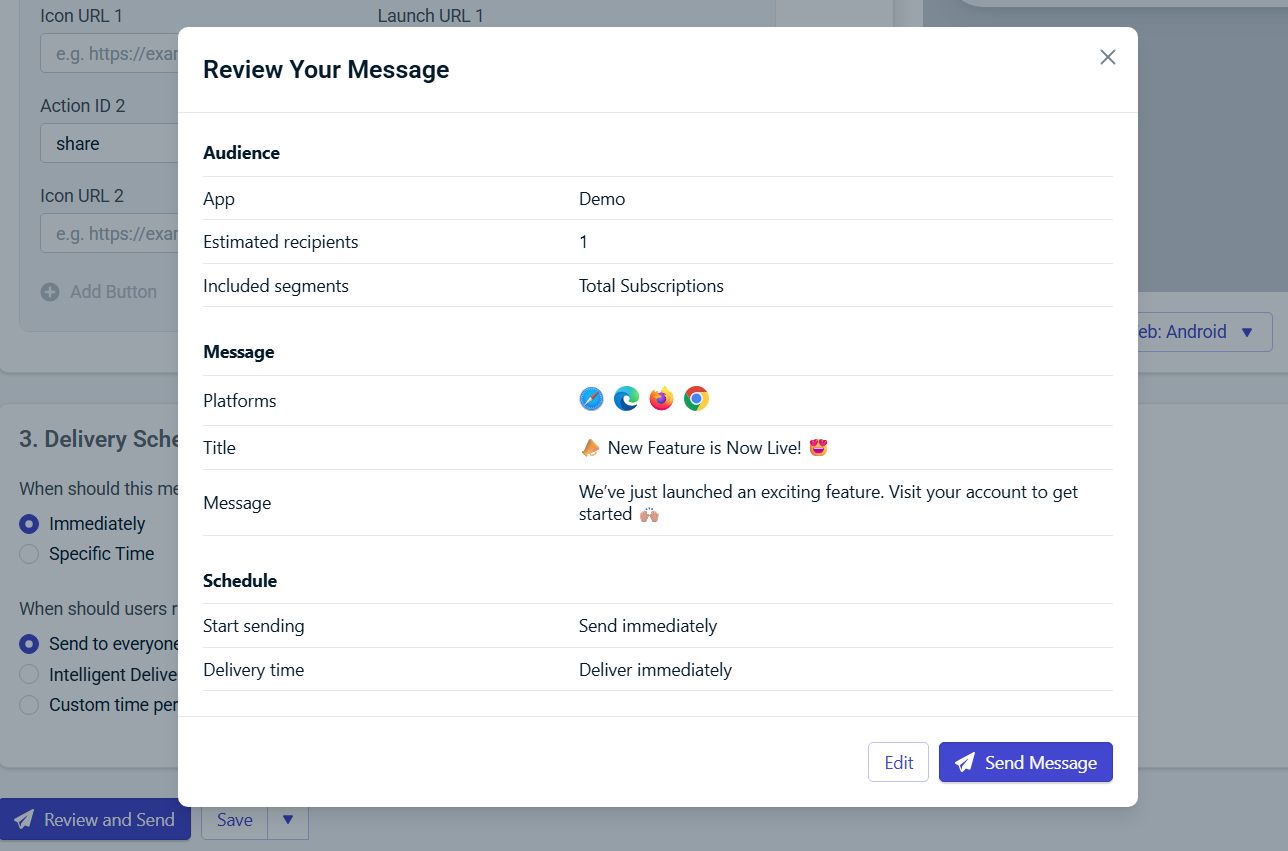
If everything looks correct, click Send Message — the notification will be sent to the selected audience.
Summary
Push notifications are a simple and effective tool for attracting an audience. They help bring readers back, increase views and quickly announce updates. OneSignal makes this process as convenient as possible: the service lets you automate sending notifications, segment your audience, test messages and track user interactions. Even on the free plan you get a full notification system that greatly simplifies working with visitors and increases audience engagement.
Our specialization is WordPress website development and maintenance. Contact us for a free consultation — [email protected], +371 29394520
