
23 Useful Tricks to Speed Up Your WordPress Site
Do you want to speed up your WordPress website? Fast page loading improves the user experience, increases page views and even helps promote your site in search engines. In this article we will show you some of the most useful ways to speed up your WordPress site.
1. Choose Good Hosting
Choosing hosting is perhaps the main criterion for your site’s success. If you have lousy hosting, nothing you do will help you speed up your site. We recommend choosing hosts with support for PHP 8+, HTTPS, SSD and built-in caching. We advise you to start by trying SiteGround – this host is on WordPress’s officially recommended list and is known for the high quality of its services. If your finances allow, you can try WPEngine, which can help with setting up WordPress.
2. Use Caching Plugins
WordPress is written in PHP, which is a server-side programming language. This means that every time someone visits your site, WordPress starts a process of retrieving information so that it can show it to the user right away.
This process can slow down your site when several users view the same page. The solution to the problem is a caching plugin. Instead of generating each page on the fly, a caching plugin shows your user a cached version of the page. We recommend WP Super Cache, WP Rocket or LiteSpeed Cache as such a plugin.
3. Use a CDN
Many files on your site are static: images, CSS and JavaScript. These files usually do not change. However, when a browser loads your page, these files can get in the way of other users being served. A CDN, or content delivery network, solves this problem by serving your files from its own servers. This frees up space on your server, makes the site faster and improves the user experience.
We advise using Cloudflare, BunnyCDN or KeyCDN, since they integrate well with the caching plugins already on your site and deliver files to visitors from the servers closest to them, which noticeably speeds up page loading.
4. Optimize Images
Images are the most attractive kind of content on the web. You need to make sure that all the images you have in WordPress are properly optimized for the web. Most graphics editors let you save such images without much loss of quality.
We advise using modern image formats such as WebP and AVIF. They let you significantly reduce file size while keeping high quality. Plugins such as ShortPixel and Imagify can automatically optimize all the images on your site, saving your bandwidth and speeding up page loading.
5. Use Optimized Themes
When choosing a theme for your site, pay special attention to its optimization. Premium theme shops such as StudioPress and Themify offer themes that are not only excellently made but also optimized to run fast. Lightweight, well-optimized themes ensure fast page rendering. Recommended options: GeneratePress, Kadence, Astra.
6. Choose Fast Sliders
Sliders can slow down a site, especially if they are heavy and use a lot of JavaScript. For minimal load it is better to use Gutenberg blocks for sliders or lightweight plugins such as Smart Slider 3, which are optimized for speed.
7. Use Excerpts on the Home Page and in Archives
By default WordPress displays the full article with all its images on the home page and in archives. This means that the front page, categories, tags and other pages will load more slowly. Another drawback of displaying full articles is that after reading the article, people feel no need to go to its page, and this affects the number of page views.
Using excerpts not only speeds up the site but also encourages users to go to the full articles, increasing engagement and time on site.

8. Split Long Posts into Pages
If you publish long articles with a huge number of images, it is better to split them into several pages. WordPress has a built-in feature for this. Just add the <!--nextpage--> tag at the place where you would like to move the text to the next page.
This approach reduces the load on the server and speeds up loading, and it also helps users take in long content more easily.

9. Break Comments into Pages
Some of your posts will collect more comments than others. If you show all the comments on one page, it increases loading time. WordPress has a built-in solution for this problem too. Just go to Settings → Discussion and tick the Break comments into pages box.
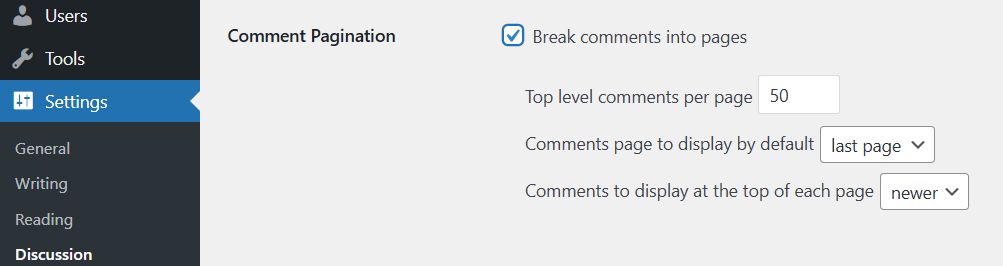
Splitting comments also makes pages more convenient for users, letting them find the replies they are interested in faster.
10. Get Rid of Unused Plugins
Many beginners install too many plugins on their site that they do not really use, and then forget to remove them. This can cause a problem, since all these plugins bloat the size of your backups, which in turn slows down your site. Review the plugins installed on your site and remove the ones you do not use.
11. Keep Your Site Updated
WordPress is a regularly updated project whose updates fix security issues, remove bugs and add new features. All plugins and themes are also updated regularly. As a site owner, it is your responsibility to keep the site in shape. Ignoring this will make your site slow and unreliable. It also increases its vulnerability and the risk of security threats. Regular updates let you use new features and performance improvements that make the site faster and more convenient for users.
12. Do Not Upload Videos to WordPress

You can upload videos directly to your WordPress site and they will automatically be displayed in an HTML5 player, but you should NEVER do this. Hosting videos will cost you bandwidth and can bloat your backups, which will make it harder to restore the site in case of unforeseen circumstances. It is better to use dedicated video hosting services such as YouTube, Vimeo, or cloud platforms such as Cloudflare Stream, which provide fast playback and do not load your server.
13. Reduce External HTTP Requests
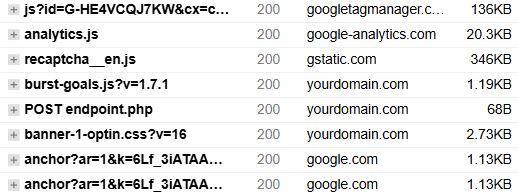
Many WordPress plugins and themes load scripts and images from external resources, such as Google libraries, the Facebook SDK, analytics services and others. Using such external resources often speeds up the display of content, because they are loaded from fast servers optimized for delivery. However, if your site makes too many such requests, it can slow things down, especially for visitors with slow internet. In such cases it is useful to keep on your own site the files needed for pages to display quickly: for example, the site’s fonts and the important scripts for menus, sliders, galleries or other visible elements. For other files you can keep using external resources, especially if they are libraries and services that rarely change.
14. Reduce Database Calls
Some WordPress themes make additional database calls even for information that is almost always the same, for example to specify the page type or text encoding. With each such call WordPress checks the site settings and pulls data from the database, which can slow page loading slightly, especially on large sites.
Example of old code in a theme:
<html xmlns="http://www.w3.org/1999/xhtml" <?php language_attributes(); ?>>
<head profile="http://gmpg.org/xfn/11">
<meta http-equiv="Content-Type" content="<?php bloginfo('html_type'); ?>; charset=<?php bloginfo('charset'); ?>" />
Here WordPress dynamically inserts the page type and text encoding. But in practice it will almost always be text/html; charset=UTF-8.
If you use a child theme, you can replace this code with a static version that does not query the database on every load:
<html xmlns="http://www.w3.org/1999/xhtml" dir="ltr">
<head profile="http://gmpg.org/xfn/11">
<meta http-equiv="Content-Type" content="text/html; charset=UTF-8" />
This way you speed up page loading slightly, while the site’s functionality stays the same.
*If you use current themes, most of them are already optimized and have almost no such unnecessary calls. This trick is useful if you work with an old or heavily customized theme.
15. Optimize Your WordPress Database
After using WordPress for a while, your database accumulates a lot of information that you most likely no longer need. This can easily be fixed with the WP-Sweep or WP-Optimize plugin, which lets you clean the database by deleting unnecessary information and clearing post revisions, spam comments and temporary data. Regular database cleanup speeds up the site and reduces the size of backups.
16. Limit Post Revisions
Repeated post revisions take up space in your WordPress database. Some users believe they can also affect the database queries sent by plugins. You can limit the number of revisions by simply adding the following line of code to the wp-config.php file
define( ‘WP_POST_REVISIONS’, 4 );
This code limits the number of saved revisions to four and automatically deletes older revisions, which reduces the load on the database and speeds up the site.
17. Disable Hotlinking and Leeching of Your Content
Some content-scraping sites automatically create posts from the RSS feeds of other WordPress sites. That is why we advise showing only excerpts in RSS feeds. However, there are sites that manually copy content from your resource. Instead of uploading it directly to their own server, they display it through your site, and this affects your site’s speed. To prevent third-party sites from loading your images directly, use rules in .htaccess or a setting through your CDN:
#disable hotlinking of images with forbidden or custom image option
RewriteEngine on
RewriteCond %{HTTP_REFERER} !^$
RewriteCond %{HTTP_REFERER} !^http(s)?://(www\.)?yourdomain.com [NC]
RewriteRule \.(jpg|jpeg|png|gif)$ – [NC,F,L]
18. Use a Faster Gallery Plugin

If your site is about photography or you use it as a portfolio, you will need a gallery plugin to display images in an attractive way. That is why it is very important to use a plugin that is properly optimized. We advise Envira Gallery, which creates galleries that are not only stunningly beautiful but also load quickly.
You can also use the built-in Gutenberg blocks, which let you create galleries without extra JavaScript, minimizing the load on the site and speeding it up.
19. Use Lazy Loading
By default WordPress lazy-loads images, meaning they are loaded only when the user scrolls to them, which speeds up page opening. However, for videos, iframes and some galleries that do not use the built-in lazy loading, it is worth adding special plugins, for example a3 Lazy Load or WP Rocket. This approach reduces the load on the server, speeds up the first visible load of the page and makes the site more comfortable for visitors.
20. Optimize Fonts
Fonts can significantly slow down page loading, especially if they are loaded from external services such as Google Fonts. Font optimization includes storing them locally, combining several styles into one file and using only the weights you need — that is, only the font variants you actually need, such as regular, bold or italic. This speeds up text rendering, making the site more responsive and easier to read.
21. Minify and Combine CSS and JavaScript
Many separate CSS and JS files increase the number of requests to the server and slow down page loading. Minifying and combining files reduces their size and the number of requests. Plugins such as Autoptimize or WP Rocket features can automatically combine and compress scripts and styles, speeding up page loading and making the site smoother for the user.
22. Control Gutenberg Blocks and Third-Party Scripts
The WordPress block editor (Gutenberg) offers wide possibilities, but unnecessary blocks can create unneeded load on the site and slow down its loading. Make sure you use only the necessary blocks so that the site runs faster.
Individual plugin scripts (CSS and JavaScript) can also slow down pages, especially if they are loaded on all pages where they are not needed. To reduce the load, load scripts selectively — only on the pages where they are really used. For this it is convenient to use the Asset CleanUp or Perfmatters plugins, which let you choose where to load each script.
This approach reduces the number of loaded resources, speeds up page rendering and makes the site more responsive and convenient for users.
23. Monitor Core Web Vitals
Core Web Vitals are metrics of page speed and interactivity that Google takes into account when ranking. They include: the loading time of the main content, interaction delay and the visual stability of the content. Use plugins for analysis and optimization, fix large CSS/JS blocks, and optimize images and fonts. Improving these metrics makes the site faster and more convenient and improves its positions in search results.
These steps will help your WordPress site run fast and stably, improving the user experience and increasing the effectiveness of promotion.
Our specialization is WordPress website development and maintenance. Contact us for a free consultation — [email protected], +371 29394520
