Managing a WordPress Database with phpMyAdmin – A Beginner’s Guide
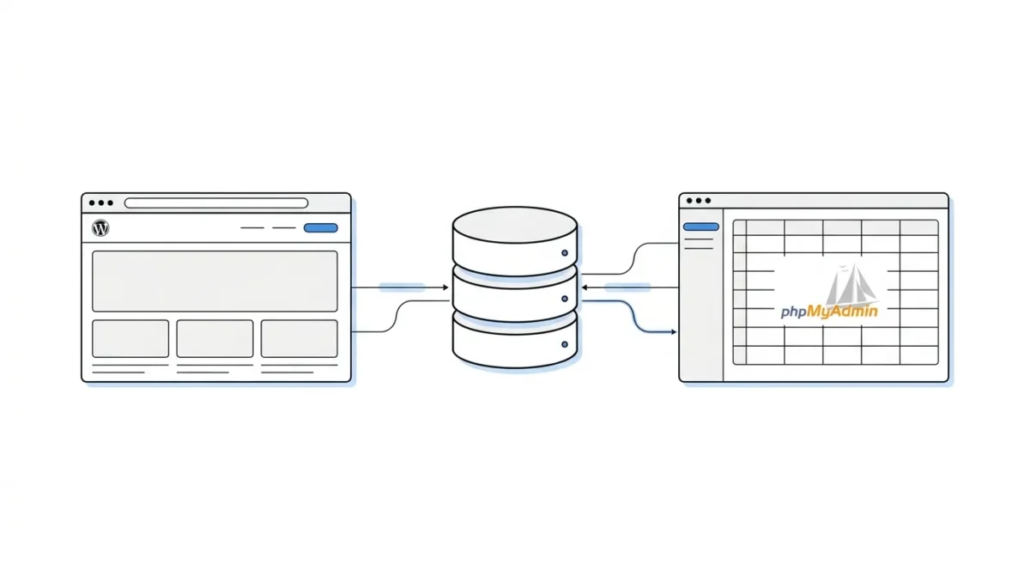
WordPress is written in the PHP scripting language and works with the MySQL database management system. You do not have to learn them to use WordPress. However, basic knowledge of them can help you fix problems yourself and improve your understanding of how WordPress works. In this article we will explain how WordPress uses the database and describe the main tables in the WordPress database. We will show you how to manage a WordPress database with phpMyAdmin, including how to back up the database, optimize the WordPress database and secure it.
How WordPress Uses the Database
WordPress uses PHP (a programming language) to store and retrieve data from the database. The information stored in a WordPress database includes: posts, pages, comments, categories, tags, custom fields, users and other options of your site, such as its URL and so on. We will come back to this a little later when we talk about the WordPress database tables.
When you install WordPress for the first time, you are asked to enter the database name, host, username and password. This information is stored in the configuration file (wp-config.php).
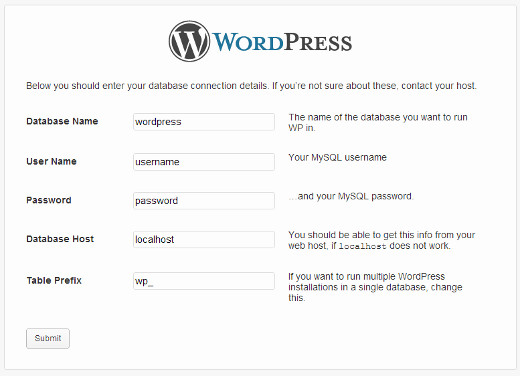
Installing WordPress
During installation WordPress uses the database information you provide to create tables and store the default installation data in them. After installation, WordPress sends queries to the database to dynamically generate HTML pages for your site or blog. This is what makes WordPress a powerful platform, because you do not need to create a new .html file for every page. WordPress does it dynamically.
WordPress Database Tables
Every WordPress installation has 12 tables in the database by default. Each database table contains data related to different sections, aspects and functions of WordPress. If you look at the structure of these tables, you can easily understand where individual parts of your site are stored. Currently the following tables are created by default when WordPress is installed:
Note: wp_ before each table name is the database prefix that you choose during installation. It may be different.
wp_commentmeta : This table contains information about comments posted on the WordPress site. This table has four different fields – meta_id, comment_id, meta_key and meta_value. Each meta_id is linked to a comment_id. An example of comment meta information is its status (approved, pending, deleted and so on).
wp_comments : As you can guess from the name, this table contains the comments on your WordPress site. It contains the comment author’s name, URL, email, the comment itself and so on.
wp_links : Used to manage blogrolls in earlier versions of WordPress or via the Link Manager plugin.
wp_options : This table contains most of your WordPress site’s settings, such as the site URL, admin email, default category, number of posts per page, time format and much more. The options table is also used by many WordPress plugins to store plugin settings.
wp_postmeta : This table contains meta information about your posts, pages and custom post types. An example of post meta information is the template used to display the page, custom fields and so on. Some plugins also use this table to store plugin data, such as WordPress SEO information.
wp_posts : Even though the name says “post”, this table contains all kinds of posts, or all kinds of content. This table contains all posts, pages, revisions and custom post types.
wp_terms : WordPress has a powerful taxonomy system that lets you organize your content. The individual components of a taxonomy are called terms and are stored in this table. For example, your categories and tags in WordPress are taxonomies, and each individual category and tag is a term.
wp_termmeta : This table stores additional information about the categories and tags on your site. For example, you can add a color for a category, an image or any other parameter you want to use together with taxonomies.
wp_term_relationship : This table handles the relationship between WordPress post types and terms in the wp_terms table. This table helps WordPress assign post X to category Y.
wp_term_taxonomy : This table defines the taxonomies for the terms in the wp_terms table. For example, if you have the term “WordPress Tutorials”, this table will contain data saying that it belongs to the “category” taxonomy. In other words, this table holds the data that helps WordPress distinguish between terms and determine which of them is a category, a tag and so on.
wp_usermeta : Contains meta information about the users of your site.
wp_users : Contains information about users, such as username, password, email and so on.
Managing a WordPress Database with phpMyAdmin
phpMyAdmin is open source software that provides a graphical web interface for managing a MySQL database. For most WordPress hosting providers, phpMyAdmin is installed in the control panel. This lets users easily access the database and perform common database management tasks.
All the web hosting providers we recommend use cPanel. To open phpMyAdmin through cPanel, scroll down to Databases and click phpMyAdmin. This opens phpMyAdmin in a new browser tab.
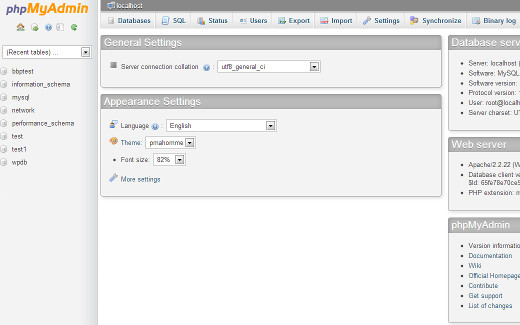
The phpMyAdmin main screen
After clicking Databases, you will see a list of the databases you created and have access to. Click your WordPress database and you will see a list of the tables of your WordPress database.
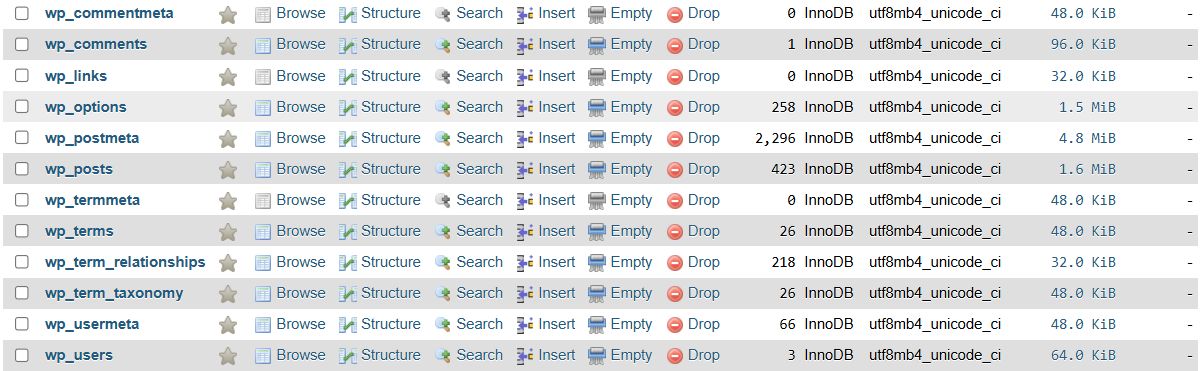
The phpMyAdmin table list
You can perform many tasks using phpMyAdmin, such as – find/replace a certain word in your post, restore a database, optimize a database, add a new administrator user, deactivate plugins, change passwords and so on.
Note: Before changing anything, be sure to back up the database. The changes cannot be undone. So just make a copy.
How to Back Up a WordPress Database via phpMyAdmin
To back up your WordPress database via phpMyAdmin, click your WordPress database. In the top menu, click the Export tab.

How to back up a WordPress database via phpMyAdmin
The new version of phpMyAdmin will ask you to choose an export method. The quick method exports your database to an .sql file. The custom method offers more options and the ability to download the backup as a compressed zip or gzip archive. We recommend using the custom method and choosing zip as the compression method. The custom method also lets you exclude tables from the database. If, for example, you used a plugin that created a table in your database, you can exclude that table from the backup if you wish.
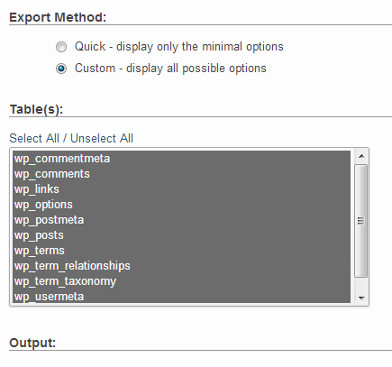
The exported database file can be imported back into the same or another database using the Import tab in phpMyAdmin.
Backing Up WordPress with a Plugin
Regular backups of your WordPress site are the best thing you can do for its security. Although the WordPress database contains most of the information on your site, it lacks one important element – images. All of your images are stored in the uploads folder in the /wp-content/ directory. Even if the database holds information about where each picture is attached in a post, it is useless if these files are not in the images folder.
Beginners often think that a database backup is all they need. It is not. You need a full site backup, including themes, plugins and images. And no, most hosting companies do not make daily backups.
Note: If you use managed hosting such as WPEngine, you do not need to worry about this. They make backups daily.
Most of us who do not use WPEngine should use one of the available applications that make regular backups of the site.
We use VaultPress, a paid monthly service, to create regular backups of your site. For those who like plugins and dislike recurring payments, we recommend BackupBuddy (Solid Backups), which is without doubt the most complete solution to the WordPress backup problem.
Optimizing a WordPress Database via phpMyAdmin
After long-term use of WordPress, your database becomes fragmented. Extra overhead appears, which increases the overall size of the database and query processing time. Those who remember the old days of the PC may have noticed that your computer started working faster after defragmenting the disk. A MySQL database works on the same principle. It has a simple command that lets you optimize your database. Go to phpMyAdmin and click the WordPress database. You will see a list of the tables of your WordPress. Click the Check All link under the tables. Next to it you will see the With Selected drop-down menu – choose Optimize table in it.
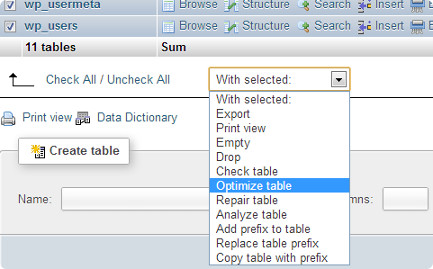
Optimizing a WordPress database
This function optimizes the WordPress tables by defragmenting them. Your WordPress queries will now be processed slightly faster and the size of the database will shrink a little.
What Else You Can Do with phpMyAdmin
There are many things you can change on your site by changing values in the database with phpMyAdmin. However, we strongly recommend not doing this unless absolutely necessary or unless you have the required knowledge. Make sure you have a backup of your database before making any changes. Below is a list of things you can do with your database:
- Reset a WordPress password via phpMyAdmin
- Add a WordPress administrator user to the database via MySQL
- Change a WordPress username via phpMyAdmin
- How to deactivate all WordPress plugins via phpMyAdmin
WordPress Database Security
First of all, we want to say that any site can be hacked. However, there are certain measures you can take to make hacking more difficult. To start with, you can change the WordPress database prefix. This can significantly reduce the chance of an SQL injection attack, because hackers often target a large number of sites at once, looking for the default wp_ table prefix.
You should always set a complex username and password for MySQL. This makes it harder to get access to your database. For additional protection we recommend using Wordfence.
We hope this article helped you better understand how a WordPress database works. Even if you did not understand everything at once, it will be useful to understand it in the future.
Our specialization is WordPress website development and maintenance. Contact us for a free consultation — [email protected], +371 29394520
