How to Create a Multi-Step Form in WordPress
Filling in a long form can feel tiring. When visitors see too many fields on one screen, they most often leave the form without completing it. By splitting a form into sections, you let users concentrate step by step. This increases engagement and reduces fatigue when filling in the form. If you are wondering how to set this up in WordPress — don’t worry, it is not as hard as it seems. We will show how it can be done with WPForms.
Step 1: Install a Plugin for Multi-Step Forms
To create a multi-step form you need a plugin that can split a form into steps. WPForms is perfect for this.
WPForms offers many ways to create multi-step forms. You can use the Page Break field to split the form into pages, or the Lead Forms Addon to show one question at a time step by step. You can also use the AI Form Builder to create a form automatically. Note that all of these methods are available only in the Pro version of WPForms.
If WPForms is not installed yet, you first need to install and activate the Pro version through the WordPress admin panel. After installation you can start creating the multi-step form.
Step 2: Create a New Form and Add Fields
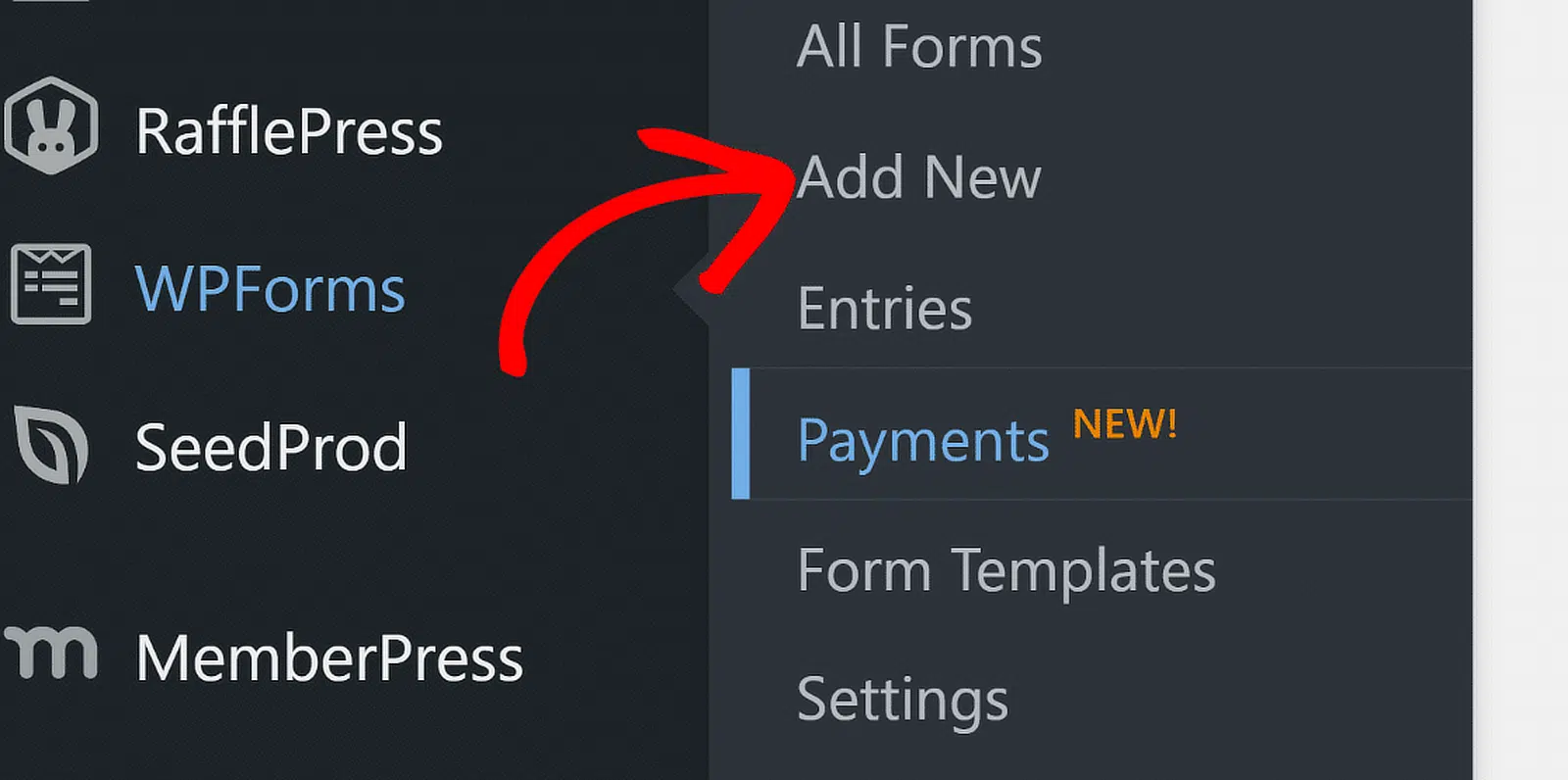
In the WordPress admin panel, go to WPForms → Add New to create a new form.
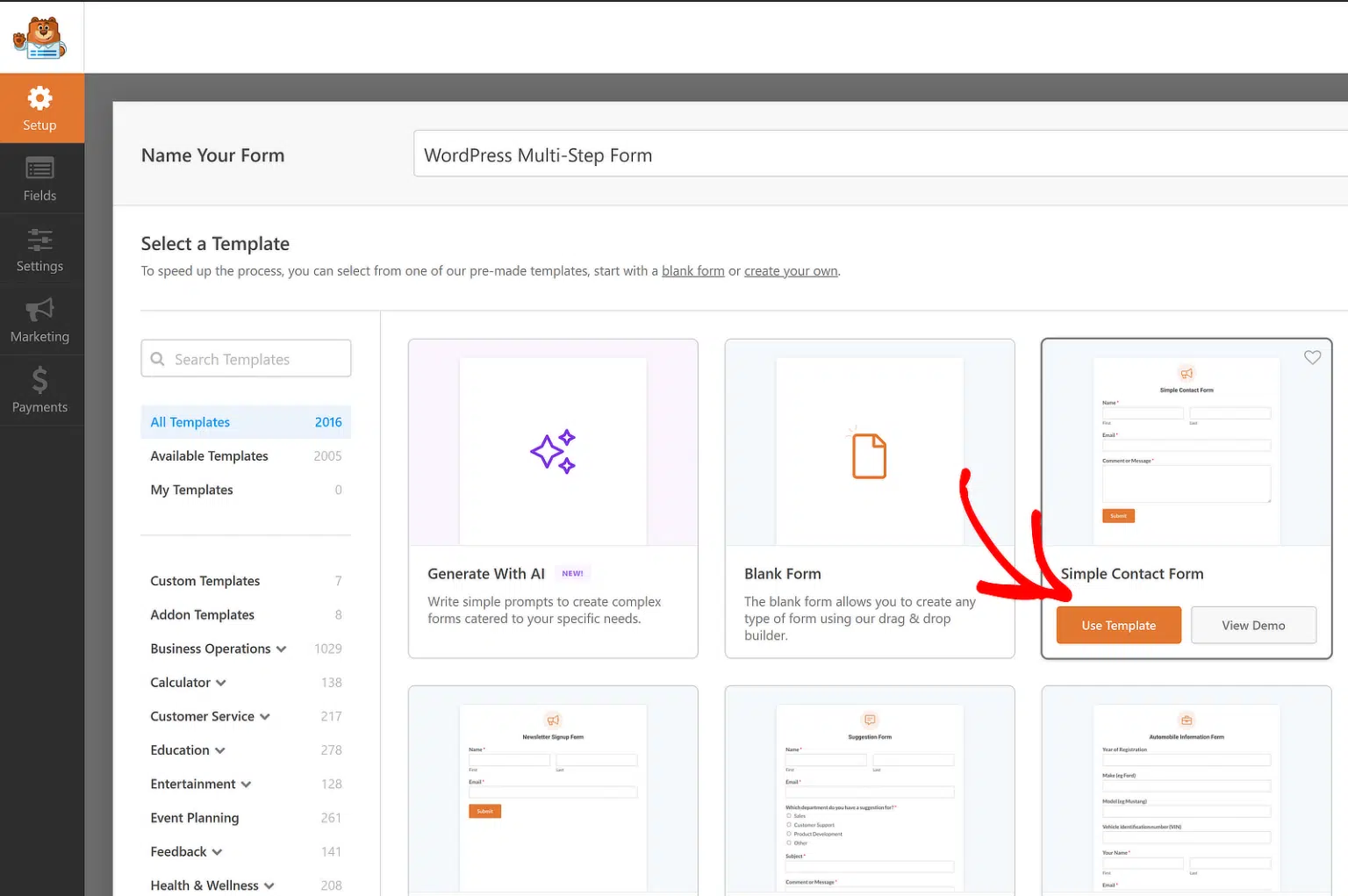
Give the form a name, for example “WordPress Multi Step Form”.
You can start with a blank form (Blank Form) or choose a template, such as Simple Contact Form, to get started faster.
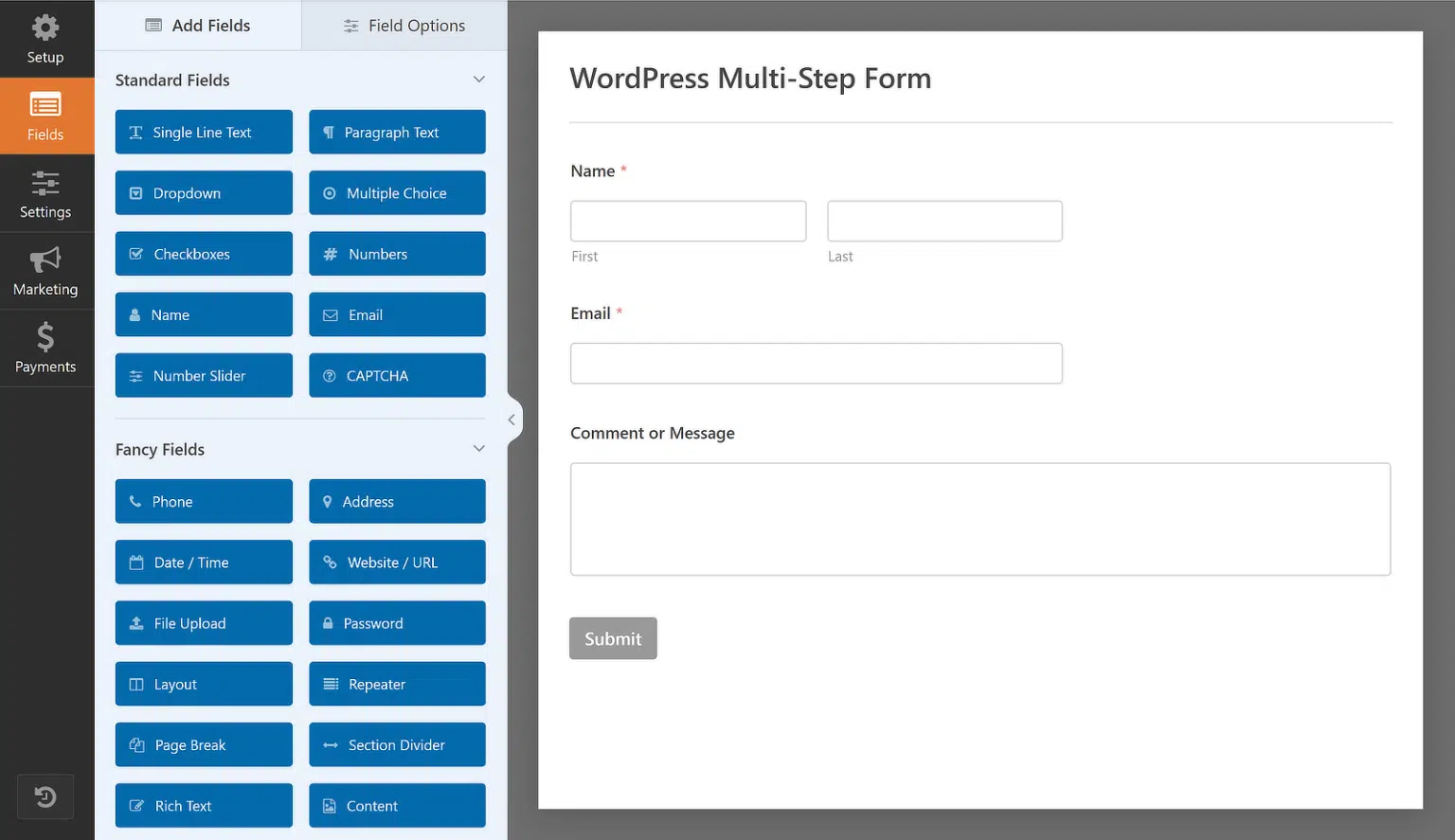
On the left there is a list of available fields that you can add to the form. On the right there is an editable preview where you can drag and drop fields.
Example of fields for collecting user information:
- Company name — Single Line Text field
- Website — Website/URL field from the Fancy Fields section
- Industry — Checkbox field with options: IT, Manufacturing, Retail, Healthcare
- Country/Region — Dropdown field with a choice of countries
- How did you hear about us? — Dropdown field with sources (Google, Facebook, LinkedIn)
Any field can be edited, or you can add a new one. The main goal is to collect exactly the information you need.
After adding all the fields, the form is ready to be split into steps. This is where the most interesting part begins.
Step 3: Split the Form into Several Parts
Now that the form is ready, it is time to split it into smaller parts, and WPForms makes this process quite simple. There are several ways to do it, depending on what you want to achieve.
If you need to split the form into sections with a progress indicator and Back/Next buttons, you should use the Page Break field. This method is most often suitable for long forms where it is important for users to see how far they have progressed.
If the goal is to create forms that ask one question at a time, you should look at the Lead Forms Addon. It is especially convenient on mobile devices and lets you create a more focused layout.
Finally, the entire multi-step form can be created with the AI form builder. You do not need to choose just one method right away — all the options are available, and you can choose the one that best suits your form.
Method 1: Adding the Page Break Field
After all the form fields have been added and configured, you need to add the Page Break field to the form. Each time a Page Break is added, the form is split and a new page is created.
To start splitting the form, drag the “Page Break” field, which is in the Fancy Fields section, from the left panel to the right panel. Make sure it is placed exactly where the first split should happen. It is usually useful to plan the sequence of questions before adding a break, to avoid confusion later.
Tip: use logical sections for the “Page Break” for an intuitive and convenient user experience. For example, group personal information on one page, preferences on another and detailed questions on the last page, so as not to overload users.
If the form consists of more than two parts, simply repeat the same step wherever the next break is needed. WPForms does not limit the number of steps, so you can create as many sections as you need. It is worth noting that fewer steps usually work better. It is not recommended to overdo it, since too many pages can tire users and make them leave the form halfway.
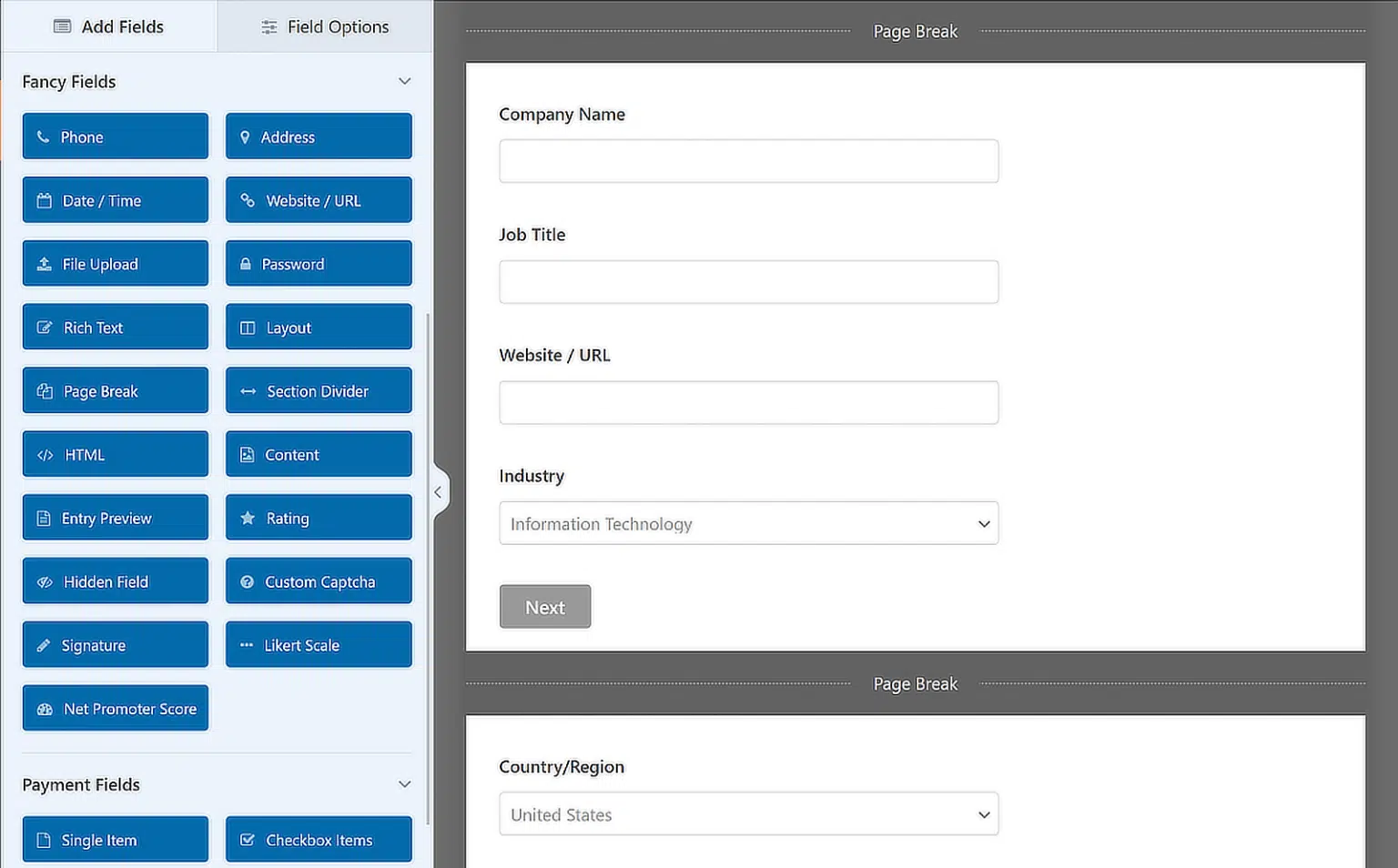
After the steps are set, you can configure the visual display of the progress indicator.
Configuring the Progress Indicator of a Multi-Page Form
When someone starts filling in a long form, it is useful to show the user how far they have progressed. Using a progress indicator, you can tell the user about the different sections of the form. This way the user always knows which stage they are at and how much is left to fill in before clicking the “Submit” button.
WPForms provides three different progress indicator styles for multi-step forms:
- Connectors: shows a connecting bar and the page titles of each section of the form.
- Circles: shows one circle and a page title for each page of the form.
- Progress Bar: shows the form completion progress as the user moves through the steps.
To configure the progress indicator and the title of the first page of the multi-step form, click the First Page page-break section. A new panel will appear in the preview panel, where you can:
- Choose the type of progress indicator.
- Change the color of the page indicator using the color picker.
- Change the page title so that users know which part of the form they are on, if the Circles or Connectors option is selected.
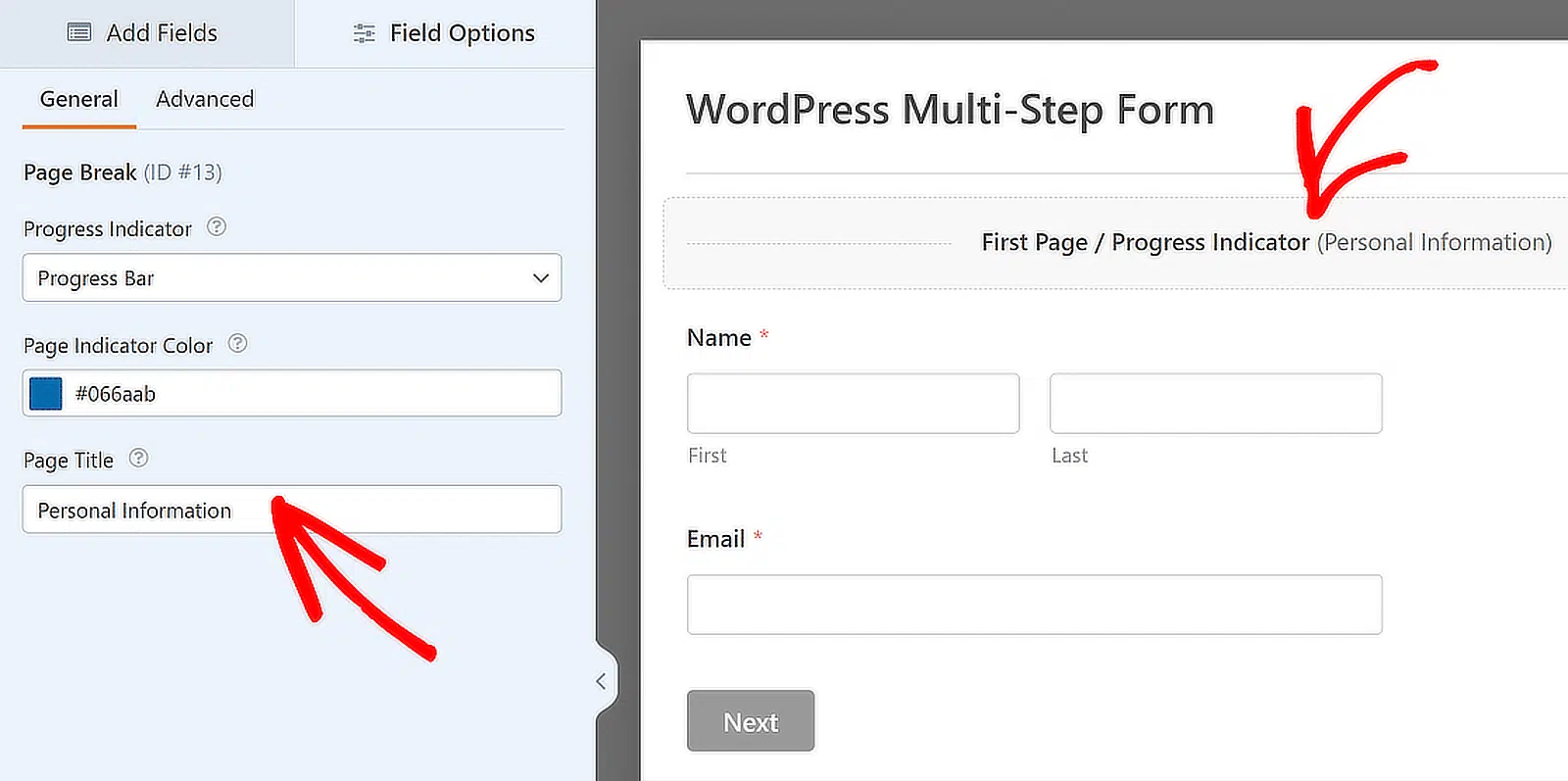
Tip: a progress indicator with clear labels significantly reduces the likelihood that a user will abandon the form and sets the right expectations from the very beginning. Use it wisely!
Configuring the Title and Text of the Next Page Button
To configure the title of the next page and the button that takes users to the next page of the form, click the Page Break section you created.
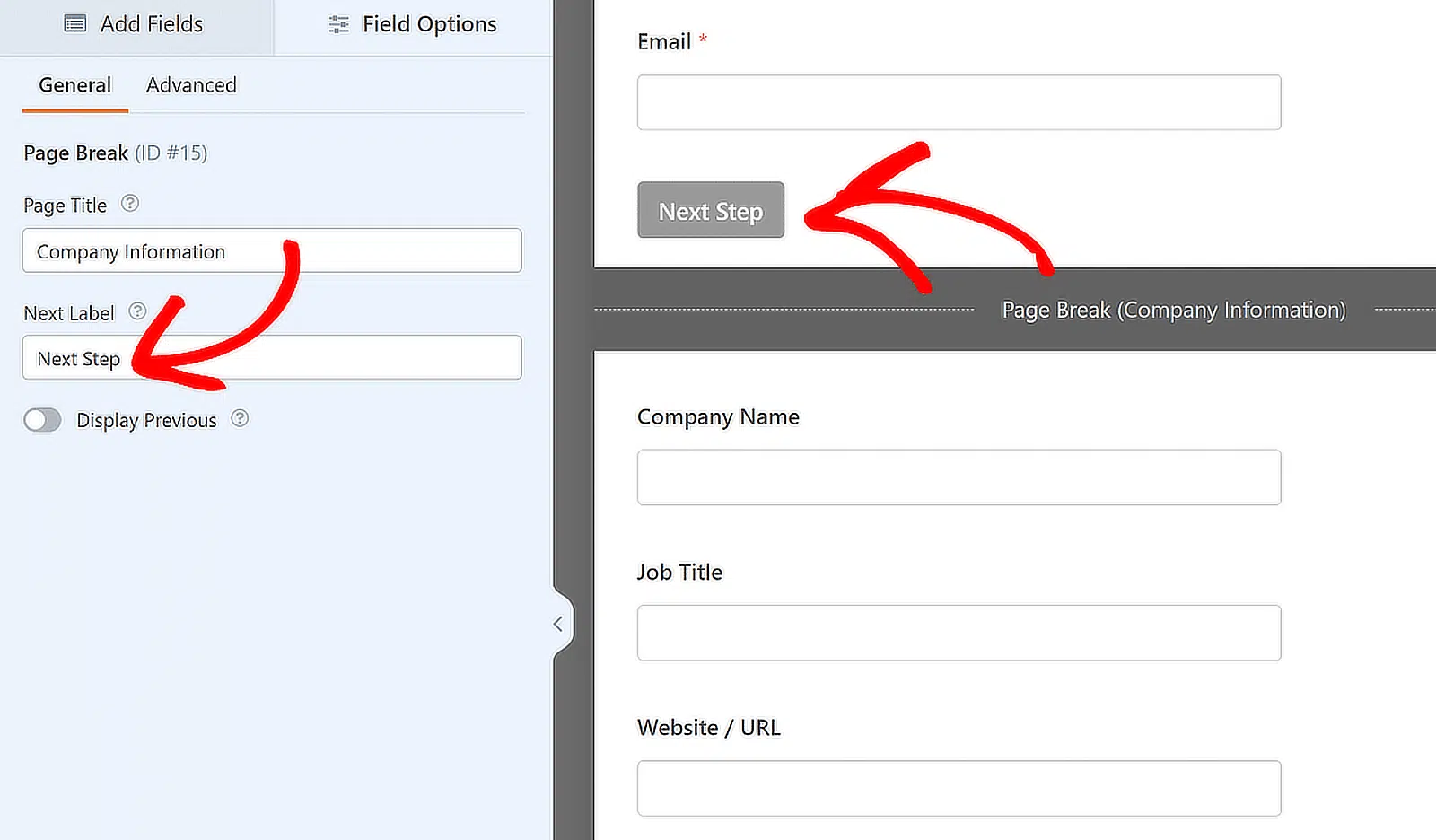
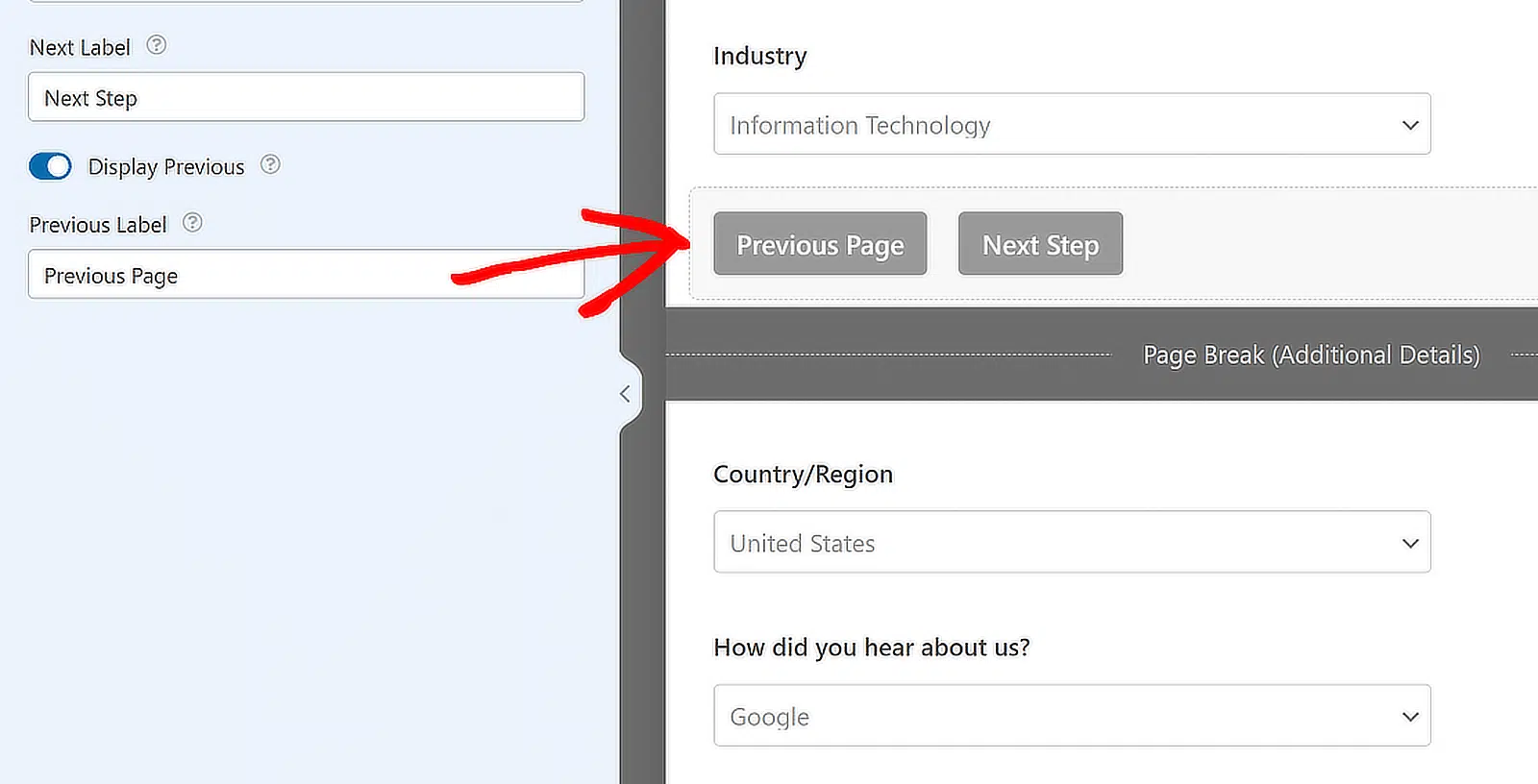
You can also enable the Previous Page button so that users can go back to the previous page of the form if needed.
After completing all the page break settings, you need to save your changes by clicking Save.
Method 2: Using the Lead Forms Addon
Although the “Page Break” field is suitable for most multi-step forms, sometimes you need a more focused solution, especially if the goal is to collect leads one question at a time. In this case the Lead Forms Addon is useful. It lets you guide the user step by step through short, focused steps, like a quiz or a quick registration.
To start, go to the WordPress dashboard, then WPForms » Addons. In the search bar type “Lead Forms”. When the addon appears, click Install Addon, then Activate.
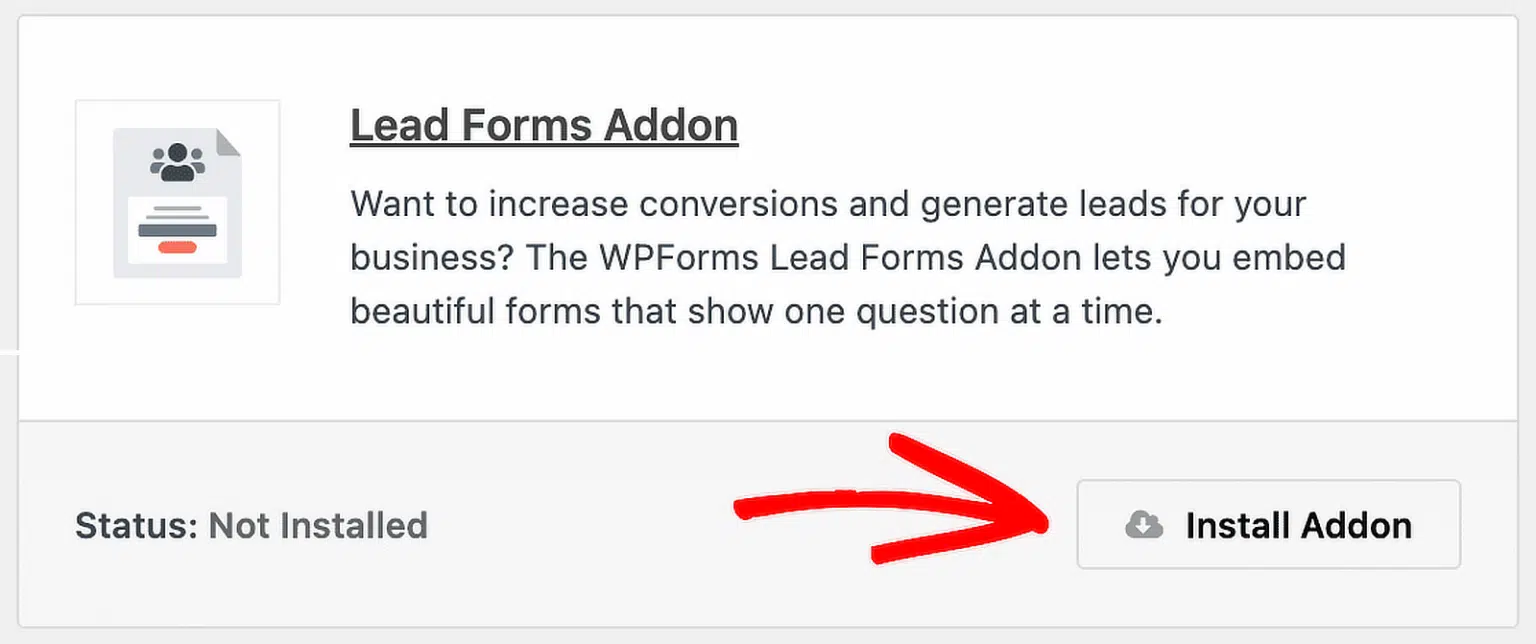
Enabling Lead Form Mode
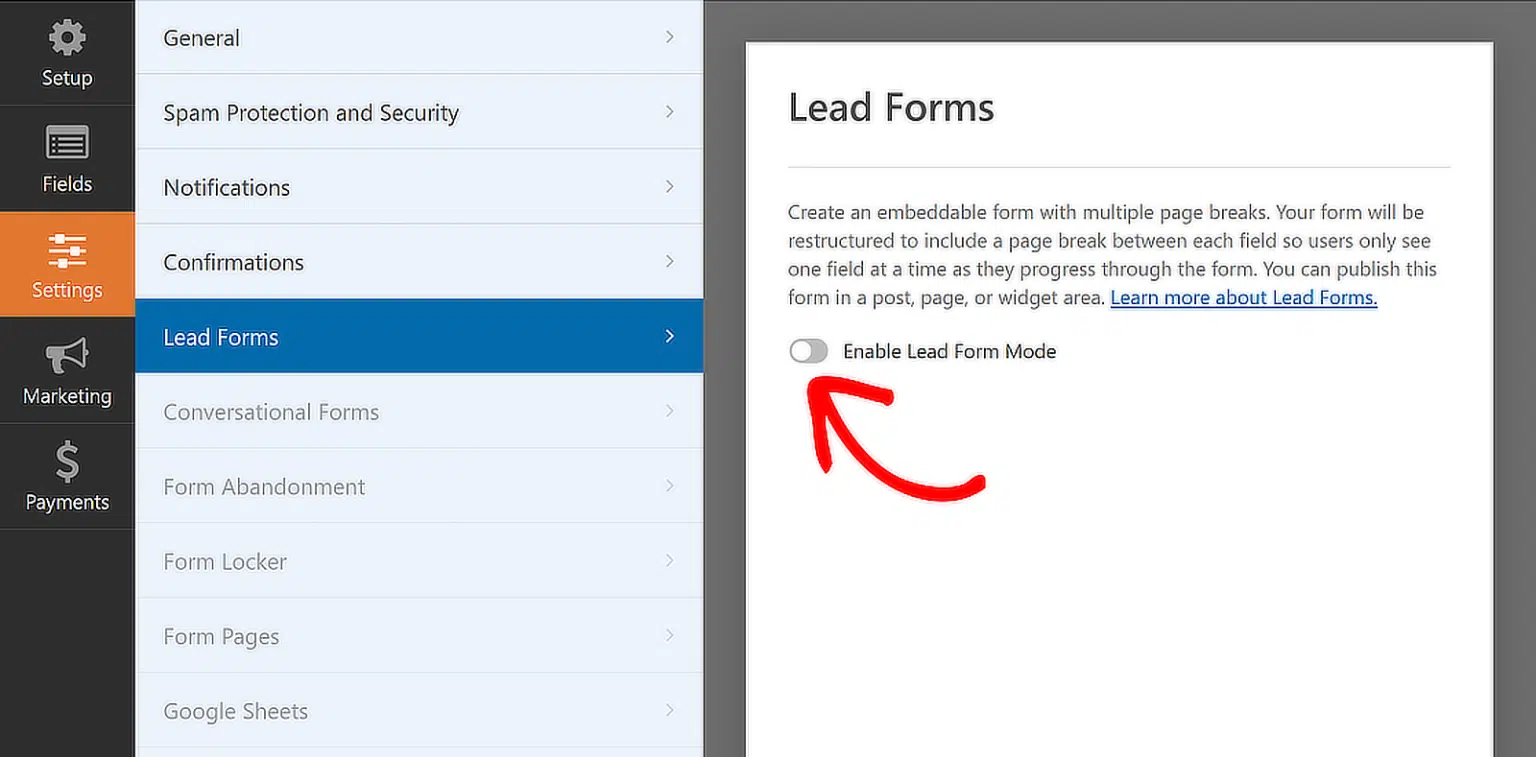
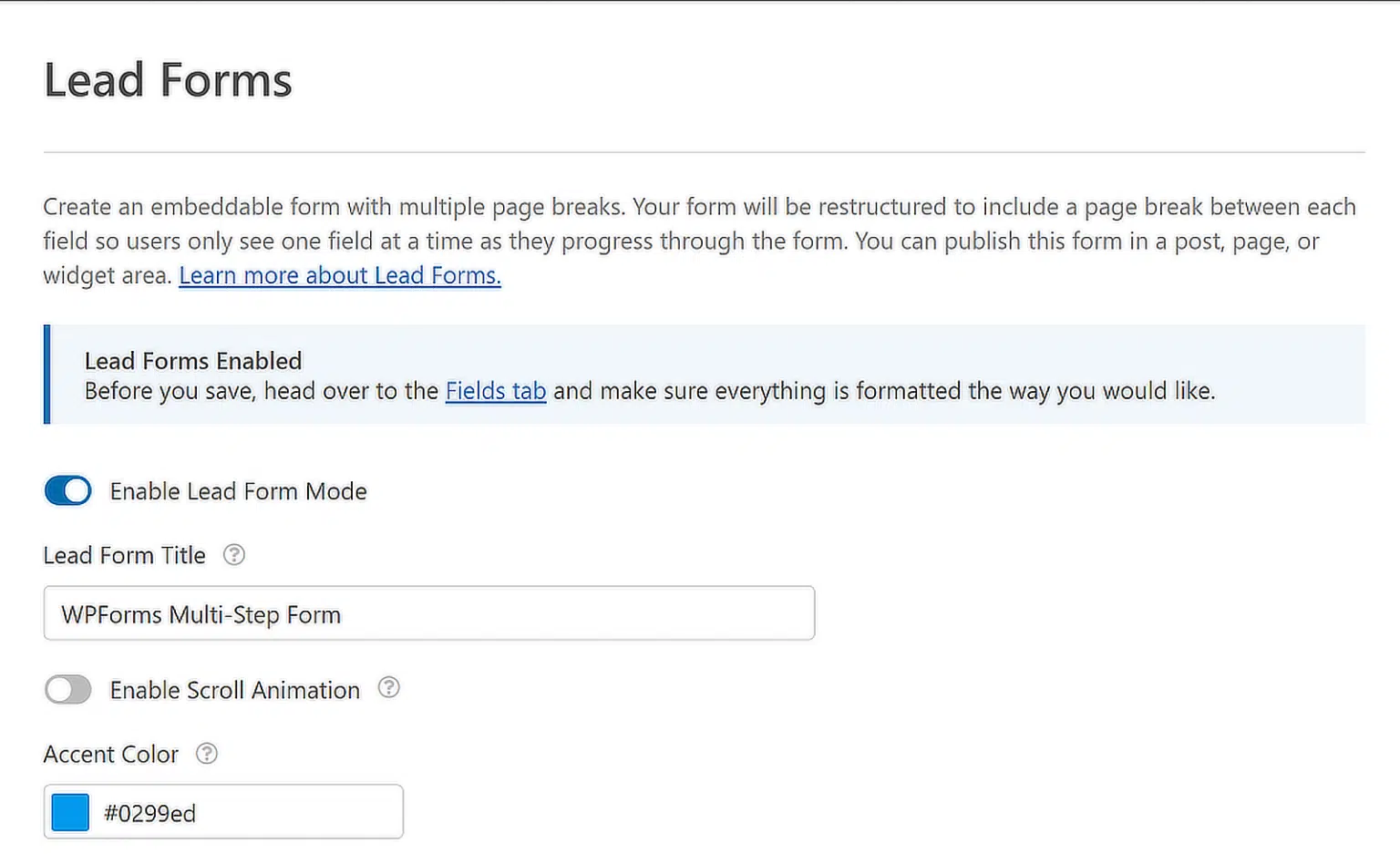
After installing and activating the Lead Forms Addon, open the form you are working with. Go to the Settings tab in the form builder, then choose Lead Forms in the menu. The Enable Lead Form Mode option will appear. Turn it on.
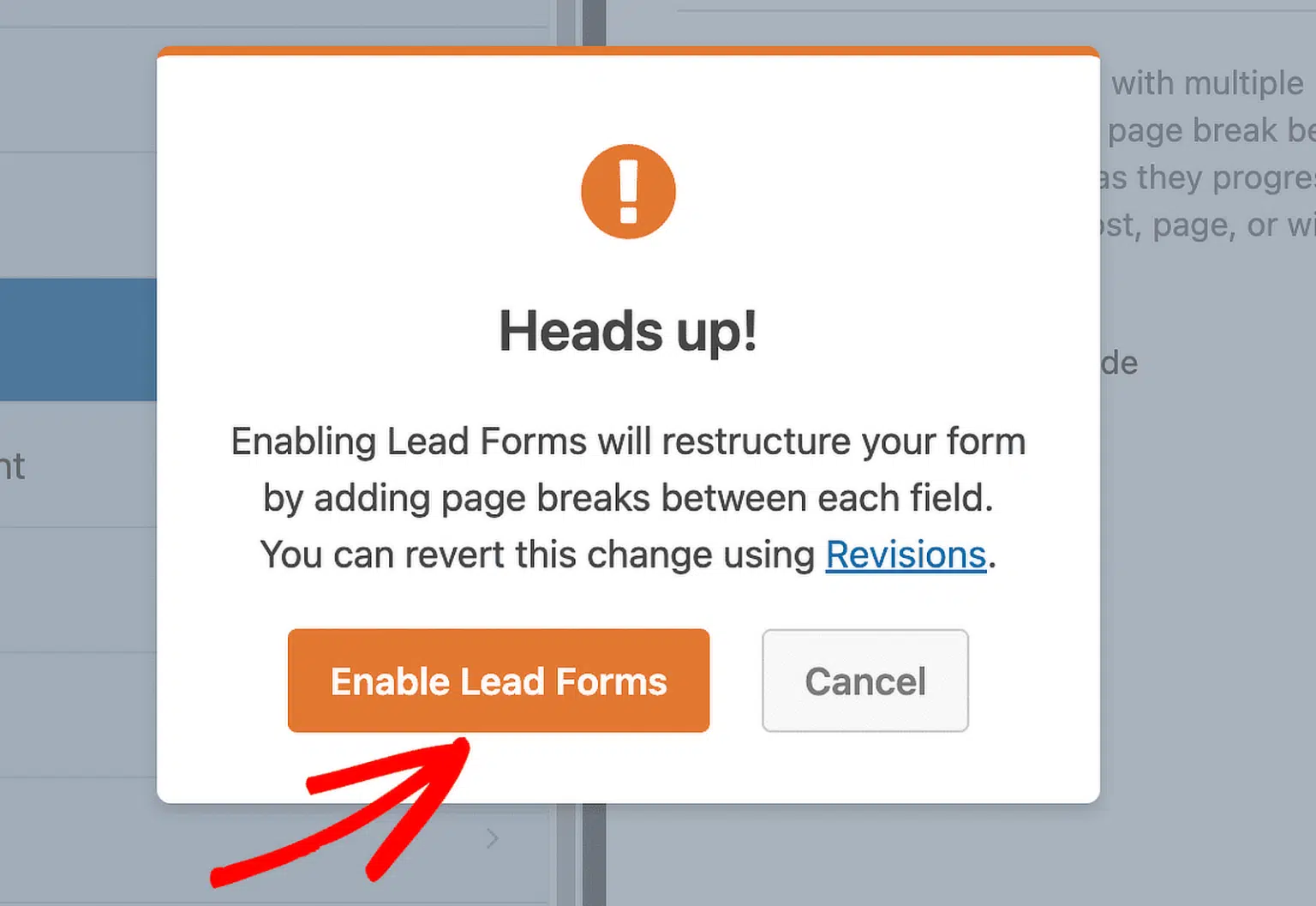
After that a message will appear saying that the form layout will change. This is normal. Just confirm to continue.
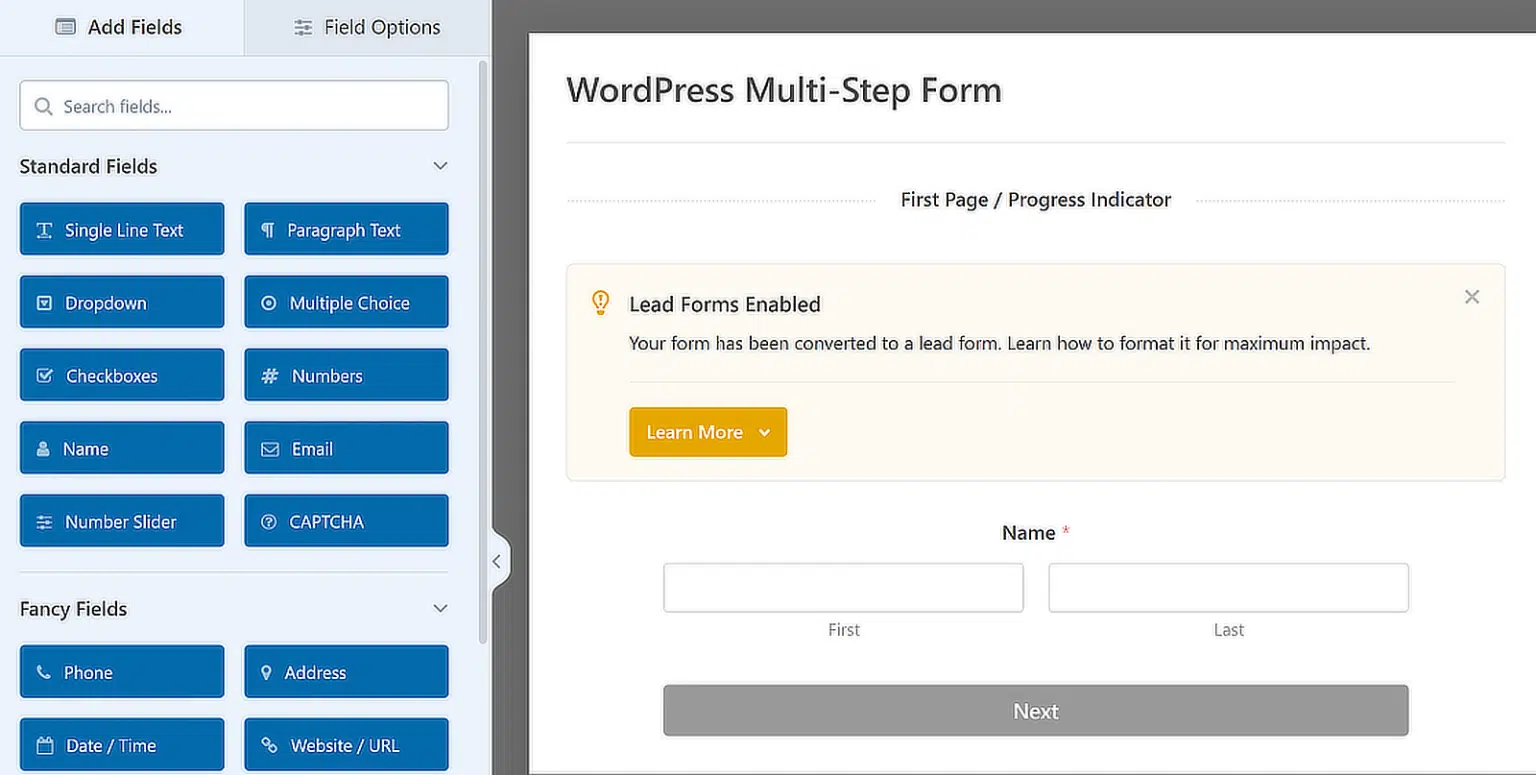
After this the form will be rebuilt into neat separate sections. You will still be able to drag and drop elements, add new fields or change their order — whichever suits your form’s logic best.
After setting up the form, you can change its appearance on the site. This is one of the advantages of using the Lead Forms Addon.
Customizing the Look of a Lead Form
Several parameters for changing the design are available in the Lead Forms settings. All changes are immediately shown on the front end, so the form looks neater and more professional without the need to write code. You can control the following elements:
- Form Title — you can add your own title at the top of the form so that users immediately understand what it is for.
- Accent Colour — this parameter changes the look of buttons, the progress line and icons. The built-in color picker makes it easy to choose a shade that matches your site’s style.
- Scroll Animation — when this option is on, after clicking the “Next” button the user is automatically scrolled to the top of the form. This is especially useful on long pages where the form may be below the first screen.
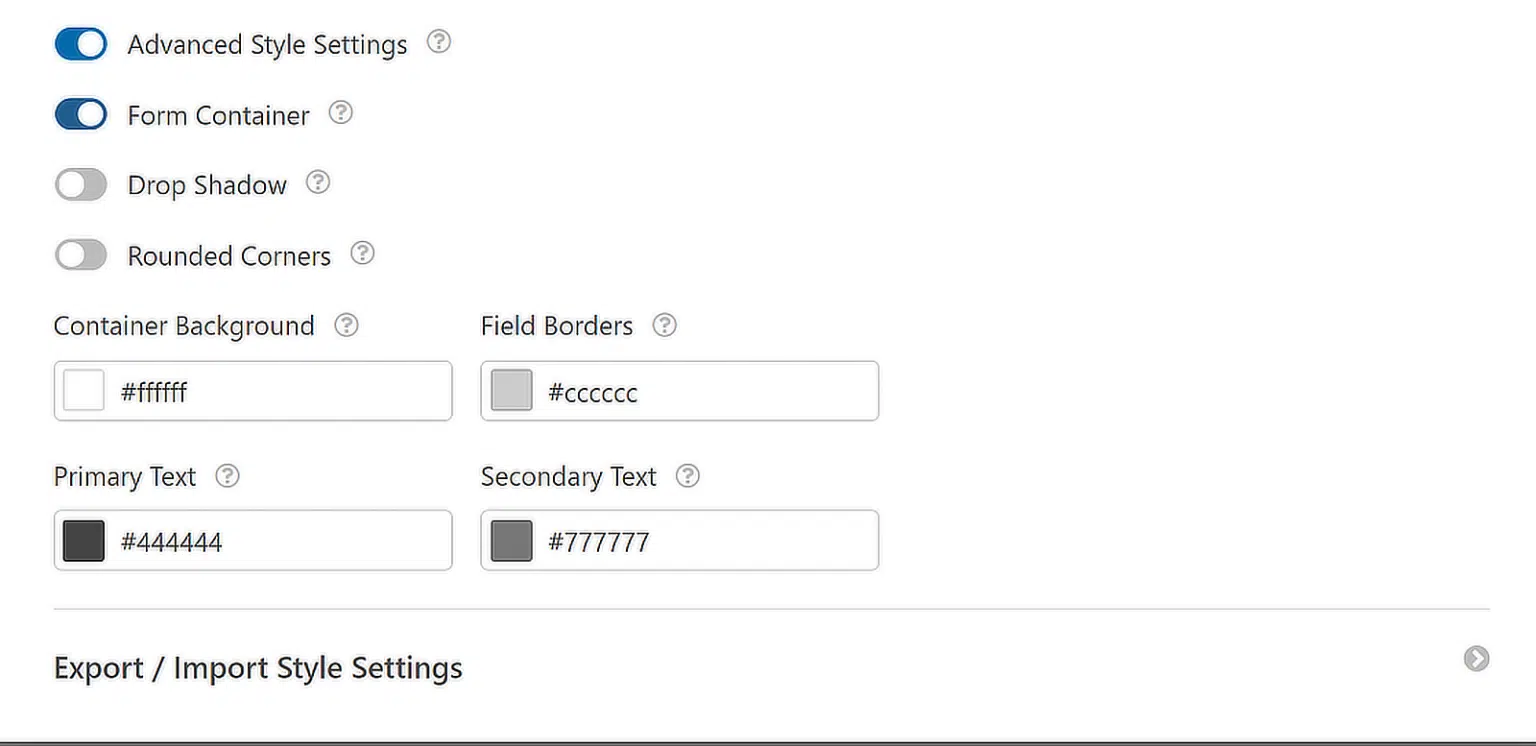
A Lead Form can be further customized with advanced styling parameters. To access them you need to activate Advanced Style Settings.
To visually separate the Lead Form from the other elements of the page, you can also enable the Form Container option, which wraps the form in a separate container.
Method 3: Creating a Form with AI
If you do not want to create a form manually from scratch, you can use AI-powered form generation. This tool lets you quickly get a ready form structure and is especially useful when you need to save time.
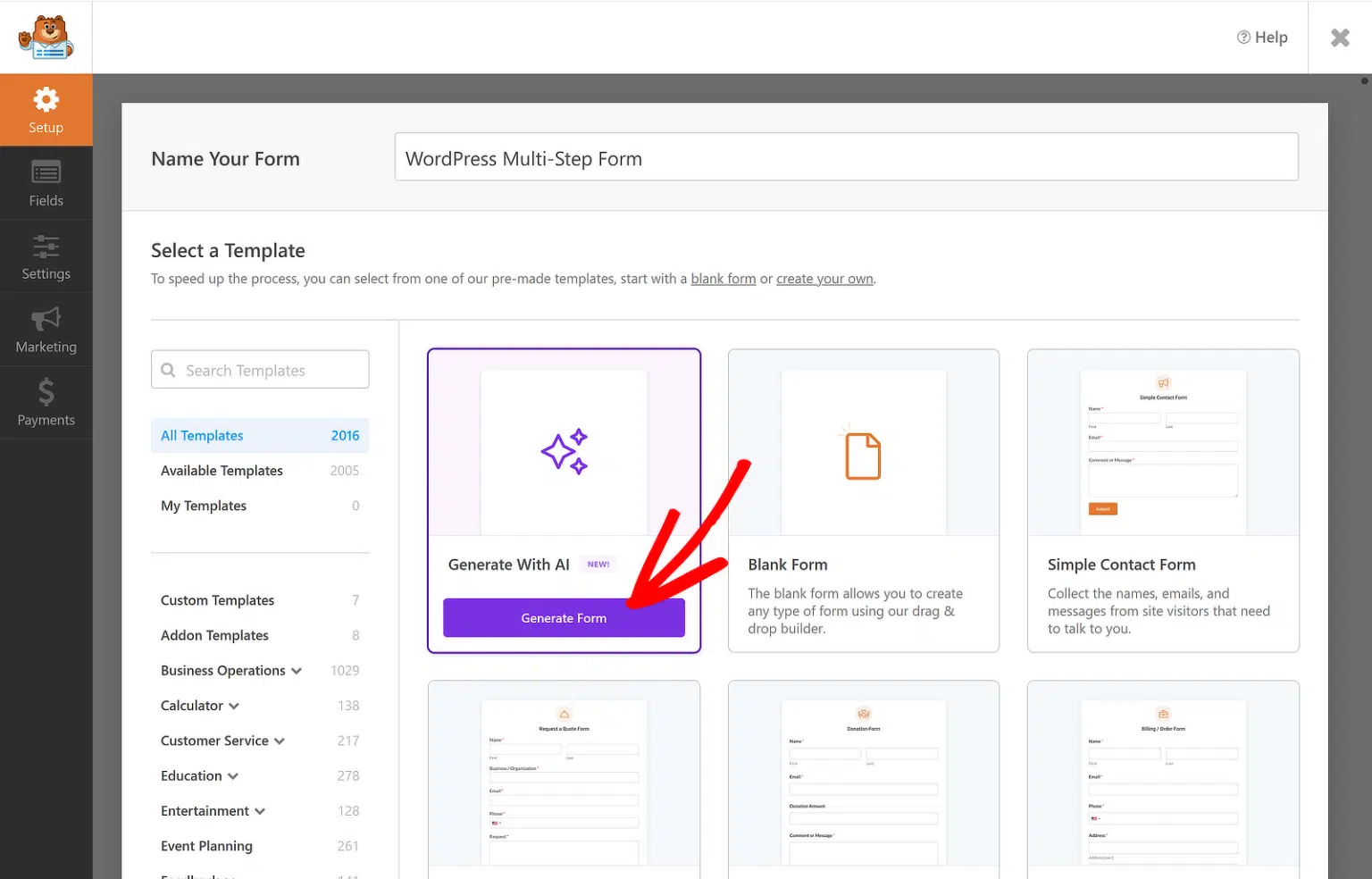
To start, go to WPForms » Add New in the WordPress admin panel and hover over the purple Generate With AI button. Then click Generate Form to open the AI form builder.
At this stage you can describe the form you want. You can enter your own text prompt or choose one of the ready-made options on the left, for example event registration or a feedback form.
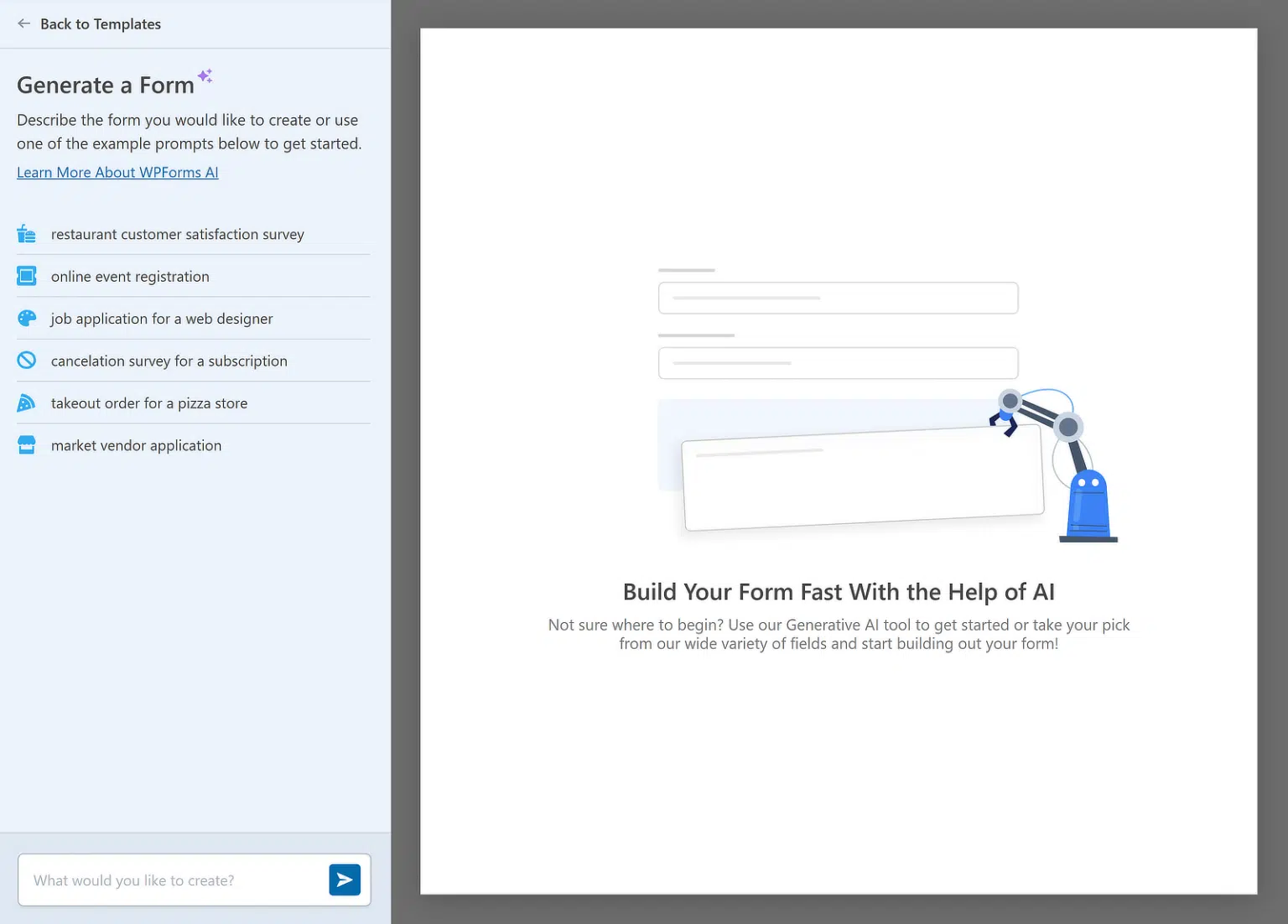
After entering the prompt, for example: “Create a multistep lead generation form with fields for name, email, company, country, product interest”, the tool will automatically create the form within a few seconds. It is important to note that the fields are not added as one long list. If the prompt specifies several thematic blocks, the AI automatically uses Page Break to split the form into logical steps.
You can preview the finished form right in the interface. If you are happy with the result, click Use This Form, after which the form will load into the builder. Here you can make changes, rearrange fields, change the order of the steps and edit section titles.
This method is convenient if you need to prepare a form quickly or create a basis for further testing. It saves you from having to think through the structure manually and lets you get a working version in a matter of seconds.
After making all the edits, be sure to click Save to save your changes.
Step 4: Configure Notifications and Confirmations
The next important step is configuring notifications and confirmation messages for the multi-step form. To start, go to Notifications on the Settings tab on the left side of the form builder.
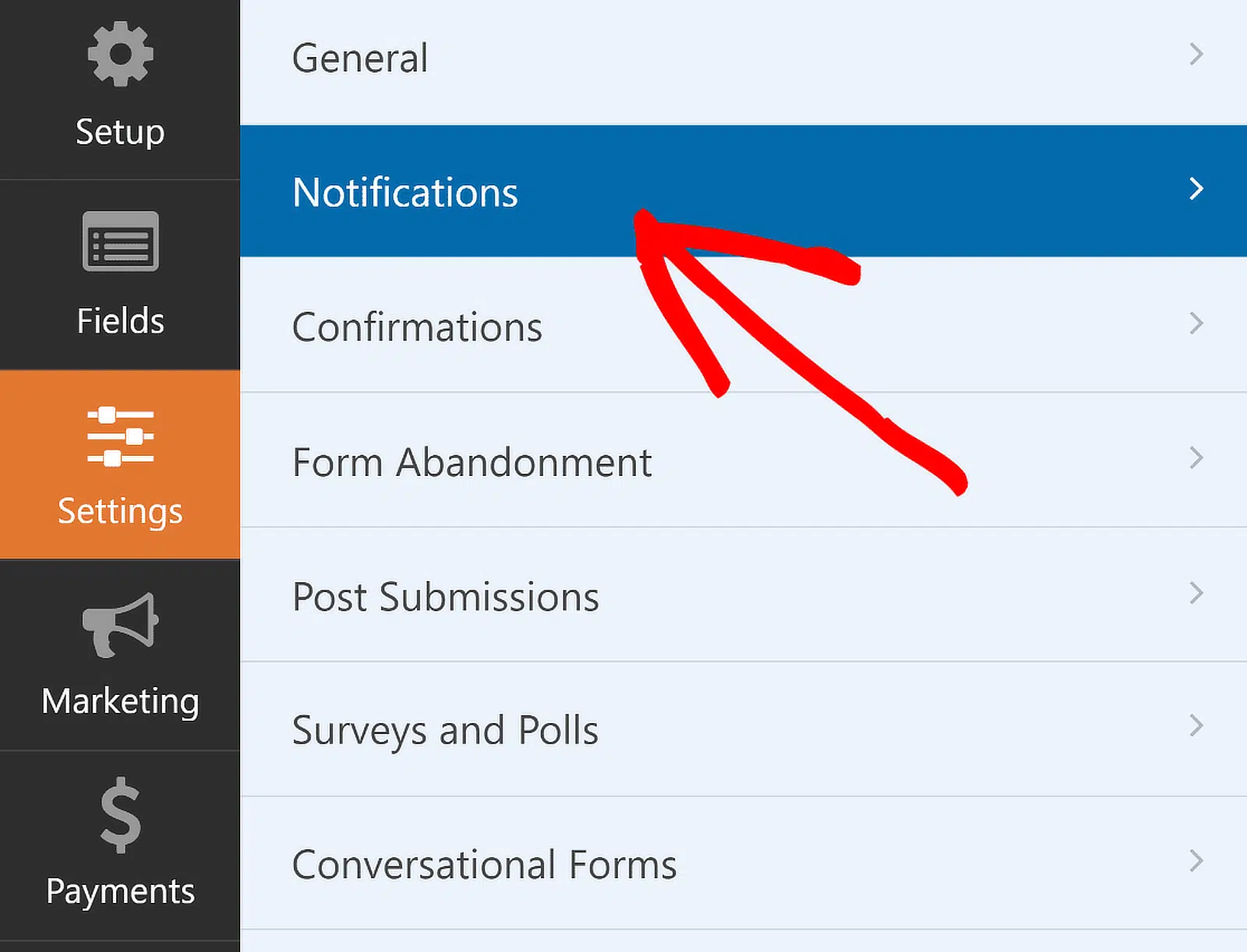
Here you can edit the standard notification parameters, for example change the email subject or the recipient addresses if necessary.
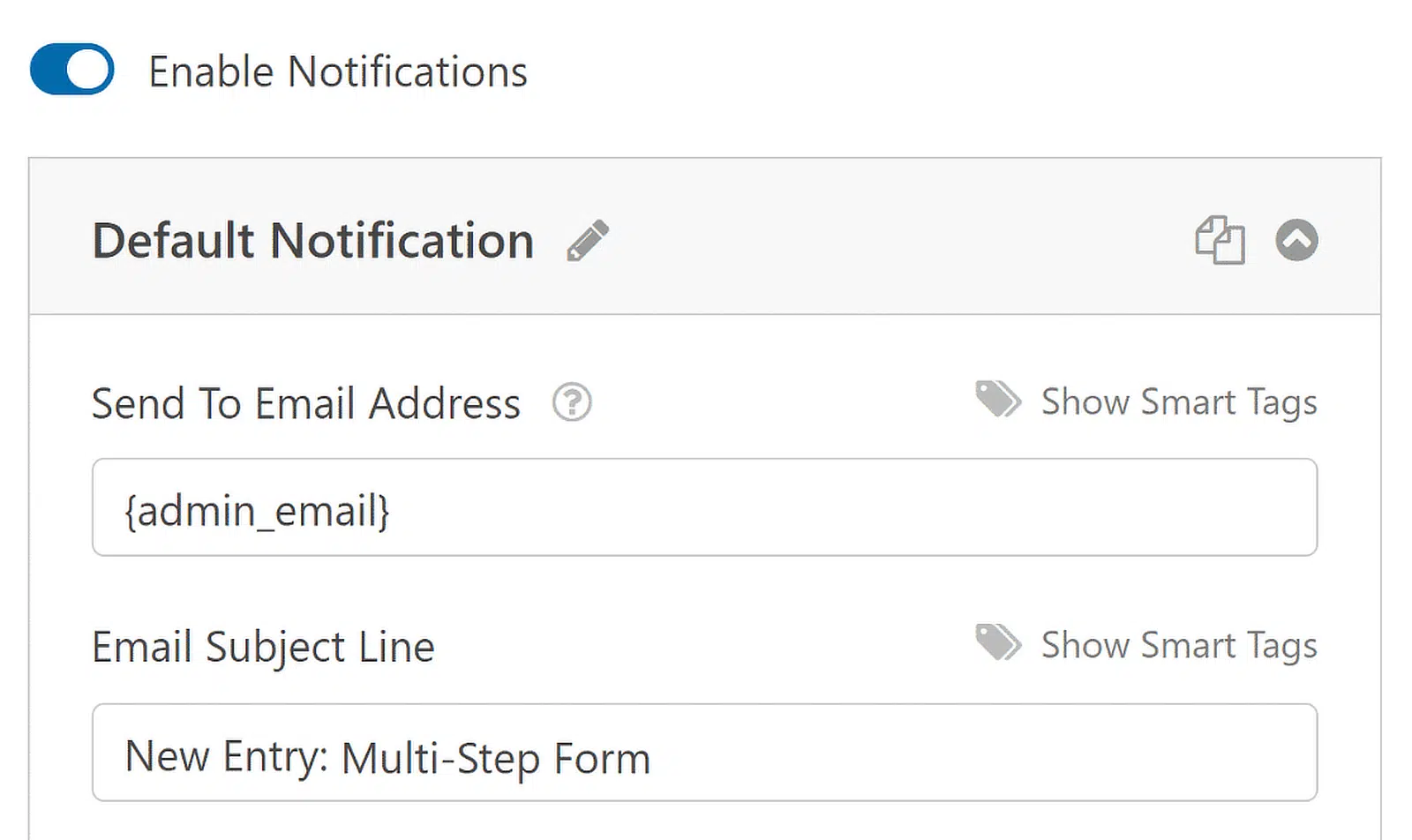
If you use Smart Tags, you can also set up a notification to be sent to the user’s email after the form is submitted. This way the user will be informed that the form was submitted successfully and they will be contacted shortly.
After that, go to the Confirmations section in the settings menu to set the form’s behavior after successful submission.
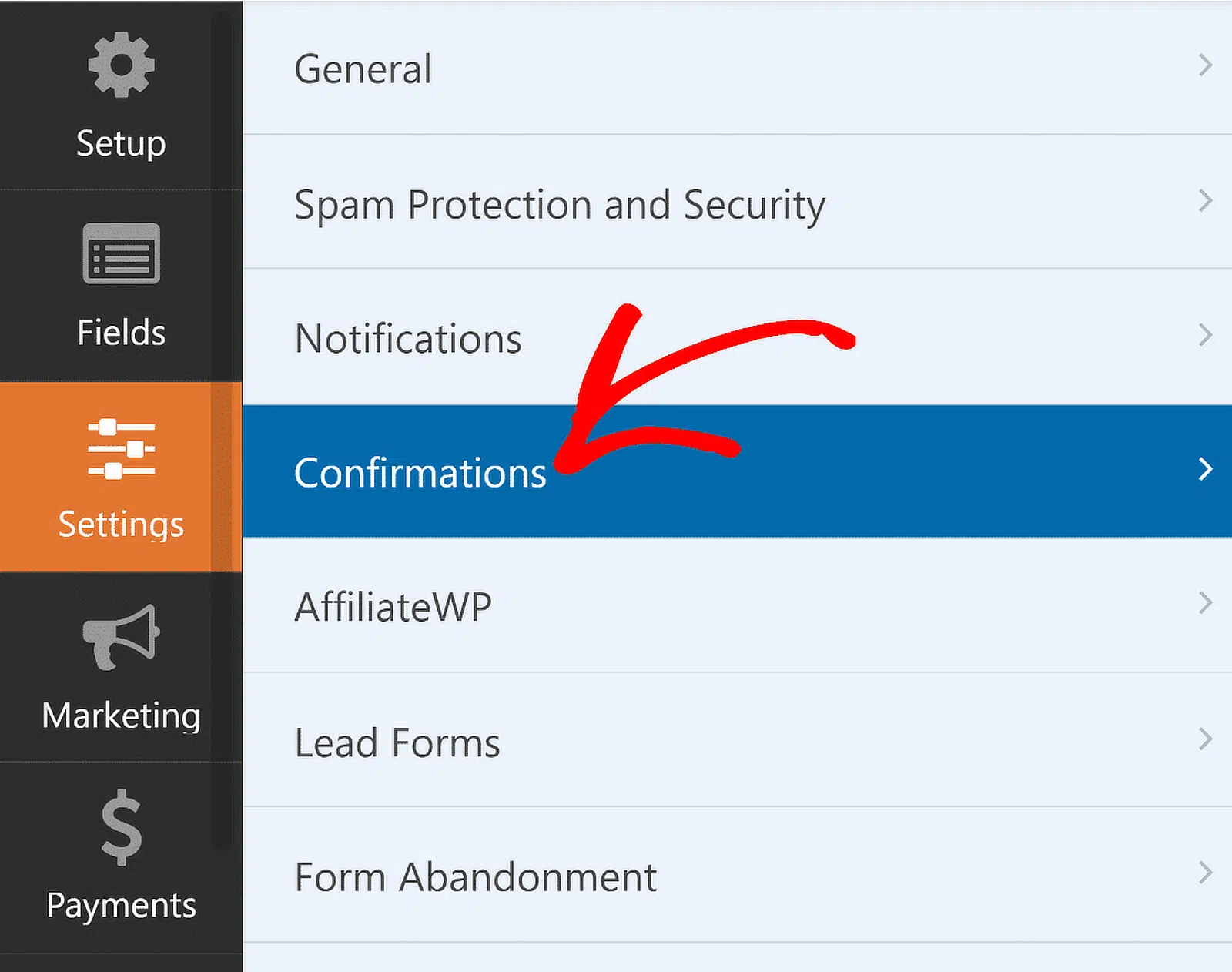
Here you choose the type of confirmation that suits your site best: a message, showing a separate page, or redirecting to another URL. After choosing the confirmation type, configure the corresponding parameters.
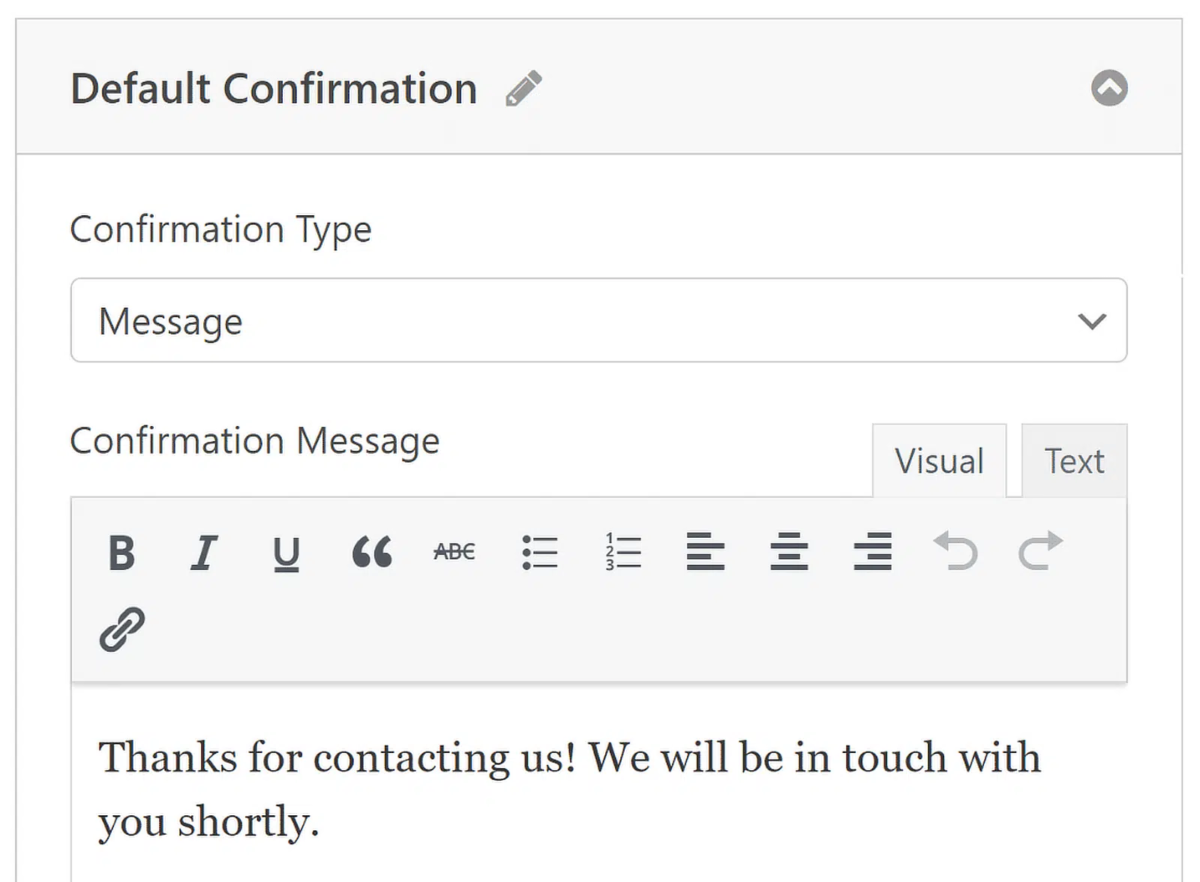
You can easily change the text of the successful submission message and tell the user about the next steps.
Step 5: Add the Multi-Step Form to Your WordPress Site
WPForms lets you place forms in several places on your site, including pages, blog posts and sidebar widgets.
The most common option is embedding the form in a page or post. To start, click the Embed button at the top of the form builder.

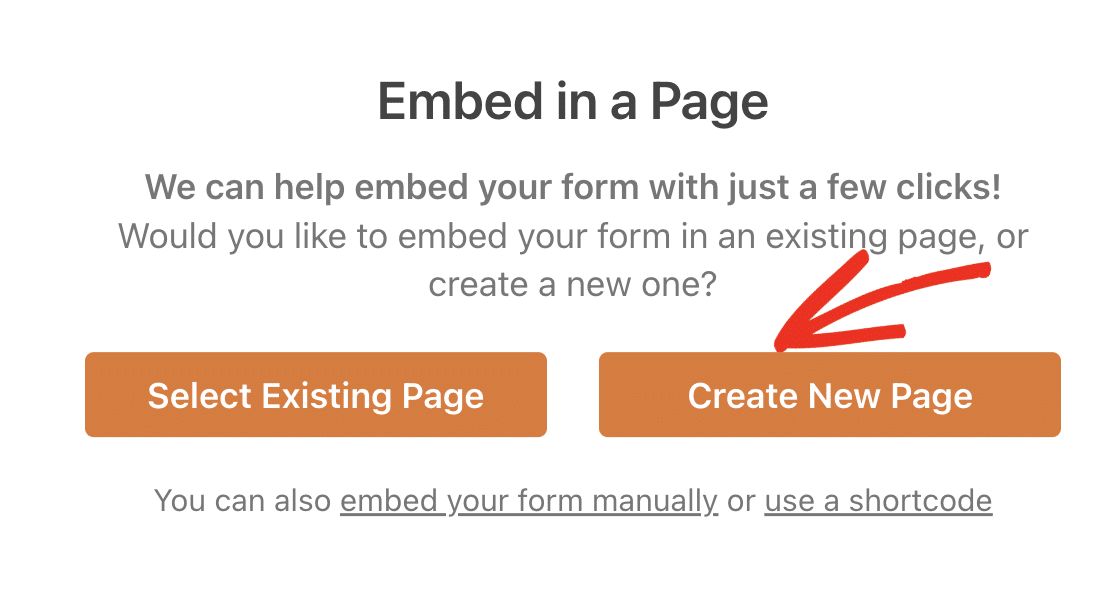
You can choose to publish the form on an existing page or create a new page, after which you will be taken to the WordPress block editor.
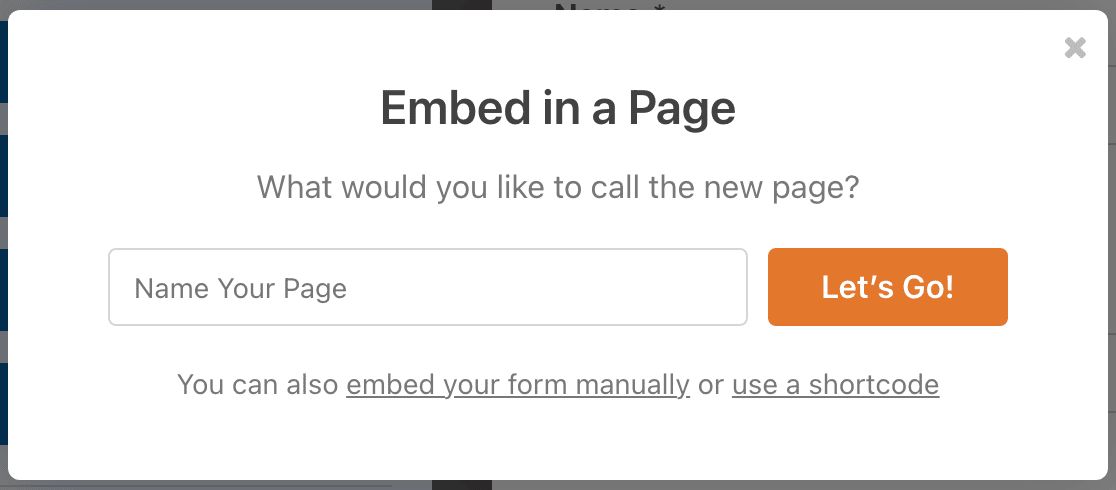
Then choose the name of the page on which the form will be embedded and click the Let’s Go button. The WordPress block editor will open immediately, and the multi-step form will already be embedded.
Now you can either publish the page right away so the form becomes active, or make some design changes to give it an additional visual effect.
Using a well-designed form helps attract visitors’ attention. WPForms makes this incredibly easy. Just click the area around the embedded form in the page editor to open a new panel on the right. All the basic and advanced styling settings for WPForms are available here.
To quickly change the form’s style, you can choose a ready-made theme in the Form Theme section. This example uses the Frost theme.
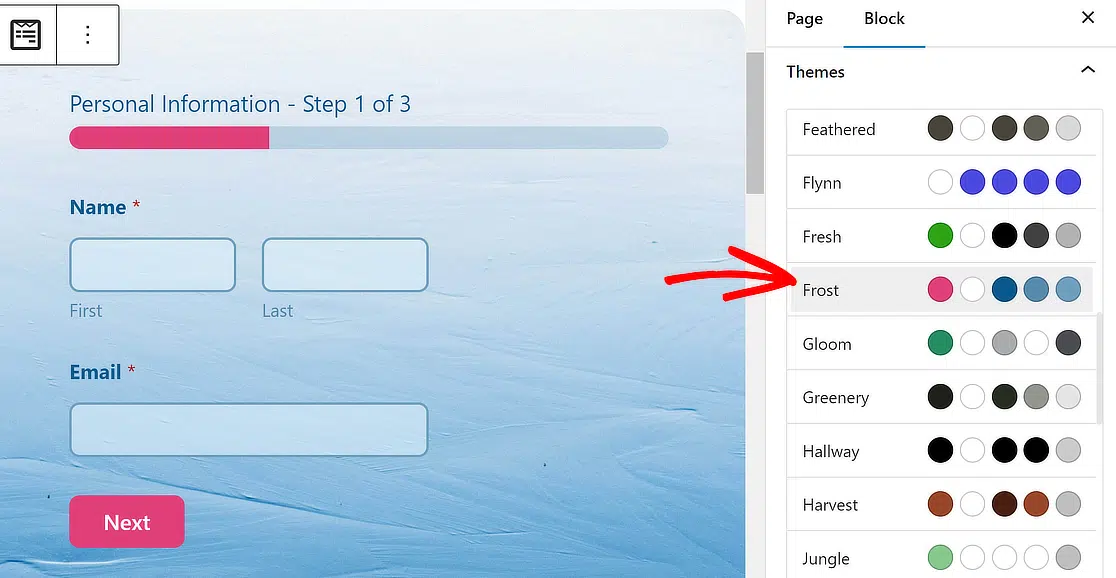
You can try other themes too — there are many options. If you want to experiment directly, you can also manually customize individual elements of the form more precisely.
When all the settings are ready, click Publish, and your WordPress multi-step form will be published!
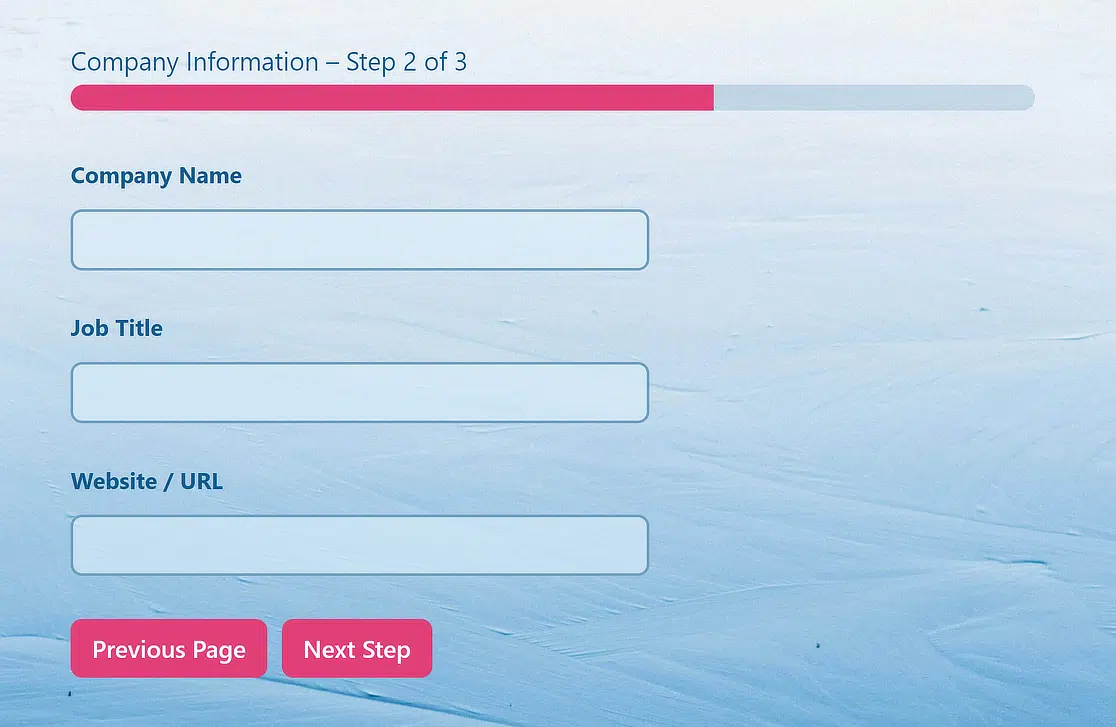
Below is how the form looks on the site after publication.
Source: https://wpforms.com/how-to-create-a-multi-part-form-in-wordpress/
Our specialization is WordPress website development and maintenance. Contact us for a free consultation — [email protected], +371 29394520
