A Blogger’s Guide to WordPress Security
Every day hackers break into up to 30,000 sites — and your blog may be among them. In an ideal world a system like WordPress could spare you a lot of trouble, but we do not live in an ideal world and by default WordPress is not very securely protected. WordPress is built first of all for publishing, not for protecting data. If you want to protect your content, you will have to take a few extra steps to do so.
However, this does not mean at all that you have to become some kind of technical guru. You are a content creator, not a hacker. For this reason we have put together a full guide to hardening and protecting your WordPress blog. We admit the guide turned out to be sizable, but you will only need to take most of the steps described in it once.
By the time you finish reading, you will know absolutely everything there is to know about WordPress security, from choosing a good password to modifying the standard WordPress configuration files. Regardless of the scale of your site, you will be able to sleep peacefully knowing that your material and your users are reliably protected.
But first let’s talk about the risks.
Why Should I Protect My WordPress Site
It’s a blog, not a bank account! Who would need to hack some website? It is very easy to assume that nobody will spend their time and effort attacking your blog, but there are reasons that many people do not think about. Most often blogs are hacked for the following purposes:
– to get hold of personal information, including information about your users. For example, many hackers are attracted by email addresses, which they can then sell to spammers or spam with themselves
– attackers can use your site to promote other sites, sell goods and services, distribute malware and for advertising purposes. If you have even a moderately popular site, attackers can use its popularity for their own ends by taking control of the domain.
– the same attackers can use your site for blackmail – you will be able to regain access to it only by paying a certain amount of money. It looks roughly like this: one fine morning you go to your page and see a message that your site has been hacked, but you can restore it by transferring the appropriate amount to a certain account. Many people usually fall for this, because they do not bother to make backups.
– to embed malware on your site. The site itself may remain available. You may even get the impression that everything is fine, while your users may become victims of malicious programs. Naturally, this will not escape the attention of search engines, which will immediately block your site.
– simply to get rid of your site. DDoS attacks are the easiest way to take a site down. This can happen for various reasons. For example, the attacker may be competing with someone, may disagree with your views or may simply be doing research.
Besides all of the above, your site can also fall victim to a larger attack. For example, cybercriminals may simply scan for vulnerable WordPress accounts, knowing about certain vulnerabilities in the system. They may act simply by trial and error – among a thousand hacked blogs they will surely find something valuable.
So how do you protect yourself against attackers? It all starts with configuration.
Chapter One. Configuring Your WordPress
The essence of WordPress is that you can easily and quickly share your thoughts with others. That is why the initial WordPress setup is very easy for other people to access. Before getting to posts, let’s configure WordPress itself.
Change Your Administrator Username
By default in WordPress your username is “admin”. This makes life easier for attackers, because to hack you they only need to guess the password, since they already know the username. You can make their task harder by changing your name. In WordPress it is impossible to change usernames directly, but you can create a new one and then delete the old one.
How to Change Your Administrator Name
In the admin panel click the Users tab and you will get a list of all users, including the administrator.
Then click the Add New button next to the Users heading.
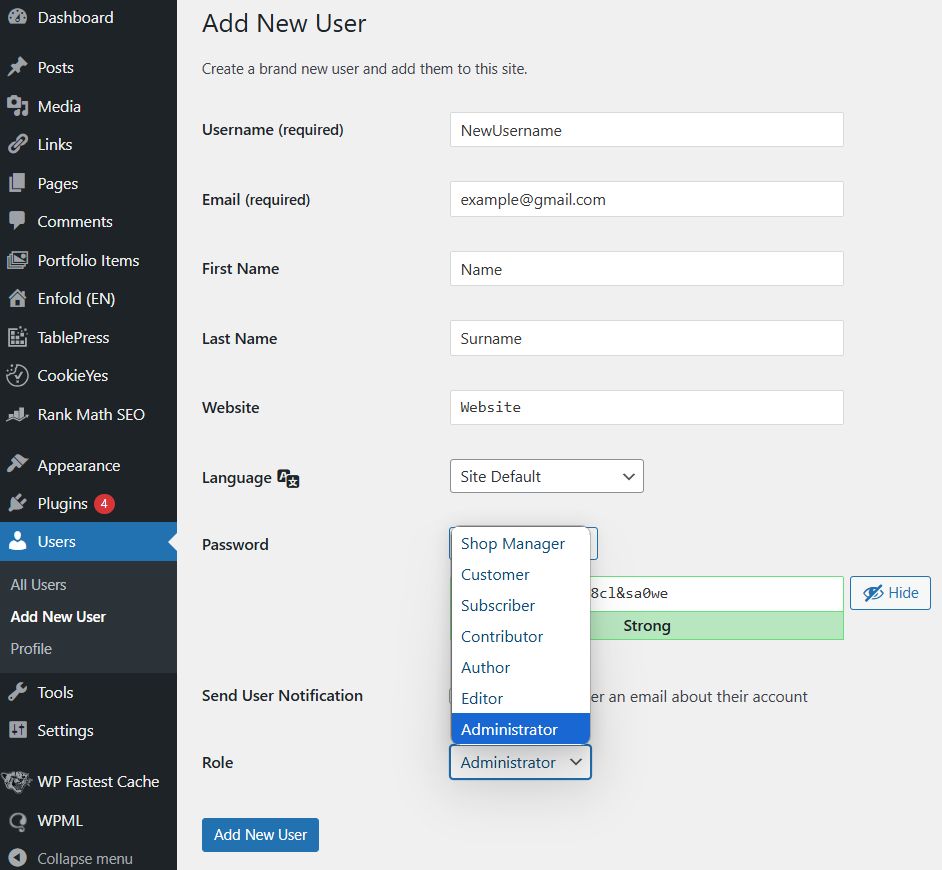
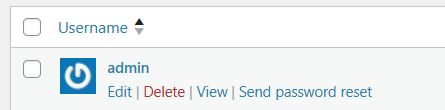
Enter your details as in the example above and assign the administrator role. After that click Add New User. Hover over the old admin and click Delete.
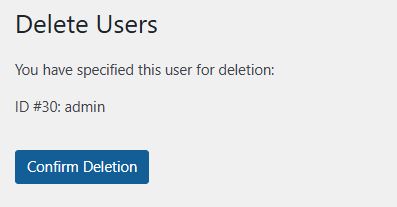
Confirm the deletion.
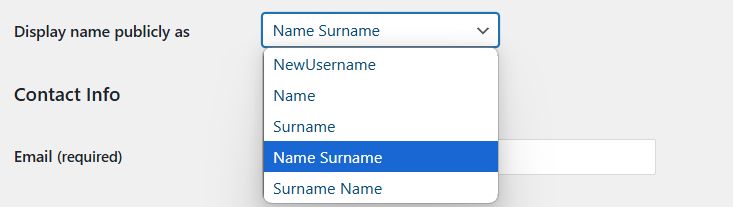
Click the new administrator name. Scroll down to change the username and choose display name publicly as.
Add Two-Factor Authentication
Two-factor authentication adds an extra layer of protection on top of the traditional username and password combination. Imagine a lock that can only be opened with two different keys. One of these keys is your username and password. And the other key can be one of the following:
– something that belongs to you. A fingerprint, an iris scan and other biometric services. This is often used to lock phones, doors and other physical devices.
– something that belongs to you. A smartphone or similar device that can be used to confirm your identity. Most often this means sending an SMS with a PIN code that you then need to enter.
Setting Up Two-Factor Authentication with Google Authenticator
Go to the plugins section and click “Add New”. Find MiniOrange Google Authenticator, click Install and Activate. After the plugin is activated, the miniOrange two-factor authentication setup will open.
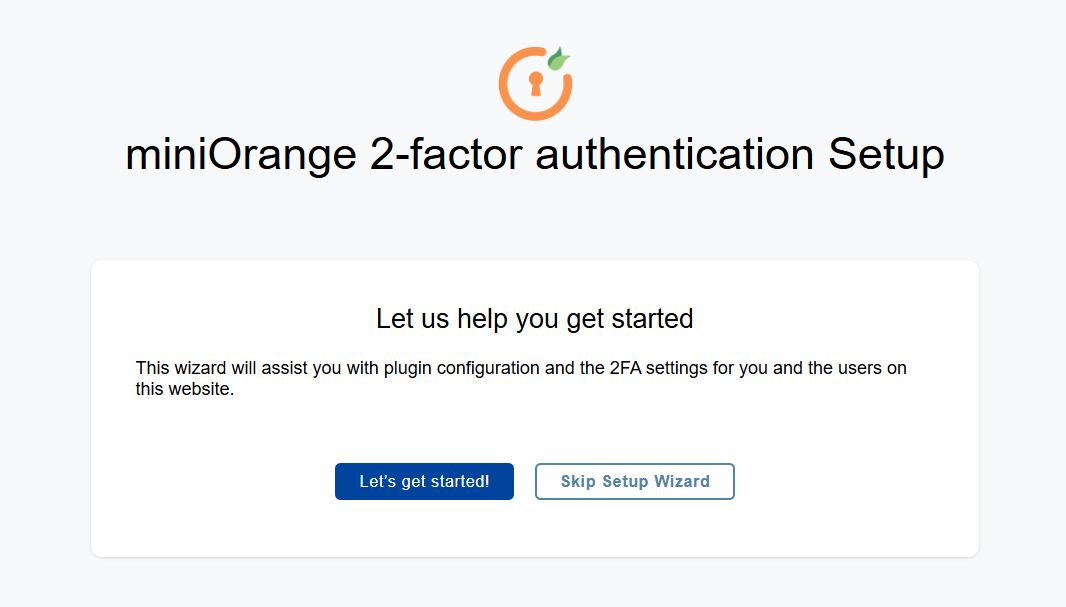
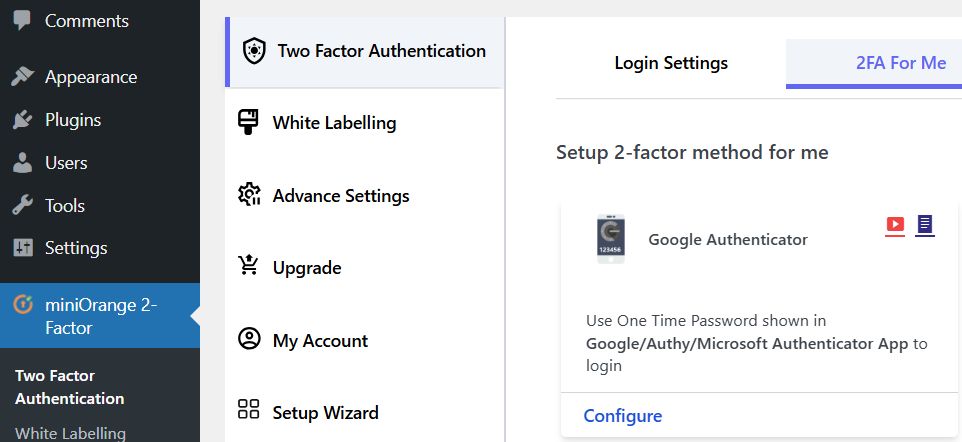
Go through the setup steps in the Setup Wizard. After that you can configure your account. Choose the 2fa tab to choose two-factor authentication. The simplest and most reliable way is to use Google Authenticator. MiniOrange also offers a premium version that includes SMS as well as the less reliable email option.
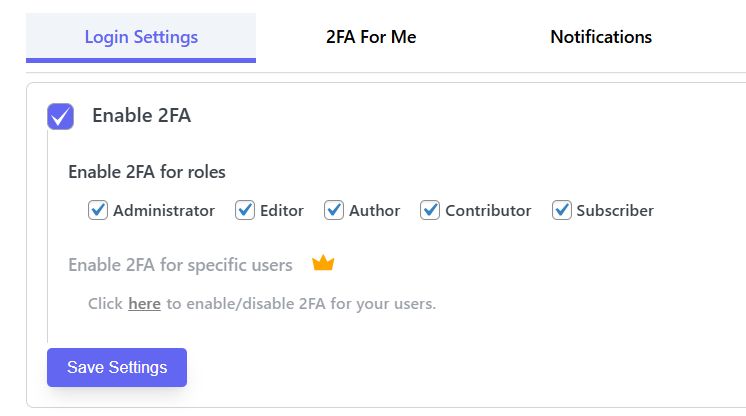
Set up the security questions that will protect you from locking yourself out. You can also configure which roles have two-factor login.
WARNING! Using the optional Jetpack, it is possible to connect to all your sites through a single login. This is not very reliable, because if it is hacked all your sites will certainly be put at risk at once.
Installing CAPTCHAs
Everybody knows CAPTCHA. CAPTCHA protects against bots. Bots can be very intrusive and slow down your site’s performance. A CAPTCHA plugin lets you add these things to login, registration, comment and contact forms and more. Moreover, you can control the type of CAPTCHA.
Go to Plugins, open the add-new screen, find reCaptcha by BestWebSoft and install it. Choose the CAPTCHA type. Register your domain name in the Google reCaptcha service and add the keys to the corresponding fields.
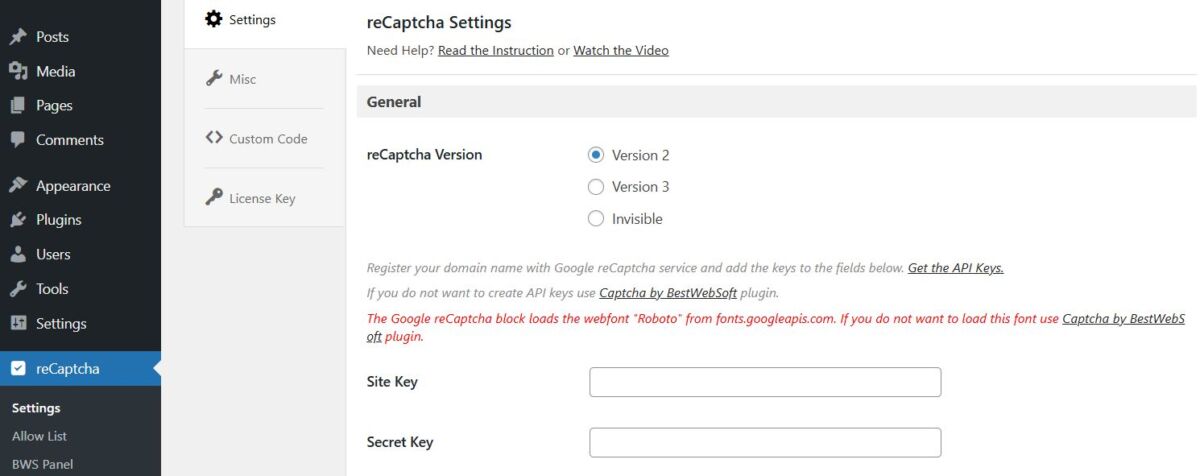
If you do not want to create API keys, you can use the paid Captcha by BestWebSoft plugin.
Go to the settings and enable CAPTCHA for login, registration, password and comment forms. Save the changes.
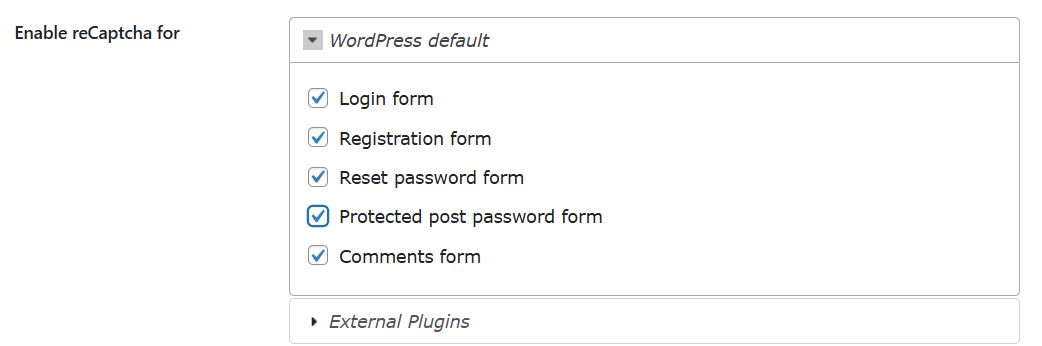
Enable Comment Spam Protection
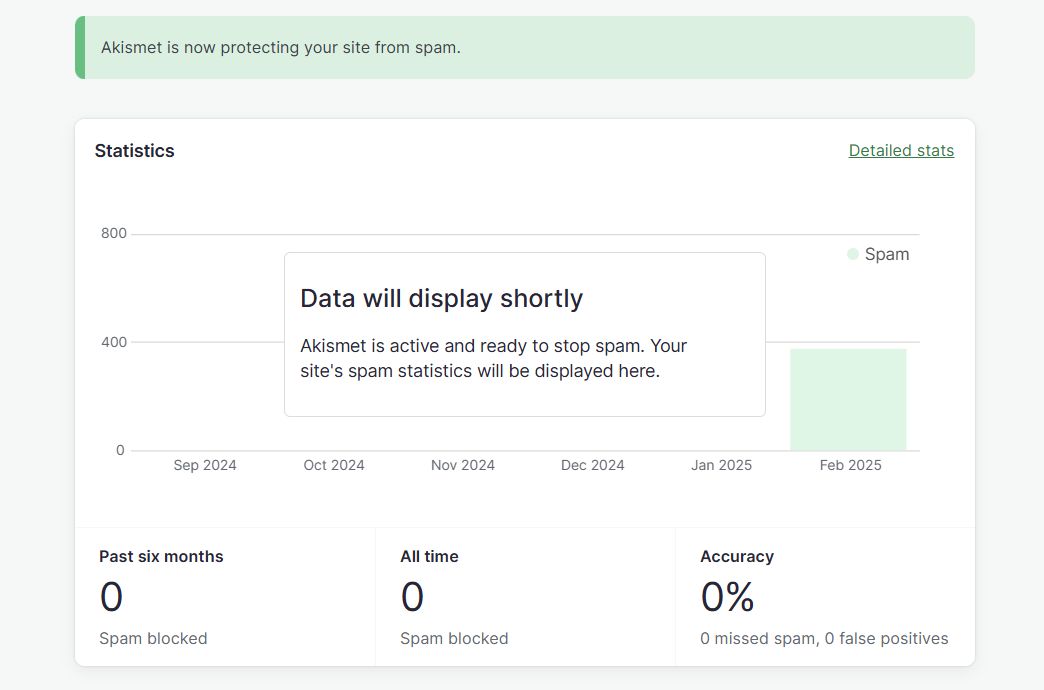
At first glance, spam comments do not hide any particular danger, since spam bots are only trying to promote other sites. However, the danger may lie in the links they leave on your site. By default WordPress does not provide spam protection, but you can install the Akismet plugin or use alternatives such as the official WordPress plugin or all-in-one systems like Sucuri.
Installing the Akismet Plugin
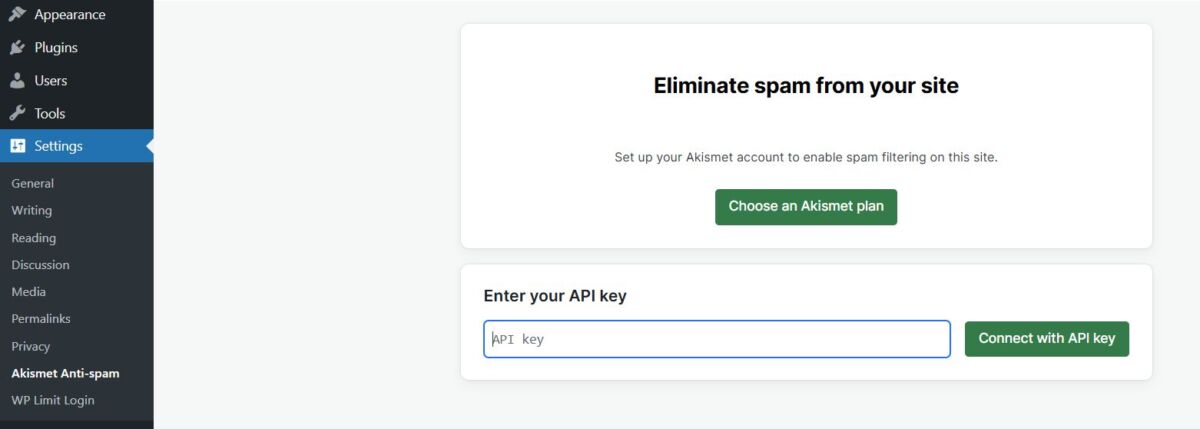
The Akismet plugin is already installed in every WordPress installation; go to Plugins and activate it. Choose the plan that suits you (free for personal / non-commercial sites).
After completing the order you will receive an API key.
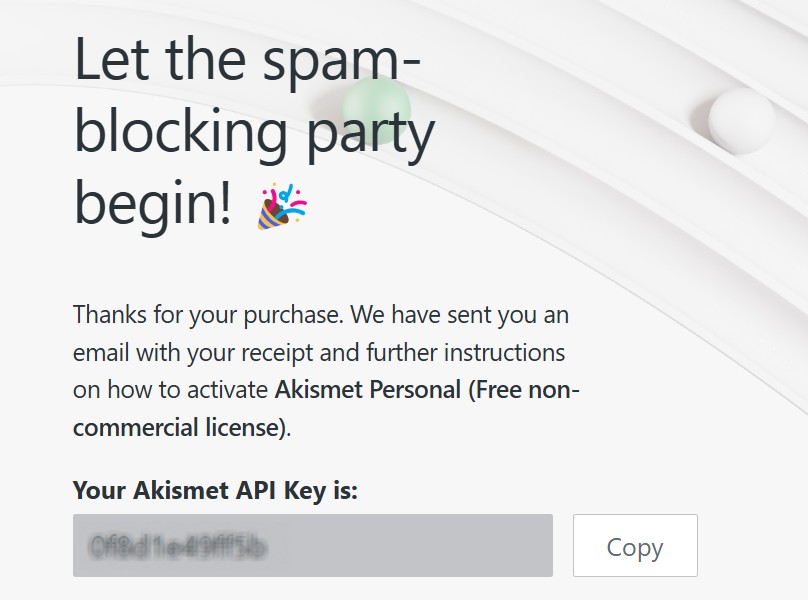
Go to the settings and enter the key you received, after which spam protection will start immediately.
Remove Your WordPress Version
In WordPress you can see the version of the engine without any problems. This can be not only curious but also quite dangerous – an attacker may recall that the version installed on your site has certain bugs and vulnerabilities and will not fail to take advantage of them. So it is better to remove the public display of your engine version. Since this requires some file editing, first take care of backing up your site and only then start following the instructions.
Go to Tools and then to Theme File Editor.
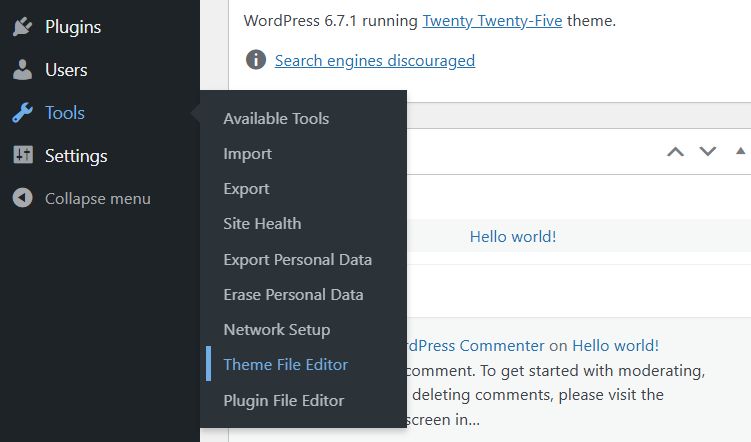
On the right you will see “Theme Functions”, also labeled as functions.php
Note that some themes may have their own functions file. For that, consult your theme’s documentation.
Add “
function remove_wp_version() {
return ”;
}
add_filter(‘the_generator’, ‘remove_wp_version’);
“
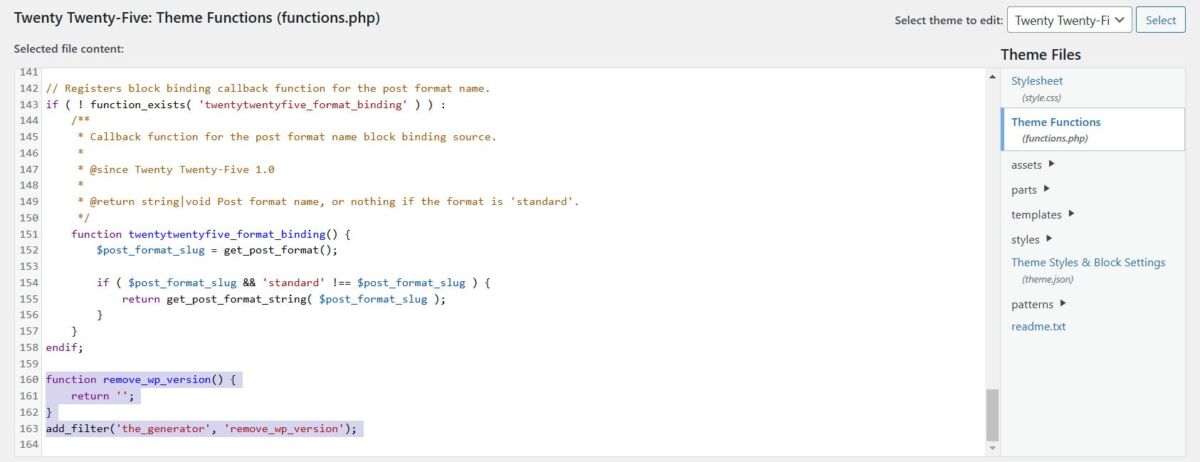
The code above adds a filter to the WordPress function responsible for displaying your version, thereby preventing it from doing its job.


Then click Update File. This will remove your WordPress version from the site header as well as from RSS feeds. There are just a few things left to do.
Disable the WordPress API
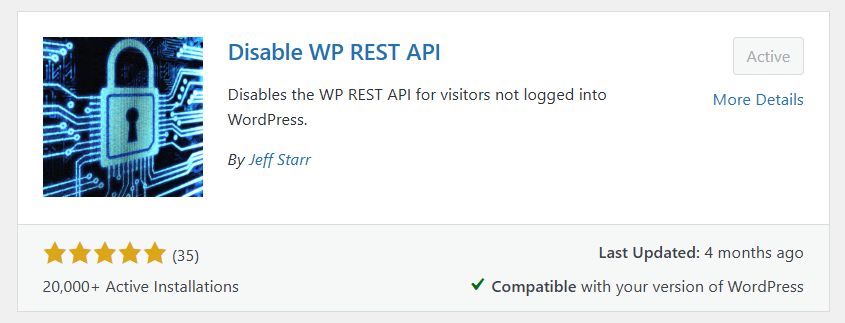
WordPress provides developers with a REST API that lets them integrate their own programs into the engine. However, there are a few points here. For example, the API can bypass the authentication system, including two-factor authentication. So if you do not use custom applications, it is better to simply disable this API, and you can do this with the Disable REST API plugin. You only need to install and activate it.
Disable XML-RPC
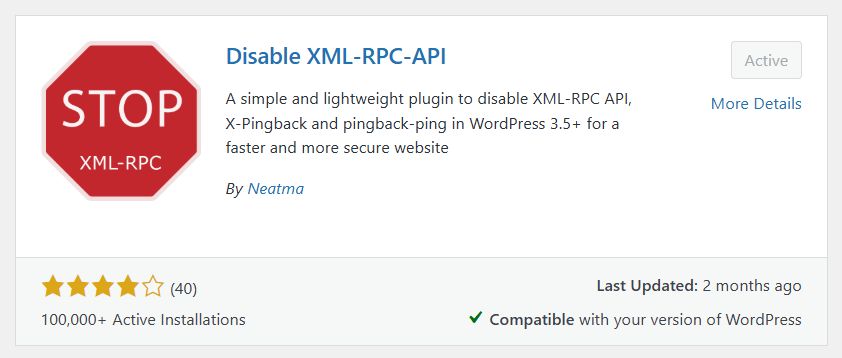
XML-RPC is a special WordPress feature that lets you access the site remotely and make posts. This can become a security issue, since it gives attackers additional ways to get into your site. If you are interested in the feature of publishing posts remotely, you can leave it enabled. Otherwise it is better to disable it, and the easiest way is to install the Disable XML-RPC plugin. There are other methods too, but they require interfering with another plugin’s code. And again, all you will need to do is click a few buttons – Install and Activate.
Chapter Two. Passwords and Password Guessing
So far all the changes we have made were aimed at fixing flaws in the WordPress platform itself. But that is only half the job. The same risk can come from the user. There are many ways you can create vulnerabilities in site security, and one of them is a careless attitude to passwords. In recent versions the engine by default requires the user to enter a strong password. However, there are still some points to take into account.
Creating a Strong and Memorable Password
What should a good password be like? Complex and memorable. WordPress can take care of the first by generating a password for you, but most likely that password will be far from easy to remember. Or rather, impossible. The complexity of a password undoubtedly plays an important role, since it rules out guessing by outsiders. However, memorability is also very important, otherwise you will simply write your password down in some app or forget it altogether and reset it.
The overwhelming majority choose bad passwords. How do you choose a good one?
seashells – this is obviously a bad password. First, it is a single word that can be easily guessed, especially if there is some reason why you chose exactly this word. You will probably think, what kind of person would guess such a word, but the truth is that people usually do not guess passwords – special bots do it for them, going through whole dictionaries.
s3ash3ll5 – such passwords are often mistakenly considered good, but in fact this is far from true. Such passwords are not long enough, and their complexity is confusing – you will find yourself wondering whether you used a 5 or an S.
#Sh@*zHQWoa – such gems are usually produced by password generators. They are only useful if you use some password manager, but the latter creates new problems of its own.
seashells_on_the_seashore – this is perhaps the best password on the list: it is long, complex and easy to remember.
Complexity does not mean at all that your p4ssw0rd should be hard for you. The strength of a password also depends on its length, and phrases are usually easier to remember while being harder to guess.
Good Password Hygiene
You probably brush your teeth and wash your face every morning – though not necessarily in that order. Just as you practice personal hygiene, you should also practice what IT people call good password hygiene. What does such hygiene include?
Always memorize your passwords. Earlier in the article we already discussed why it is so important to make your passwords memorable.
Never save your passwords on your computer. If your passwords are saved in a notepad or on your computer desktop, anyone can look at them and get into your account. This also applies to physical notes on the monitor.
Do not share your passwords with others. Even if you trust someone, it does not mean that those people practice password hygiene.
Remember that passwords are the first line of defense for your WordPress account. And although you should not rely on them alone, a well-chosen password can do a substantial part of the job.
Make Sure Your Password Cannot Be Reset
At least not without your notice. One of the dangers lies in the possibility of resetting a password. A suspicious user can use a bit of your data, such as your date of birth, to reset your password. WordPress requires access to the administrator’s email to reset a password, which means that your security also depends on how well your email address is protected.
ATTENTION! Anyone who has access to your email account can easily get access to your WordPress account as well, locking you out of both. So it is also important not to forget about the security of your email.
Block Multiple Login Attempts
By default WordPress has no built-in feature that blocks repeated login attempts. This means that a persistent fellow can sit almost whole days doing nothing but guessing different passwords and usernames to access the admin area. In this case a suitable plugin could limit the number of such attempts – for example, reduce them to three per hour. To achieve this you need to install a plugin such as WP Limit Login or a more serious solution like Sucuri.
Installing WP Limit Login
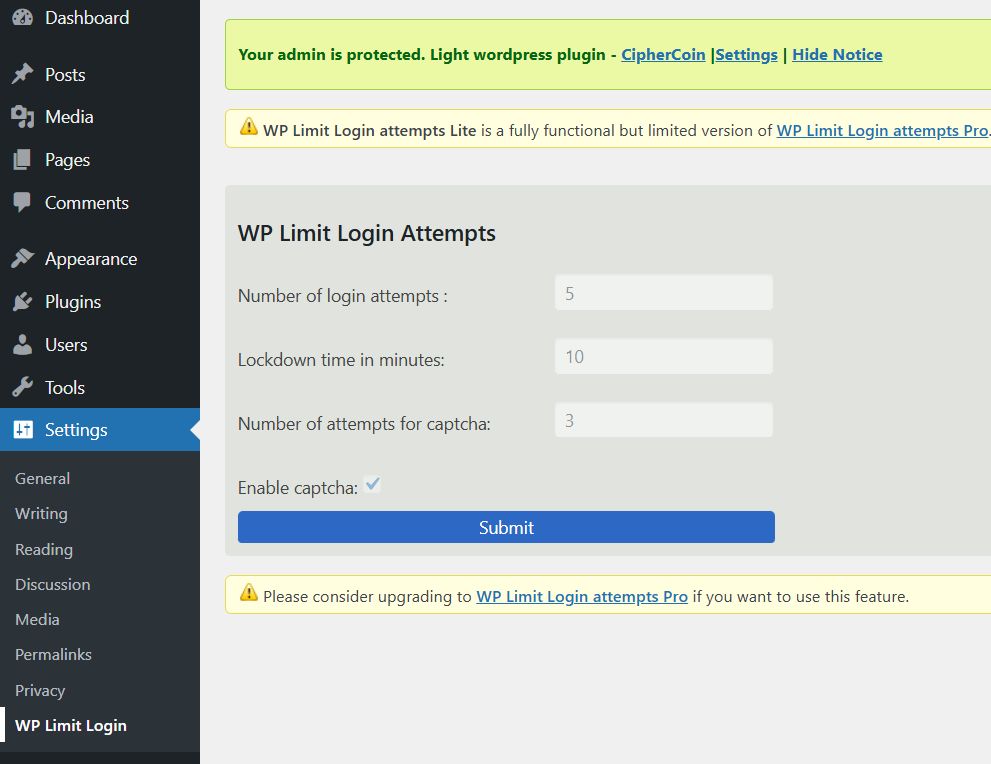
Install and activate the plugin and then go to its settings.
Number of login attempts: the number of attempts before the lockout occurs
- Lockdown time in minutes: the number of minutes during which the lockout will be in effect.
- Number of attempts for captcha: the number of failed attempts after which the CAPTCHA will be triggered
- Enable captcha: whether you want to bother with a CAPTCHA at all.
Attention! If your blog starts to slow down, you can always go to the admin area and switch the plugins off one by one to find the culprit.
Chapter Three. Adding an Internal Monitoring System
As you have noticed, over the course of the article we have made many small changes to the management and administration of the site. However, you can increase overall security with a whole security system that will make changes even without your involvement. Wordfence and Sucuri are the most popular systems in this area. And although WordPress also has its own official security plugin, it cannot compete with the systems listed in its capabilities.
Security Monitoring with Sucuri
Sucuri can not only clean an already hacked site but also protect others from attacks.
Sucuri is the leading all-in-one WordPress security solution. Sucuri not only protects your site reliably but also reduces the amount of time you need to spend on configuration and administration. Here are some of Sucuri’s key features:
– site cleanup. If you have already been hacked, Sucuri can restore your site and clean up the traces of the hack. You will also be able to reset the password of any user, reset the existing plugins and track potentially malicious activity.
– site reputation. If your site has already been added to the Google blacklist or disabled by the host, Sucuri can help you determine this.
– site protection. If you want to protect your site from hacking, Sucuri offers DDoS and brute force protection, in addition to protection from many other vulnerabilities.
– SSL certificates. Sucuri provides SSL certificates to its customers as part of its professional plans. Thanks to them, you will be able to encrypt and protect the data transmitted through your blog.
– advanced site protection. Sucuri scans, detects and mitigates cyberattacks through a dedicated firewall. This also includes protection from DDoS attacks and brute force.
– constant scanning and monitoring – the system regularly scans the site for malware.
– site hardening. Sucuri also makes a host of changes to improve the overall state of WordPress protection. For example, it updates the engine and PHP, removes the public display of the engine version, protects the uploads directory, restricts access to internal directories, updates and uses security keys, and also checks for information leaks.
Sucuri is a comprehensive security plugin that can be installed completely free. To do this, download the Sucuri WP Plugin. Click Sucuri in your new admin area. Sucuri will first make sure that WordPress has not been modified in any way. It will also make sure the site is clean and has not been blacklisted.
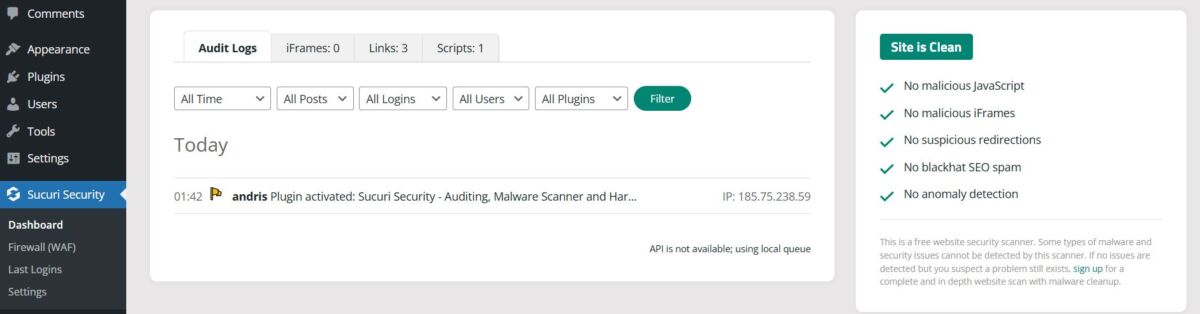
You can go through the Sucuri plugin settings:
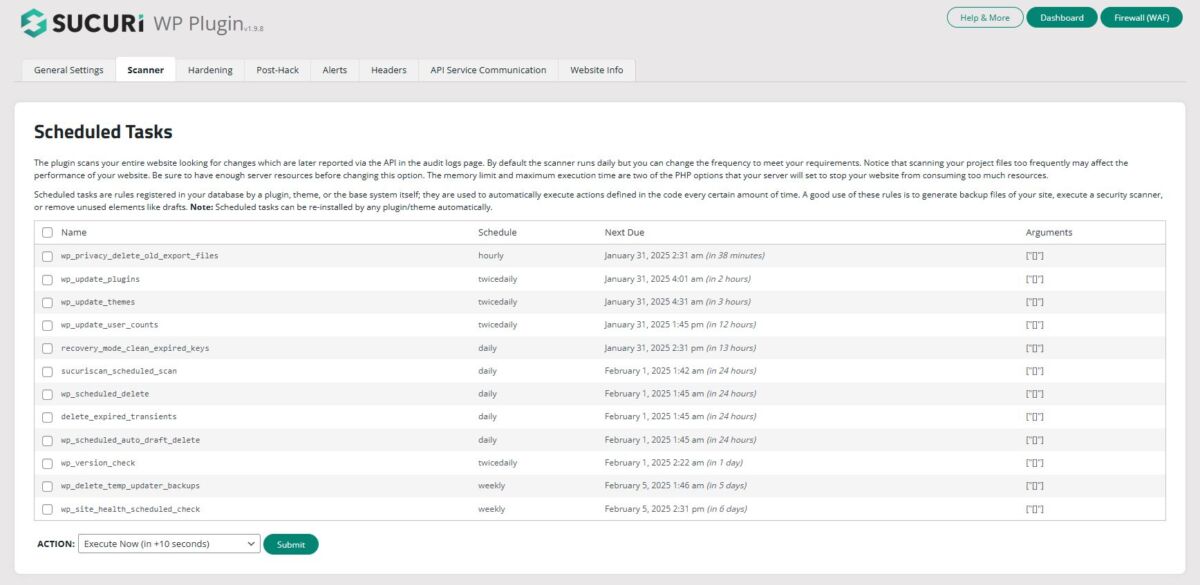
– Scanner. This system looks for changes that were made to the engine. If you have problems with your blog, be sure to use the scanner.
– Hardening. This feature goes through many of the changes we have made together and, moreover, can automatically do cool things such as confirm your PHP version, remove the default admin profile and block PHP files in the wp-includes directory.
– Post-Hack. Secret security keys can be used to improve your security and authentication, and any user’s password can be reset in addition to all the installed plugins.
– Alerts. Here you can manage notification addresses – usually they will be sent to your administrator email.
– API Service Communication. Your API key and its details are stored here – no changes need to be made here.
– Website Info. This contains all the credits and other information related to your site.
To use all the features of this plugin (for example, firewall protection), you will need to generate an API key. To do this you will need to subscribe to the premium Sucuri service
Security Monitoring with Wordfence
Wordfence is the leading freemium all-in-one WordPress security plugin, including a huge inventory of free features in addition to paid options.
Widely available, Wordfence boasts a multi-million audience all over the world. Wordfence has a firewall, a malware scanner and secure login services – all for WordPress. Even the free version has an impressive list of features, the most notable of which are the following:
– web application firewall. This firewall detects attacks such as SQL injections, malicious file uploads and DDoS attempts.
– site scanning. Wordfence can harden your site by detecting problems in public configuration, backups, posts, comments and passwords.
Premium features are also available:
– Spam protection. Wordfence can check comments against lists of spammers to detect and get rid of spam more effectively. This feature is also available in plugins such as Akismet.
– blacklist protection. Wordfence can additionally check whether your site is spamming other sites. This is a common tactic for getting someone’s resource blacklisted. If Google sees that your site is being used this way, the search engine may remove it from search results.
– rate limiting. Wordfence can limit high traffic so that bots can still visit the site but cannot harm it. This is especially useful with bots that crawl sites to index them in search engines.
Wordfence can significantly affect the performance of high-traffic sites.
Security Monitoring with WordPress Security
WordPress officially provides some advanced security features through its WordPress Security plugin. However, the plugin’s functionality is rather primitive and should not be relied on completely.
You can get the basic functionality through Jetpack Personal or Jetpack Business, each of which includes the official WordPress security plugin. The latter includes spam filters, technical support, daily site backups and one-click restore. However, it is not designed to monitor and protect against advanced threats. WordPress security is built mainly around the quick use of backups in case of unexpected incidents. This is very convenient if your site gets hacked or an employee accidentally damages it with a mistake of their own. However, here we are talking about fighting the consequences, not preventing them.
Chapter Four. Securing Your Hosting Account
If you do not use WordPress directly, then most likely your site will use hosting. This in turn means that your hosting must be no less protected than the blog itself. Having gained access to your hosting, an attacker can do anything, including wiping your site off the face of the earth entirely.
Choosing the Right Hosting
Let’s start with the main thing – you need to work with a host that works with WordPress or is even aimed directly at WordPress bloggers. Their interface will not only be better suited to the needs of the engine but also able to provide more suitable system security.
There are thousands of companies offering hosting services, and although at first glance they may look similar, some will be more reliable than others. When choosing a host, pay attention to the following things:
– how popular is this host? Large hosts, as a rule, have the best security solutions because of the number of people who use their services. This does not mean at all that such hosts will be the very best, but reliable – definitely.
– is the account shared? If the host offers a shared account, this immediately opens extra vulnerabilities for attackers, since a large number of users use the same environment. The overwhelming majority of bloggers will not pay money for a dedicated server, but they can still invest in a VPS (virtual private server) to reduce the risks.
– does the host have built-in security features? A reputable host usually offers its customers automatic backups, SSL certificates and firewalls to use.
As with many other things, you should not take the cheapest hosts when there are slightly more expensive but more reliable options.
Adding External Monitoring Systems
Monitoring systems, firewalls and scanners are used to protect sites from attacks. Popular options in this area are Cloudflare and Sucuri, although some hosts also offer their own utilities. These solutions are designed to detect and remove threats. They are also able to detect suspicious traffic and reject it, keeping the site afloat.
External monitoring systems are useful in particular against DDoS attacks. A monitoring system can identify a DDoS attack and reject all the hostile requests while at the same time giving a green light to normal traffic. External monitoring systems can also be used to identify and reject potentially unsafe connections.
What is DDoS, you ask. In DDoS attacks, hackers use several devices at the same time to create multiple connections to your site. These connections overload your site, as a result of which it cannot respond to ordinary connections. This is perhaps the fastest and easiest way to take someone’s site down.
Cloudflare is a good tool for WordPress bloggers. It not only reliably protects against DDoS attempts and detects potentially harmful traffic but also works through a CDN, which speeds up the site by caching its data. As a result your users will be able to access the page much faster and there will be much less load on the server. One of the undeniable advantages is also that the service is completely free and lets you manage many sites at once, also providing analytics data with which you can measure traffic and site speed.
Set Up an SSL Certificate and WordPress
The point of certificates is that thanks to them your data will be encrypted. This means that people who see your data will not be able to read it. Many of the sites you use certainly have an SSL certificate. The presence of such a certificate can be indicated by a padlock icon next to the link, and the link itself begins with https instead of http.
Not all hosts offer such a certificate. In some cases you will have to buy it separately. Or you can use a plugin that already includes such a certificate, for example Sucuri. After installing the certificate you will also need to configure SSL accordingly.
How to Add SSL and HTTPS to WordPress
The simplest approach is to use the Really Simple SSL plugin: Install and activate the Really Simple SSL plugin. Visit the Settings → SSL page. The plugin will automatically:
- Detect your SSL certificate
- Configure WordPress to use HTTPS
- Set up redirects from HTTP to HTTPS
- Fix mixed content errors
For manual configuration, click General on the settings page in your admin area. Change your site address from http to https.
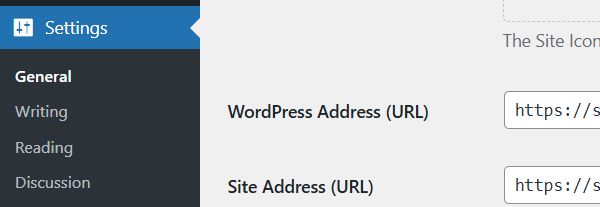
If you already have content added to the site, you will also need to take care of enabling a redirect. To do this you first need to go to the main directory of your hosting. This place is usually called htdocs, but it may also quite well be named after your site. Here you will need to modify the file called .htaccess to insert the following text:
RewriteEngine On
RewriteCond %{SERVER_PORTZ} 80
RewriteRule ^(.*)$ https://www.[blog].com/$1 [R,L]
In the example above, [blog] is the name of your site. This code will automatically redirect from http to https.
Update File Permissions
Permissions tell your server who can view and access each of your site’s files. By default WordPress is set to 777. Through FTP you can access these directories and change the permission value to, say, 750 or 755. While everyone will be able to read these files, changing and deleting them will require additional access rights.
Your wp-config.php file should be set to 600, and the files in your WordPress directories should be set to 640 or 644. These permissions let you do everything you want. They simply reduce the risk that someone can change or delete your files.
Disable PHP Error Reports
By default, on many servers reports are sent when there are errors in PHP code. These reports help developers with debugging, but they can also expose the weak points of your site, which is an increased risk. You can disable error reports. If an error occurs, just an empty page will be sent.
To do this you will have to make changes to the wp-config.php file, which you can access via FTP or a browser in the base directory of the installed WordPress. At the beginning of the file, before the first line, you should insert:
error_reporting(0);
@ini_set(‘display_errors’,0);
Chapter Five. Protection from Users
Bloggers often work in groups. If you have a site with many authors, the greatest probability of a threat comes not from outside but from inside, because people often make mistakes.
The Importance of Limiting Permissions
You need to limit your users’ permissions to the necessary minimum, otherwise you may end up in one of the following situations.
– a user may accidentally or deliberately start deleting other users’ posts
– the hacking of a single user can lead to a serious risk. Accordingly, the fewer administrator functions users have, the better.
People also often give certain users administrator rights for a while. This is convenient when some edits need to be made, but people often forget that they have made a user an admin.
Configuring Password Restrictions
From the second chapter we learned how important it is to be conscientious about choosing a password. However, the fact that you are meticulous about passwords does not mean that everybody is. Other people may simply use passwords that can be cracked in no time and thereby expose your site to increased risk. To avoid this, make your users use only truly strong passwords. By strong passwords we mean not only length but also special characters in addition to digits and letters. By default WordPress already requires users to use strong passwords, but if you have an old version of the engine, you can add this functionality with a third-party plugin such as Force Strong Passwords.
It is best to confirm new users manually before letting them perform any actions.
Log Out Idle Users
Sometimes people forget that they have logged in to your site. When this happens, they expose your blog to extra risk – anyone who is at that computer can get access to your blog. To fix this you can install a plugin that will automatically log users out after a long period of inactivity. The most popular solution is the Idle User Logout plugin. This plugin lets you choose which roles will be idle and how much time must pass before you log the user out. Users will not lose their data – they will just need to log in again to continue working.
Chapter Six. Protection from Third-Party Services and Utilities
There are two types of third-party threats you should worry about – plugins and advertising networks. Both can add content that can harm your site and its users.
Vetting Third-Party Plugins
WordPress plugins are not always as safe as one would like. The problem is that anyone can publish plugins, including even inexperienced developers, who can create a plugin with potential security holes. If part of your site is vulnerable, the whole site is under threat.
So before installing a third-party plugin, you should ask yourself the following questions:
– how many reviews does the plugin have and how good is its rating? You should avoid plugins that almost nobody uses and plugins that were published for the first time, because they may hide security vulnerabilities that have not yet been discovered.
– how polished are the plugin and its documentation? the more documentation a plugin has, the better – it means the developer takes its design seriously. Accordingly, a plugin that looks good was probably developed by someone who pays attention to detail.
– how many other plugins has the developer released? The more experience a developer has with WordPress, the more likely it is that they will release a solid and secure plugin for their platform. If they have not released any other plugins, they may not understand WordPress security well enough.
Avoiding Questionable Third-Party Services
The most common type of such services is related to malicious advertising. Malicious advertising means ads that contain malicious code. Many bloggers fund their creations through third-party ads. While the main targets of questionable advertisers are users rather than the site itself, your blog can still suffer by getting blacklisted if a search engine finds malicious code on your site. There are several ways to avoid such products:
– use only popular services. For example, Google AdSense and Microsoft Ads are the two largest ad networks, but this does not mean they never contain malicious code – they are just more reliable.
– invest in a monitoring system. As we have already written, even popular ad networks can harbor attackers, so it is better to use monitoring systems that will detect harmful code on your site if it appears.
– react quickly to potential threats. If you suspect there is questionable code on your site, it is very important to solve the problem right away – even if you have to take the ads down for a while as you sort it out. Otherwise you may lose traffic and damage your site’s reputation.
Detecting Potentially Dangerous Plugins and Themes
The internet is a huge place, and while looking for some plugin or theme you may end up on a third-party site offering the most popular WordPress stuff. However, when something is promised to you for free, there is usually a catch. In this case the catch is a virus. When buying a premium WordPress theme or plugin, it is very important to do so through the repository or a trusted site. There are many sites offering WordPress themes and plugins for free. However, even if they do not contain a virus, using them is illegal.
Install Only the Plugins You Need
Although plugins can add great functionality to your blog, they are not always really necessary for your site. It is not only about risk – every plugin slows the site down a little.
Chapter Seven. Computers, Connections and the Internet of Things
Imagine a hard drive that is securely protected in every respect and a thief who is trying to get the data stored on it. It would take days for an attacker to crack this drive. And the thief has only a few minutes. The question is: what will he do? That’s right, the thief will simply take the hard drive and walk away with it.
Protect Your Blog from Physical Interference
Nowadays people have several devices connected to the internet – a phone, a tablet, a laptop. The loss of one of them can compromise your blog. To prevent this, do the following.
– always make sure all your devices are properly protected. They should be protected with a PIN or password, which, if possible, should in turn be protected by two-step authentication such as a fingerprint or iris scanner. Your devices should lock automatically after some time so that they are protected while idle.
– do not use public computers to access your blog. You never know what may be on such a computer, and suspicion is never excessive in this matter. If the login information is on such a computer, any other user could just as well log in to your blog. The same goes for email – do not log in to it from a public computer, since through email attackers can easily get to your blog as well.
– never log in to your blog over public Wi-Fi, because a Wi-Fi network can be provided by anyone, including people trying to peek at your data or insert malicious code into the data transmission. SSL helps quite well in this respect by encrypting your site’s traffic, but there always remain potential vulnerabilities associated with public Wi-Fi connections.
Chapter Eight. Preparing for the Worst
What will happen if your site is brought down after all? Do you know where your backups are? How quickly can you use them? How up to date are they? To avoid downtime you need to answer these questions quickly.
So you need a plan for how you will restore your site. The cause of its fall can be anything: a hack, unreliable hosting or your own mistake. If the site goes down, you will need to redirect traffic or somehow notify your users about problems with the blog.
So it would be good to:
– have a temporary page that will notify your visitors that your site is experiencing difficulties but will be back in action in the near future
– know where your backups are and how to restore them as quickly as possible
Be able to restart and enable the services your site is based on. For example, the web service or the database.
Four Best Practices for Site Backups
- Backups should be automatic. Do not rely on manual backups; one day you will simply forget to make them. Set up the backup schedule so that they run during your site’s least busy hours, since they require some system resources. Also make sure they work as they should and that everything really happens on schedule. Do not forget to check them regularly, since they may start failing if they run out of free space.
- Backups should be incremental. You should have daily, weekly and monthly backups. You never know at what moment you may lose data.
- Backups should be redundant. Never put all your eggs (backups) in one basket. In this respect cloud backups are the most useful, since by default they imply that the backups will be in a safe place. But what if you lose access to the cloud? So keep backups on different devices.
- Backups should be everywhere. You should not keep them only on your hosting server, because imagine what happens if the host is hacked. Also do not count on your hard drive alone – what if it fails?
Backup Options for a WordPress Site
Your hosting. Hosts usually offer their own backup system. But not all of them. For example, with private servers you need to set up backup systems yourself.
Cloud backup. There are services that automatically make backups to the cloud. WordPress offers such an option through its security plugin.
Backups can also be one of the features of a security plugin. For example, Sucuri has a serious backup and restore system.
An ideal backup system will make a copy of your site both on the hosting and in the cloud. This gives you several data recovery options at once.
Chapter Nine. Site Management and Monitoring
Setting up a site and installing the necessary tools is not a one-time job at all. From time to time you will need to manage and monitor your site, if, of course, you want it to be reliable. You will also need to update it regularly and protect it from new and more advanced threats.
Keep Your Site Up to Date
You may have noticed that WordPress often releases updates. This is done not only to improve functionality but also to eliminate possible vulnerabilities. To keep your site “healthy” it is absolutely necessary to update the engine regularly. Some security plugins such as Sucuri will regularly check whether you have the latest version of WordPress.
Getting Rid of Outdated Plugins
Plugins are another thing that needs to be updated regularly. The reason is the same as with WordPress itself – an old plugin may have a number of vulnerabilities, and all that remains for a cybercriminal to do is find blogs that use old plugins. Even if the new version of a plugin offers more stripped-down functionality than the old one, it is still worth updating.
Keeping the Site Clean
Sites often accumulate content, plugins and themes. To keep a site clean it is very important to delete everything you do not use: inactive plugins, old themes and other unneeded content. These things not only take up extra space and resources but can also pose a threat even if they are deactivated.
Conclusions
At first glance it may seem that keeping WordPress secure is no easy task, but it is worth getting a little used to it and everything becomes simple and clear. Moreover, you will need to go through many things only once. And thanks to third-party systems and plugins such as Sucuri and Wordfence, some of the routine processes will be performed for you automatically, twenty-four seven. By automating security work with plugins, you will not only increase accuracy but also save your time. There is an endless number of threats to a site and reasons why attackers might go after you. So blog security is a very important and integral matter. By securing your site in a timely manner, you will be able to get traffic much faster. Security is the first thing to remember when creating a blog. A secure blog will have minimal downtime and will run much faster.
Our specialization is WordPress website development and maintenance. Contact us for a free consultation — [email protected], +371 29394520
