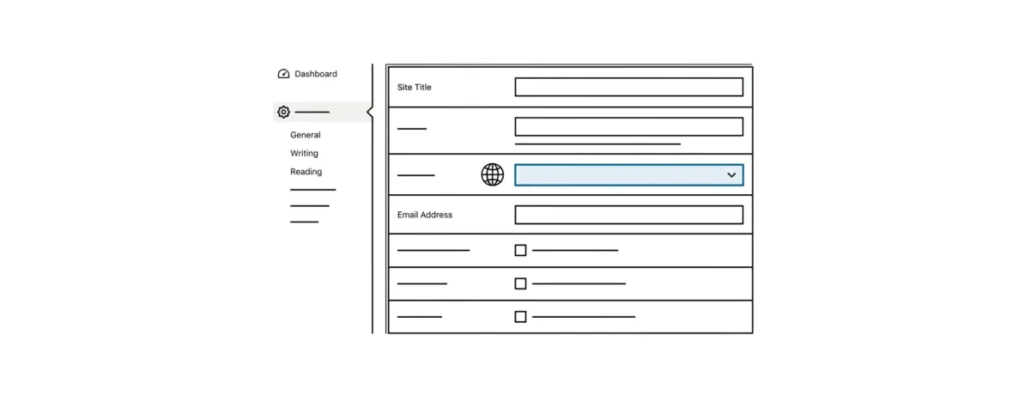
How to Install WordPress in Another Language
We have already covered how to install WordPress using the one-click method, the five-minute manual installation and a local installation. Recently we noticed that we had missed one fairly important thing: WordPress localization. WordPress is used on millions of sites around the world. One of the reasons for this popularity is that WordPress is easy to localize and can be used in any language. In this article we will show you how to install WordPress in the language you need.
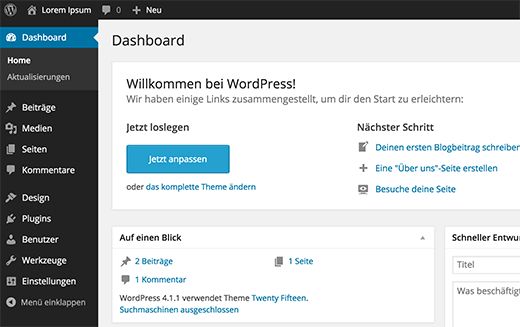
Before You Start
You will need:
-
A domain name
-
Hosting with PHP/MySQL support
-
WordPress installed (manually or via the “one-click install” at your host)
*If you are only just installing WordPress, most hosts let you choose the site language right at the installation stage.
How to Change the Language in WordPress
Changing the language in WordPress is very simple. Go to Settings > General and scroll to the bottom of the page. You will see the site language option.
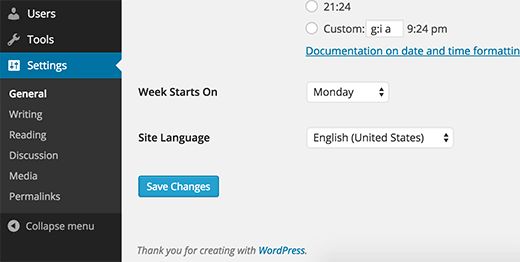
WordPress will automatically download and install the translation. But if you do not see the language you need, that does not mean it is unavailable and that you cannot use it.
Manually Installing a WordPress Translation for an Alternative Language
If you do not see the language you need in the WordPress list, it means there is no official translation for it yet in the WordPress.org system.
In most cases this means the translation is not ready or not complete yet. When you choose a language in Settings > General, WordPress automatically downloads ready-made language packs from translate.wordpress.org, and no manual action is required.
Exceptions:
If you want to use a rare or non-standard language variant for which there is no ready-made pack, you can still upload .po and .mo files manually:
-
Find them on translate.wordpress.org or create them yourself.
-
Copy them to the
/wp-content/languages/folder on your site. -
Select this language in the WordPress settings.
But such a manual installation is needed extremely rarely — almost all popular languages are already available through automatic download.
Different Languages for Different Users
Starting with WordPress 5.0, each user can choose their own interface language:
-
Go to Users > Profile.
-
In the Language section, choose the one you need.
-
Click Update Profile.
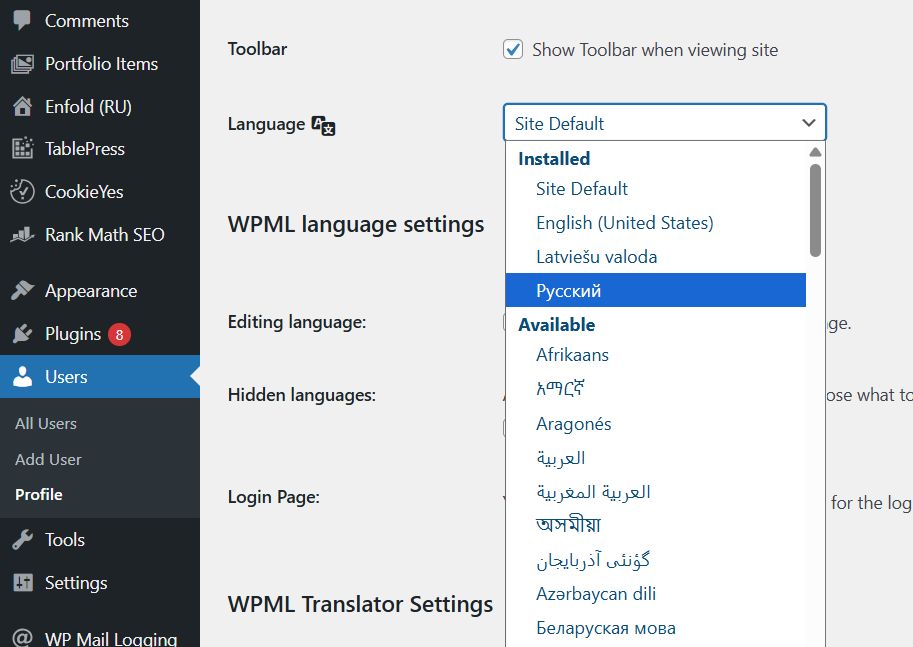
This is convenient for multilingual teams.
Translating Themes and Plugins
Changing the WordPress language changes only the system interface, not themes or plugins.
To translate them:
-
Check whether a ready-made translation is included in the theme or plugin itself.
-
If there is no translation, install the Loco Translate plugin — it lets you translate right from the admin panel.
-
You can also look for translations on translate.wordpress.org.
Multilingual Sites
If you want the site’s content (pages, posts, menus) to be in several languages, use dedicated plugins:
-
Polylang (free and premium versions)
-
WPML (premium)
-
TranslatePress (free and premium)
They let you create and manage translations of your content.
Help Translate WordPress into Your Language
If you could not find a WordPress translation for your language, maybe you can help create one. WordPress is open source software, and all the translations available today were created by volunteers from around the world. Go to the Translating WordPress page for more information on how you can help.
Tip: Keep WordPress updated — improved translations often ship with new versions.
We hope this article helped you install WordPress in your own language. If you have any comments, feel free to leave them under this post.
Our specialization is WordPress website development and maintenance. Contact us for a free consultation — [email protected], +371 29394520
