How to Install WordPress on Your PC Using WAMP
Did you know that you can install WordPress directly on your own computer for learning and testing? Installing WordPress on your PC is also called setting up a local server (localhost). Theme designers and plugin developers often install WordPress on a local server to speed up development. An ordinary user can use a local server to test plugins and/or make changes to a site before visitors see them. In this article we will show you how to install WordPress on your computer using WAMP.
Keep in mind that if you install WordPress locally on your computer, you will be the only one who can see the site. If you want a public WordPress website, you need a domain name and hosting. We recommend that you read this guide: How to Install WordPress.
What Is WAMP?
WAMP, or WampServer, is a Windows bundle of the Apache web server, PHP and MySQL. In other words, you need to install WAMP to set up your own local server and install WordPress on Windows. There are other Windows tools as well, such as XAMPP, but we recommend WAMP. It is free and easy to learn.
Before You Start
WampServer needs the Visual C++ Redistributable to work correctly. Check whether you have all the required Visual C++ packages using the check_vcredist.exe utility. All current package installers can be found on wampserver.aviatechno.net in the Visual C++ Redistributable Packages section. During installation, be sure to run each file as administrator, and even if you have 64-bit Windows, install both the 32-bit and the 64-bit versions of each package. Without these components, Apache and MySQL will not start.
Installing WampServer on Your PC
First, go to the WampServer website and download the latest version of WampServer. You will see several download options on that page; just pick the one that matches your Windows (64-bit or 32-bit). If you are not sure which to choose, download the 32-bit version, which also works on 64-bit Windows.
Once you have downloaded WampServer, run the installer and follow the on-screen instructions. At some point the installer will ask you to specify the location of your default browser. By default it will use Edge, but you can change it to any other browser by pointing to it in the Program Files folder.
When you are done, start WampServer.
Creating a Database for WordPress
WampServer comes with phpMyAdmin, a web application that lets you manage MySQL databases. Click the WampServer icon in the taskbar and launch phpMyAdmin.
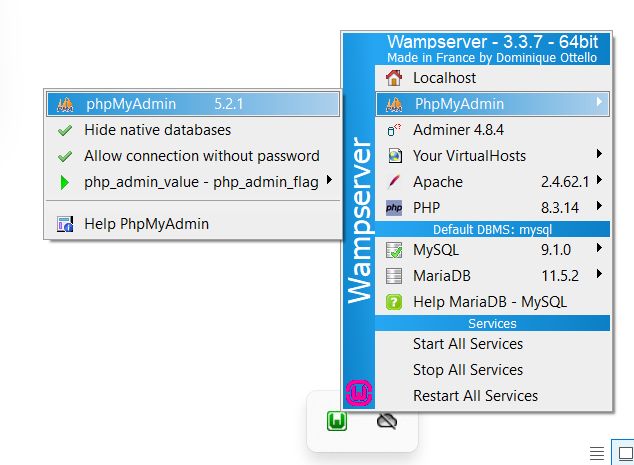
phpMyAdmin will open in a new browser window. Note that the default phpMyAdmin username is root and the password is empty. Click Databases in phpMyAdmin to create a new database for WordPress. Choose a name for the database and click the Create button.
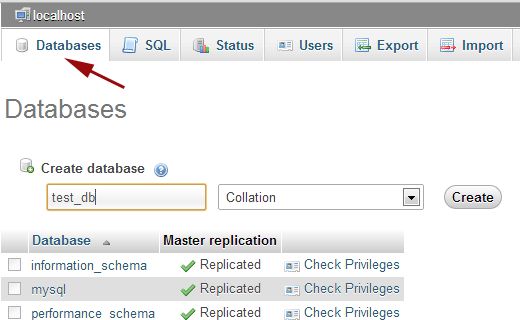
Installing WordPress on Windows with WAMP
Download WordPress from WordPress.org. Extract the zip file and copy the wordpress folder. Go to C:\wamp\www and paste the wordpress folder there. You can rename this folder, for example to mysite. We decided to rename it to mysite. Now open your browser and go to:
http://localhost/mysite/
If WordPress cannot find the wp-config.php file, it will let you know. Click the Create a Configuration File button to create it.
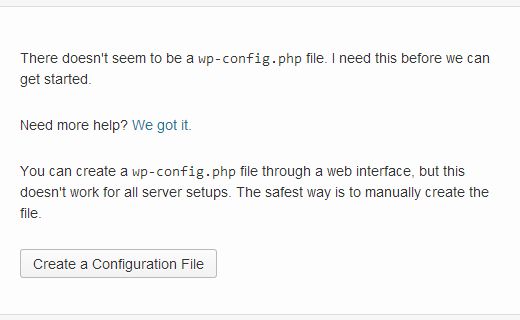
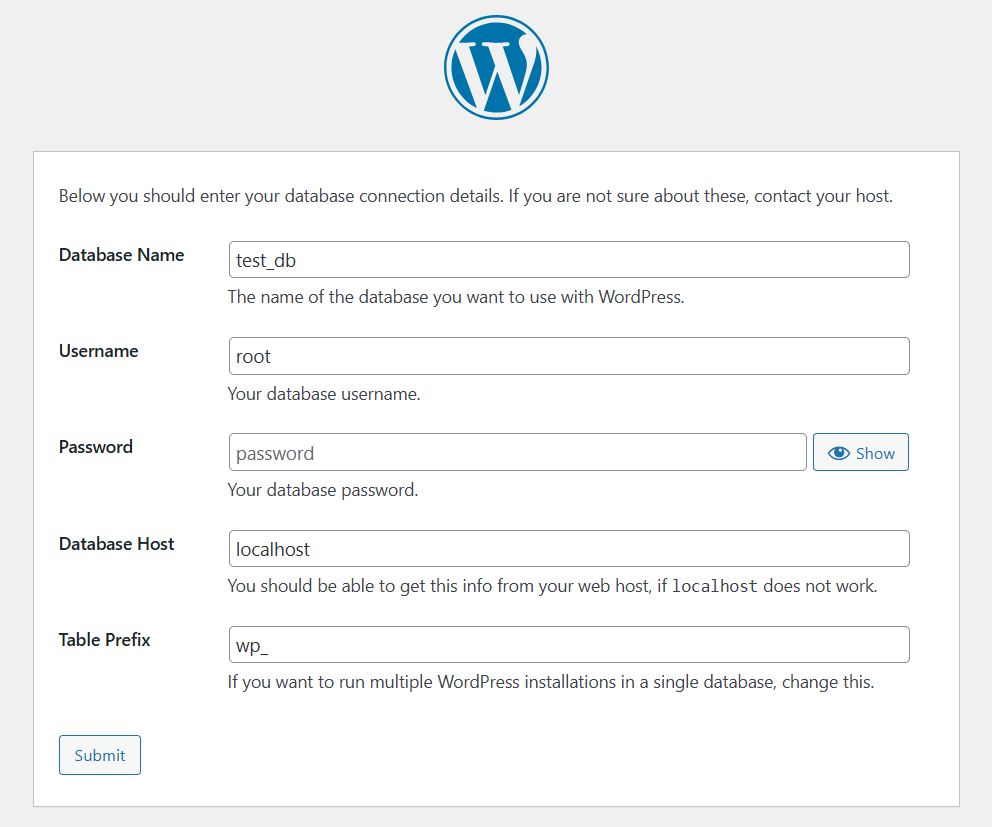
Next, choose the language in which you want to install WordPress (you can change it later). On the following page WordPress will tell you that you need to provide your database details. Click the Let’s go button and enter the database details in the form. In our case we named the database test_db. The default database User Name is root and the password is empty. Click the submit button and WordPress will create the configuration file for you.
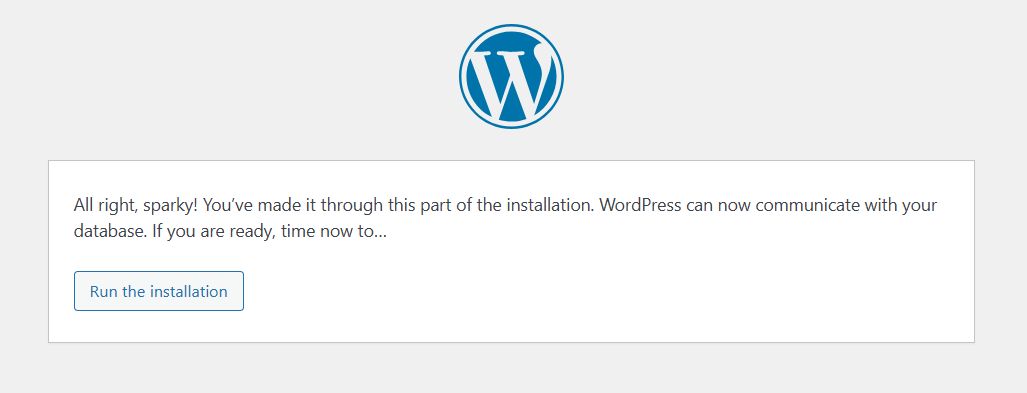
After that you will see a page saying that WordPress has successfully created the configuration file and you can proceed with the installation. Click the Run the installation button.
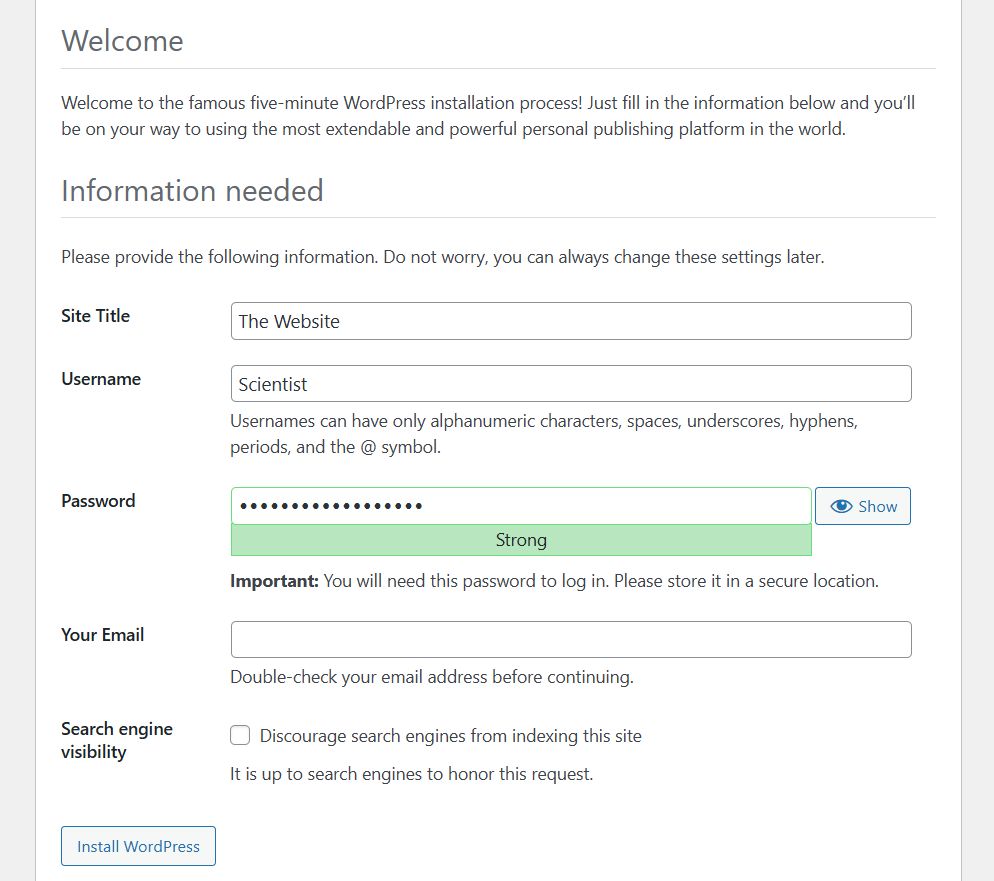
On the next page you need to enter the required information: the title of your site, the administrator username, the password and the administrator’s e-mail address. Finally, click the Install WordPress button.
WordPress will quickly complete the installation and create the tables in the database. When it finishes, you will see a message saying the installation was successful. You can then log in to WordPress (http://localhost/mysite/wp-admin) by clicking the Log in button.
Enabling Permalinks in WAMP
This feature may not work on a local server. All of your URLs will look like localhost/mysite/?p=18. If you go to Settings » Permalinks and choose one of the options, you may get a “Page not found” error. We have already written about the solution: see how to enable permalinks in WAMP.
Moving from WAMP to the Internet
After many requests from our readers, we wrote a guide on how to move a WordPress site from a local server to a live website. We hope it helps you launch your finished site on the internet.
We hope this article helped you install WordPress on your Windows computer using WAMP. A local server is useful for learning and testing. Remember that if you want to run a blog that other people should see, you do not need to install WordPress on your PC. You need to install WordPress on a hosting account. If you have any questions, feel free to ask them in the comments.
Our specialization is WordPress website development and maintenance. Contact us for a free consultation — [email protected], +371 29394520
