Error Establishing a Database Connection in WordPress – How to Fix It in 5 Minutes
If you have spent a fair amount of time on the internet, you have certainly run into this error at least a couple of times. The “Error establishing a database connection” is one of those curses that can appear for many different reasons. For a WordPress beginner it is very unpleasant, especially when the error pops up on its own.
This error appeared on our own site too. It took a little over 20 minutes to find and fix the problem. In this article we will show you how to fix the database connection error in WordPress, collecting a list of solutions in one place.
Note: before making any changes to the database, make the necessary backups.
Why Does the Error Occur?
In short, this error appears because WordPress cannot establish a connection to the database. There can be different reasons why it cannot. Perhaps your database username and password were entered incorrectly or were changed. Perhaps your database server is not responding. Perhaps the database files are corrupted. In our experience, most cases are caused by various server-side problems, although there are other factors too. Let’s figure out how to fix it.
Does the Same Error Appear for /wp-admin/?
The first thing you should do is make sure the same error appears both on the front end of the site and on the back end (wp-admin). If the error message is the same on both pages – “Error establishing a database connection” – you can move on to the next step. If you get a different error on wp-admin, for example “One or more database tables are unavailable. The database may need to be repaired”, then you need to repair your database.
You can do this by adding the following line to your wp-config.php file. Add it before ‘That’s all, stop editing! Happy blogging’ in wp-config.php:
define('WP_ALLOW_REPAIR', true);
After you do this, you will see the settings on this page:
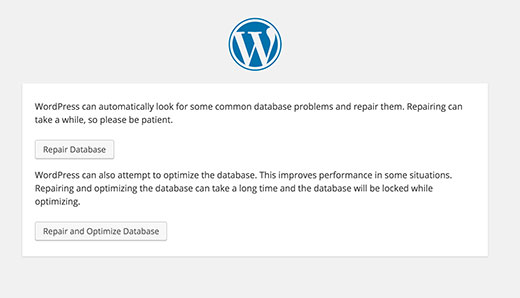
Keep in mind that the user does not need to be logged in to access this feature as long as this definition is present. That is because its main purpose is to repair a damaged data system. Users are often unable to log in when the database is damaged. So as soon as you have finished repairing and optimizing your database, be sure to remove this line from wp-config.php.
If this did not solve the problem, or if you cannot perform this operation, read on – another method may work for you.
Checking the wp-config File
wp-config.php is perhaps the most important file in the whole WordPress installation. This is where you set WordPress parameters and connect to the database. If you changed your root password or your database password, you will need to change this file as well. Always check first whether your wp-config.php file has been changed.
define('DB_NAME', 'database-name');
define('DB_USER', 'database-username');
define('DB_PASSWORD', 'database-password');
define('DB_HOST', 'localhost');
Keep in mind that the DB_Host value is not always localhost. Depending on the hosting, it will be different. For popular hosts such as HostGator, BlueHost and Site5, it is localhost.
To find out the exact DB_Host value, log in to your hosting account (for example cPanel or Plesk), go to the MySQL Databases section and check the host name shown there. If the information is missing, contact your hosting support.
Some people say they managed to fix the problem by changing localhost to an IP address. This situation often occurs when running WordPress on a local server. For example, on MAMP, replacing the DB_Host value with an IP address may work.
define('DB_HOST', '127.0.0.1:8889');
The IP address will differ depending on the web host.
If there are no errors in this file (check for typos), then most likely something is wrong with the server.
Check Your Web Host (MySQL Server)
This database connection error is often noticed when a site’s traffic grows. Your hosting server simply cannot cope with the influx (especially on shared hosting). Your site will be very slow and will show an error to some users. So the best thing you can do is contact your hosting provider by phone or live chat and ask them whether your MySQL server is working.
Those of you who want to test the MySQL server yourselves can do the following. Check whether the same problem is present on other sites on the same server. If the same error appears there, the problem is definitely the MySQL server. If you do not have another site on the same hosting account, just go to cPanel and try to access phpMyAdmin and connect to the database. If you cannot connect, you need to make sure your database user has the proper permission. Create a new file called testconnection.php and paste the following code into it:
$link = mysqli_connect('localhost', 'root', 'password');
if (!$link) {
    die('Could not connect: ' . mysqli_connect_error());
}
echo 'Connected successfully';
mysqli_close($link);
Make sure you replace the username and password. If you connected, your user has the required permission and the problem is something else. Go back to the wp-config file and check that everything in it is correct (look for typos again).
If you cannot connect to the database through phpMyAdmin, you can be sure the problem is with the server. This does not mean that your MySQL server is down. It is possible that your user simply does not have the proper access.
In our case the MySQL server was running. All of our sites on the server worked fine except one. When we tried to log in to phpMyAdmin, the following error appeared:
#1045 – Access denied for user ‘foo’@’%’ (using password: YES)
We called HostGator and their support quickly found the problem. Somehow our user’s access had been reset. We do not know how it happened, but obviously it was the cause. They restored the access and we were able to get the site running again.
So if you get an access error when connecting to phpMyAdmin or in the results of testconnection.php, contact your hosting company right away – they will be able to fix it.
Alternative Solutions
An important disclaimer: these solutions may not work for you. Use them at your own risk, and make the necessary backups in case something goes wrong.
One user told us that his client ran into a database-related error. Even after restoring the database, the error did not go away. He tried many things, but in the end the problem turned out to be the site URL. It had been changed, which caused this error. He ran an SQL query by logging in to phpMyAdmin:
UPDATE wp_options SET option_value='YOUR_SITE_URL' WHERE option_name='siteurl'
Make sure you change YOUR_SITE_URL to the actual URL, for example: https://coma.lv. The wp_ options will depend on whether you changed the default WordPress database prefix.
In his case and in several others this fixed the error.
Another user said he was able to connect to the database with testconnection.php, so he changed the wp-config.php user to the root user. WordPress started working perfectly. Then he switched the settings back to the database user. He could not understand what the problem had been, but thinks it was a typo.
Another user reported that she removed the contents of active_plugins from the wp_options table and edited the contents of recently_edited. Apparently this solved the problem.
Many sources say that users were able to fix this error simply by downloading a fresh version of WordPress.
This is a very unpleasant error. Which of the things you tried worked for you? We will gladly expand this article to make it easier for others to find a solution.
Our specialization is WordPress website development and maintenance. Contact us for a free consultation — [email protected], +371 29394520
