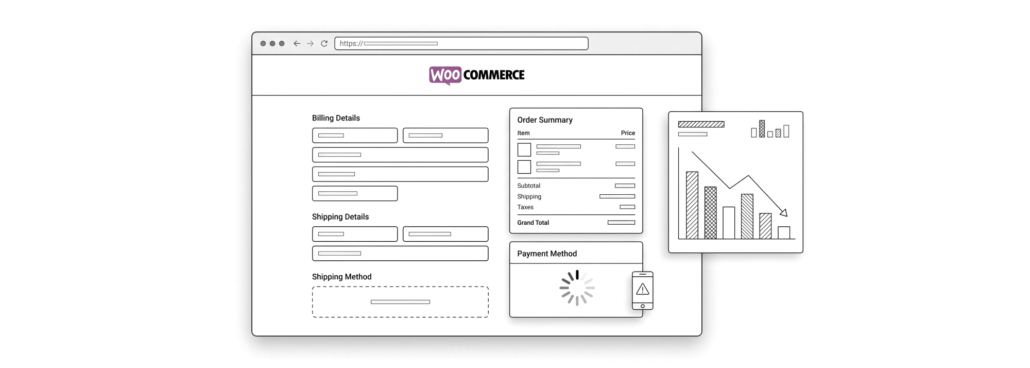
5 Common WooCommerce Checkout Mistakes That Hurt Your Conversion Rate
The checkout page is the most sensitive part of any WooCommerce store. Everything before it — ads, product pages, even cart design — is only there to bring a user to this final step. And yet, this is exactly where many stores lose customers.
What makes checkout problems tricky is that they often don’t look like “errors” at first glance. Everything may appear normal in the admin panel, but users experience friction that is hard to notice without digging deeper.
Below are the most common mistakes that affect WooCommerce checkout performance, along with practical ways to fix them.
1. Checkout “freezes” or gets stuck loading
One of the most annoying issues for users is when the checkout simply stops responding. The customer clicks “place order”, the button starts spinning, and nothing happens — no confirmation, no error message, just an endless loading state.
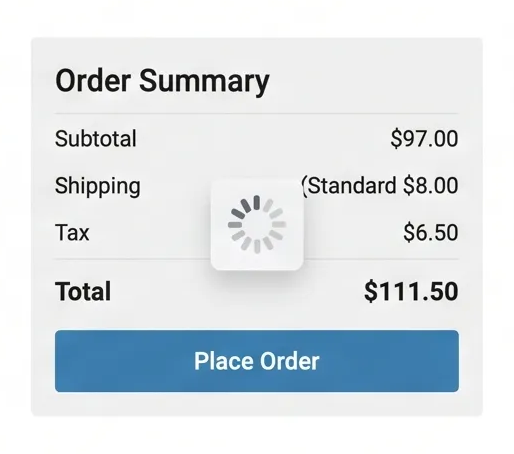
From the user’s perspective, this feels like the order may or may not have gone through, which creates uncertainty and often leads to duplicate attempts or abandoned carts. On the technical side, this issue almost always means that WooCommerce’s background communication with the server (AJAX requests) is being interrupted.
In most cases, this is not a WooCommerce “core” problem. It’s usually caused by:
- conflicts between plugins (especially payment gateways, security tools, or optimization plugins)
- JavaScript errors breaking checkout scripts in the browser
- caching, minification, or performance optimization interfering with AJAX requests
- delayed or blocked
wc-ajaxresponses during order processing
WooCommerce checkout is highly dependent on these background requests. Unlike a simple page load, the checkout flow continuously communicates with the server to validate cart data, shipping, and payment information. If even one of these requests is blocked or modified incorrectly, the process can silently fail without showing a clear error message to the customer.
How to fix it:
Because checkout loading issues can have several different causes, troubleshooting usually involves ruling out the most common conflicts first. In many cases, the problem can be resolved by reviewing recent changes to the store and testing the checkout in a simplified environment before moving on to more technical checks.
Common fixes include:
- Exclude checkout-related pages from caching and script optimization. Plugins that combine, minify, or delay JavaScript files can sometimes prevent checkout requests from completing successfully.
- Check for plugin conflicts. Temporarily deactivate all plugins except WooCommerce and test the checkout again. If the issue disappears, reactivate plugins one by one until you identify the conflicting extension. Payment gateways and optimization plugins are often responsible.
- Test with a default WordPress theme. If disabling plugins doesn’t help, temporarily switch to a standard theme such as Storefront. This can reveal whether the problem is caused by custom theme code or overridden WooCommerce templates.
- Inspect failed background requests and JavaScript errors. Open your browser’s Developer Tools while placing a test order. In the Network tab, look for failed or stuck
wc-ajaxrequests that indicate checkout steps are not completing. In the Console tab, check for JavaScript errors, as they often point to broken scripts or plugin conflicts affecting the checkout flow. - Verify your site URLs and HTTPS configuration. Make sure the WordPress Address (where WordPress is installed) and Site Address (what URL visitors use to access the site) match and both use HTTPS. Inconsistent URLs or mixed-content issues can cause checkout requests to fail unexpectedly.
When this kind of issue isn’t consistent or easy to reproduce, it often indicates that the root cause lies in a combination of factors rather than a single obvious error. In such cases, a structured WooCommerce diagnostics process can help narrow down the exact source of the problem more efficiently.
2. Broken or missing checkout page
One of the more critical WooCommerce issues is when the checkout page stops working entirely. Users may see a 404 error, a blank page, or get redirected unexpectedly when trying to proceed to payment. From the customer’s perspective, the store feels broken, even though everything else may still function normally.

This issue usually appears after changes to the site such as migrations, theme updates, or edits to core WooCommerce pages. The checkout flow depends on specific system pages, so when something breaks in that connection, the entire purchase process fails.
Common causes include:
- the checkout page was accidentally deleted, unpublished, or replaced
- the wrong page is assigned as the checkout page in WooCommerce settings
- the page exists but is missing the required WooCommerce checkout block or shortcode
- issues introduced after migration, domain change, or theme switch
In many cases, the page itself is still present in WordPress, but WooCommerce is no longer correctly linked to it. That disconnect is what causes users to land on an error page or see an empty checkout instead of the expected form.
How to fix it:
Fixing this issue usually comes down to restoring the correct connection between WooCommerce and its checkout page.
Common fixes include:
- Check and reassign the checkout page in WooCommerce settings. Make sure the correct page is selected as the checkout page. If it was changed or unassigned in WooCommerce settings, reselecting it usually restores functionality immediately.
- Recreate the checkout page if it is missing or broken. If the checkout page was deleted, create a new one and assign it in WooCommerce settings. The page must still contain the correct WooCommerce checkout block or shortcode, otherwise it will appear empty even if it is assigned correctly.
- Check whether the page content is still valid. In some cases, the page exists but no longer contains the required WooCommerce checkout structure, which makes it appear blank or non-functional.
It’s also worth checking whether the issue started after recent changes to the site. Migrations, theme changes, or plugin updates can sometimes affect how WooCommerce maps system pages, causing the checkout page to stop being recognized correctly.
3. Payment or shipping methods not showing
One of the more confusing checkout issues is when customers reach the final step but some payment or shipping options are not available, or none appear at all. Instead, WooCommerce may display a message saying that no methods are available for the selected location, or the section may appear partially empty.
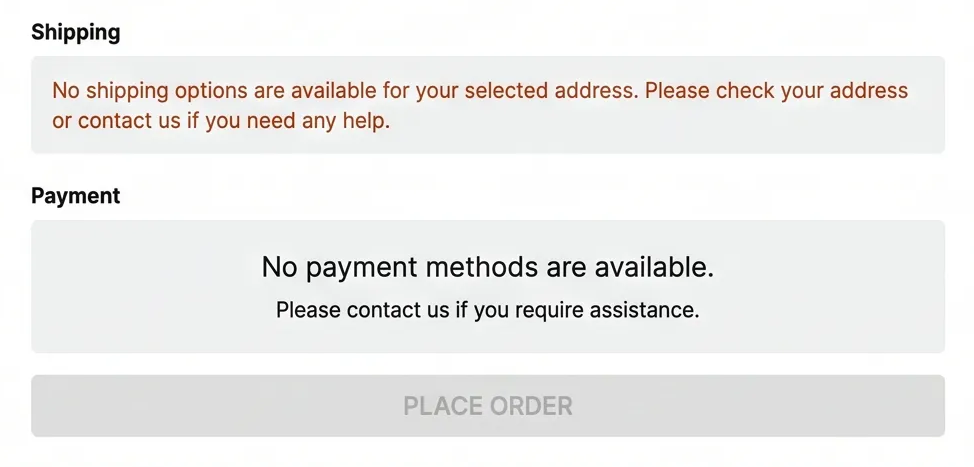
From the user’s perspective, this looks like the store cannot complete orders, even though products and checkout page itself are accessible. In reality, the issue is almost always related to configuration rather than a system failure.
Common causes include:
- shipping zones not configured correctly or missing regions
- no shipping methods assigned to an active shipping zone
- payment gateways not enabled for the customer’s country or currency
- conflicts between shipping rules, plugins, or conditional logic
- missing or incorrect address input preventing methods from loading
WooCommerce relies heavily on customer location data to determine which shipping and payment options should be displayed. If the system cannot match the customer to a valid rule, it will simply show no available methods.
How to fix it:
If some payment or shipping methods are not appearing at checkout, the issue is usually related to configuration, gateway settings, or location-based rules.
Common fixes include:
- If shipping is used, review shipping zones in WooCommerce settings and ensure all target regions are covered. Each zone should have at least one shipping method assigned, otherwise customers from that region will not see delivery options.
- Check payment gateway settings and availability rules. Confirm that payment methods are enabled for the correct countries and currencies, as some gateways automatically disable themselves if conditions are not met.
- Check API credentials (public and secret keys). Incorrect or outdated keys in WooCommerce payment settings will prevent the gateway from working properly.
- Test the transaction. Run a test payment to confirm whether the gateway is correctly configured and responding.
- Check SSL / HTTPS configuration. Make sure the site has a valid SSL certificate and checkout runs over a secure HTTPS connection, as many payment providers require this.
- Update the payment gateway plugin. Outdated versions can cause compatibility issues with WooCommerce or recent WordPress updates.
- Check payment logs. Enable WooCommerce payment logging to identify errors or failed transaction requests during checkout.
It’s also useful to test the checkout with different customer locations and addresses, since many issues are caused by country-specific or region-specific rules rather than a global configuration problem.
4. Mobile checkout issues
Mobile traffic is often the majority for WooCommerce stores, which makes mobile checkout problems especially damaging. On desktop everything may look and work perfectly, but on a phone the checkout can become slow, misaligned, or even partially unusable.
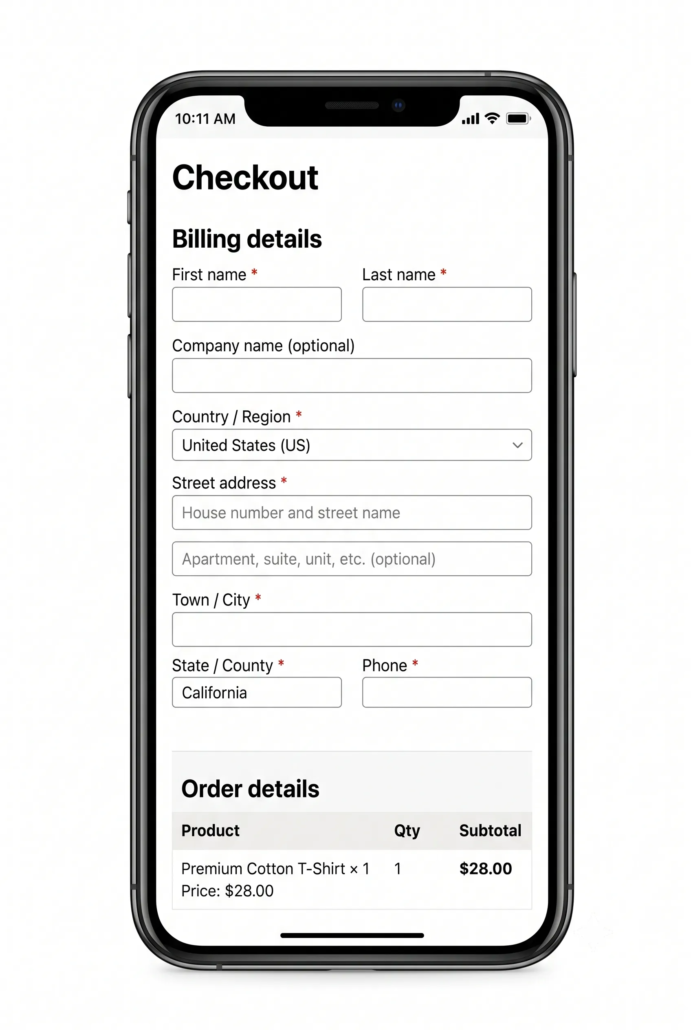
From the user’s perspective, mobile checkout issues usually show up as layout problems (buttons too small, fields overlapping), interaction issues (dropdowns not opening properly), or general difficulty completing payment on a smaller screen. Even small friction points can significantly increase cart abandonment on mobile.
Common causes include:
- poorly optimized or non-responsive theme layouts
- CSS conflicts from themes or page builders that unintentionally override WooCommerce styles and affect checkout layout or usability
- popups or sticky elements blocking form fields on small screens
- payment gateways or scripts not fully optimized for mobile devices
In many cases, the checkout technically works, but the interface becomes difficult to use, which is enough to stop users from completing their purchase.
How to fix it:
Start by testing the checkout on multiple devices and screen sizes to identify whether the issue is consistent or tied to specific layouts or browsers. This helps distinguish between general responsiveness issues and device-specific bugs.
Common fixes include:
- review and adjust mobile styling in your theme or page builder, ensuring checkout fields and buttons scale properly on smaller screens.
- disable or reposition popups, sticky headers, or floating elements that may overlap checkout forms on mobile.
- check whether third-party plugins are injecting styles or scripts that break mobile layout behavior.
- test checkout with default WooCommerce styling or a standard theme to isolate whether the issue is theme-related.
Mobile checkout problems often come down to CSS conflicts or layout overrides rather than WooCommerce core functionality. On smaller screens, even minor styling or script conflicts can affect spacing, button behavior, or form interaction, leading to a checkout experience that feels inconsistent or difficult to use.
5. Slow checkout performance
Slow checkout performance is one of the most damaging issues in WooCommerce, because it affects users at the exact moment they are ready to buy. Even a small delay when loading the checkout page or processing payment can lead to abandoned carts, repeated refreshes, or customers assuming the order has failed.
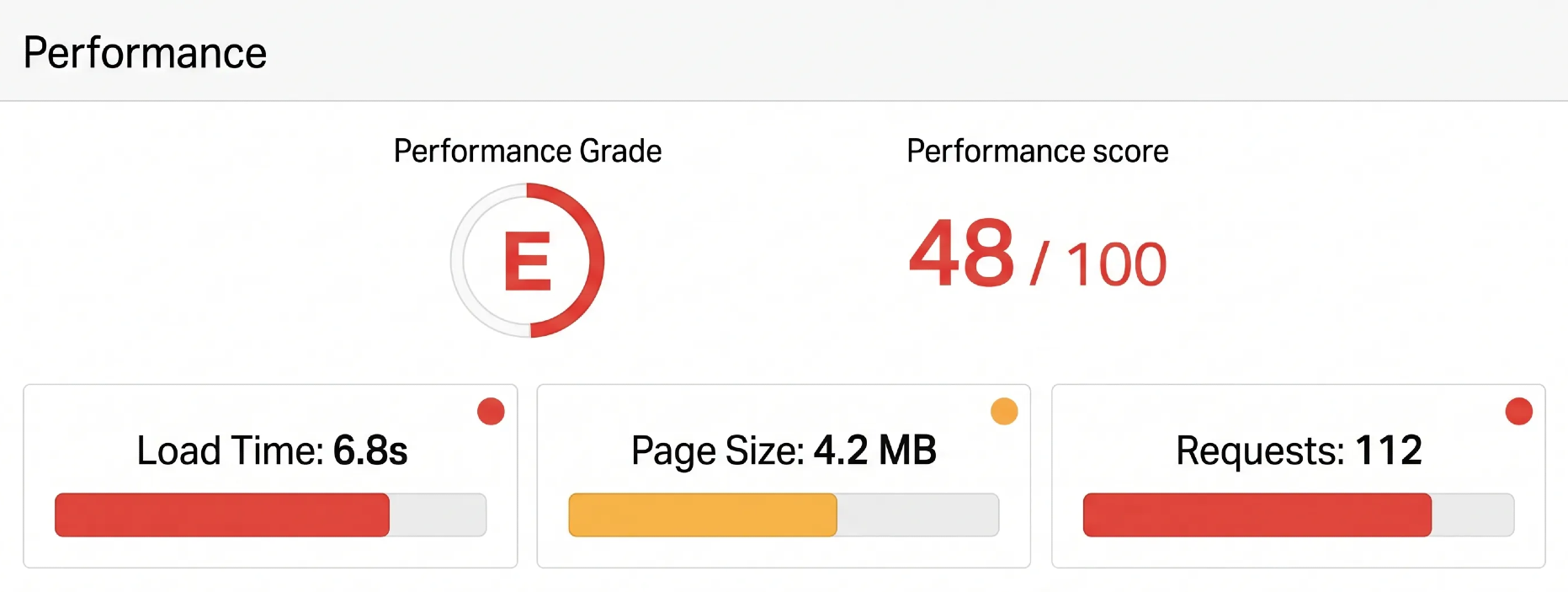
Unlike general site speed issues, checkout performance problems are often more noticeable because the page is doing more work in the background — calculating totals, loading shipping methods, validating coupons, and communicating with payment gateways in real time.
Common causes include:
- heavy or poorly optimized plugins running on checkout pages
- slow server response or limited hosting resources
- third-party scripts (tracking, analytics, chat tools) delaying page execution
- unoptimized images, fonts, or assets loading on checkout
- complex shipping or tax calculations processed in real time
- slow or delayed payment gateway responses
Even if the storefront feels fast, the checkout page can still lag because it relies on multiple external and internal systems working together in real time.
How to fix it:
Start by reducing unnecessary load on checkout pages. Many performance issues come from scripts or plugins that are not required during checkout but still execute in the background.
- reduce or limit non-essential plugins or scripts on checkout pages where possible. In many cases this is done through performance or optimization tools that allow certain features to be turned off on specific pages, or by preventing unnecessary scripts from loading during checkout.
- optimize hosting performance, especially PHP processing time and database response.
- review shipping and tax calculations and simplify rules where possible.
- test different payment gateways, as slower gateways can delay order confirmation.
- enable caching carefully, ensuring checkout-specific pages are excluded to avoid breaking dynamic functionality.
Slow checkout issues are often not caused by a single factor but by a combination of small delays across different systems. When performance degradation is inconsistent or difficult to trace, reviewing recent changes to plugins, hosting, or checkout customization can help identify what is adding latency.
Other common checkout issues
There are also several other common checkout issues that can affect conversions and overall user experience, even if they are less critical than the problems covered above.
Some stores suffer from too many checkout fields or poorly designed validation rules, where users are forced to fill in unnecessary information or are blocked by unclear error messages. Others limit conversions by forcing account creation, which can add friction for first-time buyers who just want to complete a quick purchase.
In some cases, checkout issues are also caused by more subtle factors such as coupon conflicts, unexpected cart rule behavior, or small UX inconsistencies that only appear under certain conditions. These are often harder to notice because the checkout may work normally most of the time, but fail or behave unpredictably when specific combinations of products, discounts, or user actions are involved. For example, a coupon might not apply as expected due to overlapping rules, or pricing logic may produce unexpected results depending on what is in the cart at the time of purchase.
When checkout is heavily customized, extended with plugins, or integrated with external systems, these smaller issues can accumulate over time and become harder to track. In such setups, ongoing WooCommerce support can help keep the checkout stable, fast, and aligned with conversion goals.
Final thoughts
Most WooCommerce checkout issues are not caused by a single factor, but by a combination of configuration settings, plugin behavior, and UX or performance-related problems. While some are simple to fix once identified, others only appear under specific conditions and require a closer look at how different parts of the checkout system interact.
A well-functioning checkout is not something that stays stable on its own — it depends on regular checks, clean configurations, and avoiding unnecessary complexity that can interfere with the purchase flow.
Our specialization is WordPress website development and maintenance. Contact us for a free consultation — [email protected], +371 29394520
