How to Remove Password Recovery and Password Change from WordPress
Why Remove Password Recovery or Password Change in WordPress
If you have enabled registration on your site, the password recovery option lets people recover lost passwords. However, in some cases you may want to remove this option for certain users. For example, if you created a temporary account for someone, or if you created a demo site that users can log in to with a demo username and password. The simplest way in this case is just to remove the password recovery link. However, some users may still have the address of the password recovery form.
Method One: Remove the Password Recovery Option with a Plugin
The plugin method is easier and more convenient. It lets you disable password recovery for all users. You need to install and activate the Reset Password Removed plugin.
Note: Reset Password Removed disables password recovery for all users, including administrators.
After activation, the plugin automatically removes the “Lost your password?” link and blocks the ability to recover a password for all users.
Method Two: Remove the Password Recovery Function in WordPress Manually
If you prefer not to install additional plugins, or want to disable password recovery selectively for certain users, you can use custom code. To do this, open any text editor and create a file, for example disable-password-reset.php. Paste one of the code options below into it.
Disabling for All Users
Option 1: block with a redirect and removal of the “Lost your password?” link
The following code completely blocks password recovery for all users, removes the “Lost your password?” link on the login page and redirects anyone who tries to open the standard password reset page back to the login page:
<?php
add_filter( 'allow_password_reset', '__return_false' );
add_action( 'login_init', function() {
    if ( isset( $_GET['action'] ) && in_array( $_GET['action'], ['lostpassword', 'retrievepassword'] ) ) {
        wp_redirect( wp_login_url(), 301 ); // Перенаправляет всех на страницу входа
        exit;
    }
});
add_filter( 'gettext', function( $text ) {
    return ( $text === 'Lost your password?' ) ? '' : $text;
});
?>
Option 2: block while keeping recovery available to administrators
Another code snippet also completely blocks password recovery for all users and removes the “Lost your password?” link on the login page. Administrators will be able to recover passwords through the admin panel, while for ordinary users recovery is completely unavailable:
<?php
class Password_Reset_Removed {
    function __construct() {
        add_filter('show_password_fields', array($this, 'disable'));
        add_filter('allow_password_reset', array($this, 'disable'));
        add_filter('gettext', array($this, 'remove'));
    }

    function disable() {
        $userdata = wp_get_current_user();
        $user = new WP_User($userdata->ID);
        if ( ! empty( $user->roles ) && is_array( $user->roles ) && $user->roles[0] == 'administrator' ) {
            return true; // Администраторы сохраняют возможность восстановления через админпанель
        }
        return false; // Остальные пользователи не могут
    }

    function remove($text) {
        return str_replace(array('Lost your password?', 'Lost your password'), '', trim($text, '?'));
    }
}

$pass_reset_removed = new Password_Reset_Removed();
?>
Disabling for Specific Roles or Users
If you need to block password recovery only for specific roles or individual users, use code that checks roles or user IDs:
Blocking for everyone except administrators:
<?php
add_filter('allow_password_reset', function($allow, $user_id) {
    $user = get_userdata($user_id);
    if (in_array('administrator', $user->roles)) return true; // Администраторы могут сбрасывать пароль
    return false; // Все остальные пользователи не могут
}, 10, 2);
?>
Blocking for specific users by ID:
<?php
add_filter('allow_password_reset', function($allow, $user_id) {
    $blocked_users = [3, 7, 15]; // ID пользователей, для которых восстановление заблокировано
    if (in_array($user_id, $blocked_users)) return false;
    return true; // Остальные пользователи могут сбрасывать пароль
}, 10, 2);
?>
Save your file. Then connect to your site via FTP and go to the wp-content/plugins folder.
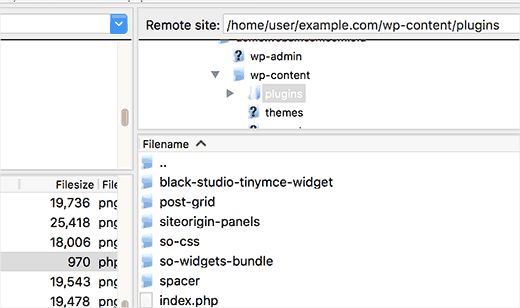
Upload the file you created to this folder. Now go to the admin area’s Plugins page, where you will see the new Disable Password Reset plugin in the list of installed plugins. Activate it.
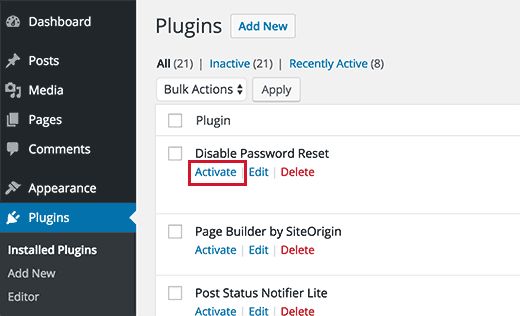
After activation, password recovery will be disabled according to the chosen option: completely for all users, only for ordinary users, or for selected roles and specific users.
Our specialization is WordPress website development and maintenance. Contact us for a free consultation — [email protected], +371 29394520
