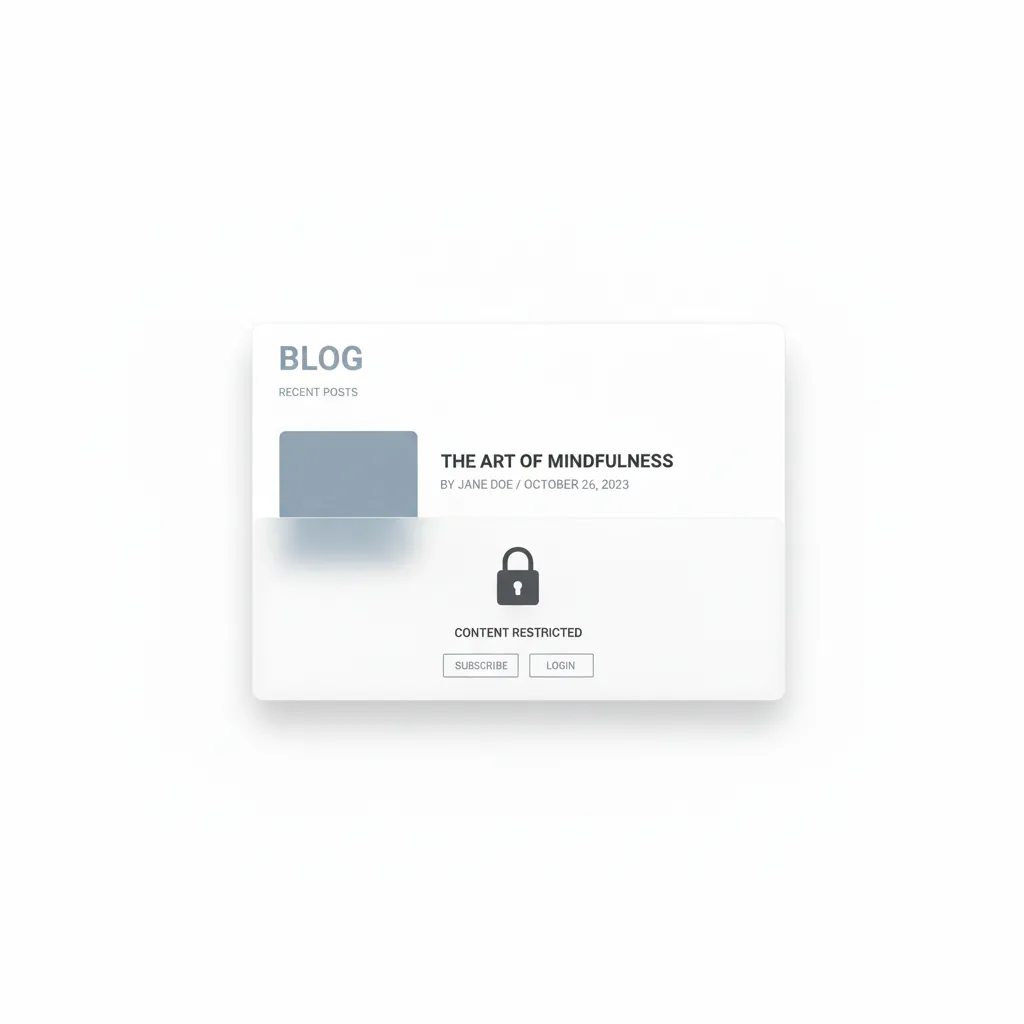
How to Lock Your Site’s Content
Many sites use content locking to increase revenue and sales. In this article you will learn how to lock content without annoying users.
What Is Locked Content and Why Do You Need It?
Locked content is a technique used by site owners to make users take some action before they get access to the content.
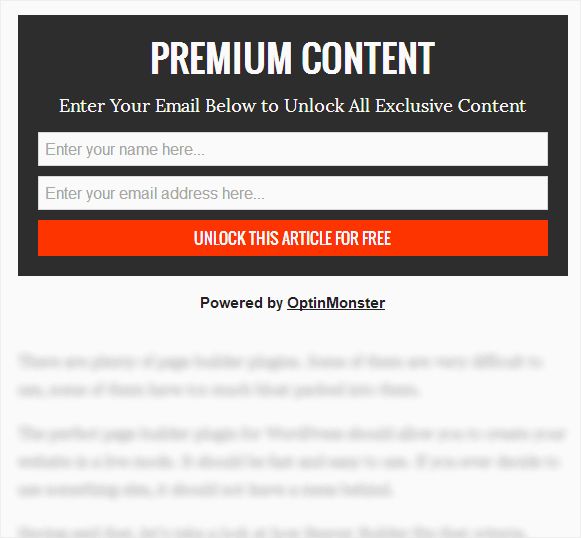
If used incorrectly, it can annoy users, but when used skillfully it can lead to increased sales. Content locking is effective when it comes to something valuable, for example a free course, an e-book and so on. The same psychological trick works here as with content upgrades. Users do not mind doing something small in exchange for content that is valuable to them.
What Do You Need to Lock Content in WordPress?
In this guide we will use OptinMonster, which at the moment remains one of the best solutions on the market. However, you will need the Plus or Pro plan to be able to lock content.
Adding Locked Content
First you need to install and activate the OptinMonster plugin. This plugin is only a link between your site and your account in the OptinMonster system. After activating the plugin you will be automatically redirected to the OptinMonster page to connect your site. Here the plugin will create a secure connection to your account. After the setup is complete you will land in the Campaigns section (https://app.optinmonster.com/campaigns/), where you can create new optin forms, manage existing campaigns and set up content locking for your site.
To create a campaign with content locking, click Create New Campaign. A window with a greeting and a choice of campaign type will open. You are offered three main options:
- Playbooks — ready-made, proven campaigns inspired by successful brands.
- Templates — hundreds of easily customizable, high-converting templates.
- Canvas — a blank template for full customization from scratch.
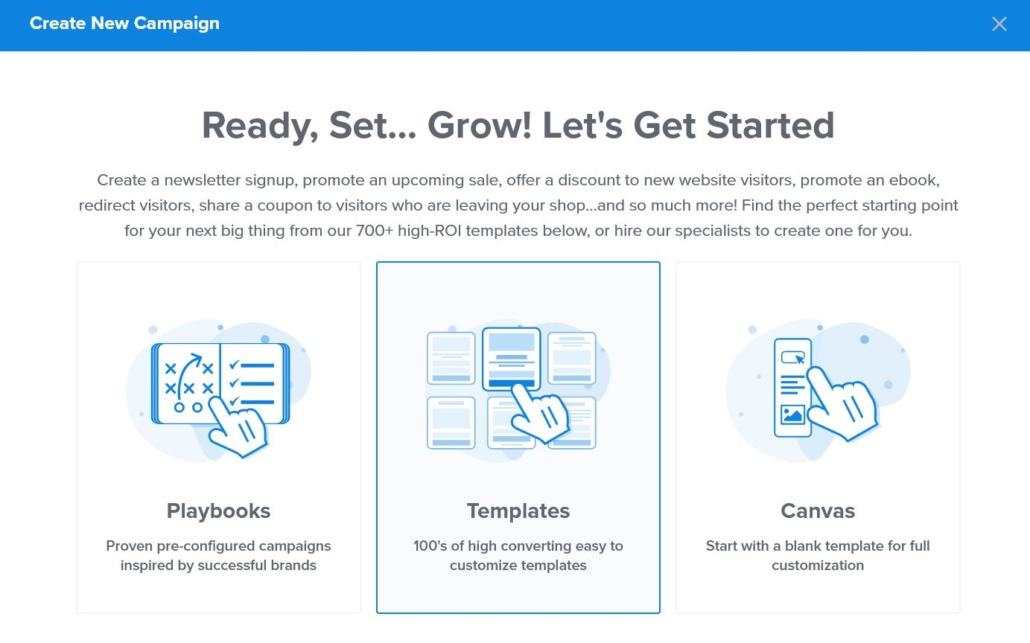
Choose a suitable option and continue setting up the campaign. For content locking, it is recommended to use the After Post / Inline type if you want to hide material on pages or posts.
We, for example, found a convenient Unlock Gated Content template in the library of ready-made solutions — it is designed specifically for gated content and is well suited for such tasks.
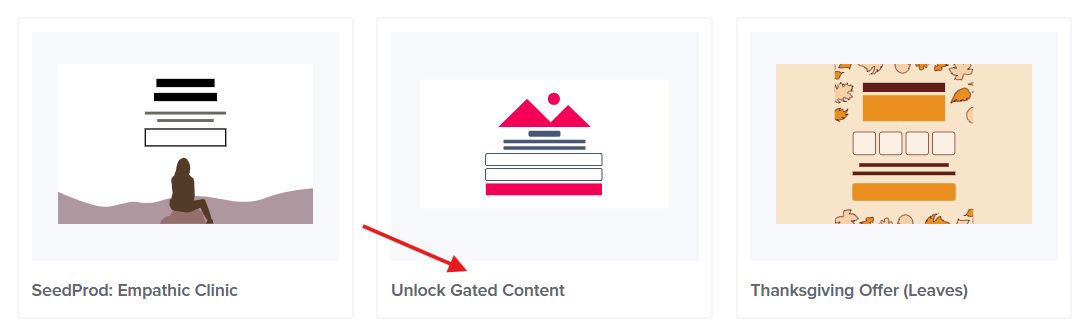
Choose the template you need by clicking Use Template.
Next a window with the campaign settings will appear:
- What do you want to call your inline campaign? — enter the campaign name.
- Which website(s) do you want to load this campaign on? — choose a site from the drop-down list or add a new one.
If you are adding a new site, you need to enter its name and domain and then click Start Building.
When adding a domain, it is important to understand the difference between:
- Top-level domain — for example,
mysite.com— is the main domain of the site. In this case the campaign will be displayed only on the main domain and will not work on subdomains such asblog.mysite.com. - Sub-domain — for example,
blog.mysite.com— is used for separate sections or projects. In this case the campaign will work only on the specified subdomain and will not be available on the main domain or other subdomains. - Wildcard subdomain — for example,
*.mysite.com— covers all subdomains of your site. This is convenient if you want to use the same campaign on several subdomains at the same time. However, the campaign will not work on the main domain unless you add it separately.
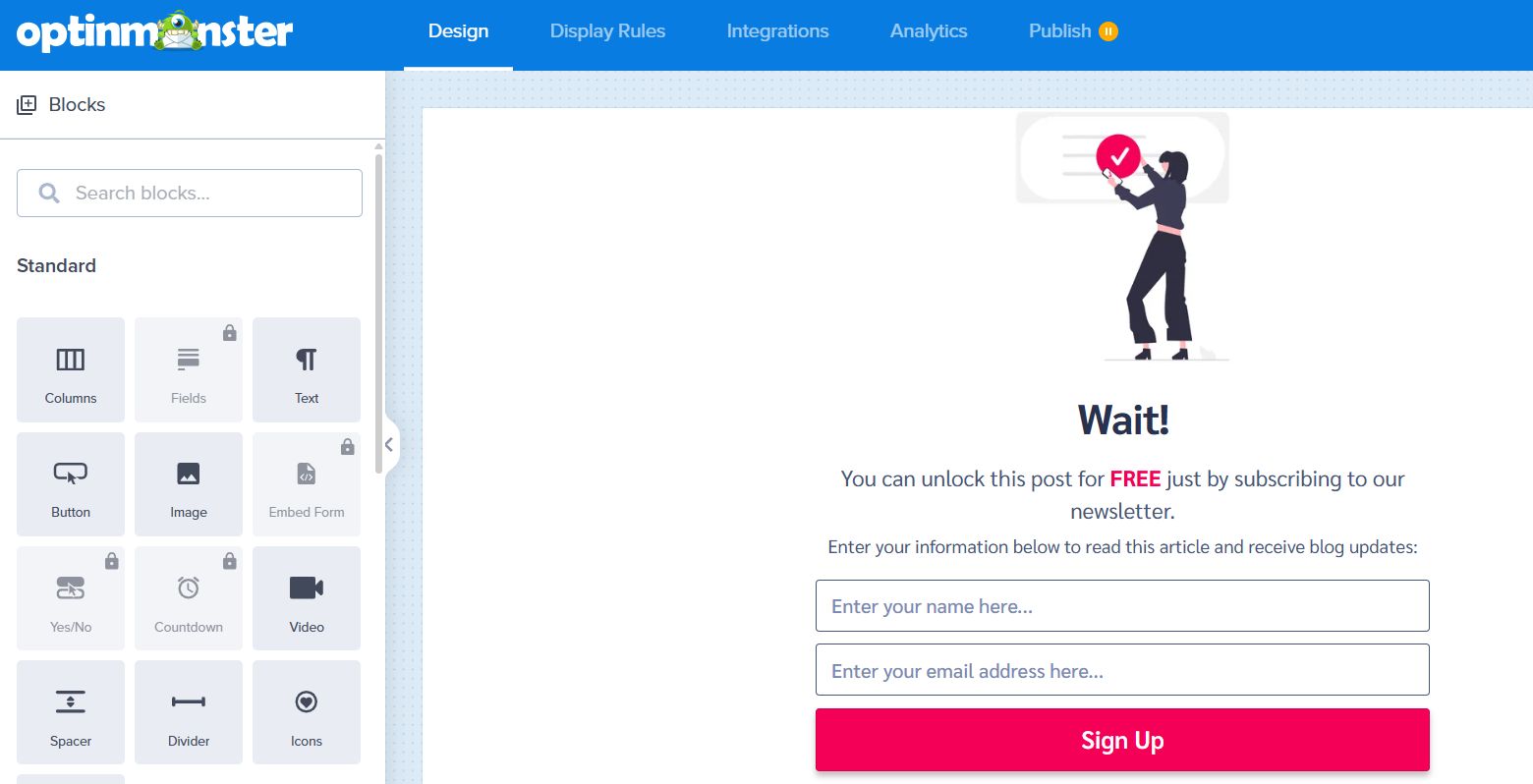
After that a visual drag-and-drop editor will open, in which you can flexibly configure the appearance of the form: change colors, texts, buttons and add extra elements. This lets you adapt the campaign to your site’s design without writing code.
After you finish editing the campaign visually, you will automatically land in Display Rules → Conditions. Here you can choose on which pages of the site the pop-up with the form will be shown — for example, on all pages of the WordPress site or only on selected ones.
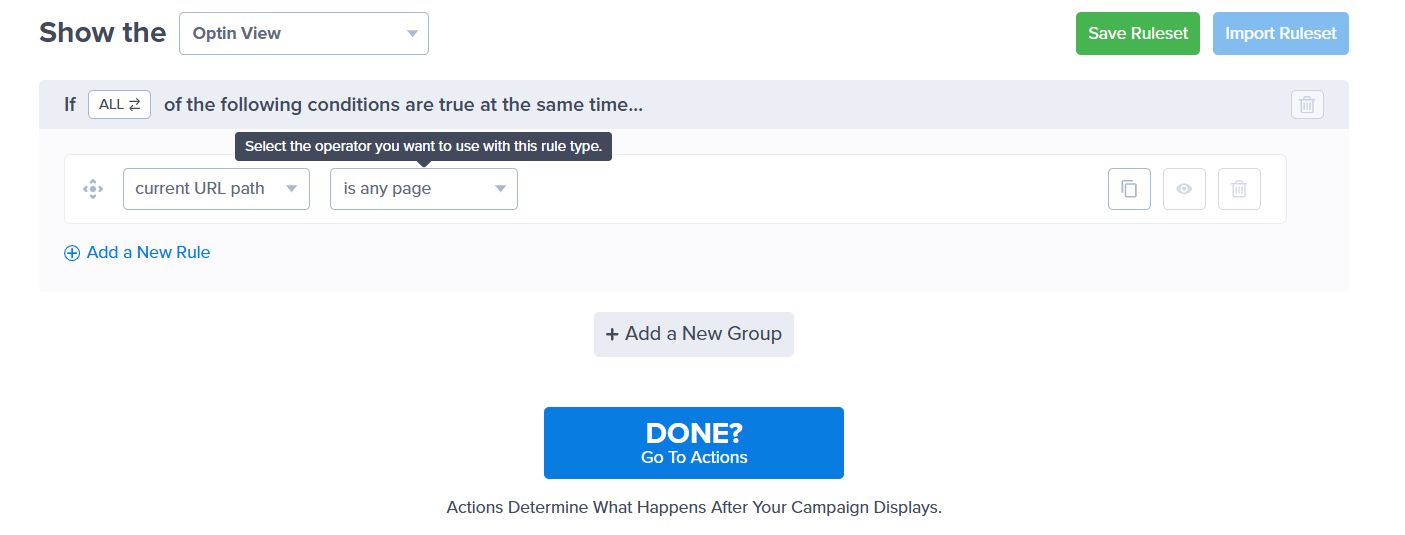
After you have set the display conditions, click the “Done? Go To Actions” button to go to the next step.
On the next screen the Display Rules → Actions section will open, where you can add an appearance animation and sound via MonsterEffects.
Next, scroll down to the Lock Content section, where you can enable content locking by turning on the Enable Content Locking switch.
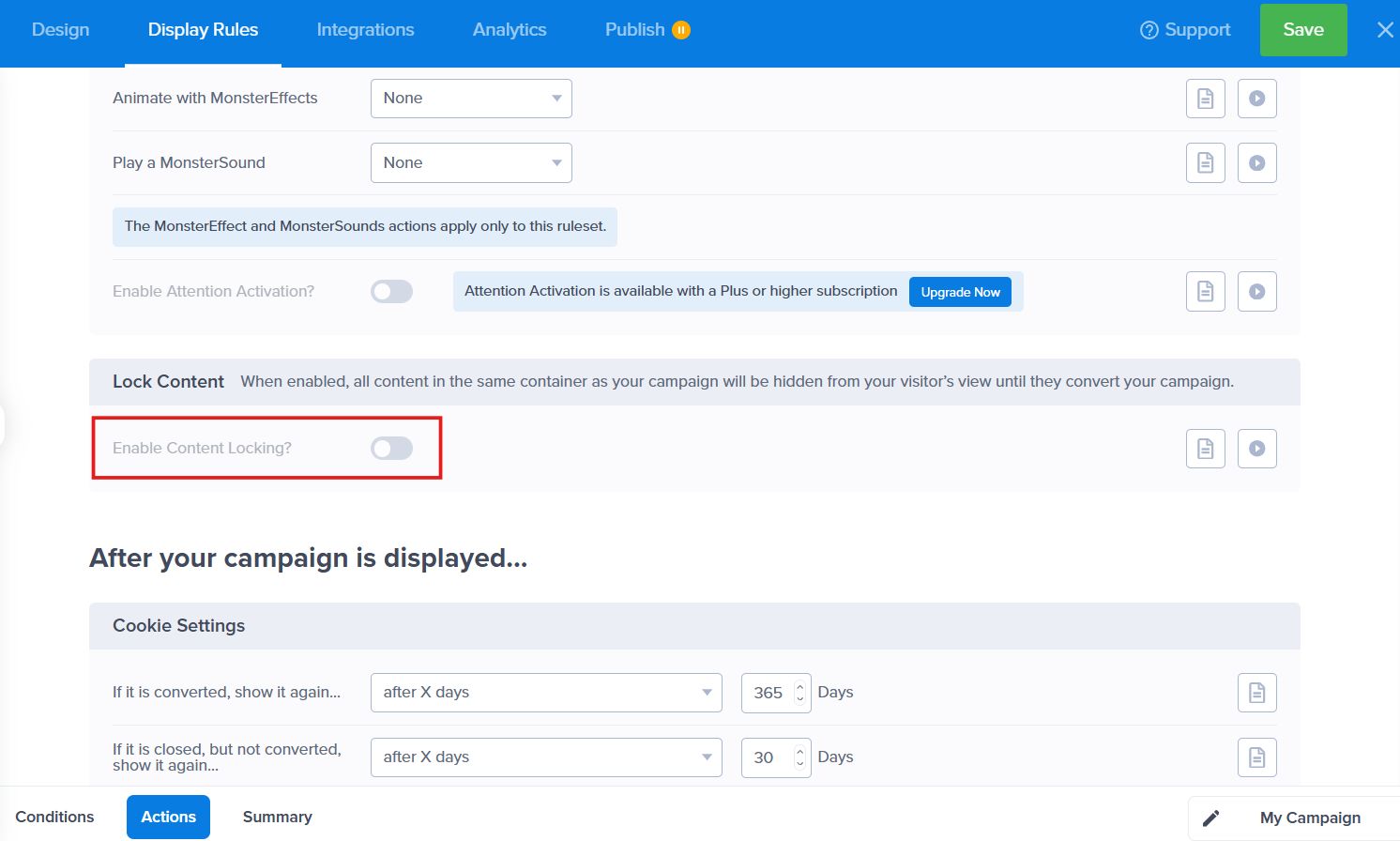
Two behavior options are available here:
- Blur — the page content is blurred, and users cannot read it until they perform the required action.
- Remove — the content is hidden completely.
After the visitor performs the required action, OptinMonster will automatically open access to the hidden content.
Below there are additional campaign display parameters, including cookie settings — you can set after how many days the campaign is shown again to the same users.
After setting up the actions, click the Go To Summary button to go to the campaign summary and review the logic before publishing, making sure the display conditions are set correctly. Do not forget to save your changes with the Save button in the upper right corner — it is not required after every section, but it is recommended so you do not lose your settings.
Next, if needed, open the Integration section. Here you can set up tags, map form fields and, if you wish, connect a third-party email marketing service. If you do not use third-party services, you can leave the Monster Leads settings at their defaults.
In the Analytics section you can connect analytics services, for example Google Analytics, to track the effectiveness of campaigns and user behavior.
When all the campaign settings are complete, go to the Publish section. First make sure your site is correctly connected to OptinMonster using the Verify option.
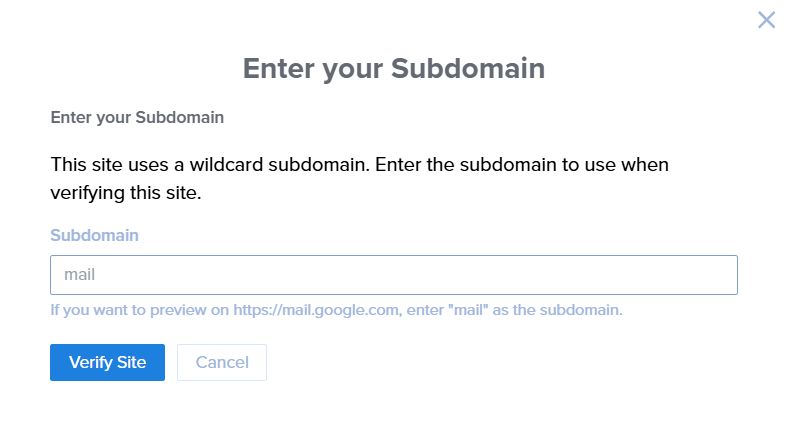
After a successful check, the site status will change to Connected.
Then choose the WordPress platform.
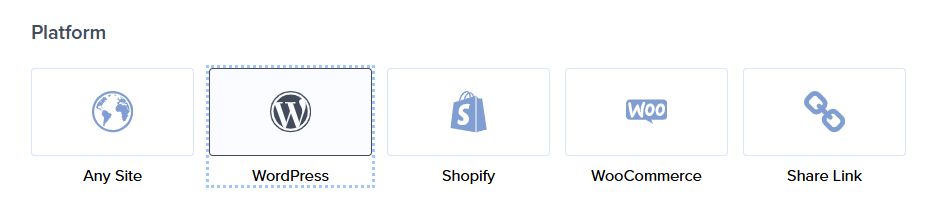
After all the parameters are checked and the site is connected, click Publish.
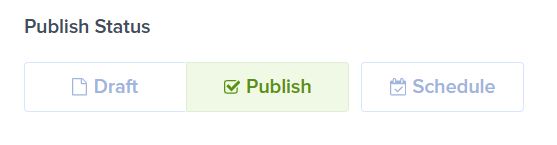
After the campaign is published, all its settings continue to be managed in the OptinMonster app. In WordPress, through the installed plugin, you will be able to see the connected campaigns, insert shortcodes for manual placement of inline campaigns if needed and check how the content works on the site.
To configure how inline campaigns with content locking are displayed, open WordPress and go to OptinMonster → Campaigns, then choose the campaign you need and click Output Settings.
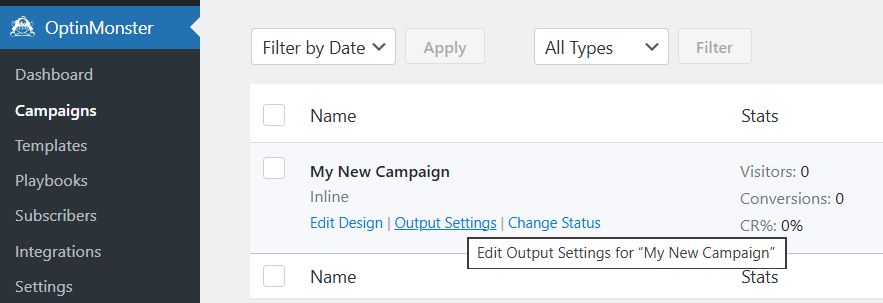
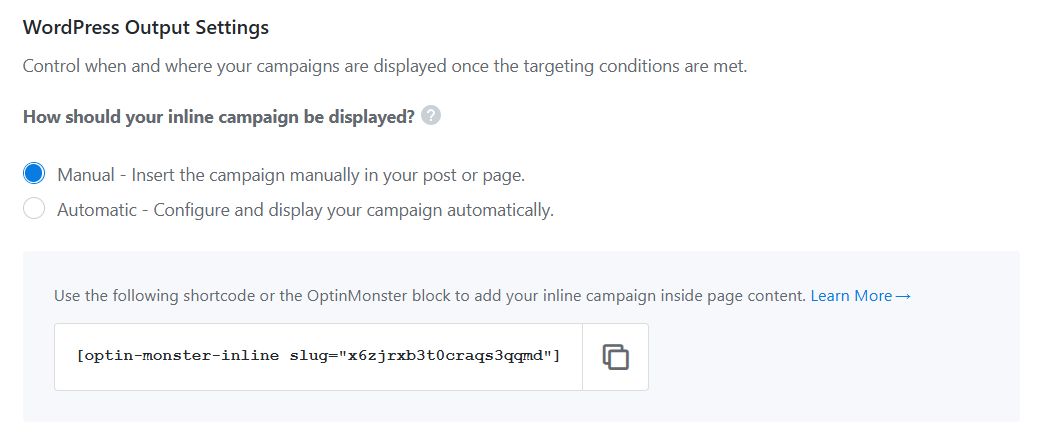
In the campaign settings section you will see the WordPress Output Settings block:
- Automatic — content locking happens automatically after the specified number of words or paragraphs. You can set the number of paragraphs or words after which the content will be blurred or hidden. This mode lets you hide content on all posts without manual editing.
- Manual — you add a shortcode to each page or post where you want to hide content. To do this, copy the provided shortcode and paste it using the Shortcode block in the WordPress editor on the pages or posts you need. This gives you precise control over which content will be locked.
Now you can open the page with locked content in your browser. You will see that the content is blurred or hidden. As soon as the user performs the required action (for example, enters an email), the hidden material will be displayed.
Our specialization is WordPress website development and maintenance. Contact us for a free consultation — [email protected], +371 29394520
