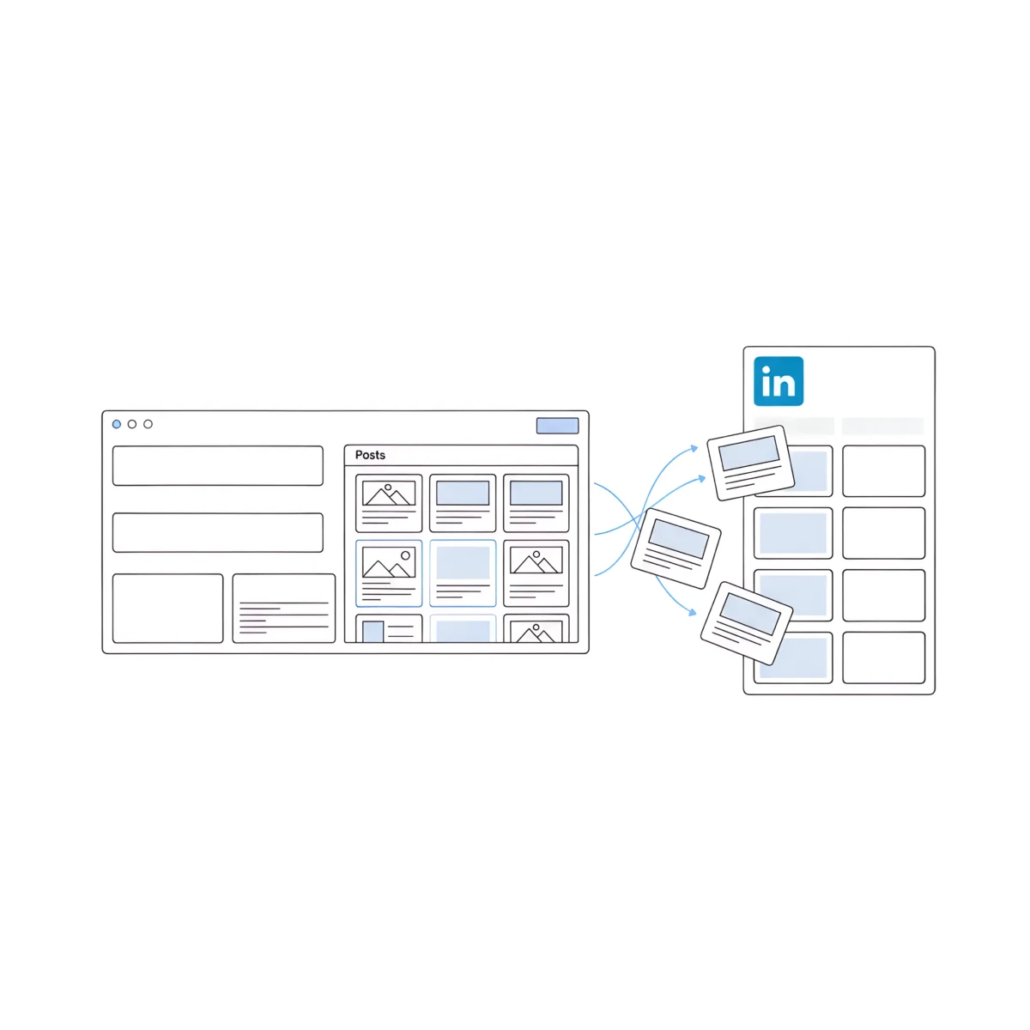
How to Automatically Publish WordPress Posts to LinkedIn
LinkedIn is a social network for professionals and a very strong platform that can bring traffic to your site. In this post we will look at how to automatically publish your WordPress posts to LinkedIn.
Important: automatic publishing of WordPress posts to LinkedIn is possible only to a LinkedIn Page (a company or brand page). This is a LinkedIn limitation: its API does not allow third-party services to publish content to a personal profile. If you only have a personal profile, first create a LinkedIn Page for your site or company.
Method One: Automatically Publish Posts to LinkedIn with IFTTT
IFTTT stands for If This Then That. It is a service that lets you connect online accounts and make them work for you. First you need to create an IFTTT account by signing up on their website.
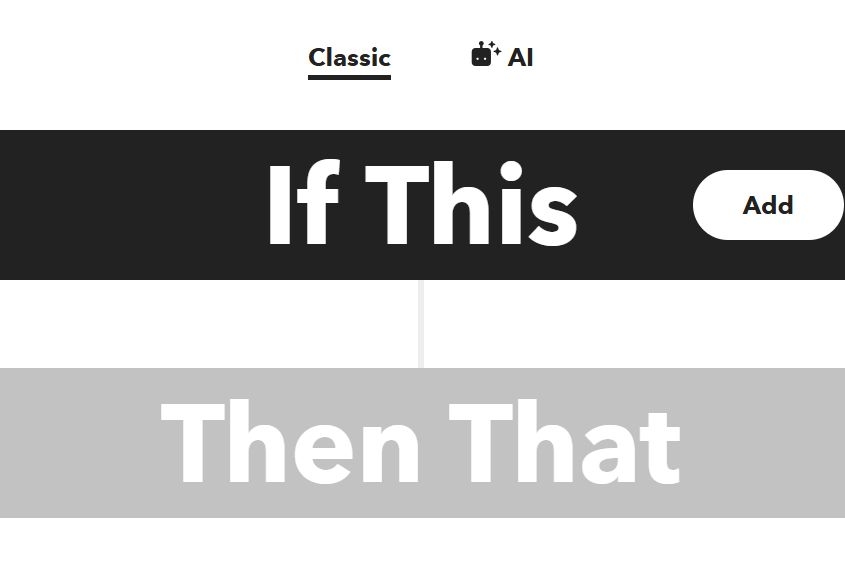
After registration you can create your first applet. Just click the Create button in the top menu.

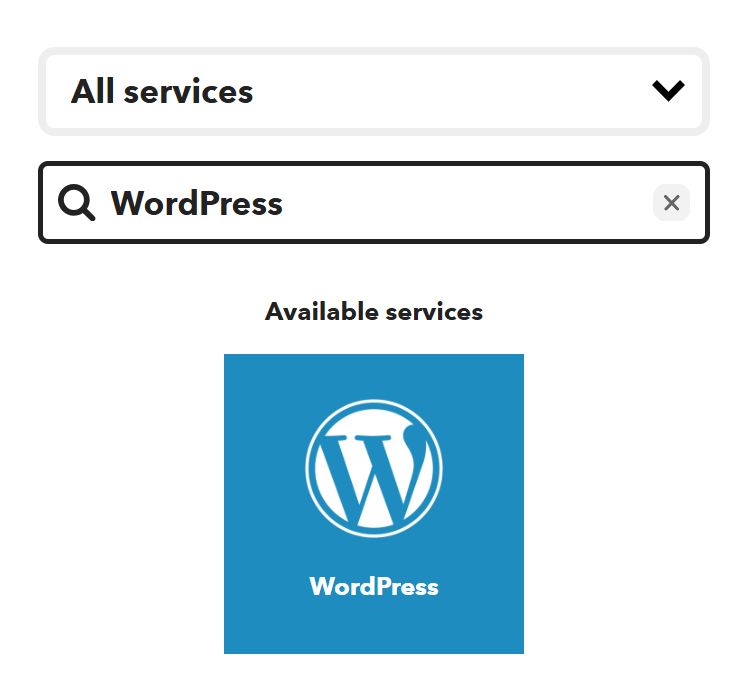
An applet consists of two parts. The first part is called This — this is the condition that triggers an action. Click the Add button, type WordPress in the search and choose it as the channel.
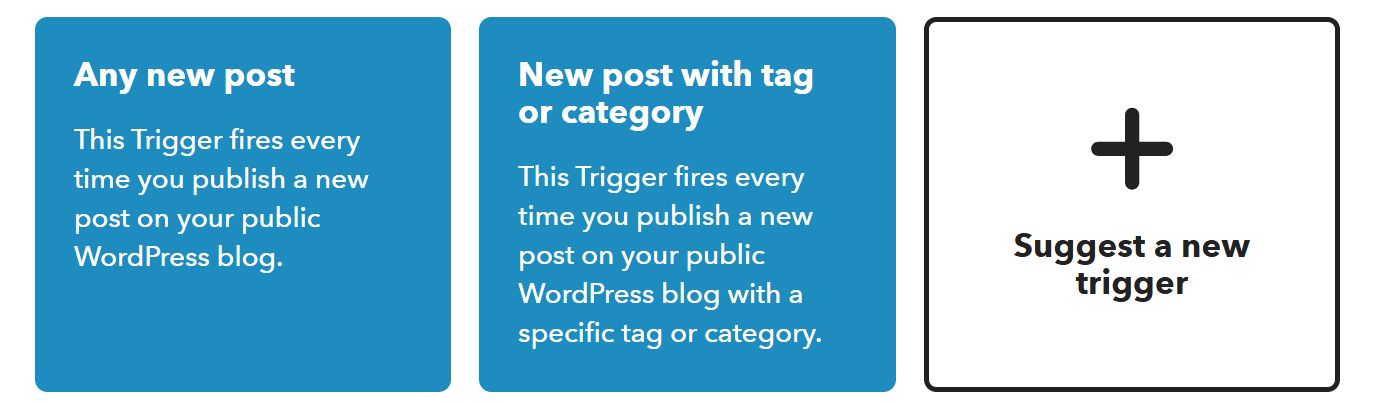
Next IFTTT will offer you to choose a trigger. You can, for example, choose Any new post — then the applet will run every time a new post is published. Or use New post with tag or category if you want publishing to happen only for certain tags or categories. Now we will use Any new post as our trigger.
After that the service will ask you to connect your site.
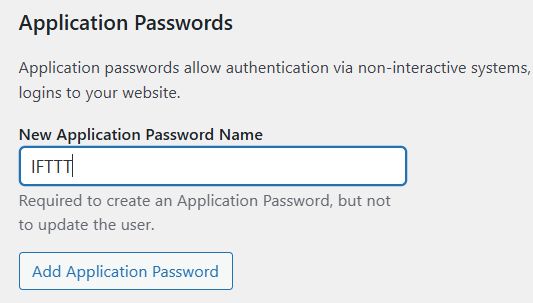
Before connecting the site, make sure you have an Application Password. You can create it in the WordPress admin area under Users → Your Profile in the Application Passwords block. Give it a name, for example IFTTT, click Add Application Password and copy the generated code. This is the password you will use for the integration, not your usual administrator password.
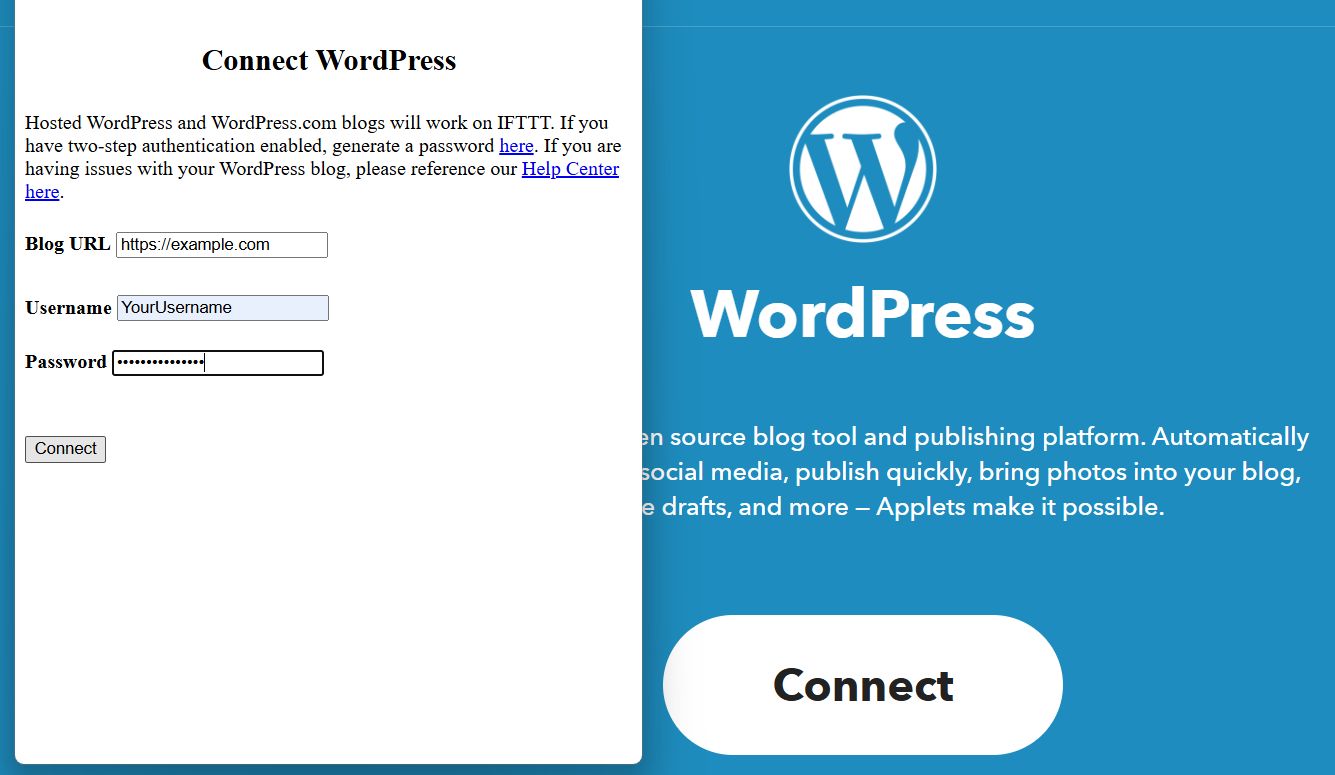
Connect your site by specifying its address, the username (your WordPress login) and the application password.
If you see the error “There was an error connecting WordPress. Try again” when trying to connect, most likely access to xmlrpc.php on your site is blocked. You can check this by opening https://yoursite.com/xmlrpc.php in your browser. If you see the message 403 Forbidden, access is denied by the server or a security plugin.
In this situation there are two ways out:
-
Allow access to XML-RPC (in your hosting settings or in security plugins such as Wordfence or iThemes Security).
-
Or use an alternative method via RSS.
*Every WordPress site already has RSS and it requires no configuration.
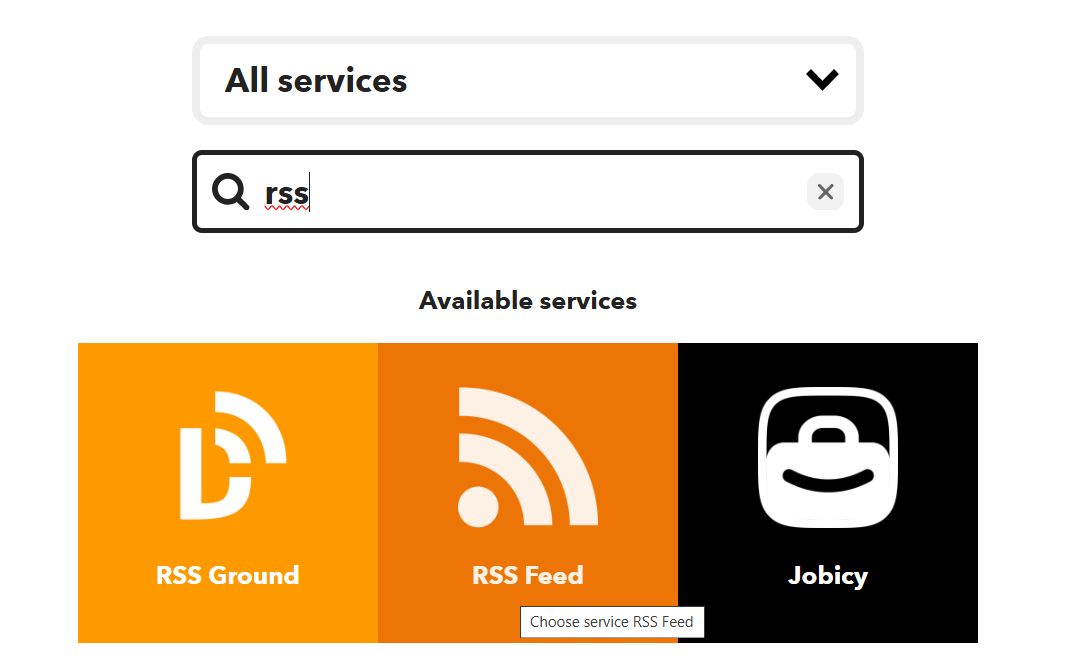
To use RSS, when creating the applet choose RSS → New feed item / New feed item matches. instead of the WordPress channel.
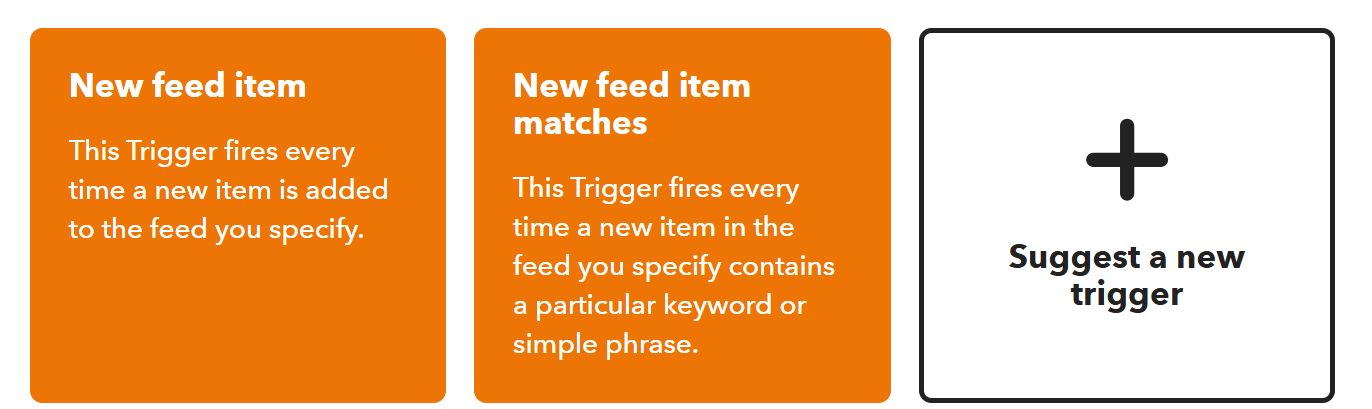
Specify the address of your feed, for example https://yoursite.com/feed/.
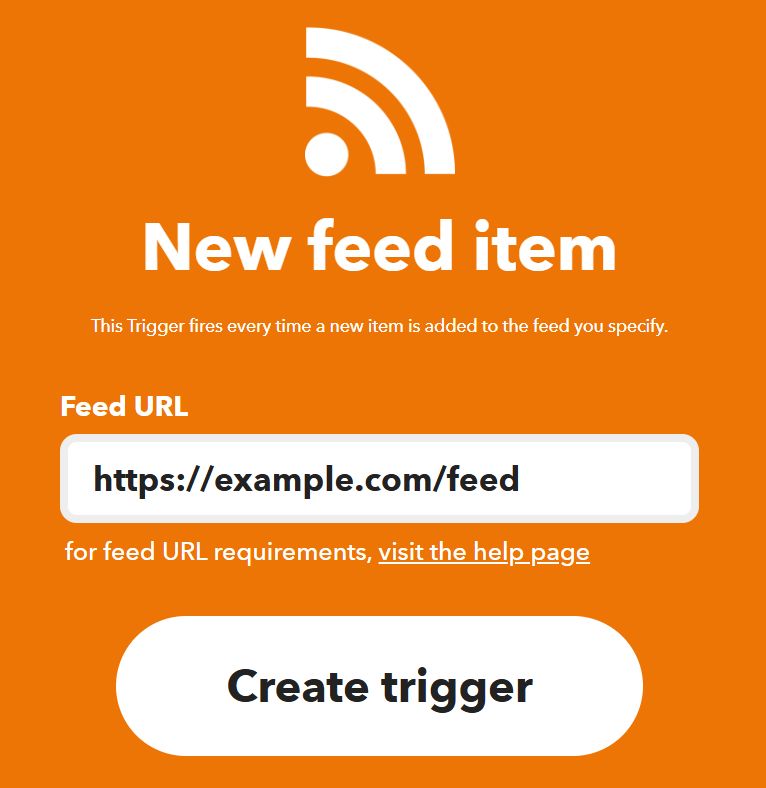
After a successful connection (via the WordPress channel or RSS), we choose the second part — That.
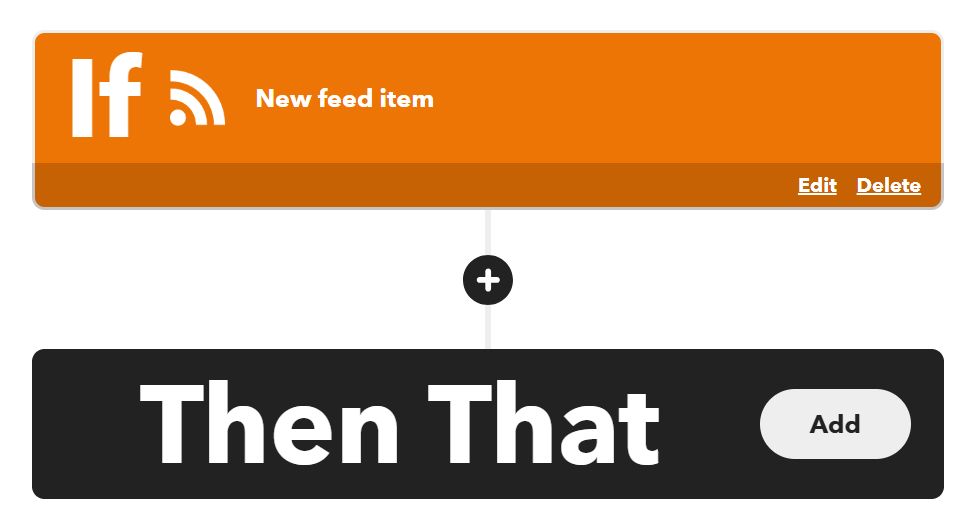
Find and choose LinkedIn as the channel.
After that IFTTT will offer you to choose the action to be performed when the trigger fires:
-
Share an update — share a text update on LinkedIn.
-
Share a link — share a link to your post.
-
Share an update with image — share an update with an image.
-
Share an update with video — share an update with a video.
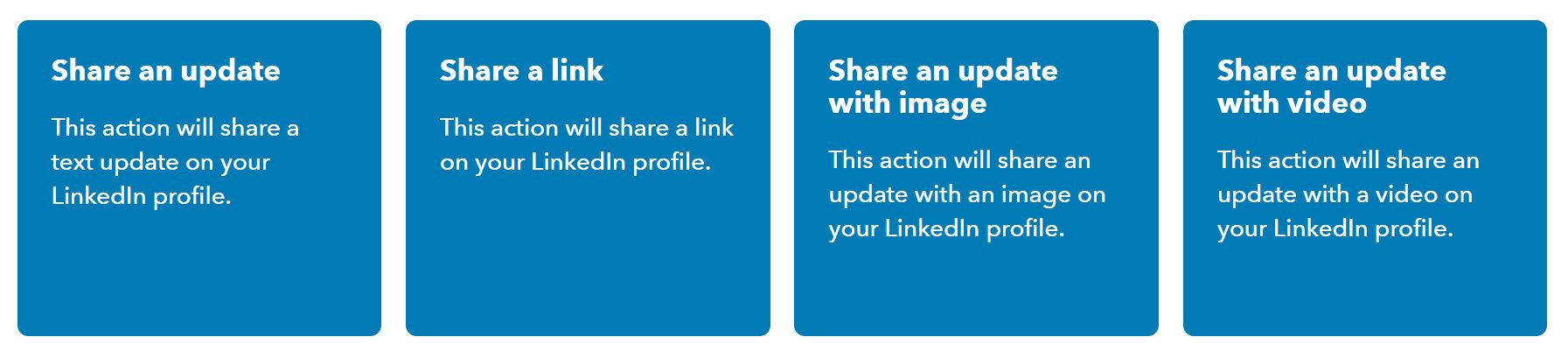
Choose a suitable option. We chose Share an update with image.
The site will ask you to connect to your LinkedIn account; enter your details and confirm access by clicking the Allow button.
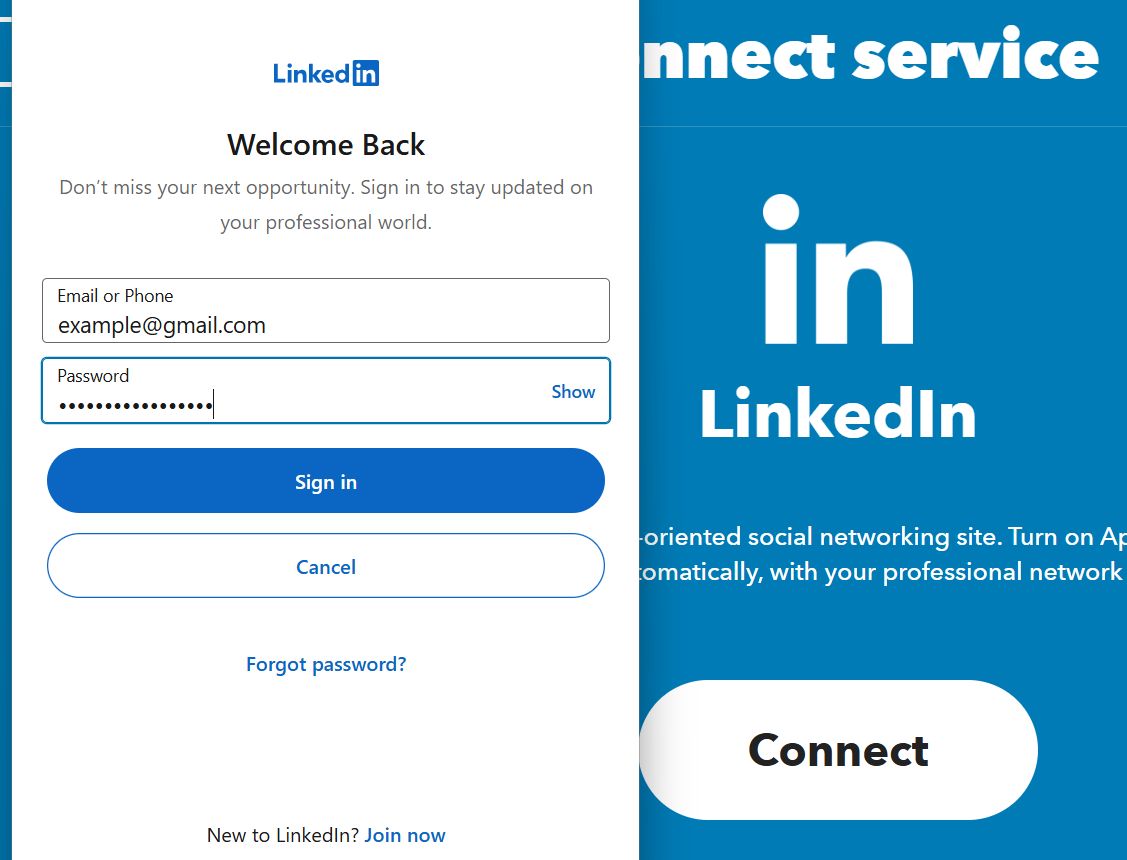
After a successful connection, at the Complete action fields step you can check and, if necessary, adjust the selected action. Make sure the title, link and image were pulled in correctly, and make changes if needed.
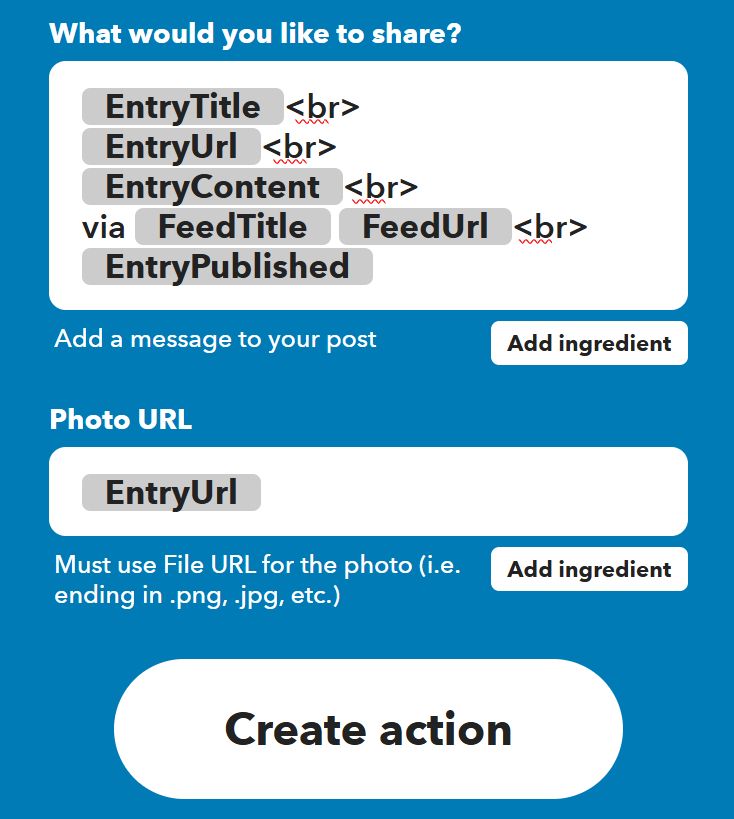
When everything is ready, click Create action, then Continue, and activate the applet.
Done — now new posts from WordPress will be published automatically to your LinkedIn page.
You can always see your applet by going to the My Applets page. You can also edit, stop or pause the applet at any time.
Method Two: Automatically Publish WordPress Posts to LinkedIn Using a Plugin
You can also automatically share WordPress posts to LinkedIn using dedicated plugins. In this guide we will use WP LinkedIn Auto Publish, one of the popular plugins with LinkedIn API support.
After installing and activating the plugin, a settings item will appear in the WordPress menu. Here you will see the Connect with LinkedIn button. When clicked, it opens the LinkedIn authorization window, where you need to log in to your account and allow the plugin access.
After successful authorization, the plugin will show a list of the LinkedIn Pages you manage as well as your personal profile. Choose the page to which you want to automatically publish posts — auto-publishing to a personal profile is not officially supported.
After choosing the page, you can configure which elements of the post will be used (title, link, image) and enable or disable auto-publishing for each specific post with a new meta field on the editor screen.
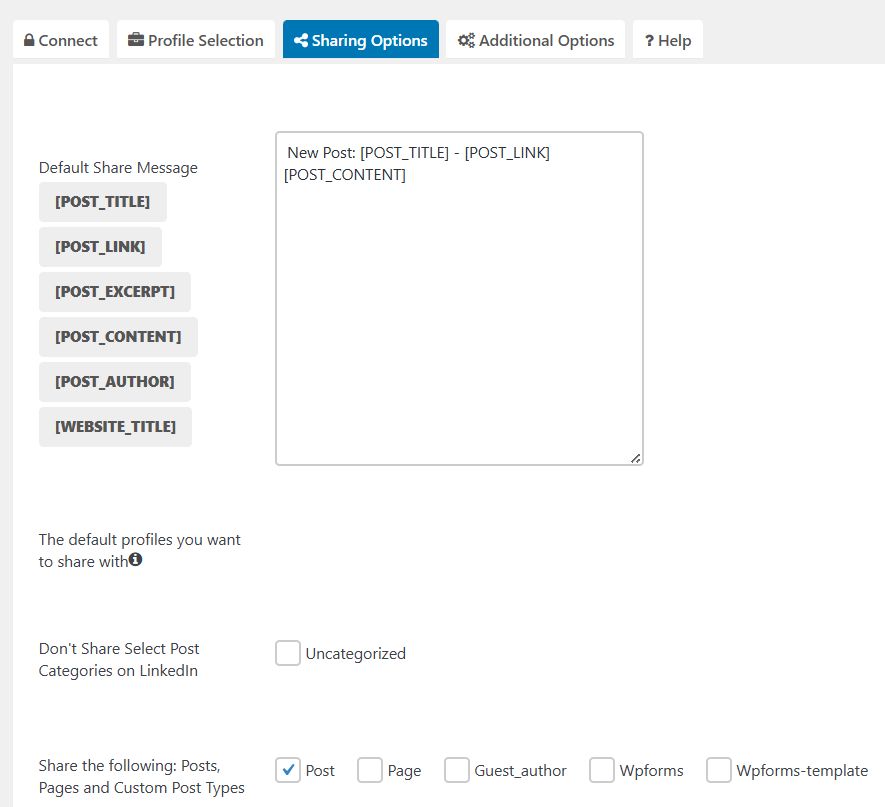
Now new WordPress posts will be published automatically to the selected LinkedIn Page. You will also find a new meta field on your post editor screen. With it you can disable or change the sharing settings for each post.
Our specialization is WordPress website development and maintenance. Contact us for a free consultation — [email protected], +371 29394520
