How to Create a TinyMCE Plugin for WordPress
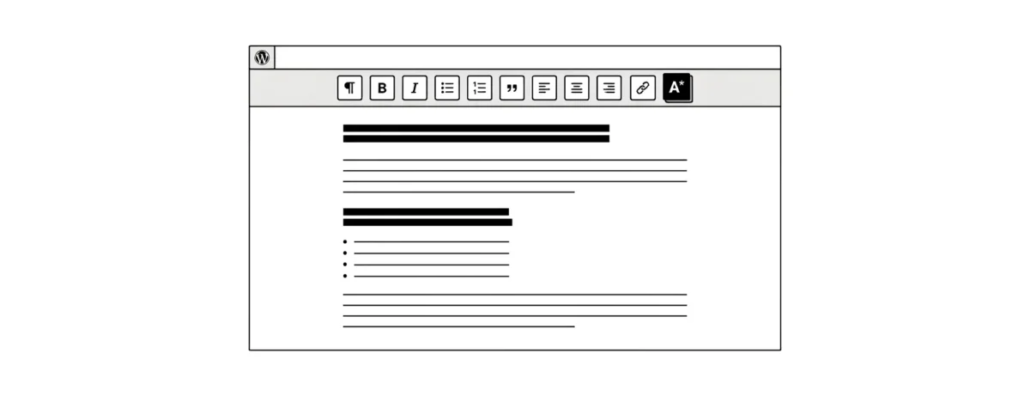
If you are a WordPress developer, at some point you may need to extend or customize the visual editor. For example, you may want to add a button to the toolbar that lets your clients use certain features without having to resort to HTML code. In this article we will show you how to create a TinyMCE plugin in WordPress.
Requirements
This article is intended for advanced users and you will need basic coding skills. Also keep in mind that experimenting on a live site is not a very good idea, since even the slightest mistake can make your site unavailable. But if you are still going to take the risk, at least make a WordPress backup first.
Creating Your First TinyMCE Plugin
We will start by creating a custom toolbar button. When clicked, this button will let the user add a link with a custom CSS class. The full source code will be given at the end of this article, and before that let’s build our plugin step by step. First, create a directory in the wp-content/plugins folder and name it tinymce-custom-link-class.
The Plugin Header
Create a new file in the directory you just created and name it tinymce-custom-link-class.php. Add this code to the file and save it.
/**
 * Plugin Name: TinyMCE Custom Link Class
 * Plugin URI: https://coma.lv
 * Version: 1.0
 * Author: Coma.lv
 * Author URI: https://coma.lv
 * Description: A simple TinyMCE Plugin to add a custom link class in the Visual Editor
 * License: GPL2
 */
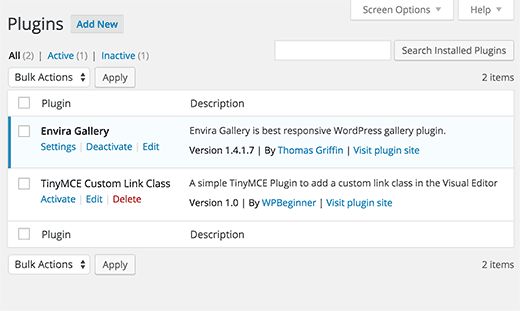
This is just a PHP comment that tells WordPress the plugin’s name, as well as its author and description. In the WordPress admin panel, activate the new plugin by going to the Plugins – Installed Plugins page and clicking the Activate link under TinyMCE Custom Link Class.
Setting Up Our Plugin Class
If two plugins have functions with the same names, it can cause an error. We will avoid this problem by wrapping our functions in a class.
class TinyMCE_Custom_Link_Class {

	/**
	* Constructor. Called when the plugin is initialised.
	*/
	function __construct() {

	}

}

$tinymce_custom_link_class = new TinyMCE_Custom_Link_Class;
This creates a PHP class together with a constructor that is called when we reach the line $tinymce_custom_link_class = new TinyMCE_Custom_Link_Class;
Any function added to this class should not conflict with other WordPress plugins.
Setting Up Our TinyMCE Plugin
Next we need to tell TinyMCE that we want to add a custom button to the visual editor toolbar. To do this we can use WordPress actions. In this case, the action called init. Add the following code to your plugin’s __construct() function.
if ( is_admin() ) {
	add_action( 'init', array(  $this, 'setup_tinymce_plugin' ) );
}
This function checks whether we are in the admin panel. If the answer is yes, the function asks for the setup_tinymce_plugin function inside our class to run once WordPress has finished loading. Then add the setup_tinymce_plugin function:
/**
* Check if the current user can edit Posts or Pages, and is using the Visual Editor
* If so, add some filters so we can register our plugin
*/
function setup_tinymce_plugin() {

// Check if the logged in WordPress User can edit Posts or Pages
// If not, don't register our TinyMCE plugin

if ( ! current_user_can( 'edit_posts' ) && ! current_user_can( 'edit_pages' ) ) {
	        return;
}

// Check if the logged in WordPress User has the Visual Editor enabled
// If not, don't register our TinyMCE plugin
if ( get_user_option( 'rich_editing' ) !== 'true' ) {
return;
}

// Setup some filters
add_filter( 'mce_external_plugins', array( $this, 'add_tinymce_plugin' ) );
add_filter( 'mce_buttons', array( $this, 'add_tinymce_toolbar_button' ) );

	}
This function first checks whether the logged-in user can edit posts or pages. If not, there is no point in registering our plugin for that user, since they will never see the visual editor. Then we check whether the user uses the visual editor, since some users turn it off in their profile. Again, if the user does not use the visual editor, we return (exit), since we do not need anything else. Finally, we add two WordPress filters, mce_external_plugins and mce_buttons, to call the functions that will load the necessary JavaScript file for TinyMCE and add the corresponding button to the toolbar.
Registering the JavaScript File and Button for the Visual Editor
Let’s add the add_tinymce_plugin function:
/**
* Adds a TinyMCE plugin compatible JS file to the TinyMCE / Visual Editor instance
*
* @param array $plugin_array Array of registered TinyMCE Plugins
* @return array Modified array of registered TinyMCE Plugins
*/
function add_tinymce_plugin( $plugin_array ) {

$plugin_array['custom_link_class'] = plugin_dir_url( __FILE__ ) . 'tinymce-custom-link-class.js';
return $plugin_array;

}
This function tells TinyMCE that it needs to load the JavaScript files located in the $plugin_array cell. These files will tell TinyMCE what to do. We also need to add code to the add_tinymce_toolbar_button function to tell TinyMCE about the button we would like to add to the toolbar.
/**
* Adds a button to the TinyMCE / Visual Editor which the user can click
* to insert a link with a custom CSS class.
*
* @param array $buttons Array of registered TinyMCE Buttons
* @return array Modified array of registered TinyMCE Buttons
*/
function add_tinymce_toolbar_button( $buttons ) {

array_push( $buttons, '|', 'custom_link_class' );
return $buttons;
}
This adds two items to the TinyMCE buttons cell: a separator (|) and the name of our button (custom_link_class). Save your plugin and edit a page or post to see the visual editor. Most likely, you will not see the toolbar.

Don’t worry – if you look in the browser Inspector, you will see a 404 error generated by TinyMCE, telling us that it cannot find our JavaScript file.
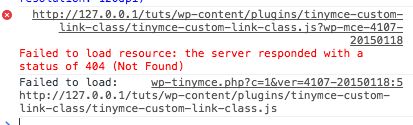
This is actually a good sign, as it means we have successfully registered a custom TinyMCE plugin and now we need to create the JavaScript file that tells TinyMCE what to do.
Creating the JavaScript Plugin
Create a new file in your wp-content/plugins/tinymce-custom-link-class folder and name it tinymce-custom-link-class.js, and then add the following code to it:
(function() {
	tinymce.PluginManager.add( 'custom_link_class', function( editor, url ) {

	});
})();
This calls the TinyMCE Plugin Manager class, which we can use to run a number of plugin-related actions. In particular, we add our plugin to TinyMCE using the add function. It takes two items: the plugin name (custom_link_class) and an anonymous function. If you are familiar with the concept of functions in coding, an anonymous function is simply a function without a name. For example, function foobar() { … } is a function that we can call elsewhere in the code using foobar().
With an anonymous function we cannot call the function elsewhere in the code – only through the add() function. Save your JavaScript file and start editing a page or post to see the visual editor. If everything worked, you will see the toolbar:

At this point our button has not been added to the toolbar. That is because we have only told TinyMCE that we have created a custom plugin. Now we need to tell TinyMCE what to do, that is, add a button to the toolbar. Update your JavaScript file, replacing the existing code with the following:
(function() {
    tinymce.PluginManager.add('custom_link_class', function(editor, url) {

        // Detect if ui.registry exists (v5+)
        if (editor.ui && editor.ui.registry && typeof editor.ui.registry.addButton === 'function') {
            // Modern TinyMCE (v5+)
            editor.ui.registry.addButton('custom_link_class', {
                text: 'Insert Button Link',
                tooltip: 'Insert Button Link',
                onAction: function() {
                    editor.execCommand('custom_link_class');
                }
            });
        } else {
            // Legacy TinyMCE (v4)
            editor.addButton('custom_link_class', {
                title: 'Insert Button Link',
                cmd: 'custom_link_class'
            });
        }

    });
})();
Note that our anonymous function has two arguments. The first is editor, which is the TinyMCE visual editor. Just as we can call various functions in the PluginManager, we can also call various functions in editor. In this case we call the addButton function to add a button to the toolbar. Save your JavaScript file and go back to the visual editor. At first glance nothing has changed. However, if you hover the mouse cursor over the icon in the upper right, you will see a tooltip:
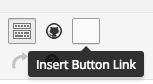
We have successfully added a button to the toolbar, but it needs an image. Add the following parameter to the addButton function under title:
image: url + ‘/icon.png’,
url is the address of our plugin. This is convenient if we want to refer to an image file in the plugin folder. In this case we will need an image named icon.png in our plugin folder. Use the following icon:

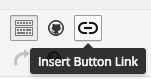
Reload the visual editor and you will see your button with its icon:
Specifying the Command to Run
At this point, if you click the button, nothing will happen. Let’s add a command that will tell TinyMCE what to do. Add the following code in our JavaScript file under the end of the editor.addButton section
// Add Command when Button Clicked
editor.addCommand('custom_link_class', function() {
	alert('Button clicked!');
});
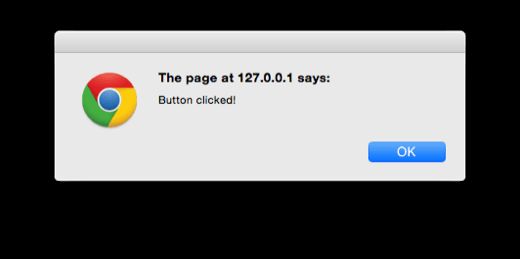
Reload our visual editor, click the button and a notice will appear saying that you have just clicked the button:
Let’s replace the notice with a prompt asking the user for the link they want to wrap around the selected text in the visual editor.
// Add Command when Button Clicked
editor.addCommand('custom_link_class', function() {
	// Check we have selected some text that we want to link
	var text = editor.selection.getContent({
		'format': 'html'
	});
	if ( text.length === 0 ) {
		alert( 'Please select some text to link.' );
		return;
	}

	// Ask the user to enter a URL
	var result = prompt('Enter the link');
	if ( !result ) {
		// User cancelled - exit
		return;
	}
	if (result.length === 0) {
		// User didn't enter a URL - exit
		return;
	}

	// Insert selected text back into editor, wrapping it in an anchor tag
	editor.execCommand('mceReplaceContent', false, '<a class="button" href="' + result + '">' + text + '</a>');
});
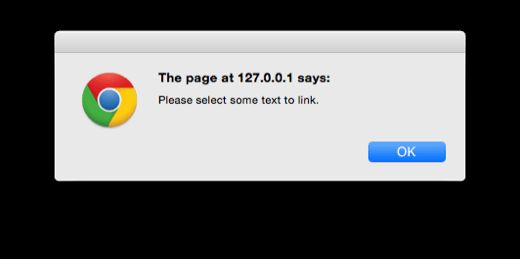
The code block does several things. First we check whether the user has selected any text to wrap in the visual editor. If not, they will see the following message.
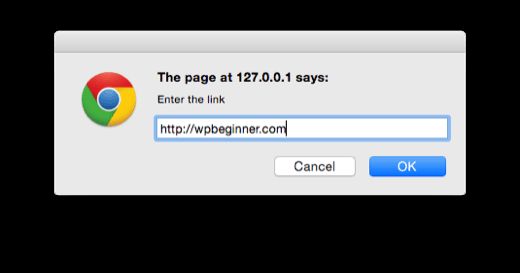
Then we ask them to enter a link, again checking what they did. If they cancelled or entered nothing, we also do nothing.
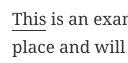
Finally, we run the execCommand function in the TinyMCE editor, triggering the mceReplaceContent action. This replaces the selected text with our HTML code, which includes an anchor link with class=»button”, using the selected text. If everything worked, you will see the text you selected linked in the visual editor with the class associated with the button:
Summary
We have successfully created a WordPress plugin that adds a button to the TinyMCE visual editor in WordPress. This guide also covered some basics of the TinyMCE API and filter integration. We added code so that when a user clicks our custom button, they are prompted to select text in the visual editor that they can link to a URL of their choice. Finally, our plugin replaces the selected text with its linked version, which contains a custom CSS class called button.
Our specialization is WordPress website development and maintenance. Contact us for a free consultation — [email protected], +371 29394520
