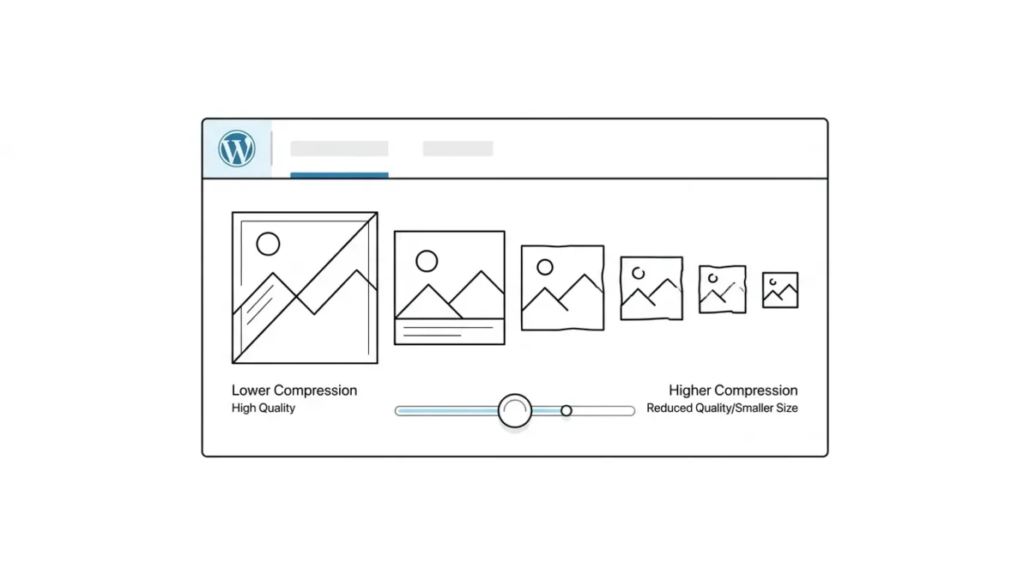
How to Change Image Compression
By default WordPress compresses images for better performance. Recently one of our readers asked whether the image compression settings in WordPress can be changed. In this article we will show you how to do it.
Every time you upload an image to WordPress, the system automatically compresses its quality to 82%. This number was set starting with version 4.5 to improve the experience for mobile users. If you are a photographer who wants to publish high-quality shots on your site, you can disable image compression in WordPress.
How to Disable Image Compression in WordPress
All you need is to paste the following code into your theme’s functions.php file.
add_filter(‘jpeg_quality’, function($arg){return 100;});
When you set the value to 100, it means that WordPress compresses the image at its best quality. If you are not a photographer, you will most likely not notice much difference in quality. However, for those who work with graphics, the loss of quality will be obvious.
How to Increase Image Compression in WordPress
If you want to reduce image quality to save space on the server, all you need to do is paste the following code:
add_filter(‘jpeg_quality’, function($arg){return 75;});
How to Change Image Compression in WordPress with the Imsanity Plugin
Install and activate the Imsanity plugin. Go to Settings > Imsanity to configure the image compression parameters. Find the JPG image quality drop-down list and set the desired compression level:
- 100: No compression (best quality).
- 70–80: A balance of quality and file size.
- Below 70: a higher degree of compression, but image quality may drop.
When changing image quality, do not forget to regenerate thumbnails.
Our specialization is WordPress website development and maintenance. Contact us for a free consultation — [email protected], +371 29394520
