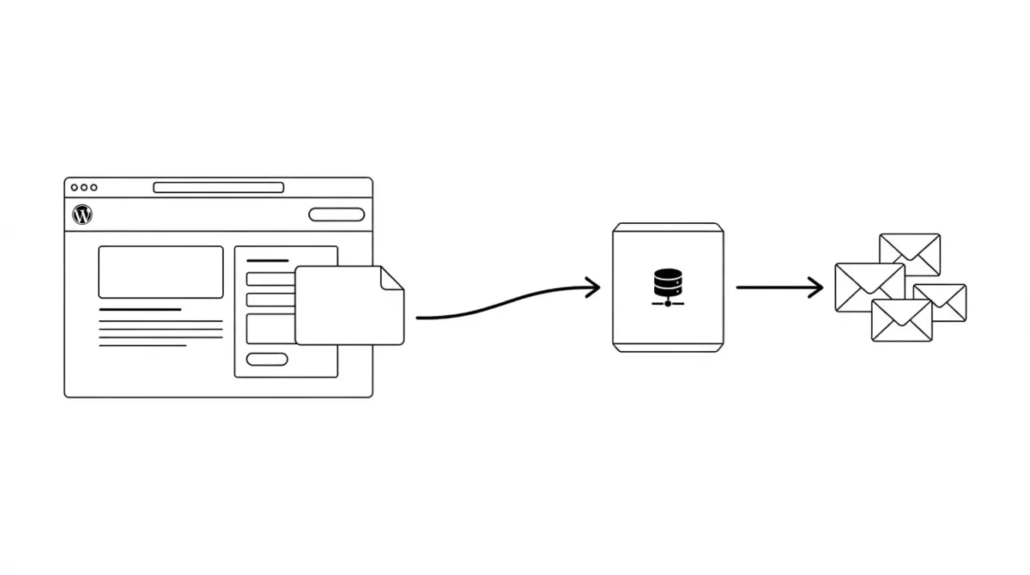
How to Use an SMTP Server to Send WordPress Emails
Are you having problems receiving or sending emails from your WordPress site? One solution is to use third-party services such as Mandrill. However, using them can cost a pretty penny. In this article we will show how to use an SMTP server to send emails.
The Email Problem
WordPress uses the PHP mail function to send emails. On many hosts this function is either not properly configured or disabled altogether to prevent its abuse. In either scenario your emails will not be delivered. An alternative solution is to use third-party services such as Mandrill, Google Apps or SendGrid. But you will have to pay for your account, and the cost will depend on how many users/accounts you want to add or how many emails you are going to send. But there is also a third option.
Using Your Host’s Email Accounts
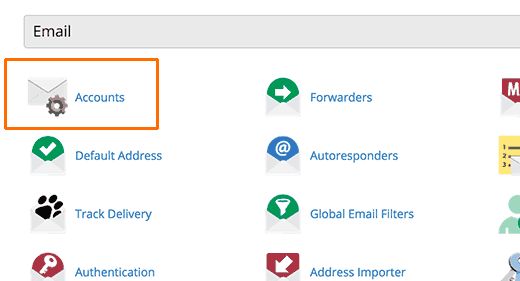
Many WordPress hosts offer an email service for every domain you use with them. This means you can create email accounts with your own domain name such as [email protected]. First you will need to create an email account. For the sake of the experiment we will show you how to create such an account in cPanel. Your host may use other account management systems, but the basic process is the same on all hosts. So go to your hosting and click email accounts.
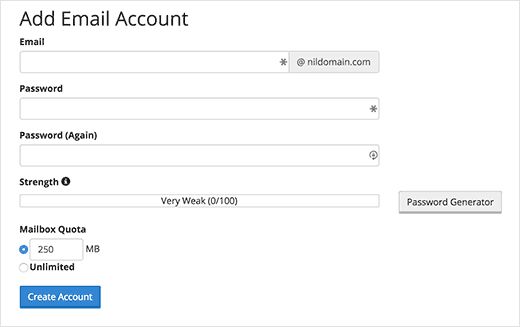
A simple form will appear where you need to enter the information required to create your email account. Since we will use this account for sending emails, we recommend a name such as [email protected], replacing example.com with your domain name.
Before using your email account, we will need the following information from your host:
1. The SMTP Host for your mailbox
2. The SMTP Port for secure login
You can check your host’s support section to get this information. If you cannot find it, contact your hosting support.
Using Your Mailbox in WordPress
You will need to install and activate the WP Mail SMTP plugin. After activation, go to the Settings > Email page to configure the plugin.
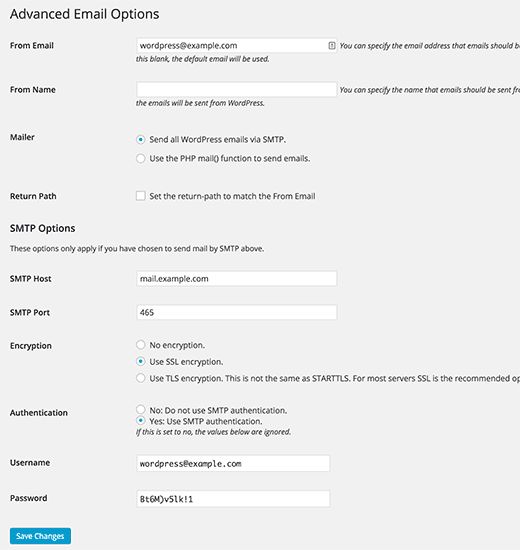
You need to enter the email address you have just created. Make sure the Send all WordPress emails via SMTP option is ticked. Under the SMTP settings, fill in the port information you got from your host. For the encryption method use SSL. Since we are using an SMTP server, the plugin will need your credentials to send emails. In the authentication area choose ‘Yes: Use SMTP authentication.’ and enter your SMTP login details.
Then click the save button, the page will reload and you will see a corresponding message.
Testing Your SMTP Settings
WP Mail SMTP has a debugging feature. After saving the settings, scroll down and enter your email address.
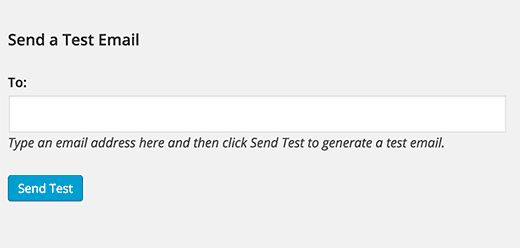
The plugin will send you a test message. If you have not received it, something is wrong with your settings.
Troubleshooting
The most common cause of errors when sending emails using SMTP is an incorrect SMTP host or port. Also make sure you have chosen the encryption method correctly. SSL usually works everywhere, but check that your host supports it if your emails do not arrive.
Pros and Cons of Using Your Site’s Servers to Send Emails
The main advantage is that you can use your own email address for outgoing emails in WordPress. Another advantage is that you have already paid for this service when you signed up for hosting. You will not need to pay extra money to send and receive emails.
However, WordPress hosts have their own limits on outgoing emails, so they are not very well suited for mass mailings. Another common problem is that their servers can sometimes be unreliable. If you notice delays in email delivery, you should consider using third-party services such as Google Apps for Work, Mandrill or SendGrid.
Our specialization is WordPress website development and maintenance. Contact us for a free consultation — [email protected], +371 29394520
