How to Display a List of Scheduled Posts
Showing upcoming posts can be useful for getting people to subscribe to your blog. In this post we will look at how to do it.
What Are Scheduled Posts?
If you have been blogging for a while, you have probably noticed that publishing posts at a certain time can help you earn more views. If you are new to blogging, you should start by analyzing your traffic (for example, Google Analytics / GA4) to understand when your audience is most active.
The problem is that you cannot just sit and wait for the right time to click the publish button. That is why WordPress has a built-in mechanism for scheduling posts.
It is important to understand: by default WordPress does not show visitors posts with the Scheduled status. They automatically become visible on the blog only at the scheduled time. But if you want to display a list of upcoming posts (for example, a “Coming soon” section), you can do it with a plugin or your own code. In this article we will look at both options.
Method One: Display Upcoming Posts with a Plugin
Install and activate the Display Posts plugin. It adds a universal shortcode that lets you display posts by any parameters, including the future status. Paste the following code into a post, page or Shortcode block:
This shortcode will display up to 5 scheduled posts in ascending order of publication date. (The posts_per_page="5" parameter defines the number of posts displayed. You can replace 5 with any other number to show the desired number of scheduled posts).
The list can be placed in the sidebar through a “Shortcode” or “Custom HTML” block, and also inserted directly into the text of a page or post.
The Problem with Links
By default, Display Posts creates links on post titles. For logged-in users (admin, editor, author) they work and lead to the post preview, but for non-logged-in users the links lead to a 404, since the post is not published yet.
A CSS Solution
To make the links appear only for logged-in users and be plain text for everyone else, add the following CSS to your site’s custom CSS or to the theme:
.logged-out .display-posts-list a {
    pointer-events: none;
    cursor: default;
    text-decoration: none;
    color: inherit;
}
For non-logged-in users, links inside .display-posts-list become non-clickable thanks to the .logged-out class, while logged-in users see working links. This way you can safely show the list of upcoming posts on your site without the risk of visitors landing on 404 pages.
Method Two: Display Scheduled Posts Manually
If you prefer lightweight custom code without plugins, add the following code to the functions.php file of your child theme or create a small custom snippet plugin.
// Add this code to your child theme's functions.php or a small custom plugin
function wpb_upcoming_posts() {
    // Query for future posts
    $the_query = new WP_Query( array(
        'post_status'    => 'future',      // Only get scheduled posts
        'posts_per_page' => 3,             // Limit number of posts displayed
        'orderby'        => 'date',        // Order by post date
        'order'          => 'ASC',         // Earliest posts first
    ) );

    // Initialize output variable
    $output = '';

    // Check if there are future posts
    if ( $the_query->have_posts() ) {
        $output .= '<ul class="upcoming-posts">';
        while ( $the_query->have_posts() ) {
            $the_query->the_post();

            // Escape title and date for security
            $title = esc_html( get_the_title() );
            $date  = esc_html( get_the_date( get_option( 'date_format' ) ) );

            // If user is logged in, show link; otherwise show only title and date
            if ( is_user_logged_in() ) {
                $permalink = esc_url( get_permalink() );
                $output .= "<li><a href=\"{$permalink}\">{$title}</a> ({$date})</li>";
            } else {
                $output .= "<li>{$title} ({$date})</li>";
            }
        }
        $output .= '</ul>';
    } else {
        // Message if no scheduled posts are found
        $output .= '<p>No upcoming posts yet.</p>';
    }

    // Reset post data after query
    wp_reset_postdata();

    // Return the HTML output
    return $output;
}

// Register shortcode [upcoming_posts]
add_shortcode( 'upcoming_posts', 'wpb_upcoming_posts' );

// Enable shortcode execution in text widgets
add_filter( 'widget_text', 'do_shortcode' );
Now go to Appearance – Widgets (or the block editor), add a “Shortcode” or “Custom HTML” block to the sidebar and paste this shortcode:
[upcoming_posts]
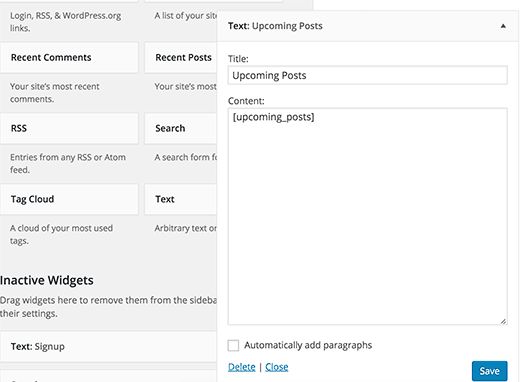
Click the save button and go to the site to see the list of scheduled posts in the sidebar. You can also add this shortcode to a post, a page or a template.
Our specialization is WordPress website development and maintenance. Contact us for a free consultation — [email protected], +371 29394520
