How to Migrate from Medium to WordPress
Migrating from Medium to WordPress can seem difficult, especially if you have many publications and media files. In this guide we will show you how to move your articles, images and content structure to a self-hosted WordPress site so that you preserve the look of your publications and minimize manual work.
Step 1. Install and Set Up WordPress
Unlike Medium, WordPress is an independent platform where you fully control the site and the content. To start, you will need a domain and hosting, after which you need to install WordPress. Most modern hosting providers offer automatic WordPress installation, which greatly simplifies the process. After the installation and basic setup are complete, the site will be ready for content migration.
Step 2. Export Your Content from Medium
Depending on whether you have a custom domain on Medium, the transfer process may differ. In some cases you can skip downloading the archive by using an online tool and go straight to the next step, but for publications on the standard medium.com you will need to export your data.
Before you start, keep in mind that the export includes only the publications and images themselves — subscribers, likes (claps) and comments cannot be transferred to WordPress, because this data is part of Medium’s internal system. This means that after migrating to WordPress you will keep only the content of your articles, and you will have to build your audience and engagement again.
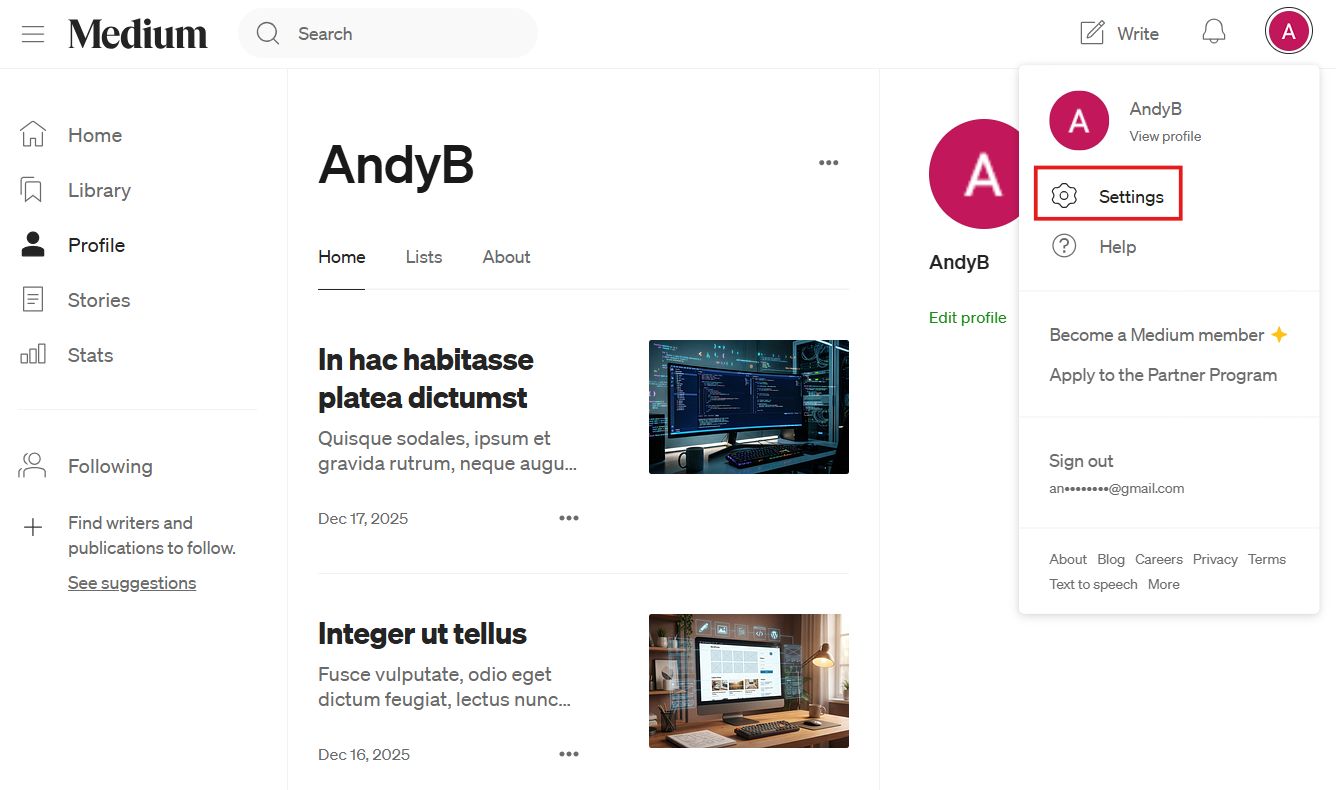
Medium provides a built-in tool for exporting your content. To use it, log in to your Medium account, click your avatar in the upper right corner and go to Settings → Security and apps.
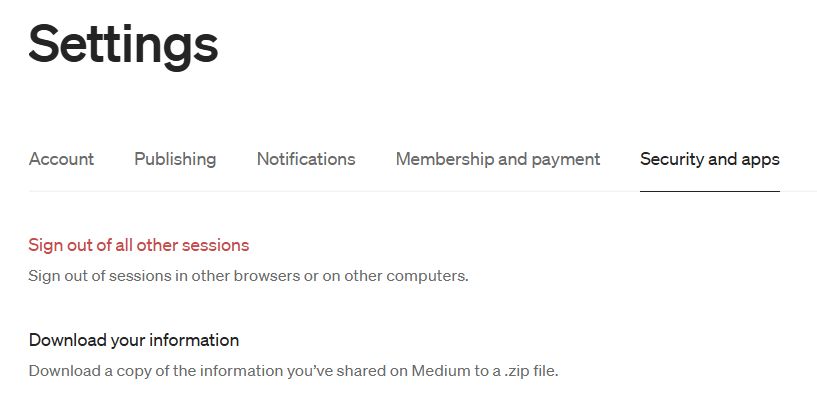
Click Download your information, and a pop-up window will appear. In this window click the Export button to confirm the request.
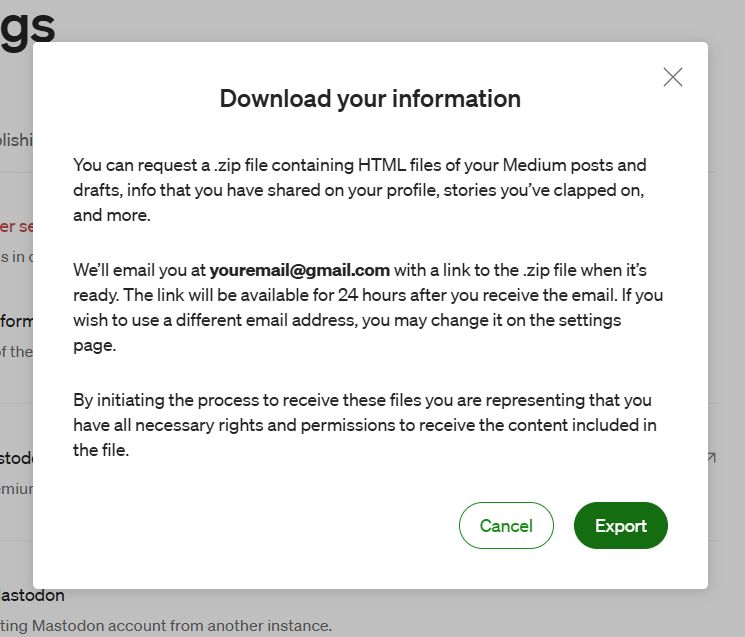
Medium will prepare an archive with an HTML version of all your articles and media files, and when the archive is ready, it will send a download link to your email. Depending on the amount of content, this may take some time.
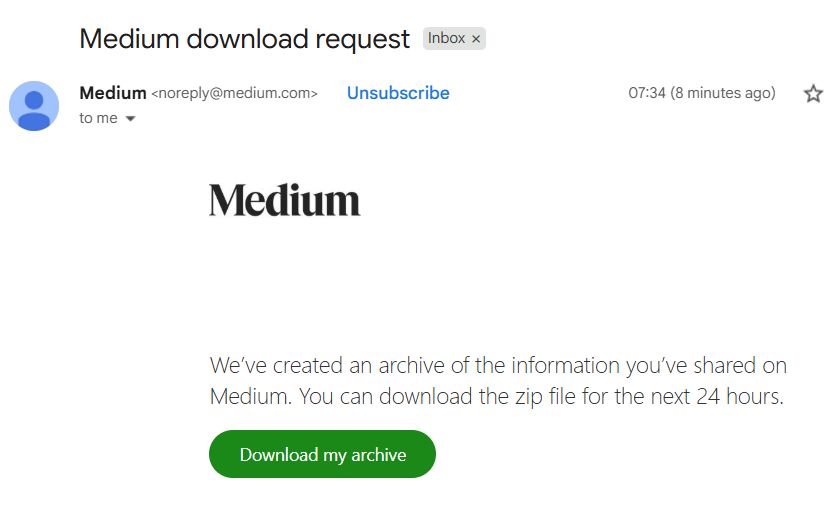
Download the archive.
A Medium export cannot be uploaded directly to a self-hosted WordPress site, so to transfer your publications you first need to bring the data into a format that WordPress understands.
Step 3. Prepare the Medium Data for Import into WordPress
Now that you have the Medium export (HTML and media files), it needs to be converted into an archive compatible with WordPress. There are several approaches, each with its own features and limitations.
Option 1. Using Medium to WordPress Importer
The Medium to WordPress Importer tool lets you convert your articles into a file ready for import into WordPress. To do this, just enter your profile URL and, if you do not have your own domain name, upload the export archive. After that the service generates a file prepared for the subsequent import into WordPress.
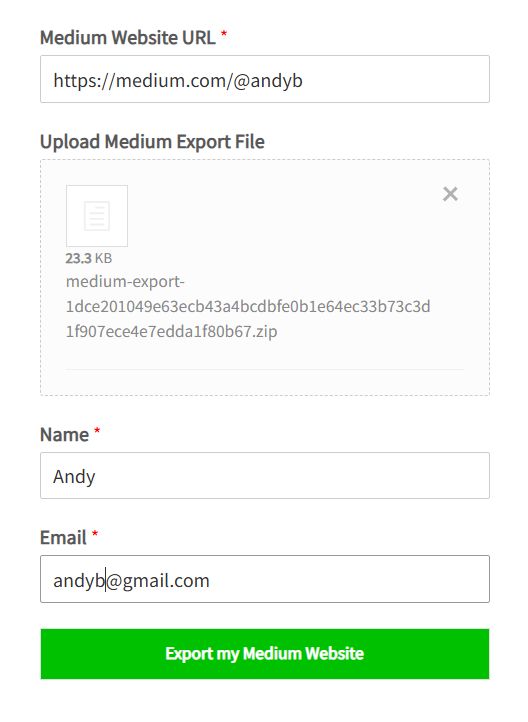
*Keep the limitations in mind: Medium to WordPress Importer sometimes does not see publications if they are not tied to your own domain and exist only at the standard medium.com/@username. In such cases the tool cannot automatically create the import file, even if the articles are published.
Option 2. Using WordPress.com
If the automatic tool does not work, you can use WordPress.com as an intermediate step. This method is guaranteed to work even for publications on a standard Medium profile.
First create a free site on WordPress.com and use the import-from-Medium option on it: Tools → Import → Medium.

Click Run Importer and upload the ZIP file you downloaded from Medium.

Confirm the import by clicking the Import button.

When the process finishes, you will see all your publications in your WordPress.com account — titles, text and even images.
Now you need to get an export file that can be uploaded to a self-hosted WordPress site. To do this, stay in the WordPress.com dashboard and go to Tools → Export. On this page WordPress will offer to choose which data you want to export. If you only need the articles transferred from Medium, it is enough to choose the Posts export option, without including pages and other content types.
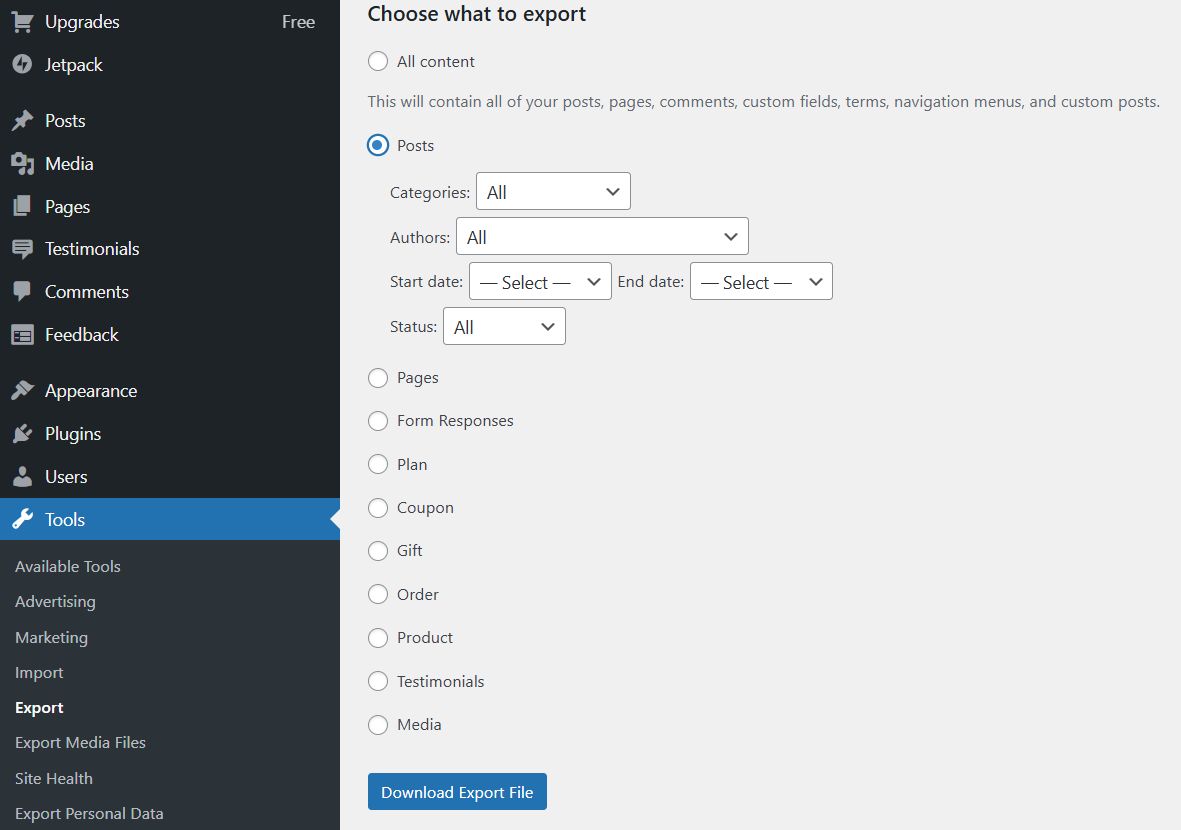
After choosing the data type, click the button to download the export file. WordPress.com will prepare an XML file and automatically start downloading it. This file usually has a name like WordPress-YYYY-MM-DD.xml. It contains the whole structure of your publications: titles, text, embedded images, dates, and the service information WordPress needs for a correct import.
The resulting XML file is fully compatible with a self-hosted WordPress installation and can be used to transfer all your stories to your main site without having to copy the content manually.
Step 4. Import Your Articles into WordPress
Once you have the finished XML file (obtained either through Medium to WordPress Importer or through WordPress.com), you can proceed to the final import into your self-hosted WordPress site.
Log in to your site’s admin panel and go to Tools → Import. From the list of available importers choose WordPress. If the importer is not installed yet, WordPress will offer to install it automatically. To do this, just click the Install Now button and then Run Importer.
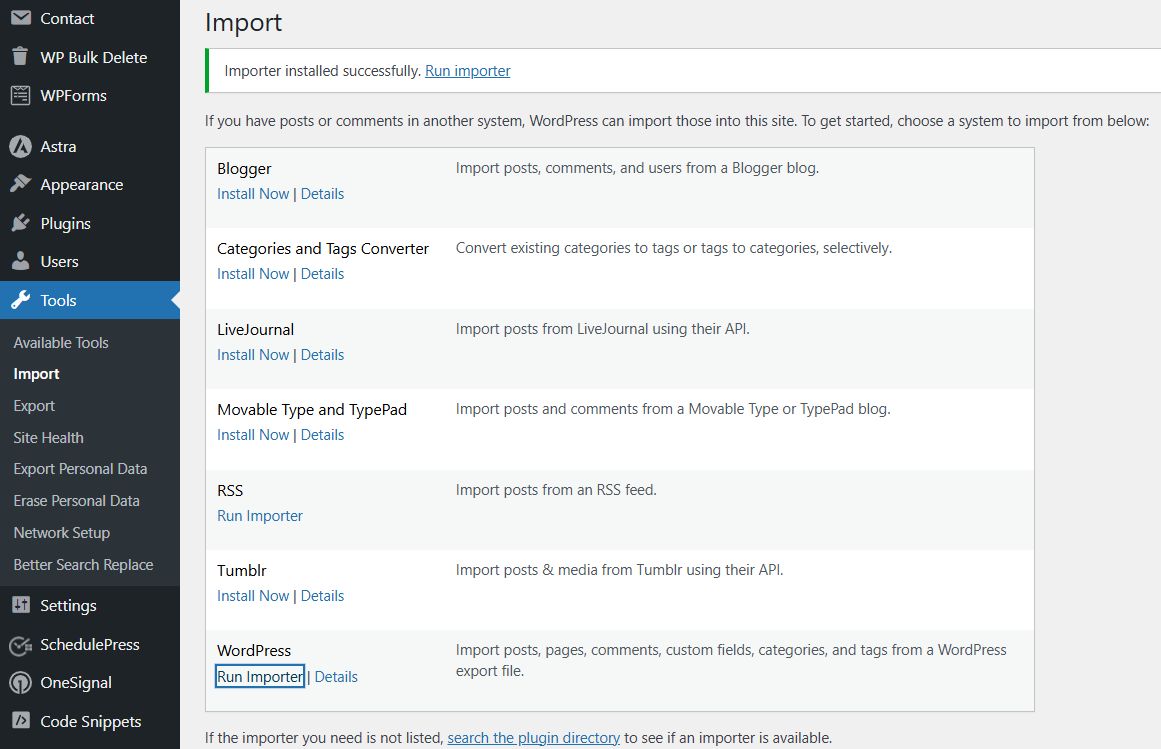
On the next screen, upload the XML file you obtained in the previous step. After uploading, WordPress will offer to assign authors to the imported posts. You can create new users, map posts to existing authors or assign all publications to one user. It is also recommended to tick the option to download attachments so that images and other media files are copied to your site’s media library.
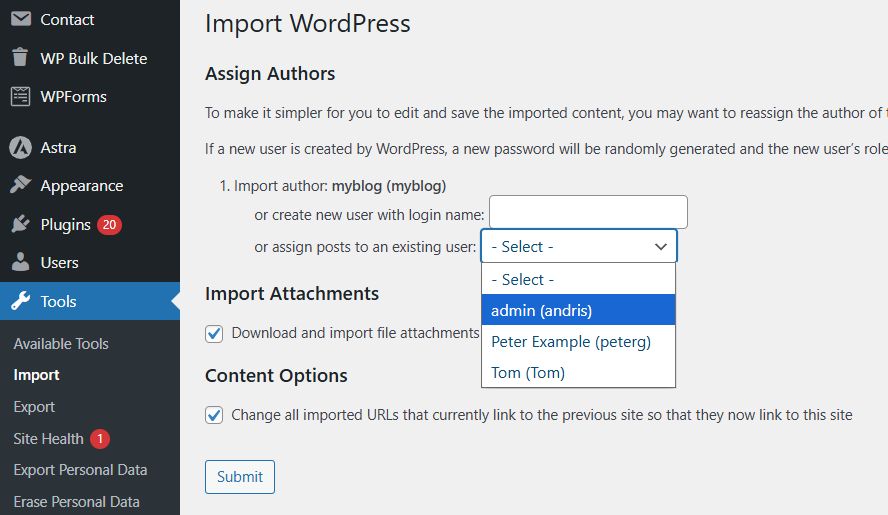
After you start the import, WordPress will begin creating posts based on the data from the XML file. Depending on the number of publications, the process may take some time. When it finishes, you will see a confirmation of the successful import.
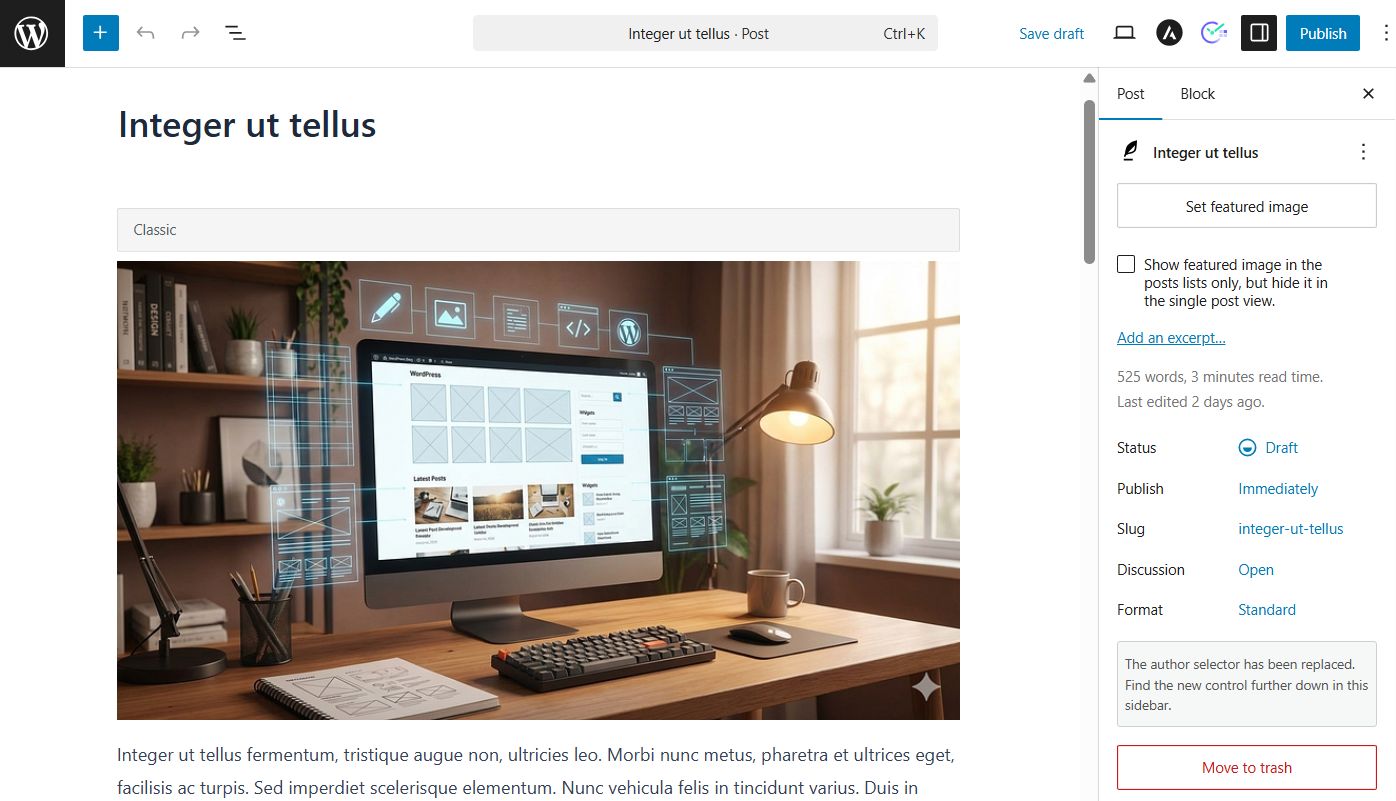
Imported articles usually appear with the status “Draft”. This lets you check the formatting, links and images before publishing. After checking, you can publish the posts or edit them as you see fit.
Step 5. Import Your Images
When you import from Medium into WordPress, the text and images appear in the posts, but the files are not uploaded to your site’s media library. This means the images will be visible inside the content, but they are still loaded from external servers and cannot be used as a featured image or managed through the media library.
To fix this, we recommend importing the images into the WordPress library. There are plugins for this that scan posts, find all external images, download them to the server and create media library entries for them. After that the links in posts are automatically replaced with local files, and the images can be used as thumbnails.
Two popular options for this task are Import External Images or Auto Upload Images. After installing one of these plugins, you can run a bulk import of all images, and after that they will be fully “native” to your site.
Post thumbnails will have to be set separately. To do this you can either open each post manually and choose an image from the media library as the featured image, or use a plugin such as Quick Featured Images, which lets you bulk-assign the first image from a post as its thumbnail.
Step 6. Set Up Redirects to Your Own Domain
If your publications were on the standard profile medium.com/@username, redirects cannot be set up — Medium does not provide such an option. However, if your Medium publications used a custom domain (for example, blog.mydomain.com), you can set up redirects so that old links automatically forward to the new pages of your WordPress site. To do this, first collect all the addresses of your articles on Medium and save them in a text file. Then set up redirects on your new site so that each old link leads to the corresponding article.
Conclusion
After transferring the articles and images, your content is fully ready to work on WordPress. You will be able to manage all publications, assign featured images, customize the design and extend the site’s functionality without being limited by Medium’s capabilities. This process gives you full control over your content and lays the foundation for further growth of your blog or project.
Our specialization is WordPress website development and maintenance. Contact us for a free consultation — [email protected], +371 29394520
