How to Restore a WordPress Site with Only a Database Backup
We always advise our users to make a full backup of their sites on a regular basis. But what if, out of ignorance, you used plugins that back up only databases? In this article we will show you how to restore a WordPress site with only a database backup. By the way, this will not be a full restoration, but we will explain how to minimize the losses.
Getting Started
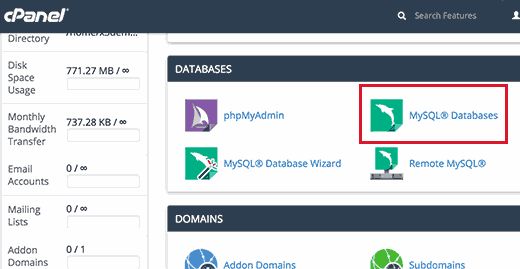
In this article we assume that you have a backup of your database as a .zip file. First you will need to create a new database. Just log in to your cPanel account and click MySQL Databases under the Database section.
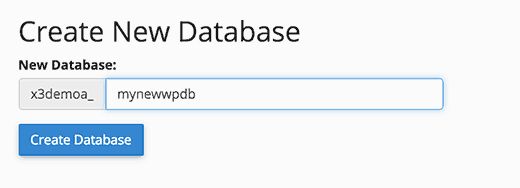
Then enter a name for your database and click the create database button.
Now that you have created the database, you need a MySQL user who can be granted all privileges to work with the newly created database. On the same databases page, just scroll down to the MySQL users section and add a new user.
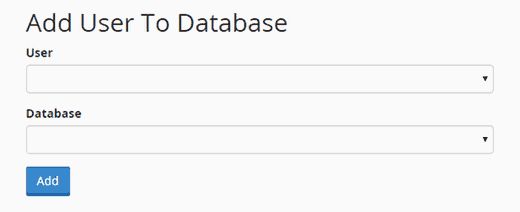
Specify a username and a strong password. Then you need to add the created user to the database. Scroll down to Add user to database, choose the user and the database from the drop-down menus and click the Add button.
Importing the WordPress Database Backup
Go to cPanel and, under the databases section, click phpMyAdmin.
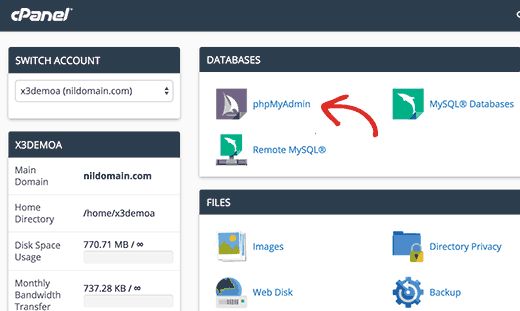
Then choose the database you created earlier on the phpMyAdmin page and click the import button. Now you need to click the file selection button to upload the database backup.
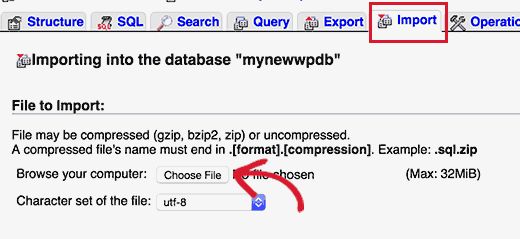
After the database has been imported successfully, the next step is to install WordPress using your new database.
Restoring the WordPress Site
For a manual WordPress restore you will need to install WordPress on your server manually. During installation, when you get to the create a configuration file step, enter the name of the database and the user you created earlier.
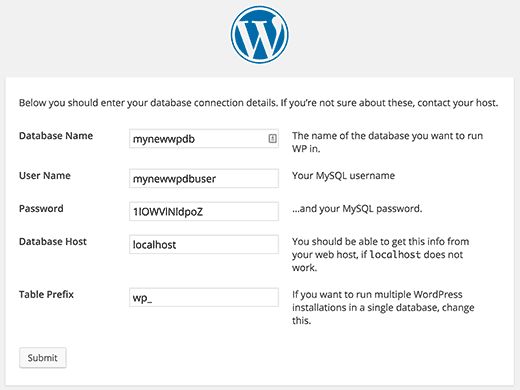
You will see a message that WordPress can connect to your database and you will be able to run the installation. Clicking the install button will show you the Already Installed message.
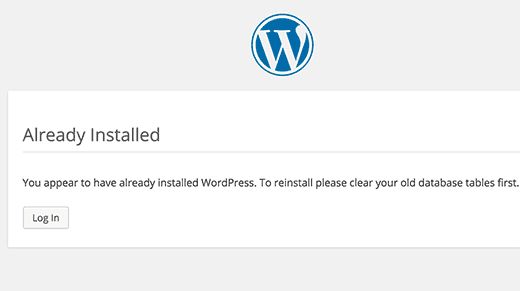
That’s all; you can now go to your site.
Troubleshooting
Since you do not have the old files, there will be certain errors. Some of them are easy to handle while others are more difficult. But we will try to deal with all of them in order.
1. Theme
Just install a fresh copy of your old WordPress theme. If you made changes to the old theme, they will all be gone.
2. Widgets
Widgets are stored in the database, so using the old theme will restore some of them. You can always go to Appearance – Widgets and rearrange the widgets in the sidebars. Some plugins have their own widgets, and in order to use them you will first need to install and activate those plugins.
3. Permalinks
Your site’s permalink structure is also stored in the database and will be restored automatically. However, if you see 404 errors, you need to refresh your permalink settings. Just go to Settings > Permalinks and click the save settings button without changing anything. This will refresh your WordPress URL structure.
4. Plugins
WordPress keeps a record of the active plugins on your site. When you first go to the plugins page, WordPress will show you a list of errors for each plugin that was present in the database but is no longer installed on the site.
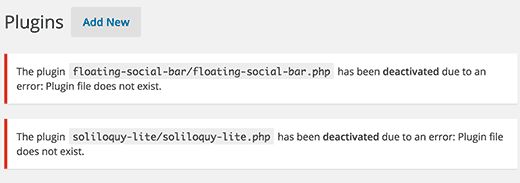
Copy the plugin names and start installing and activating them one by one.
Restoring Lost Images
Finding and replacing the lost images of your site will be the hardest part of restoring the site. Depending on how many images you had, this procedure may take some time. Unfortunately, there is no way to bypass this part of the process. You will have to resort to various methods to retrieve your images, and the chances of recovering ALL the pictures are quite low.
1) Look in Your Browser Cache
If you lost your site recently, you can look in your browser cache. Firefox users can download the CacheViewer2 add-on to easily find images from their site saved in the browser cache.
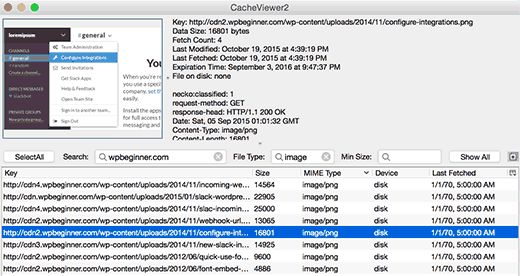
You can simply right-click an image and choose to save it from the menu. Google Chrome users on Windows can use Chrome Cache Viewer. Mac users are left out, since we could not find an effective tool for previewing and saving images in the browser cache on a Mac.
2) Search for Your Images in Web Page Caches
There are services that store cached versions of sites. You can start by searching for your images in Google image search. Just enter your site’s address and you will be able to see the images Google found on your site.
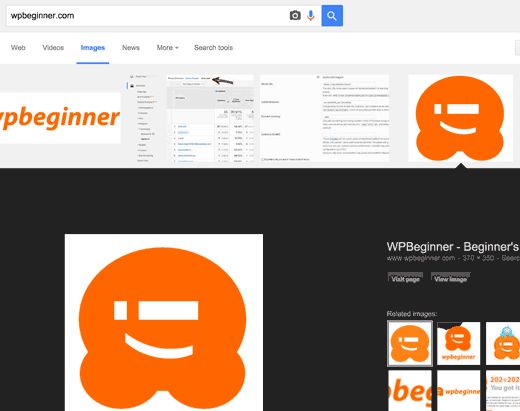
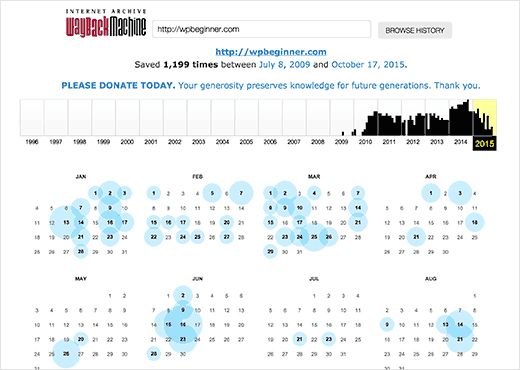
You can click an image to see a larger version of the picture and save it. If you are restoring an older site and cannot find the images in Google or Bing, you can try the Archive.org site. It is a non-profit organization that stores snapshots of sites for historical purposes.
Finding and Replacing Images on Your Site
If your site had a lot of content, finding and replacing images manually can be a difficult task. Here is a simple way to quickly find and replace broken images. Install and activate the Broken Link Checker plugin. After activation, go to the Tools > Broken Links Checker page. The plugin will show you a list of all the broken links on your site.
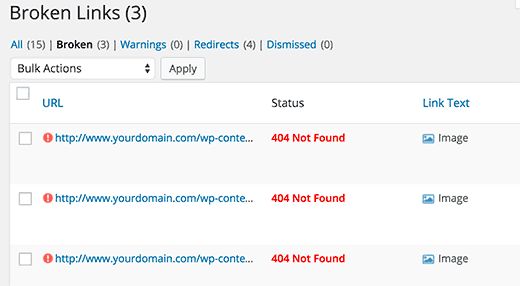
Broken images also count as broken links, so they will also appear in the list. You can sort the list of links so that broken image links are shown first. Now you can replace the images you have recovered by editing posts. As for the images you could not recover, you can simply recreate them or remove the links to them.
A Bonus Tip
Since fully restoring all lost information is a very difficult process, we advise you to use BackupBuddy, a premium data backup plugin with easy restoration and a feature for automatically creating and storing your backups in the cloud.
Our specialization is WordPress website development and maintenance. Contact us for a free consultation — [email protected], +371 29394520
