How to Add Free SSL to WordPress with Let’s Encrypt
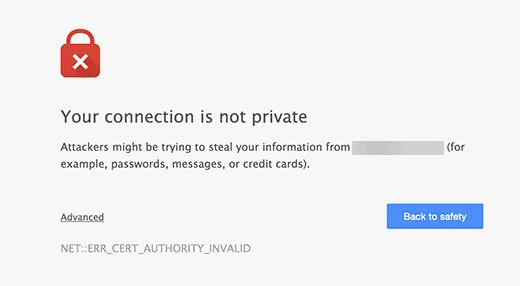
What are SSL and Let’s Encrypt? Every internet user shares huge amounts of personal information every day. We do this when we shop online, create accounts, visit various sites and so on. If it is not properly encrypted, this information can be tracked down and stolen. This is where SSL comes in. It offers encryption technology that makes the connection between the browser and the server secure. Every site uses a unique SSL certificate for identification. If a server pretends to use HTTPS but its certificate does not match, most modern browsers will warn the user not to connect to that resource.
Previously the only way to get SSL protection was a paid SSL certificate. Let’s Encrypt is a free open certificate authority that offers SSL to a wide audience. It is a project of the Internet Security Research Group, supported by a large number of major companies, including Google, Facebook, Sucuri, Mozilla, Cisco and others.

The Easy Way – Use Hosting That Offers Built-In Free SSL
With the growing popularity of Let’s Encrypt, many WordPress hosts now offer built-in SSL setup out of the box. Therefore the simplest way to get SSL is to sign up with such hosts.
Setting Up Free SSL with Let’s Encrypt on SiteGround
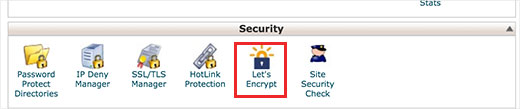
SiteGround is one of the most reliable and best-known hosting companies that offer built-in support for free SSL. To enable free SSL, just go to cPanel and scroll to the security section, where you need to click the Let’s Encrypt icon.
This opens the Let’s Encrypt installation window. You will need to choose the domain name you want to use with free SSL and enter a valid email address.
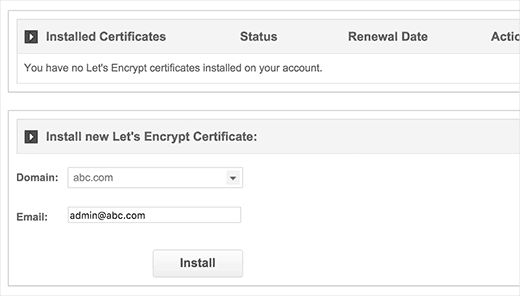
Now you can click the install button and you will be issued a unique SSL certificate for your site. Once you are done, you will see a success message.
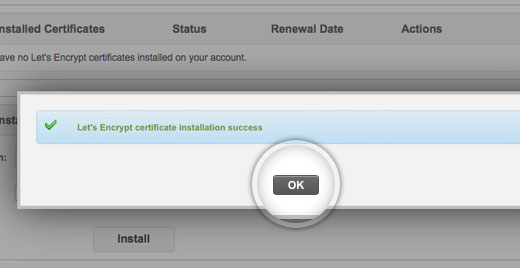
Congratulations, you have just successfully added free Let’s Encrypt SSL to your site. However, your site is not yet ready to use it. First you will need to update your WordPress addresses and fix insecure content problems. Don’t worry, we will explain how to do this in the Updating Addresses step.
Setting Up Free SSL with Let’s Encrypt on DreamHost
DreamHost is another popular WordPress host that offers built-in integration for setting up free SSL on any domain. First you need to go to the DreamHost admin and, under the Domains menu, click Secure hosting.
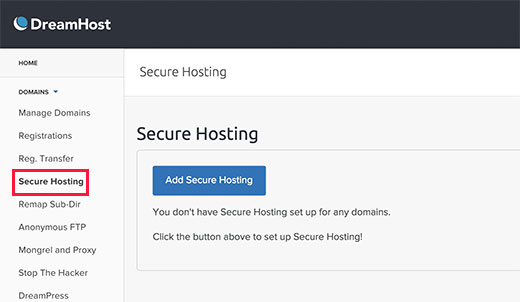
On this page you need to click the Add Secure Hosting button. DreamHost will now ask you to choose a domain, and at the bottom you will have the option to add a free certificate from Let’s Encrypt. You need to make sure this box is ticked.
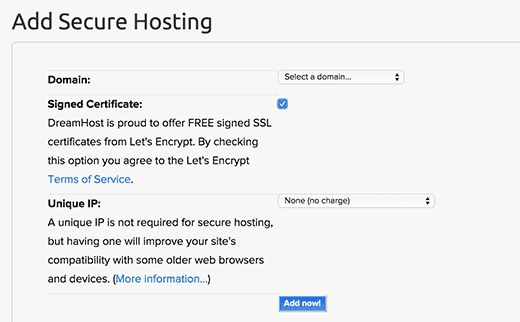
Optionally, you can choose a unique IP address for your domain name. This is not required, but it improves compatibility with old versions of Internet Explorer on Windows XP. Click Add Now to complete the setup and DreamHost will begin setting up your free SSL certificate. In the end you should see a message like this:
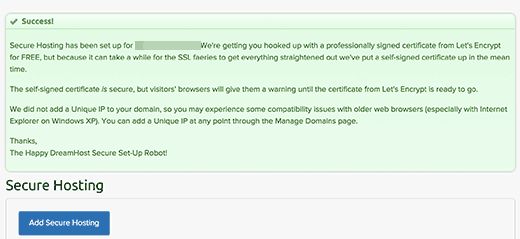
You have successfully added a free SSL certificate with Let’s Encrypt to your hosting. But you still need to update your WordPress addresses to fix content security errors, so go to that step later in the article.
Installing Let’s Encrypt Free SSL on Other Hosts
Free SSL from Let’s Encrypt is a domain-based SSL certificate. This means that if you have a domain, you can add it to any host. However, if your host does not support easy integration like SiteGround or DreamHost, you will have to go through a procedure whose length varies from host to host. Most companies have documentation explaining how to do this. You can also contact the support team for more detailed instructions. Bluehost, which is one of the official WordPress hosts, offers third-party SSL for the domains you host with them.
Updating WordPress Addresses After Setting Up SSL
After setting up a free SSL certificate with Let’s Encrypt, the next step is moving the address from HTTP to HTTPS. An ordinary site without a certificate uses the HTTP protocol with the corresponding prefix in the address bar:
http://www.example.com
Secure sites with SSL certificates use the HTTPS protocol. This means their addresses will look like this:
https://www.example.com
You will not be able to use SSL without changing the addresses on your site. How do you do that?
For a Clean Site
If you are working with a completely new site, you just need to go to the WordPress admin panel and click Settings. There you need to update the WordPress Address and Site URL fields to use https.
https://www.example.com
For Sites That Are Already Running
If your site has been online for a while, there is a good chance it has already been indexed by search engines. Users may have saved it as HTTP, so you need to make sure all traffic is redirected to the https address. First you need to install and activate the Really Simple SSL plugin. The plugin will automatically detect your SSL certificate and configure the site to use it. In most cases you will not need to change anything else, since the plugin also fixes insecure content problems.
Updating Google Analytics Settings
If you have Google Analytics installed on your site, you need to update its settings and add your new https address. Go to your Google Analytics dashboard and click Admin in the top menu. Then click Property settings under your site. There you will see the default URL option. Click http and choose https.
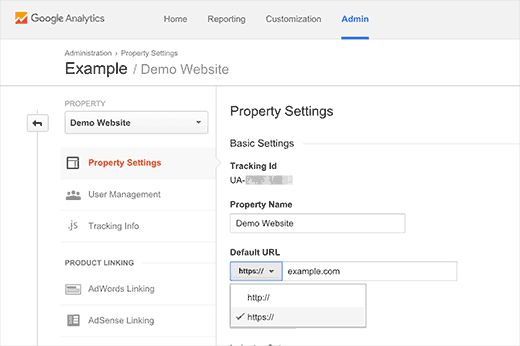
Do not forget to save the settings.
Our specialization is WordPress website development and maintenance. Contact us for a free consultation — [email protected], +371 29394520
