A Complete Guide to Connecting AWeber to WordPress
AWeber is one of the most popular email marketing services. In this article we will explain how to connect it to WordPress.
Why Are Email Lists So Important?
Have you ever wondered why all the popular sites like Facebook, Twitter and so on ask for your email address? The answer is very simple: email is the best way to reach your customers. Not everyone has a Facebook or Twitter profile, but everyone has an email address. Many people check their email several times a day. And with phone notifications, people are connected to their email 24 hours a day, 7 days a week. Email gives you much more personal and close access to your customers.
What Is AWeber?
AWeber is an email marketing service. Unlike ordinary services such as Gmail, AWeber specializes in sending emails in bulk. You can use the service to send updates to your subscribers. AWeber offers both a free plan and paid plans.
The free AWeber plan is intended for individuals and small businesses just starting with email marketing, and includes up to 500 subscribers and 3,000 monthly emails.
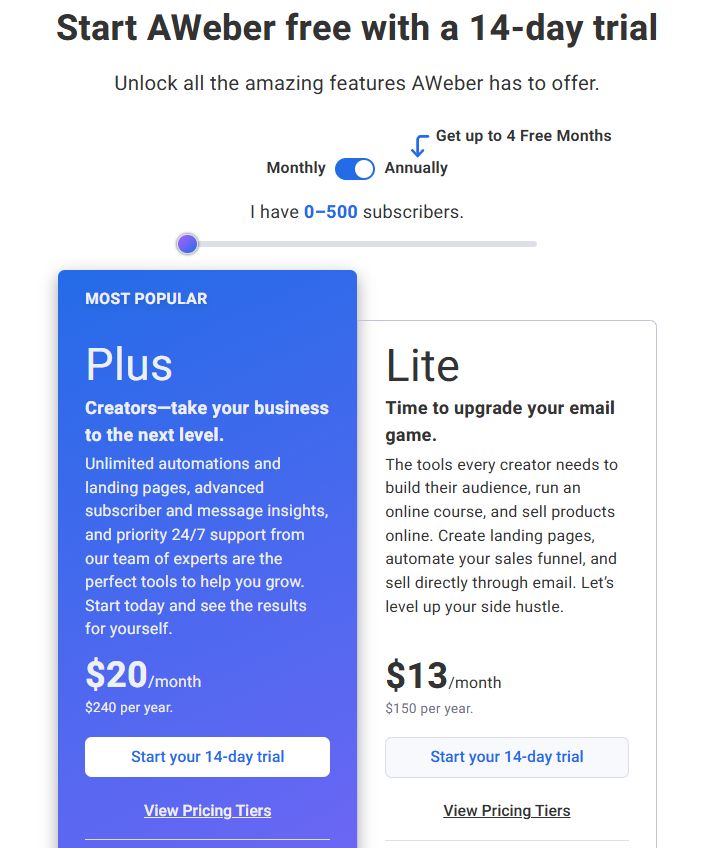
The paid plans offer higher subscriber limits, unlimited email lists, landing pages and automation, advanced analytics, priority support and removal of AWeber branding, at prices from $13 a month. You can use the service free for 2 weeks as a trial.
How to Set Up AWeber
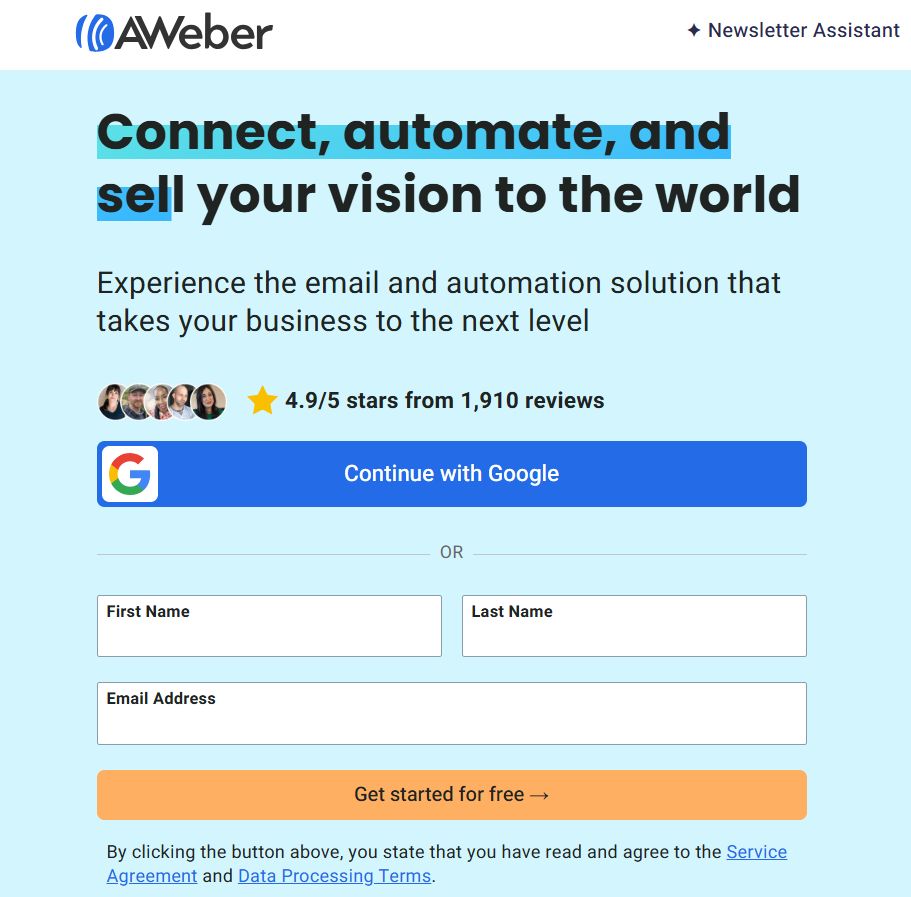
Go to the service’s website and register an account.
Choose a plan and click Start your 14-day trial.
You will be asked to provide personal information as well as your credit card details. Remember that the service offers a 14-day trial period. If you cancel your subscription before the trial ends, no money will be charged to your card.
Scroll down the page and click continue with Free to sign up for the free service.
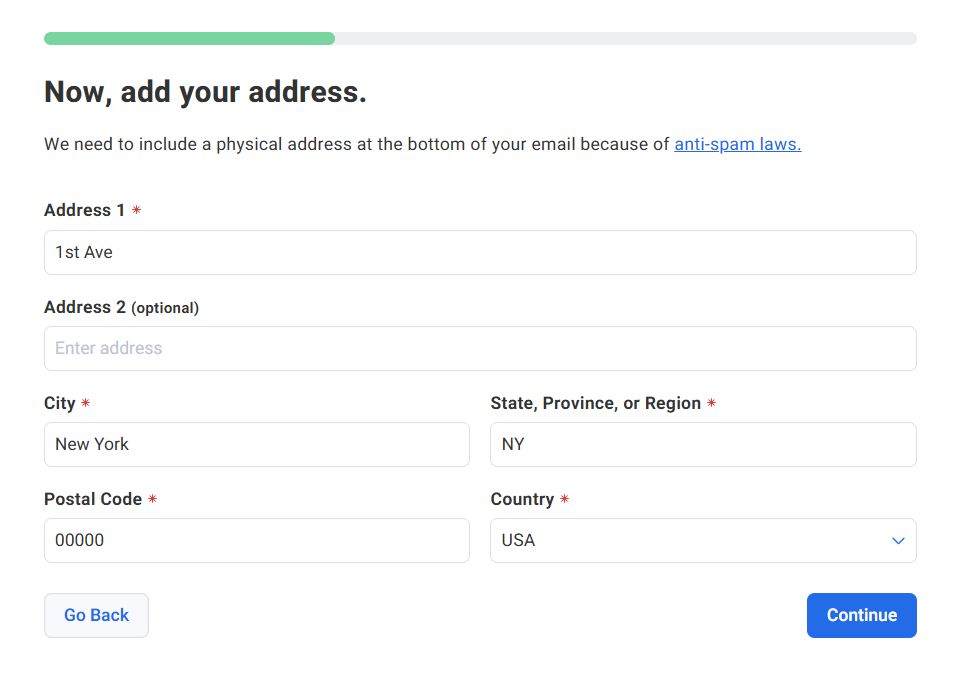
You will be asked for your company name, website, business area, address and so on. Your address will appear at the bottom of your emails. Enter a real address, as the law requires it, and it also increases the chance that your email will reach your customers and not get caught by spam filters.
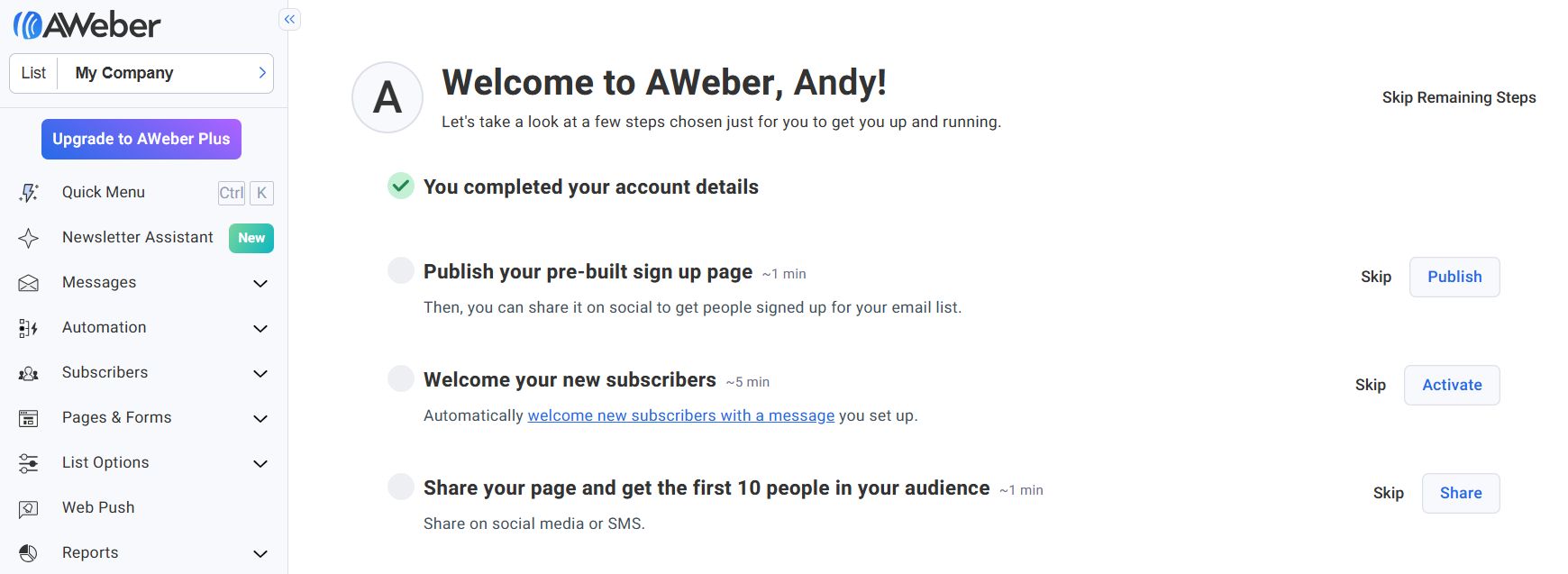
After setup, AWeber offers to create a landing page, set up a series of welcome emails, add existing subscribers and create emails using a simple drag-and-drop builder. You can do these steps right away or postpone them for later.
Creating a Mailing List
AWeber Free lets you create one mailing list. To set it up, choose List Options > List Settings in the AWeber dashboard.
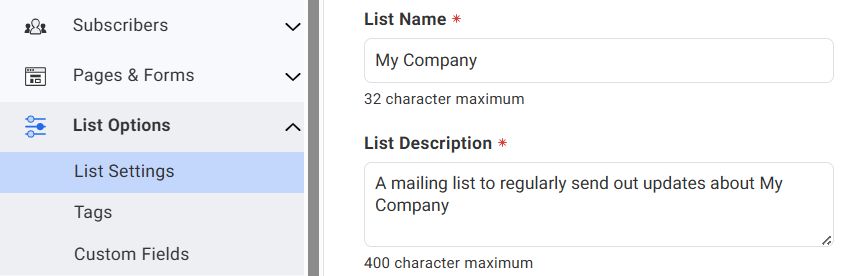
On the Basic Settings tab, enter the list details:
- The name of your list.
- A description of the list.
- The sender name that subscribers will see.
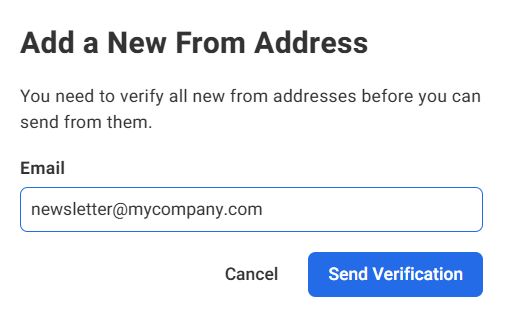
- The email address messages will be sent from. (You can choose the email address you registered with or add a new one by clicking Add New Email Address in the drop-down list).
 Your company’s address.
- Add one or more email addresses to receive notifications when a subscriber joins your list.
Click Save List Settings.
On the Personalize Your List tab you can add more details about your company, additional information you want to include in all your messages (for example, store opening hours, promo codes or event dates) and connect your social accounts.
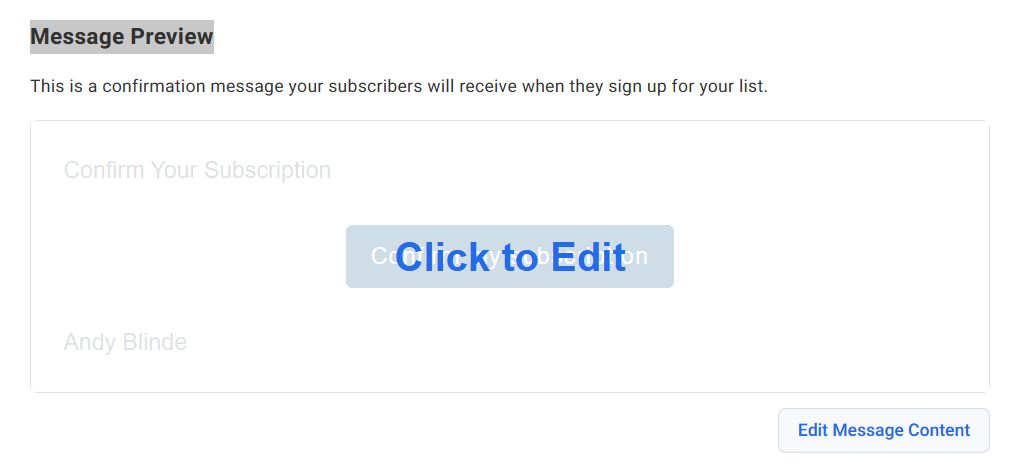
Finally, on the Confirmation Message tab, choose the language for the confirmation message and a theme for the confirmation email. This email is sent to your users to confirm their email address when they sign up for the mailing. AWeber will give you a list of ready-made themes. You can choose the one that suits you best. You can also create your own. However, in that case the service team has to review it to prevent possible spam. This can take up to one business day. In the Message Preview section, click the message preview to configure the text and design of the email.
Now you have successfully created an AWeber account and your first mailing list. Next we will show how to add an AWeber signup form to your site.
Adding AWeber Signup Forms
There are many ways to add an AWeber signup form to your site. There are default forms that you can copy and paste from your AWeber account. There are also highly optimized forms created with OptinMonster. These forms will give you many more signups. There are also very flexibly configurable forms that you can create with WPForms, the most beginner-friendly WordPress contact form plugin. We will show all these methods in this guide.
Standard AWeber Forms
AWeber offers simple tools for creating your own signup forms and embedding them on your site. Just go to the service’s website and click Pages & Forms > Sign Up Forms. Click Create a Sign Up Form and choose For My Website from the drop-down menu. A builder will appear with plenty of templates you can choose from to get started. You can edit the form simply by clicking it in the preview screen.
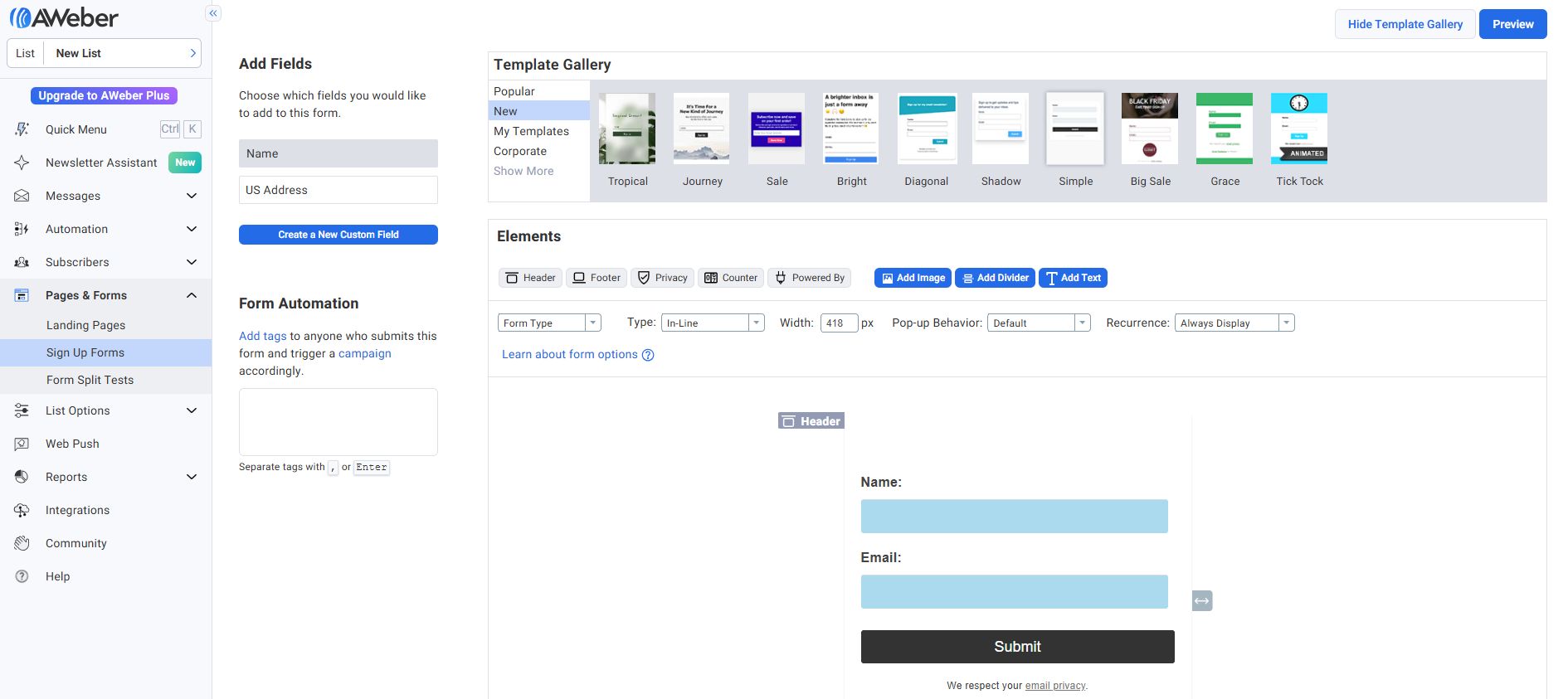
Once you are satisfied with the result, click the Save Your Form button and then Go To Step 2. You will land in the settings where you can choose the action that happens when users fill in the form. The best choice is to redirect them to a page on your site.
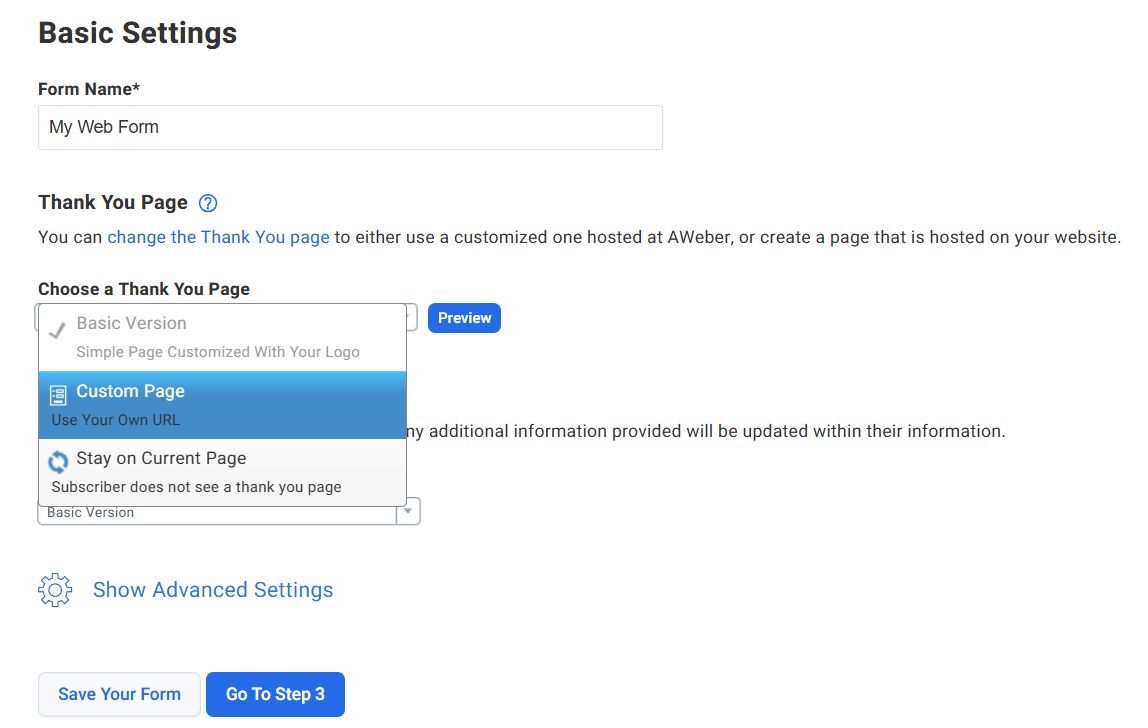
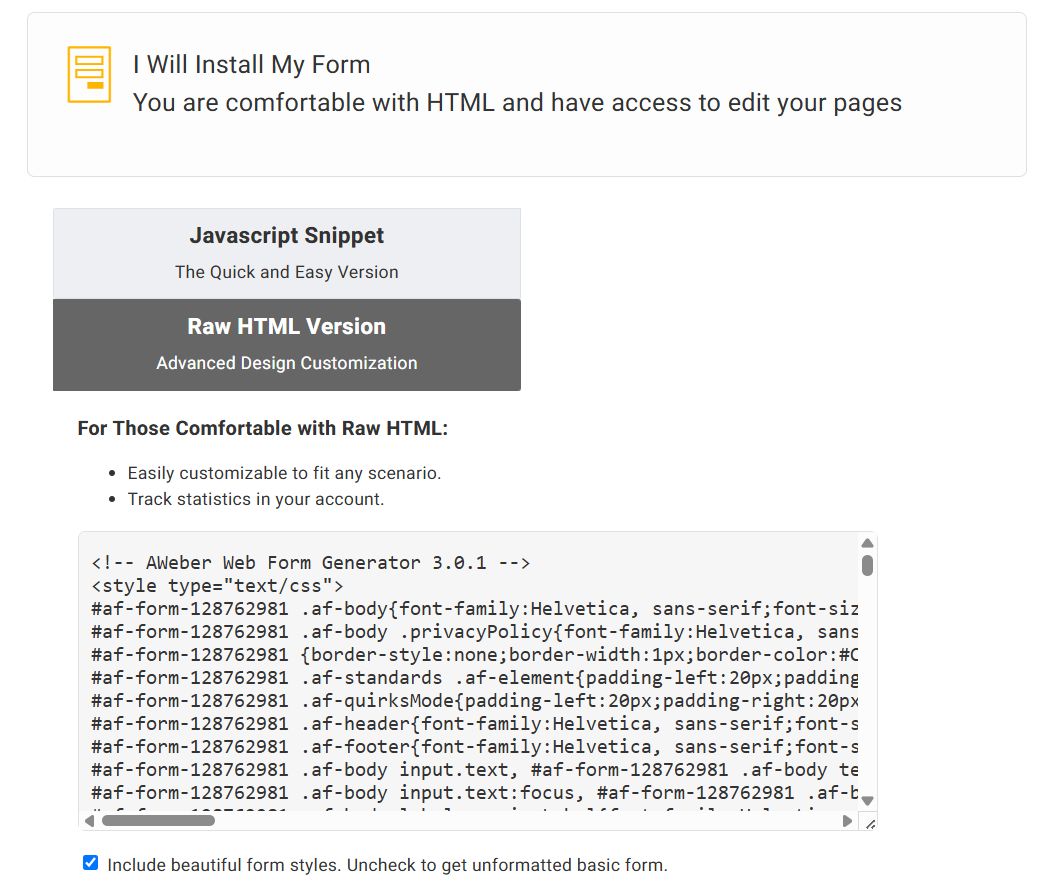
Then you can choose the action that happens if the user is already subscribed. Again, you can create a page on your site and redirect users there. Save the form and click the Go To Step 3 button. Click I Will Install My Form. AWeber will show you two sets of code that you can add to your site to display as a signup form. Click Raw HTML Version and copy the code.
Now you need to go to the admin area of your WordPress site and click Appearance > Widgets. From the list of available widgets, drag a text widget into the sidebar where you want to display your signup form.
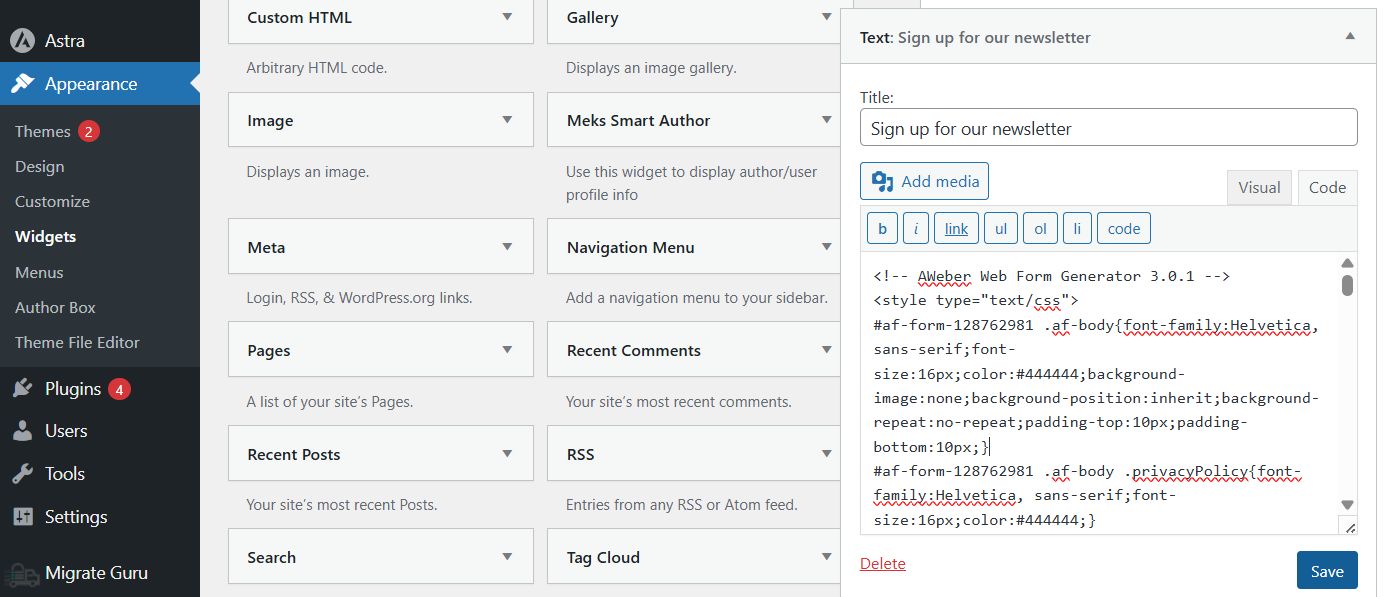
Paste the code you copied from AWeber into the widget’s text field and click the save button. That’s all; you can go to the site to see the form in action.
Adding AWeber Signup Forms with OptinMonster
As you have noticed, adding a simple AWeber signup form to WordPress is not that difficult. However, such forms are not ideal for high conversion rates. This is where OptinMonster comes in, which lets you create eye-catching and beautiful forms. The service offers plenty of features such as floating bars, sidebar forms, slide-ins and so on. The service works with all the popular mailing services, including AWeber.
To integrate OptinMonster with AWeber, go to the Integrations tab of your form in OptinMonster. Choose AWeber from the list of providers. Authorize the connection by logging in to your AWeber account. Choose your email list in AWeber where leads should be added.
Adding AWeber Signup Forms with WPForms
WPForms is the most beginner-friendly WordPress contact form plugin. It comes with an AWeber addon that lets you add AWeber to your site’s contact form or create a new form anywhere on your site.
Step One: Install the AWeber Addon
First you need to install and activate the WPForms Pro plugin (the AWeber integration is available only in the Pro version). After that, go to the WPForms > Addons page. Click the Install Addon button next to the AWeber Addon.
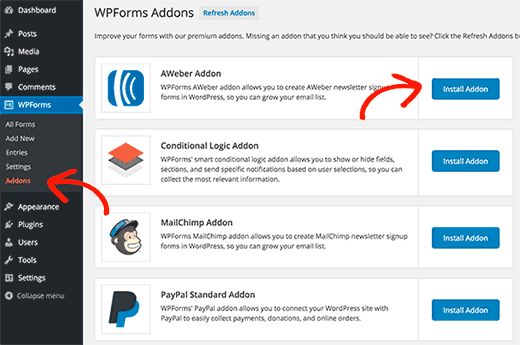
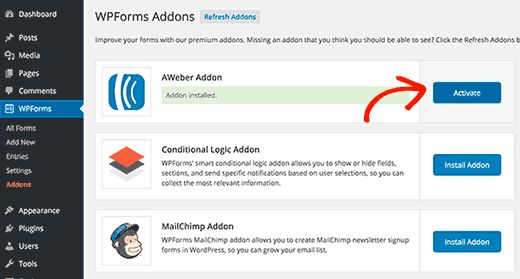
After that WPForms will install the addon and show you a success message. Then you need to click the Activate button to start using the addon.
Step Two: Connect WPForms to Your AWeber Account
Now that you have successfully installed the addon, the next step is to connect your site to your AWeber account. Go to the WPForms > Settings page and click the Integrations tab. There you will find the integration option. Click it and you will see an Add Accounts button, which will show two fields.
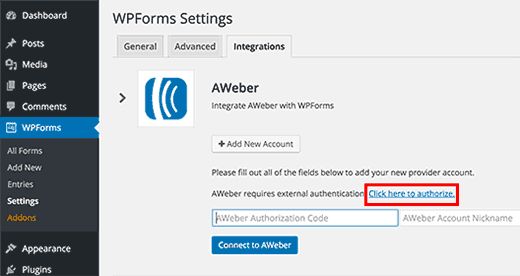
You will see a link called Click here to authorize. When you click this link, a window will open asking you to log in to your AWeber account.
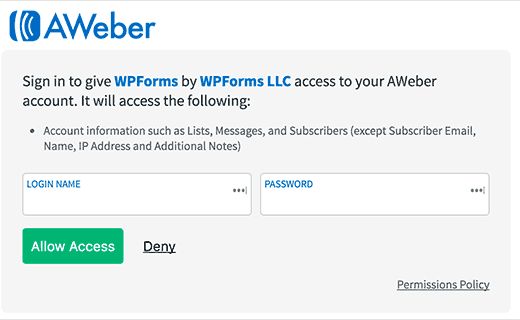
After entering your username and password, click the Allow Access button. AWeber will verify your details and give you an authorization code.
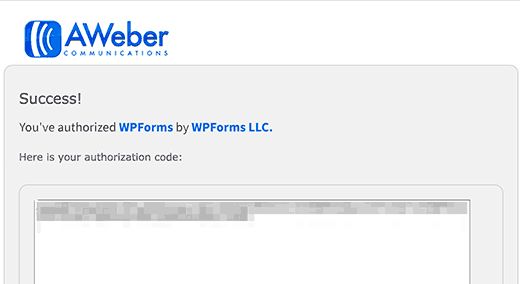
Copy and paste it into the WPForms settings page. You can use anything in the Account Nickname field. Then click the Connect to AWeber button to continue. The plugin will connect you to your account and you will see the Connected status next to your AWeber integration.
Step Three: Create AWeber Signup Forms with WPForms
Go to WPForms > Add New to create a new form. The plugin offers plenty of templates for creating the most common forms. One of the templates is called Newsletter Signup Form.
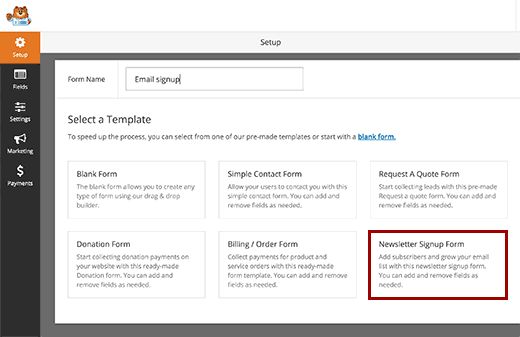
Clicking it opens the form builder, where you can edit the template, removing or adding fields, changing their order, descriptions and so on.
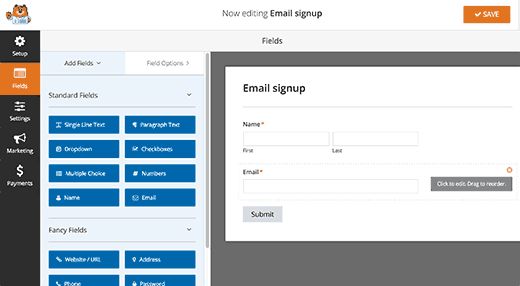
Once you are happy with your form, click the Marketing tab and click AWeber. You need to click the Add New Connection button.
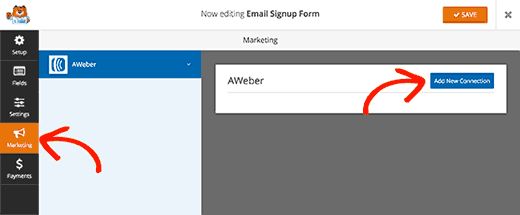
You will be asked to specify a name for the connection. You can use any name you like. The plugin will now collect information about your AWeber account. You will need to choose your AWeber account and the email list you want to use. After that you need to choose the fields that will be in your form.
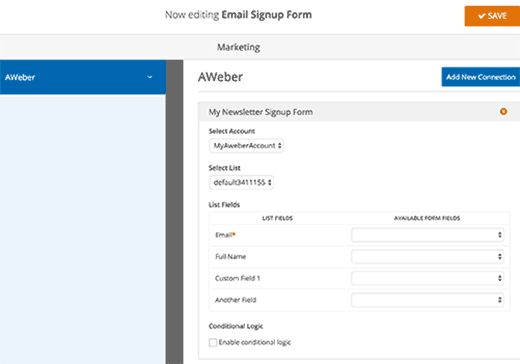
Do not forget to click the save button. Now you can exit the builder.
Step Four: Embedding the Form in WordPress
There are many ways to add an AWeber form. WPForms lets you add forms to any post, page or widget using a shortcode. You can find the shortcode by going to the WPForms > All Forms page.
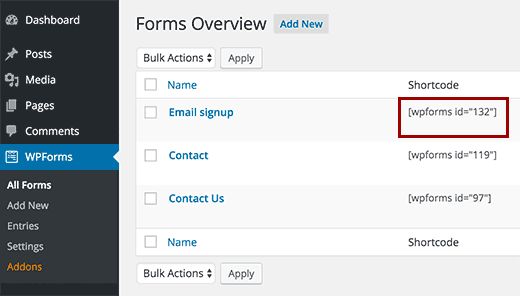
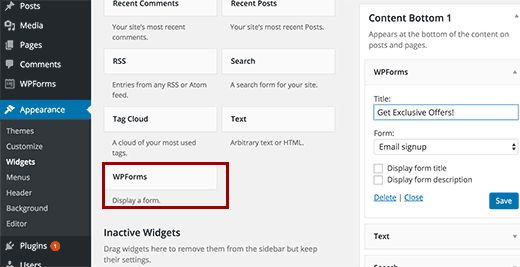
You can also use the WPForms widget to embed the form in the sidebar. Go to the Appearance > Widgets page. Under the list of available widgets you will find the WPForms widget. Add it to the sidebar where you want the signup form to appear.
Send WordPress Posts to Your AWeber List
AWeber makes it very easy to send your WordPress posts to your subscribers. Here is how to set it up. Just go to the AWeber settings panel and click Automations > Campaigns.
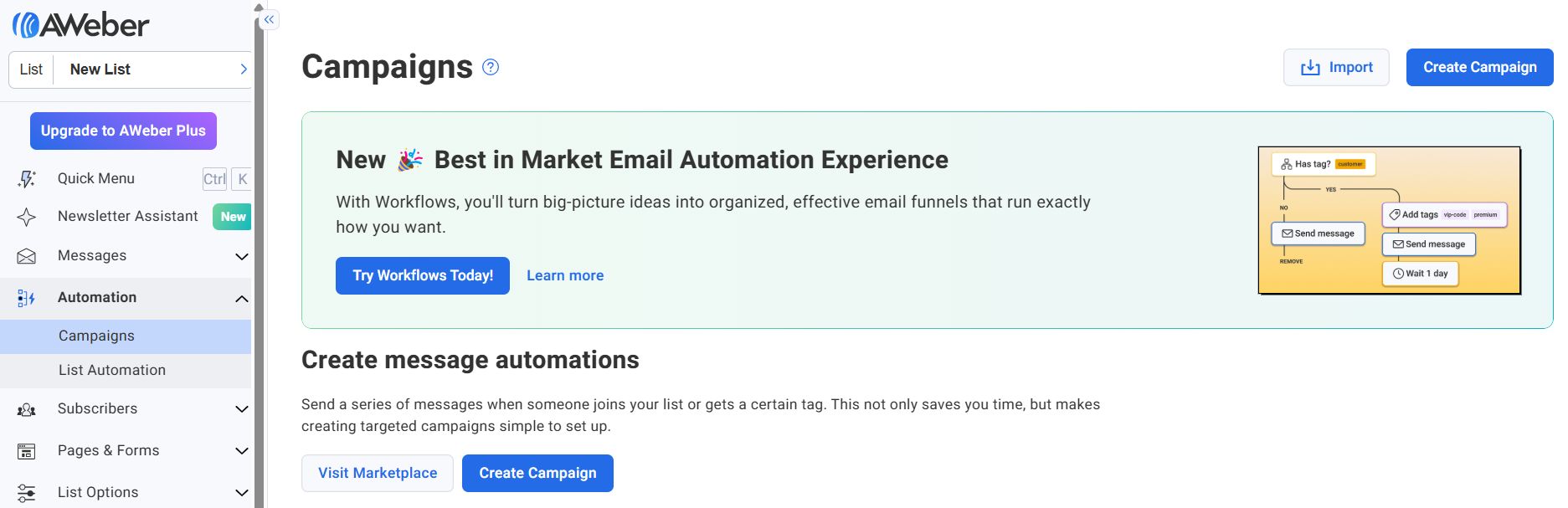
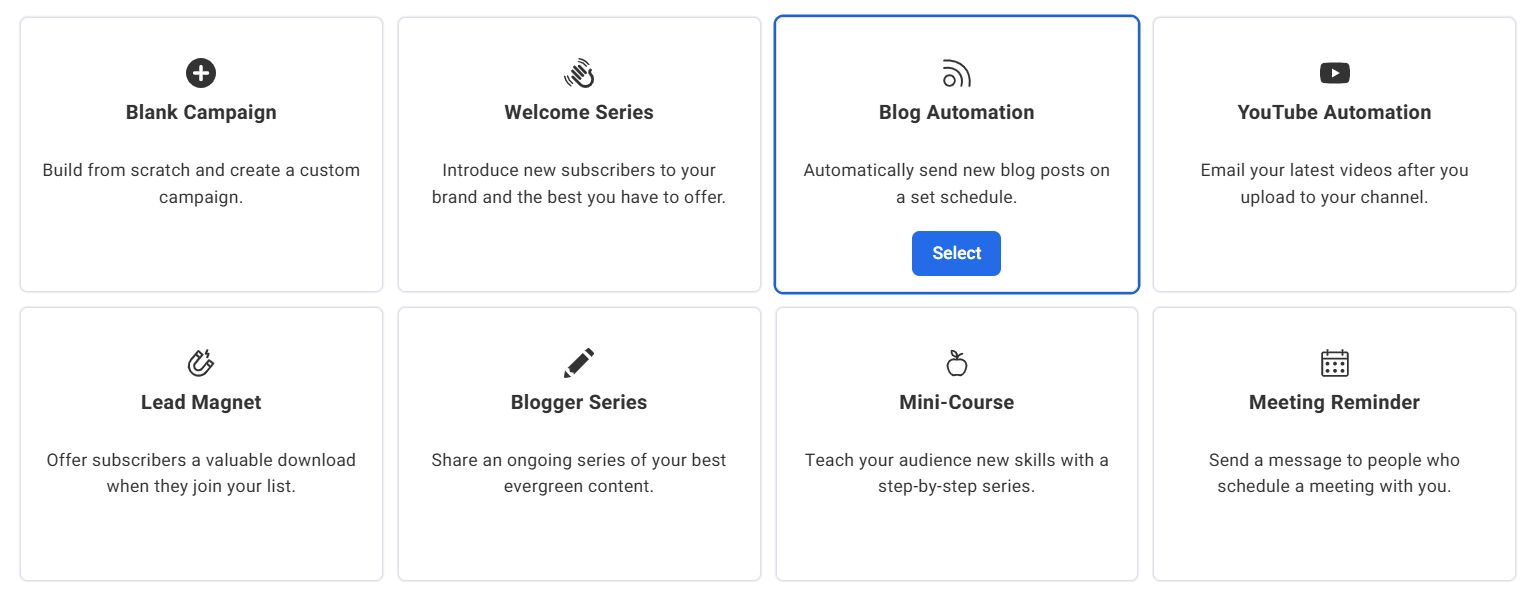
Click Create a Campaign and choose Blog Automation as the campaign type.
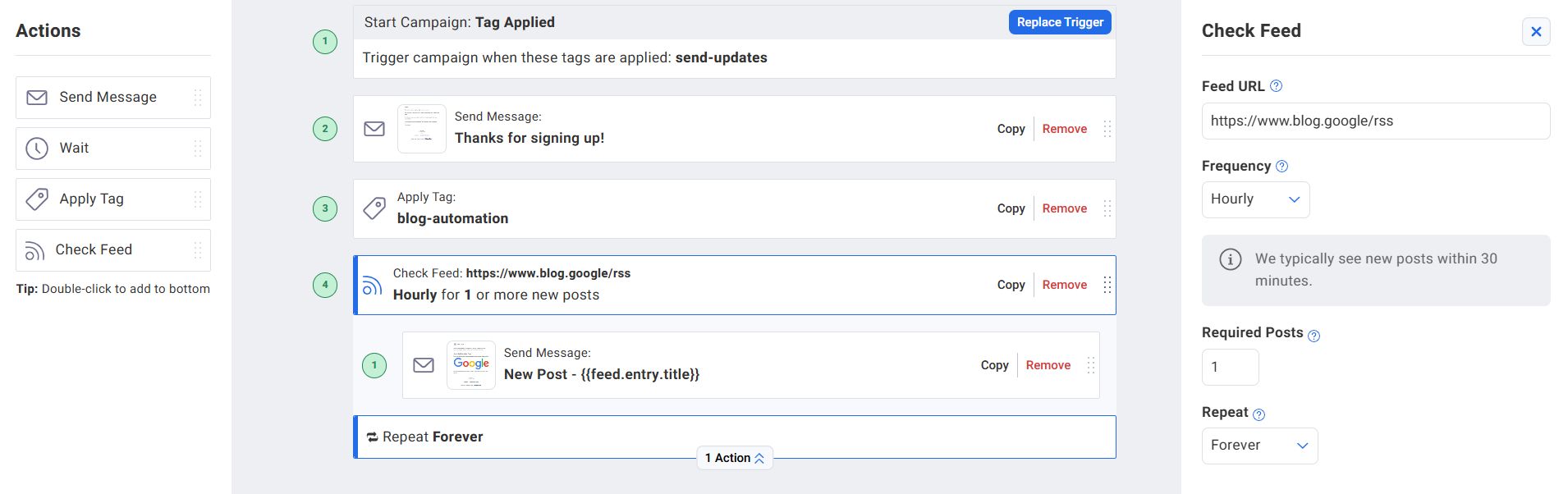
Click the created campaign, choose the Check Feed action and specify the RSS feed address of your site. Set how often the feed is checked (for example, every hour, daily).
Click the message preview to configure the template.
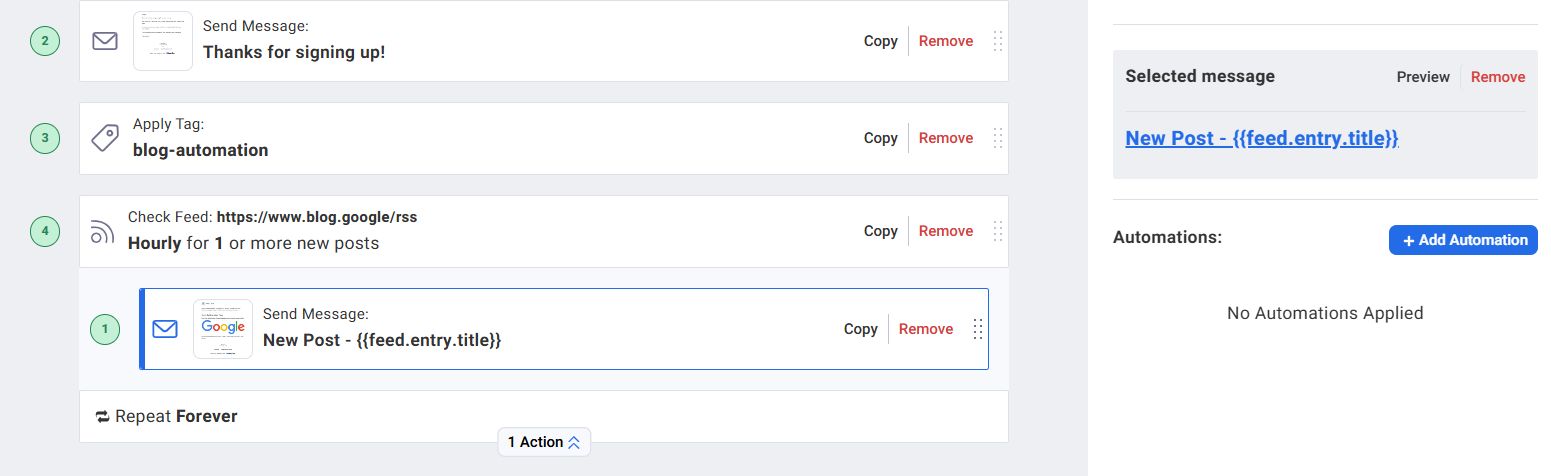
Click Save & Exit to return to your campaign.
When you are done, simply publish your campaign by clicking the Publish button at the very top. That’s all; AWeber will now automatically send new blog posts to the users of your email list.
Our specialization is WordPress website development and maintenance. Contact us for a free consultation — [email protected], +371 29394520
