How to Use FTP to Upload Files to WordPress
File Transfer Protocol (FTP) lets you move files quickly and easily from one computer to another over the internet. In other words, it is how you send a file from your computer to your web hosting server. In this article we will show you how to use FTP to upload themes, plugins and files to WordPress. We will also show you how to change the permissions of individual files. In this guide we will use FileZilla, a free client available for Windows, Mac OS and Linux. Just download it from the FileZilla website.
Why Is Knowing FTP So Important?
Sometimes you install and activate a plugin from the admin panel and then find out that it is incompatible with an existing plugin. Incompatibility often leads to the white screen of death, and the site locks up and does not let you do anything. If you know how to use FTP, you can simply log in and delete the plugin over an FTP connection.
Often, when you try to paste code from tutorials into the functions.php file, you can accidentally lock yourself out of your site. This can happen if you paste the code in the wrong place or if the code contained errors. Knowing FTP lets you fix such problems in a matter of minutes.
Sometimes you will run into an access error when activating a plugin. The error will say that the plugin cannot create the folder XYZ because of file permissions.
Also, being able to use FTP is a step forward, from beginner to professional. It can save you a lot of time.
Setting Up FTP and Connecting to Your Site
Find your FTP details in your hosting control panel (for example, in cPanel).
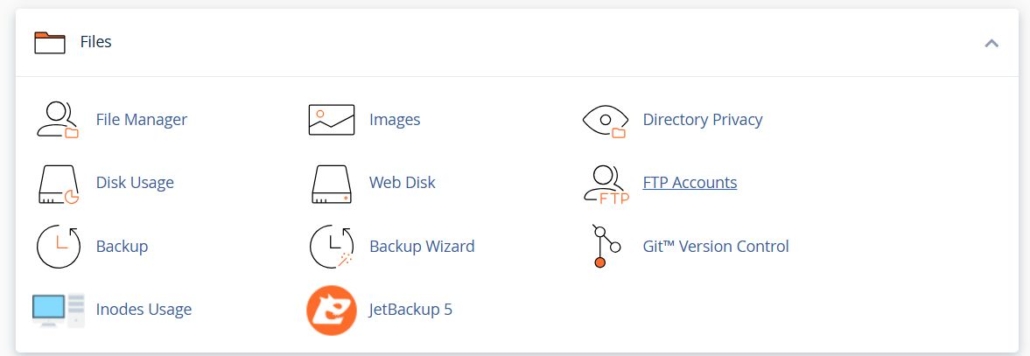
Go to the FTP Accounts section and click Configure FTP Client next to your account, which will show your connection details.
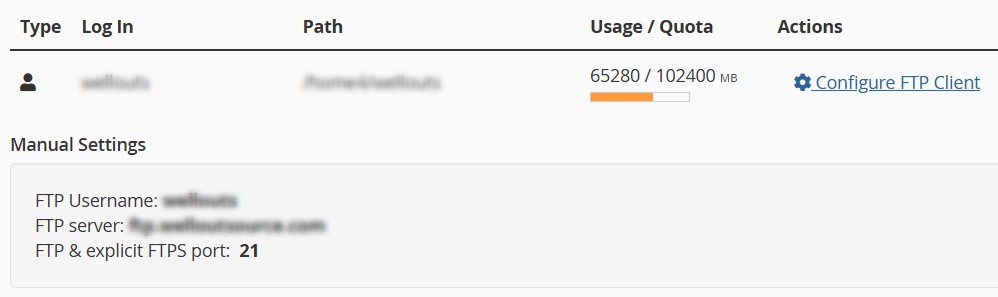
Click Change password to change the password.
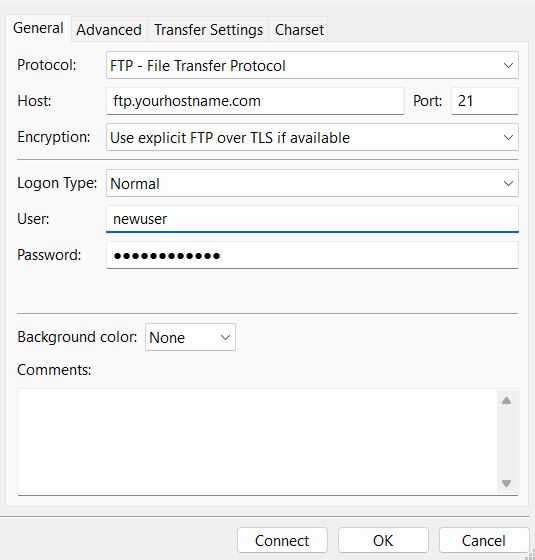
Then open FileZilla and choose File > Site Manager.
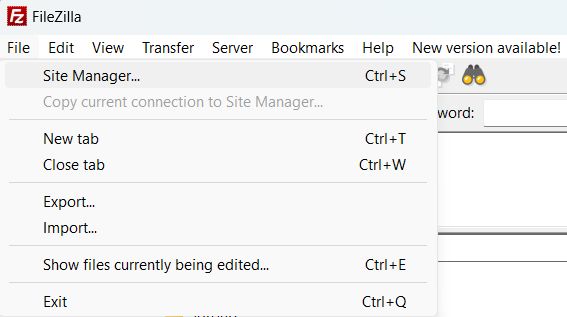
Create a new connection by clicking New Site, enter your site’s host and the connection details, and then connect by clicking the Connect button.
Working with WordPress Files over FTP
Once connected, you will see two panes: local files on the left and remote files on the right. The core WordPress files are located in the root of your site, usually “public_html”.
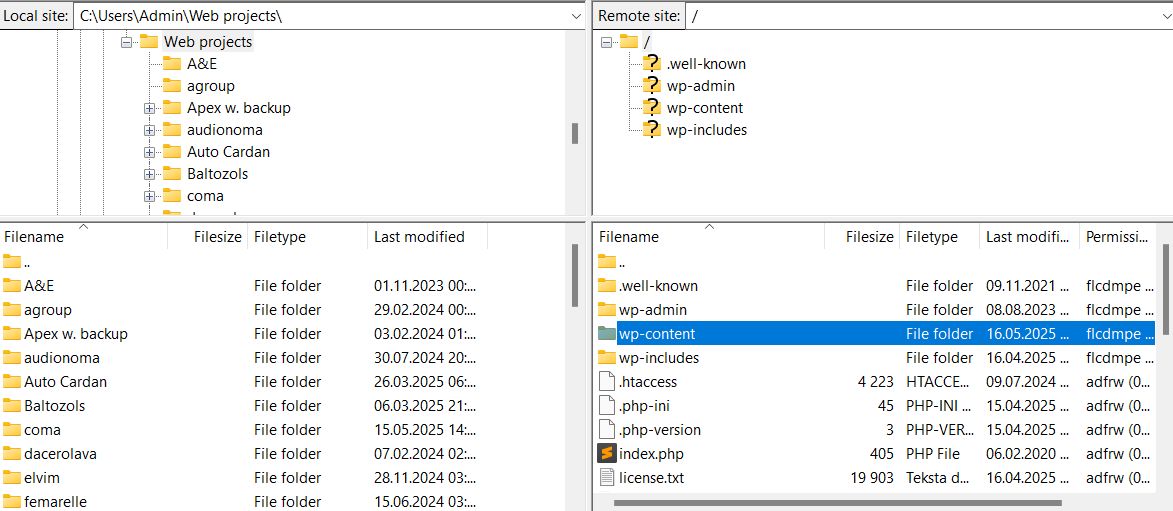
Directory structure:
- wp-admin – administration files (usually not edited).
- wp-includes – core WordPress files (should not be changed).
- wp-content – the directory with themes, plugins and uploaded media files.
To edit files, we recommend using a text editor such as Notepad++ or Atom. To edit a file, right-click the file you need (for example, functions.php) and choose View/Edit from the menu.
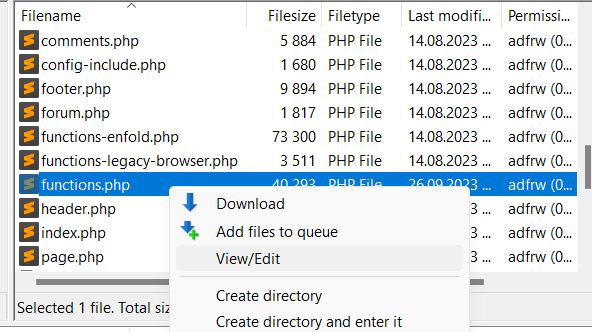
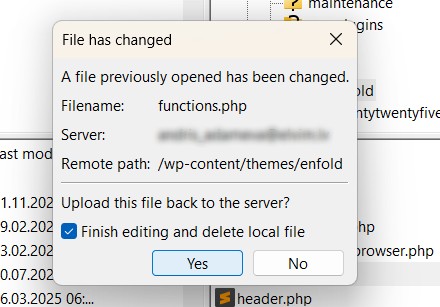
The file will open in your default editor for that file type. Edit it in your editor and save it. FileZilla will ask whether to upload the file back to the server; confirm by clicking Yes in the dialog box. When you have finished editing the file, you can delete the local copy by checking Finish editing and delete local file.
Installing a Theme via FTP
Make sure you have the theme ready as an unzipped folder. Open FileZilla and go to the wp-content/themes directory. Drag the theme folder from the local pane to the remote one. After that, activate the theme from the WordPress dashboard.
Installing Plugins via FTP
Installing plugins is similar to installing themes: make sure the plugin is unzipped. Go to wp-content/plugins. Drag the plugin folder from the local pane to the remote one. Activate the plugin in the WordPress admin panel.
Uploading and Downloading Media Files
To upload media files, go to wp-content/uploads. To upload, just drag the files from the local pane to the remote one. To download, do the opposite.
Changing File Permissions
You may need to change the permissions of files and folders in WordPress to keep the site secure, to make media uploads work correctly, to install and update plugins or themes, and to fix access errors when the server or WordPress cannot read, write or execute the necessary files because of incorrect permissions.
Right-click the file or folder whose permissions you want to change. Choose File permissions…
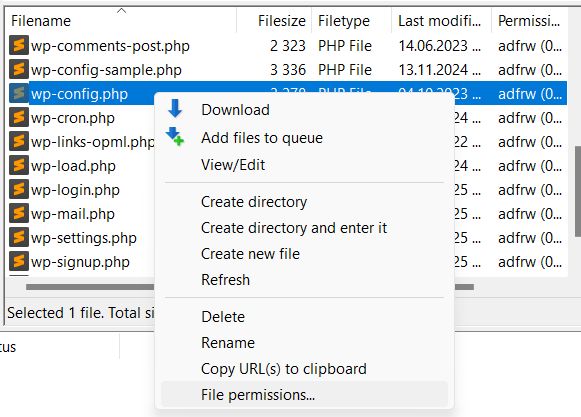
In the pop-up window you will see a field with a numeric value. You can also use the checkboxes.
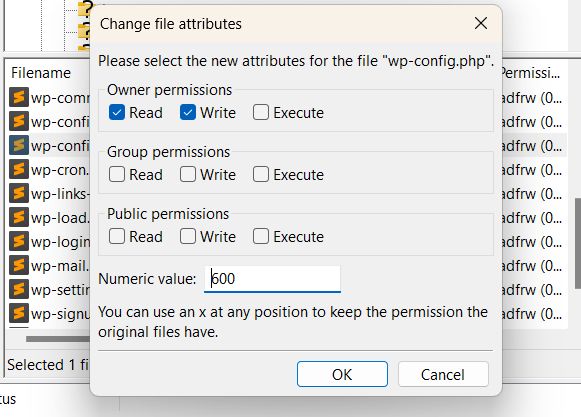
Use the right values depending on what you are editing. The recommended numeric permission values are:
- Files – Read and Write for the owner – 644
- Folders – Read, Write, Execute for the owner – 755
- wp-config.php – a more restrictive 600 or 640
For folders you can apply the changes to subdirectories. For folders you will see the “Recurse into subdirectories” option: choose Apply to all files and directories to apply to everything, or choose Apply to files only / Apply to directories only depending on your needs. Click OK to apply.
⚠️ Important: do not set folders or files to 777 unless it is absolutely necessary — it is a security risk.
If your site broke after you changed permissions, reset them to the standard values:
- Files: 644
- Folders: 755
Conclusion
Using FTP is a powerful way to manage your WordPress site. Now you know how to install themes and plugins and how to edit files using FTP.
Finally, to reinforce what you have learned, watch the video:
If you are looking for other FTP clients, here is a list of some quite good ones:
Cyberduck (all platforms)
WS_FTP Professional (Windows only)
WinSCP (Windows only)
Our specialization is WordPress website development and maintenance. Contact us for a free consultation — [email protected], +371 29394520
