[](https://coma.lv/wp-content/uploads/2025/09/Gemini_Generated_Image_6emha56emha56emh.webp)
# How to Add Event Tracking in Google Analytics
Sep 1, 2025/by [Vadim Pavlovich](https://coma.lv/en/author/djcoma/)
Would you like to track user activity while they are still on your site? You can track page views, referral sources, the time a user spends on a page and much more simply by installing Google Analytics, but for deeper results you will need event tracking. In this article we will show you how to add Google Analytics event tracking in WordPress.
## What Is Event Tracking
Event tracking lets you measure user actions on your site. These actions can be clicks on buttons, video plays, file downloads, form submissions and so on. Say you added a video to a product page and want to find out how effective it is in terms of conversion. Event tracking lets you find out how many users played the video. Another example is AJAX-based form submissions. If you use Gravity Forms or another contact plugin, submitting a form does not turn into a new page view. Using event tracking, you can see how users interacted with the form. The same applies to file downloads: you can track how many users downloaded a file using event tracking, and even which button on the page was clicked most often. Event tracking differs from link tracking in Google Analytics. All of this lets you see how people behave on your site. This in turn lets you choose the right strategy for sales and conversions based on user preferences.
## Getting Started
Before you start, you will need to set up and install Google Analytics on your site.
**Important:** In 2023 Google fully shut down **Universal Analytics** and moved all users to **Google Analytics 4 (GA4)**. The old analytics.js code no longer works.
If your site’s code still contains something like:
— this is **outdated Universal Analytics code**, and it no longer collects data.
Instead, **Google Analytics 4** is now used on all sites. You can install the code directly or through Google Tag Manager.
Example of the basic GA4 code:
## Creating Your Own Event in Google Analytics
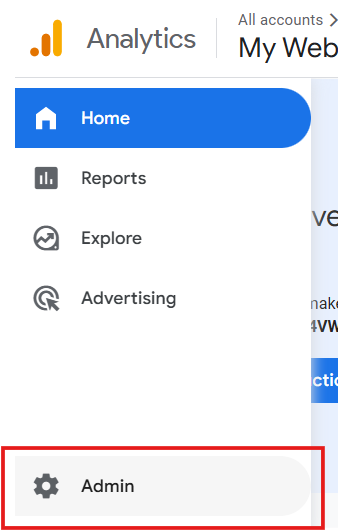
Go to your GA4 profile and click the **Admin** link at the bottom of the left panel. If you have several sites, make sure you are viewing the dashboard of the site you need.
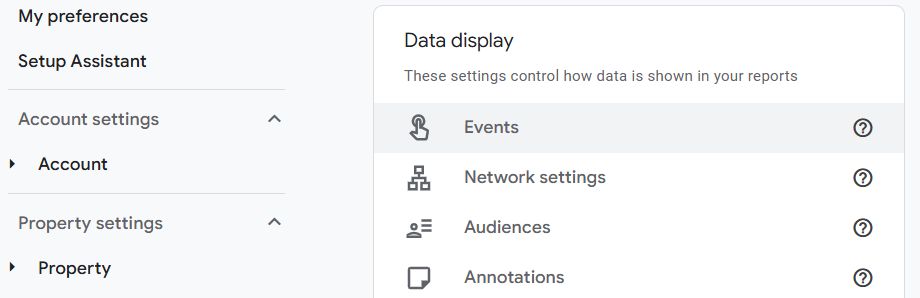
In the **Data display** section choose **Events**. Here you can create your own events or edit existing ones.
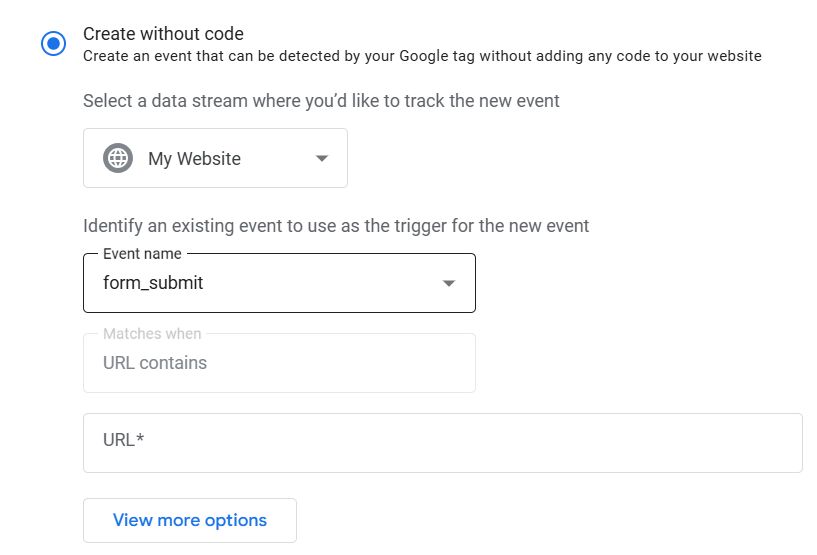
Click the **Create Event** button and set the conditions for the new event. For example, if you want to track a form submission, enter the event name *form_submit* and specify the parameters that will be used to track this action on the site.
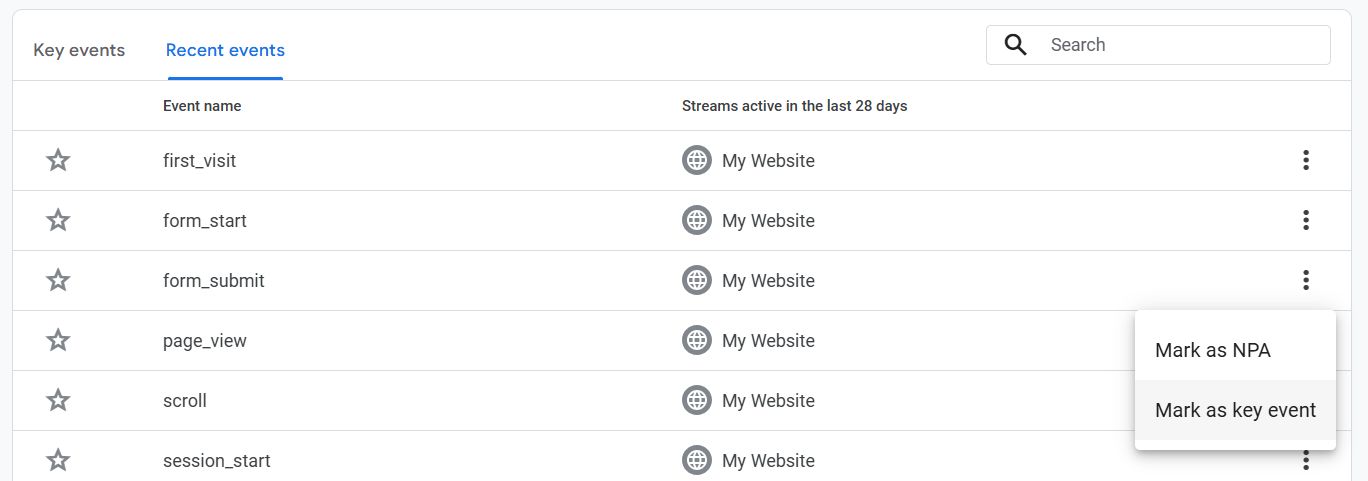
After the event is created and has been recorded at least once, it will appear in the **Events** section on the **Recent events** tab. Here you can mark it as a **Key Event** (this is what used to be called a *conversion*). After that the event will be shown on a separate **Key events** tab. If necessary, you can also mark the event as **NPA (Non-Personalized Ads)** so that it is not used for ad personalization.
## Adding onClick Event Tracking
The simplest and perhaps fastest way to add Google Analytics event tracking is to use the onClick attribute. This method simply sends an event to Google Analytics when a user clicks an element. In this example we will track users who click a book download link. We will add an onClick parameter to the download link using this format.
onClick="gtag('event', 'download', { content_type: 'ebook', content_title: 'Free Ebook' });"
You will need to replace the type, name and label with those that match the conditions of your event. In the end the book download link will look like this:
Download Free Ebook
When a user clicks the link, an event will be sent to Google Analytics.
**Important:** in WordPress, some themes, plugins or security settings may block inline onClick. To reliably track such clicks and avoid problems with blocking of inline onClick, you can use**Google Tag Manager**, which we will cover next.
## Adding Event Tracking with Google Tag Manager
[Google Tag Manager](https://tagmanager.google.com/) is an online tool that lets you add various tracking codes as tags. You can use it to create tags for tracking events in your Google Analytics profile. The main advantage of using Google Tag Manager is that you will not need to add code to your site manually and you can manage all your tags from one place.
*If your site already has the GA4 tracking code inserted, you do not have to remove it, but keep in mind that the same events may be duplicated.
Once you have successfully added the Google Analytics tag to the tag manager, the next step is to create a new trigger. In this article we will use form submission tracking as the event. Click **Triggers** in the tag manager and then click the **New** button.

You will land in the setup wizard, where you need to choose the event type — for example, **Form Submission**.
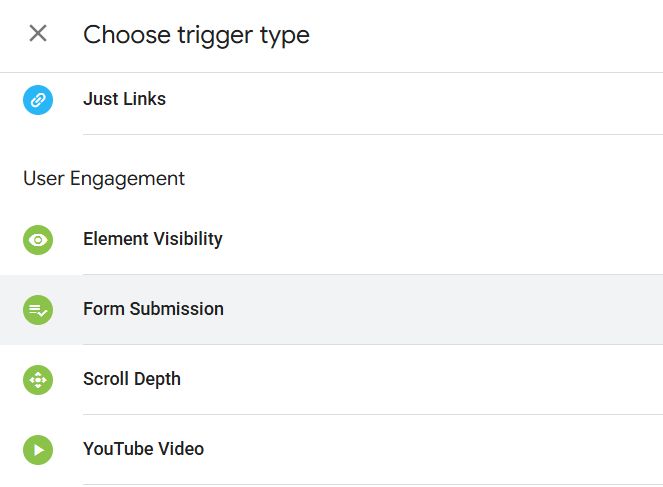
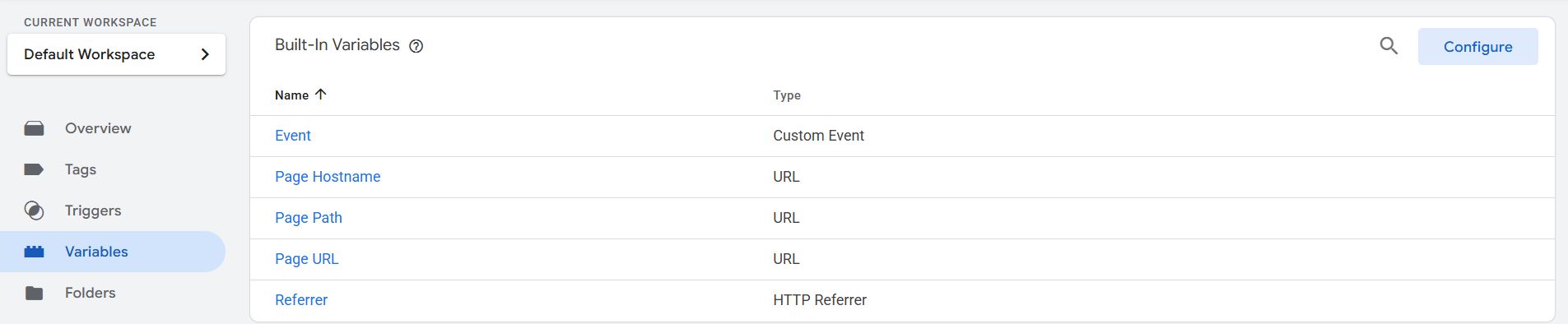
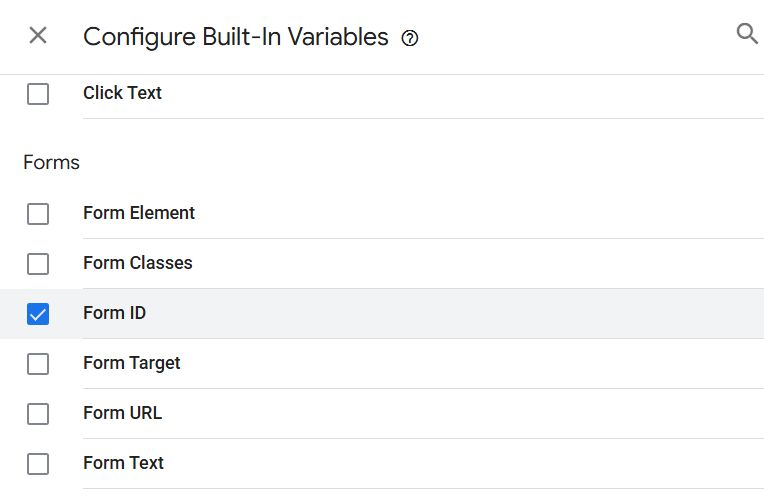
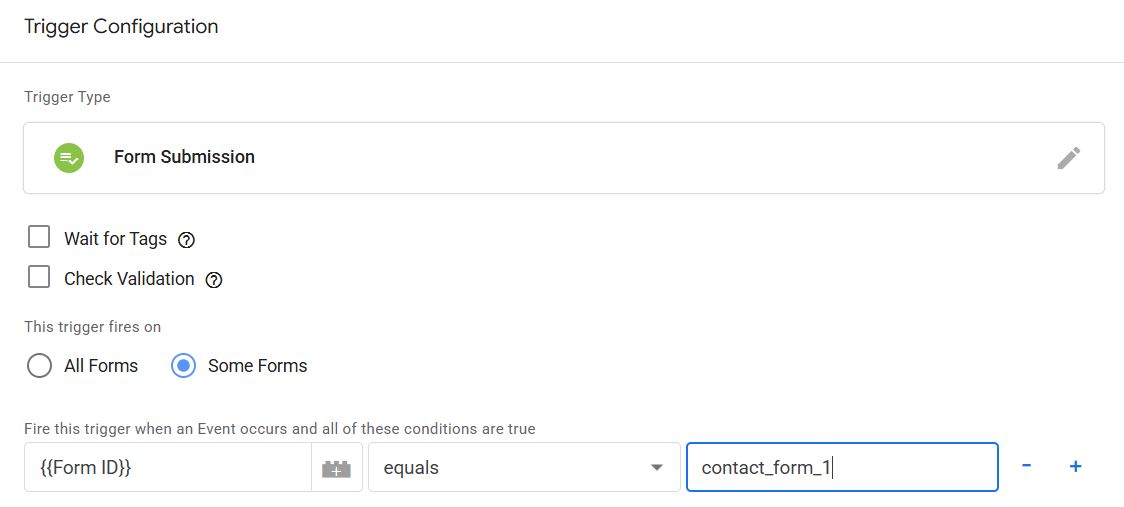
In the trigger settings you can choose whether to fire it for all forms or only for some. If you have more than one form on the page and want to track a specific one, set up a filter by form ID or class. To do this, in the **Variables** section click **Configure** and enable the built-in variables **Form ID**and/or **Form Classes**(and, if necessary, other form variables). In the trigger condition use, for example, *Form ID equals contact_form_1* or *Form Classes contains newsletter-form*, so that the tag fires only for the form you need.
*Note:* for forms that use AJAX, the standard Form Submission trigger often does not fire. In such cases you can use **Custom Event** for accurate tracking of a specific form. For ordinary forms, you can select a specific form by the ID or class of the